
Numerous users have a desire to convert MSG to PST file to access their email messages in Outlook. But they don’t know how to do this. If you are one of those, don’t worry anymore. This blog post explains several techniques to combine MSG files to PST in bulk. So, stick to this article till the end to know more.
Why Convert MSG to PST File?
Users prefer to import MSG to PST for several reasons:
- Combine multiple MSG files into one PST file: MSG files are single email message files. Combining them into a single file will give you integrated access.
- Easy email management in Outlook: PST file is the most usable and supportive file format of Outlook. Once you convert it into PST file format, you can easily import MSG files into Outlook.
- Create a single backup file: PST file is a single format that consists of multiple email accounts’ data all in one place.
- Access emails offline: PST file also serve as a backup file format to access all your email data offline.
- Better organization with folders: In PST, you will get all your email folders and data organised at once place.
Above, we have explored the various benefits of convert MSG files into PST format. Now, it’s time to understand all the available methods to export .msg to pst file.
In the upcoming sections, we have mentioned three tried and tested ways for MSG to PST file conversion. It includes some traditional approaches as well as one professional method. First, we will start with manual methods so that you can try the free option. But before trying the manual method, take a backup of your data because no manual method is fully secure.
How to Export MSG File to PST Format Manually?
This is the most common free manual method if Outlook is installed.
#1. Convert MSG to PST File using Drag & Drop
- Open the Outlook application on your system.
- Now, click on the New Folder option to create a new folder.
- Then, go to the location where MSG files are saved.
- Drag and drop the folder that contains MSG files into the newly created folder.
- After that, navigate to File >> Open & Export >> Import/Export.
- Select Export to a file and click on the Next button.
- Choose the Outlook data file (.pst) and press Next.
- Now, select newely created folder and hit Next.
- Browse to the location to save the resultant file and click on the Finish button.
Now, your MSG files are converted into PST format.
Note: This method is often used when users want to convert MSG to PST free.
#2. Export MSG File to PST via Copy and Paste Method
- Open the Outlook email client on your system.
- Create a new folder in Outlook using the New Folder option.
- Now, go to the location where MSG files are saved.
- Select all MSG files and press Ctrl + C.
- Paste all MSG files in newly created folder in Outlook.
- After that, export this folder into PST format using the Import/Export option.
Hence, you can convert MSG files to PST format with the copy-paste technique.
Loopholes of the Manual Approach
You can manually export MSG files to PST format, but some limitations are given here-
- Outlook must be installed on your system.
- There are higher chance of data loss during the process.
- If you have a large number of MSG files, then it takes a lot of time to complete the process.
How to Combine MSG Files to PST in Bulk?
Xtraxtor MSG Converter is a secure and reliable solution to convert MSG to PST file format. The software is programmed with a simple graphical user interface that makes the conversion process easy for all types of users. It is a completely safe and secure solution that does not lose a single bit of data during the process. It can convert multiple MSG file to PST at once.
The tool can also convert MSG to MBOX, PDF, EML, TXT, HTML, and 10+ formats. The tool has various advanced filters that enable you to convert selected MSG emails according to your needs.
Download the free version and convert MSG to PST for free.
Note: The trial version only allows you to convert 10 email messages into PST file. To do more, you need to upgrade to the licensed version.


Steps to Convert MSG to PST File with Complete Data
- Launch this software on your system.
- Now, click on Open >> Email Data Files >> MSG Files >> Choose Files or Folder.
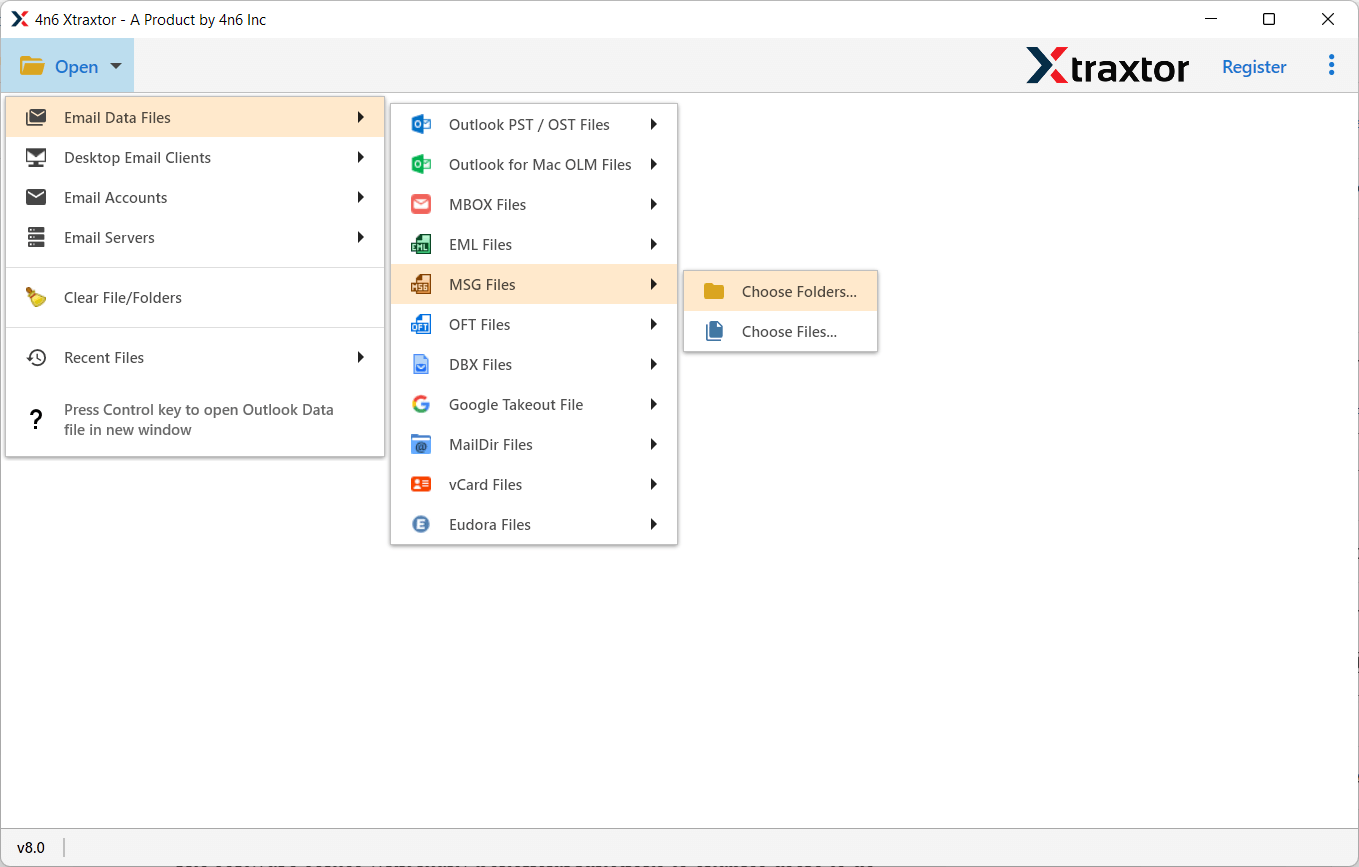
- Add a folder from your device to the software that contains MSG files.
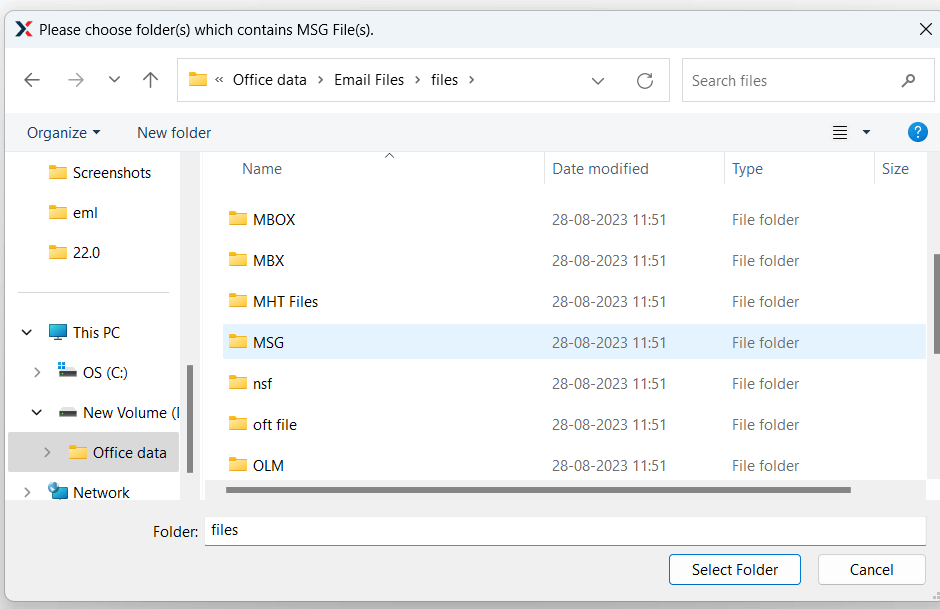
- The software provides a preview of emails from MSG folder in the software interface.
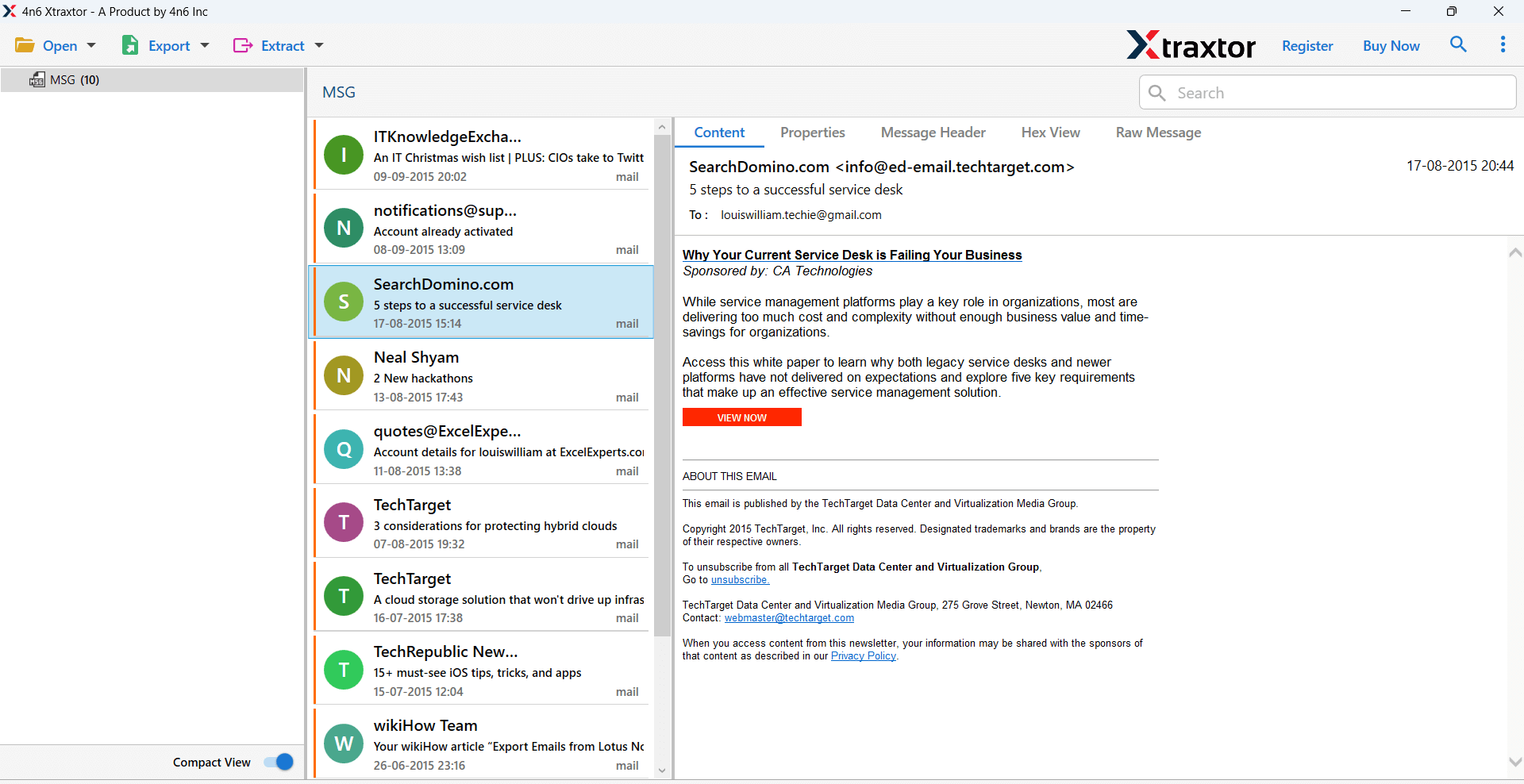
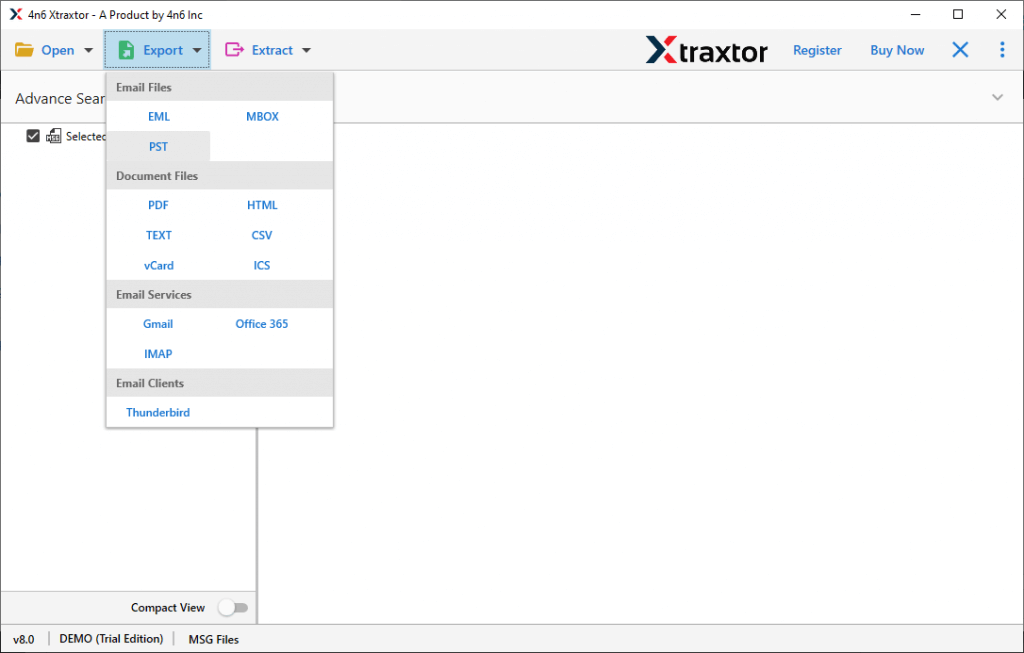
- After that, click on Export and choose PST from the given list.
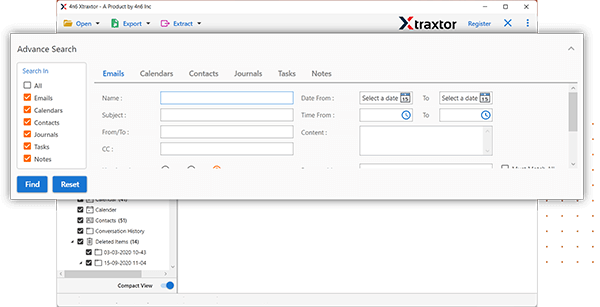
- Apply Filters to convert selected emails from MSG files to PST.
- Click on Browse to select the destination location and then press the Save button.
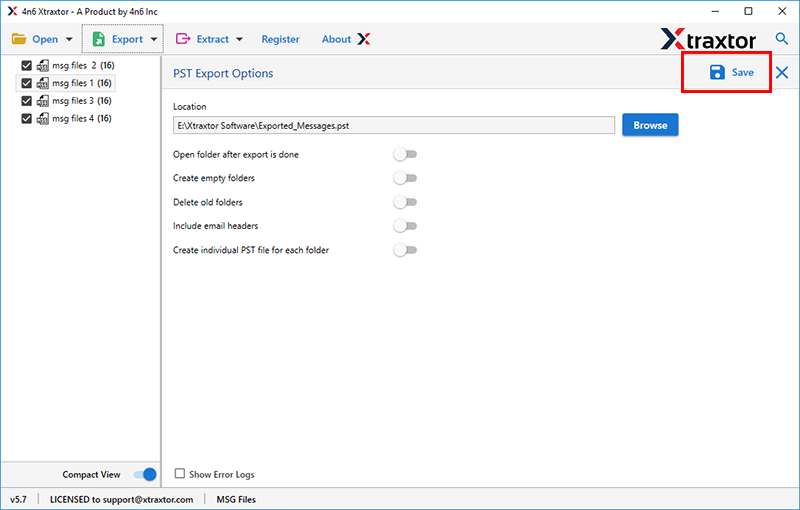
Within minutes, all MSG ufiles are merged into a single PST file.
Key Features of the Best MSG to PST Converter Software
The software has many advanced features that make it different from other tools. Some of them are given here-
- It is an independable tool that can directly convert MSG to PST file format in a few simple clicks.
- The software offers the preview option to view and select email before starting the conversion.
- The tool provides various advanced filter options such as to, from, subject, date, etc. for specific conversions.
- It allows users to convert multiple MSG files to PST at once without any data loss.
- With this utility, you can also convert MSG to PDF, MBOX, EML, TXT, etc. rather than PST.
- It preserves the on-disk folder structure of MSG files during conversion.
- The tool enables you to save the resultant file at your desired location.
- Using this tool, you can directly import MSG to Gmail, Office 365, Yahoo Mail, and many more email accounts.
- The simple interface helps users easily complete MSG to PST conversion without any issues.
- It supports all the latest and old versions of Windows operating systems.
Conclusion
In this blog, we explained how to convert MSG to PST file using three different techniques. Manual methods are useful if you have only a few MSG files, but they are slow and risky for large amounts of data.
If you want a fast, secure, and error-free way to combine MSG files to PST, an automated tool is the most reliable option.
