
Legacy Outlook for Mac is ending? Yes, you heard it right. Microsoft has officially confirmed that support for Legacy Outlook for Mac will be discontinued by the end of October 2026; that’s why many users are looking to switch to the new Outlook experience.
For many individuals and businesses, this announcement is more than just an update. Legacy Outlook for Mac has been in use for years, and the idea of moving emails, contacts, and other mailbox data to a new platform can feel confusing and risky. Data migration, compatibility issues, and long-term access to emails are some of the major concerns users are now facing.
That’s why we’ve prepared this detailed guide to answer all the common questions related to the end of Legacy Outlook for Mac.
In this article, we’ll explain what this change really means, the risks of waiting until the last moment, the options available to you, and how you can safely move or back up your Outlook for Mac data before Microsoft officially ends support. Planning is the best way to avoid data loss and future access issues.
So, let’s get started.
Why Legacy Outlook for Mac Is Ending and What It Means?
Microsoft is ending support for Legacy Outlook for Mac because it is built on old technology. This older system is harder to maintain. It also makes security updates and new features difficult to deliver.
By ending the legacy version, Microsoft can release updates faster. It can fix issues more easily. It can also provide a more secure email experience for Mac users.
What does this mean for users?
After the support ends in 2026, Microsoft will stop providing:
- Security updates
- Bug fixes
- Technical support
Legacy Outlook for Mac will still open. But it will no longer be safe to use. Security risks may increase over time. New macOS updates may also cause compatibility problems.
In simple terms, Outlook for Mac is not going away. Only the legacy version is being retired. Moving early helps you stay secure. It also ensures uninterrupted access to your emails.
When Will Legacy Outlook for Mac End?
Microsoft has announced that Legacy Outlook for Mac will be retired in 2026. After this point:
- No new feature updates will be released
- Security updates may stop
- Technical support will be limited or unavailable
- Compatibility issues with macOS updates may increase
This deadline applies to users who continue to use the classic Outlook interface instead of the new Outlook for Mac.
What Can You Do Before Legacy Outlook for Mac is Ending?
If you’re still using Legacy Outlook, you have several paths forward.
1. Move to the New Outlook for Mac
Microsoft’s recommended approach is switching to the new Outlook experience. However, it may have some limitations;
- Limited local data control
- Some legacy features are missing
- Existing OLM data may not migrate
2. Stay on Legacy Outlook (Not Recommended)
This may seem convenient in the short term, but risks grow over time due to a lack of updates and support.
3. Convert OLM Data to a Reliable File Format (Recommended)
If you plan to:
- Move to Windows Outlook
- Preserve long-term email archives
- Ensure access regardless of platform
Transfer Mac Outlook Data to Windows Outlook
PST is the native format of Outlook for Windows, and it is widely used for Outlook email backup, migrations, and compliance needs.
Converting OLM to PST allows you to:
- Access Mac Outlook data on Windows
- Preserve emails, attachments, and metadata
- Maintain folder hierarchy
- Avoid future compatibility issues
Xtraxtor OLM Converter is one such application that is designed for users who want to secure their Outlook data before Legacy Outlook ends.
It enables you to:
- Convert OLM to PST without data loss
- Migrate emails, contacts, calendars, and notes
- Preserve original folder structure
- Handle large or multiple OLM files efficiently
The tool is suitable for both individual users and IT teams preparing for platform transitions.
Click on the free download and check how it works.

Step 1. Download and install the Xtraxtor software on your system.
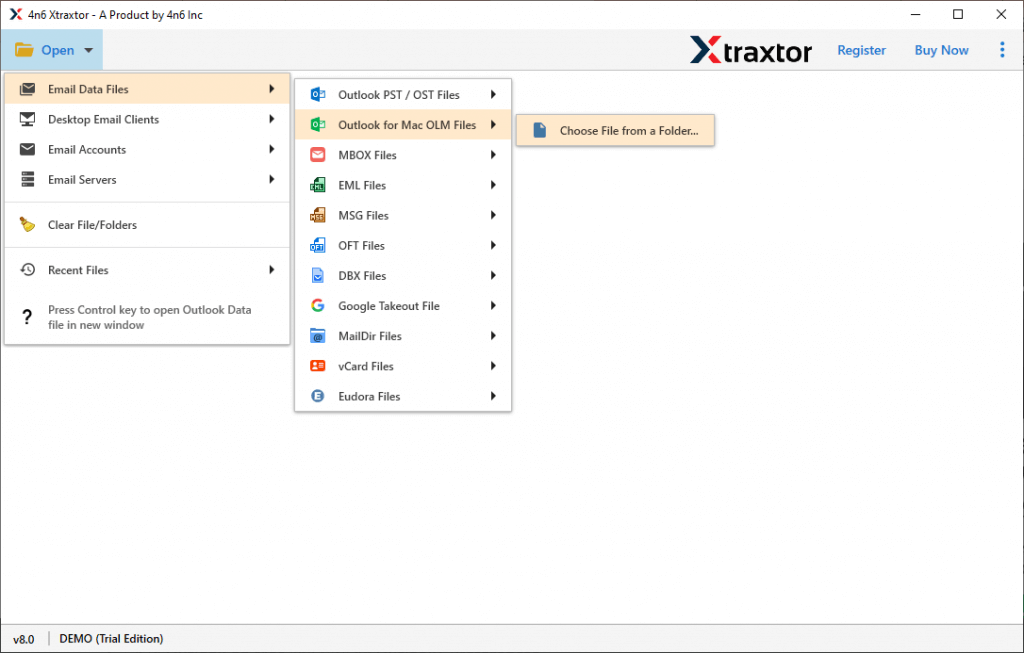
Step 2. Open the tool and click Open >> Email Data Files >> Outlook for Mac (OLM).
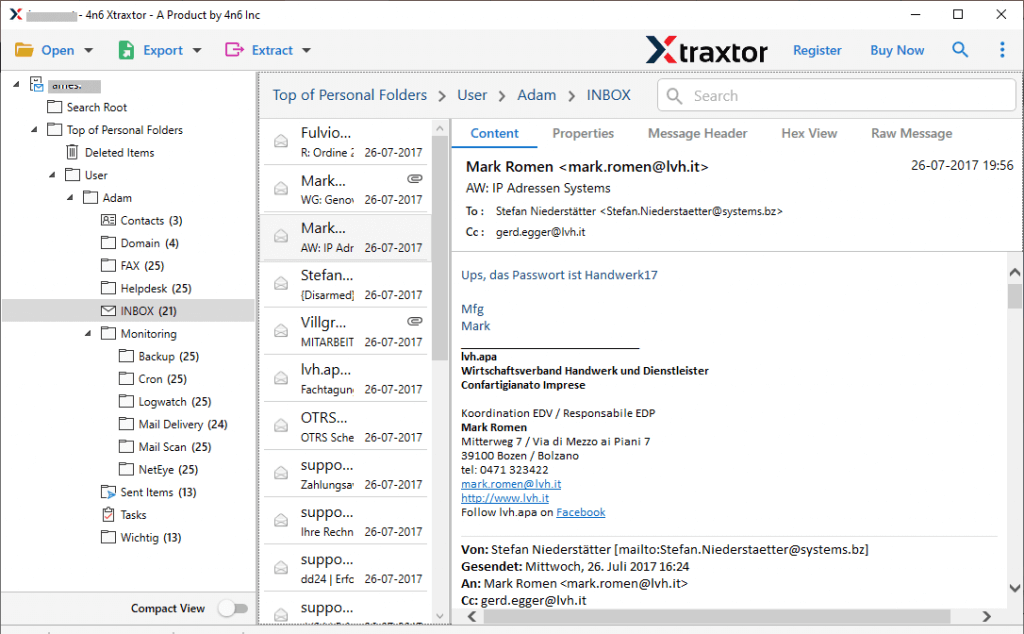
Step 3. Preview the emails and folders on the screen.
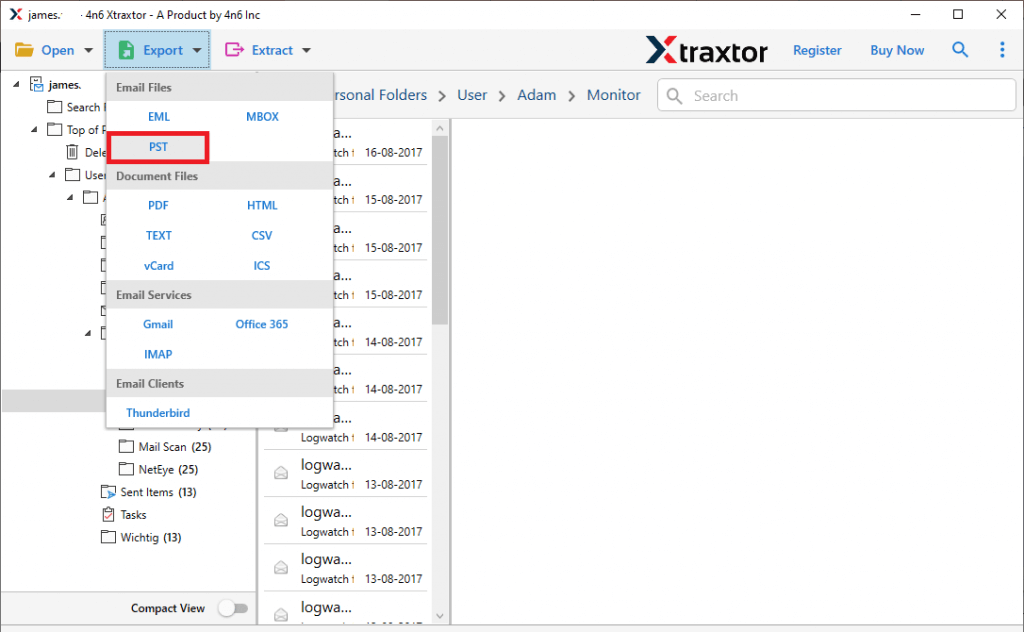
Step 4. Click Export and choose PST as the output format.
Step 5. Select the required folders and subfolders.
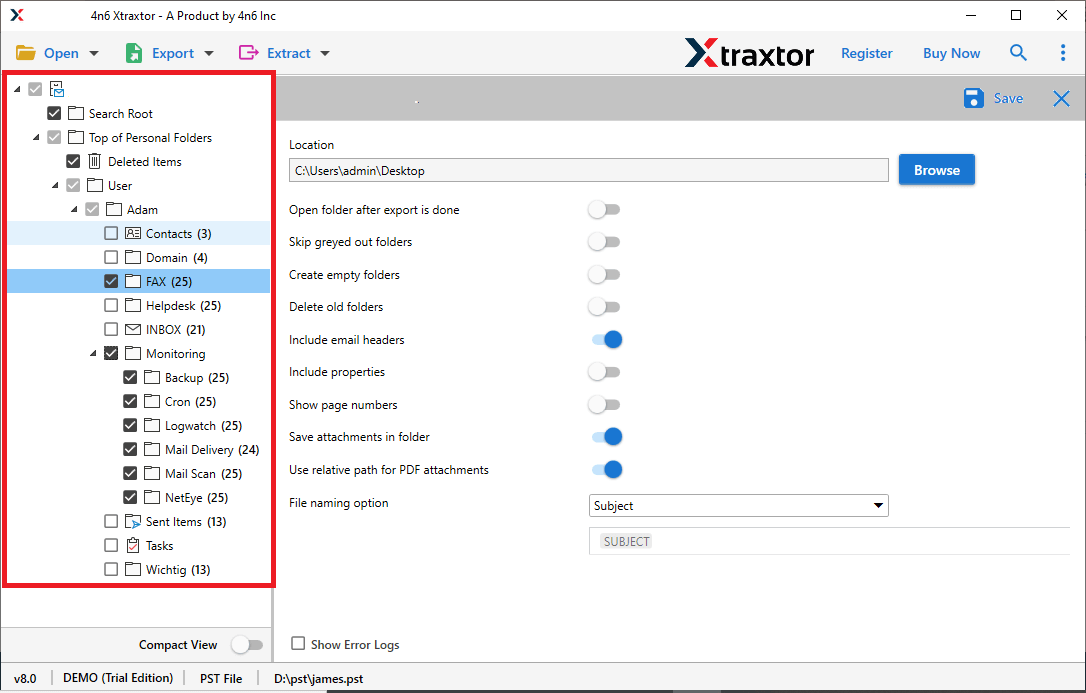
Step 6. Now, choose a destination location & click save.
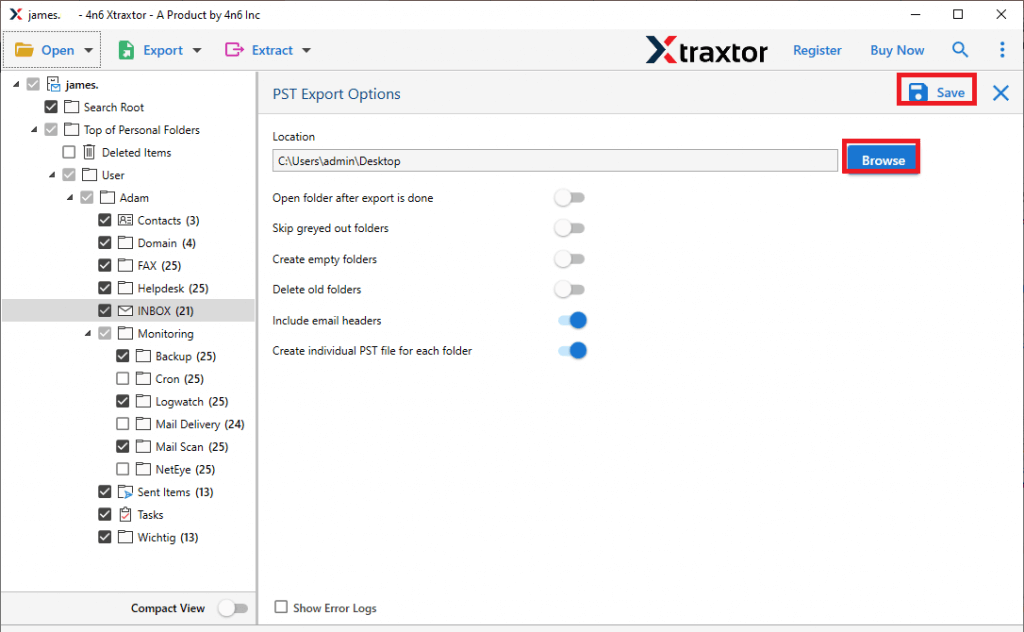
That’s it. Your OLM files are successfully converted to PST in a few simple clicks.
What We Recommend?
As you know, now that Legacy Outlook for Mac is ending in 2026, it is the right time to act.
Our recommendation:
- Don’t wait until support ends
- Avoid risky manual migration methods
Secure your OLM data in a universally supported format, so that you can also convert OLM to PDF using the same software mentioned above.
Final Thoughts
The end of Legacy Outlook for Mac marks a significant shift in how Microsoft manages email data on macOS. While change is inevitable, data loss and access issues are not. By planning and converting OLM files to a reliable format, you ensure your email data remains secure & accessible.
