
In this blog, we will explain why users want to import PST to Apple Mail and discuss the best and easiest ways to do it without losing data.
Outlook is a popular email client because it helps users manage emails, contacts, and other data in an organized way. However, Outlook is not free and works as part of the Microsoft Office package. On the other hand, Apple Mail comes free with macOS and is easy to use, which is why many users prefer switching to it.
Reasons to Import PST to Apple Mail
There are several reasons why users want to transfer PST files to Apple Mail.
- Switching from Windows to Mac: Many users move from a Windows computer to a Mac system. Since Apple Mail is the default email application on macOS, users need to import PST emails to access their old Outlook data.
- Access Old Outlook Emails: Users often have important email backups stored in PST files and want to open them in Apple Mail without installing Outlook again.
- Free Email Client: Outlook requires a license, while Apple Mail is completely free and comes pre-installed on Mac devices.
- Simple Email Management: Apple Mail provides a clean interface and integrates well with other Apple services like iCloud, Contacts, and Calendar.
- Backup and Email Storage: Importing PST emails into Apple Mail allows users to keep their old email records safe and accessible on their Mac system.
These days, many people want to move their emails from Outlook PST files to Apple Mail so they can access their old Outlook data on a Mac without using Outlook. However, this process is not very easy if you try to do it manually. It can take a lot of time and may also require technical knowledge.
Let’s check out both the methods and understand which works best for you.
How to Import PST to Apple Mail Account Manually?
- Open the Outlook for Mac app on your computer.
- Click on the File menu and choose Import.
- Select Outlook Data File (.pst) and click Continue.
- Find your PST file, select it, and click Import. Your emails will now show up in Outlook for Mac.
- After the data is loaded, choose the mailbox or folders you want to export.
- Right-click on the selected folder or mailbox and click Export.
- Save the file in MBOX format.
- Now open the Mac Mail app and go to the File menu, then select Import Mailboxes.
- Choose Files in MBOX format and click Continue.
- Find the MBOX file you exported from Outlook, then click Choose.
- Your emails will now appear in Mac Mail under a new folder.
This method has some issues. You can’t add many PST files at the same time, so it takes longer. There’s also a risk that the file might get broken while moving it. And some emails or attachments might not come through properly.
How to Transfer PST Files to Apple Mail Automatically?
With Xtraxtor PST Converter, you can easily move all your PST file emails into Apple Mail account effortlessly. With its simple and user-friendly interface, it is easy to complete the import in a few simple clicks. All the tool will do is convert PST to MBOX file. After that, you can easily import the exported file into Apple Mail mailbox with ease. Additionally, you can also add the filters to import selective emails from PST file.
Try out the demo version of the software and analyse its working process.


Steps to Import PST to Apple Mail
Step 1. Run the Xtraxtor software on your system.
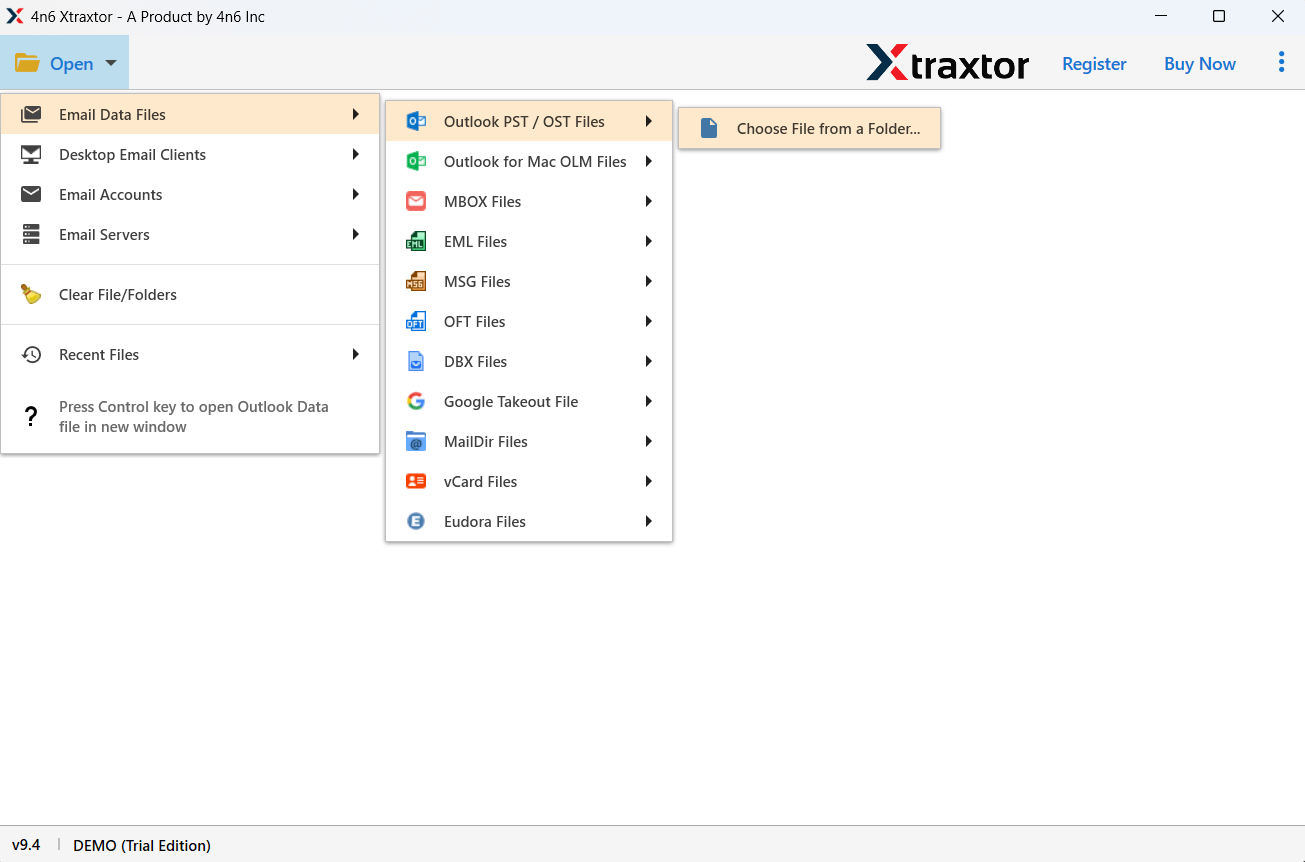
Step 2. Add the PST File (Open >> Data File >> PST File).
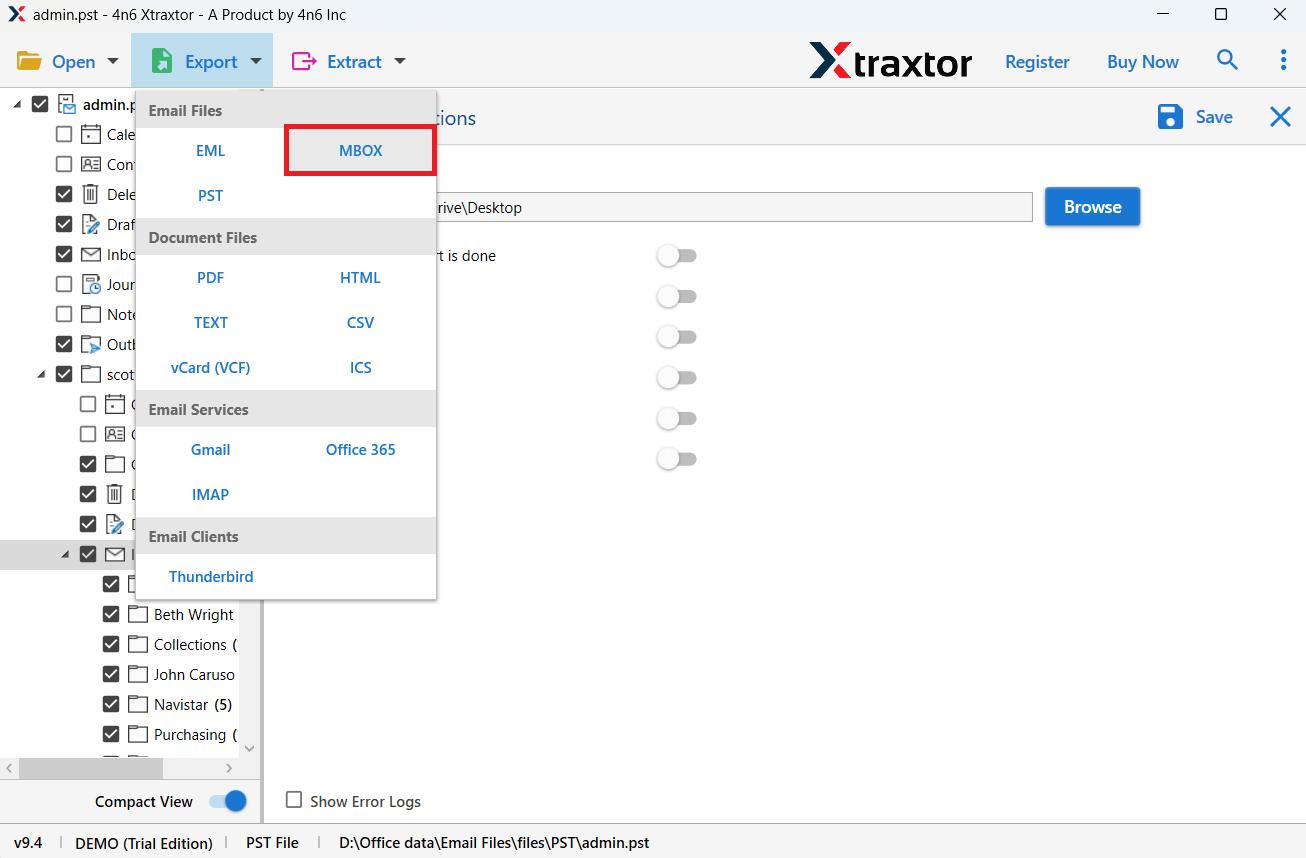
Step 3. Click on Export >> MBOX.
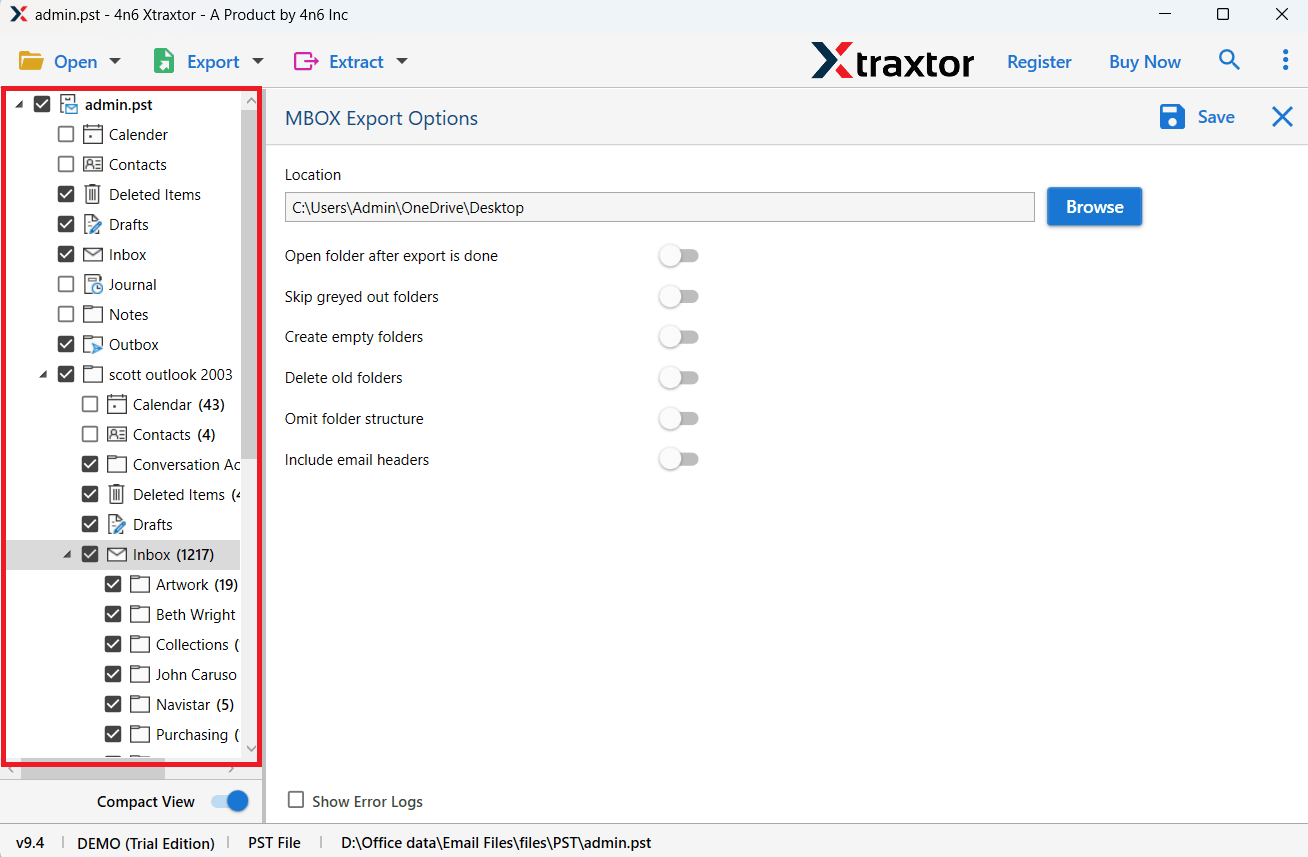
Step 4. Choose the folders you want to import.
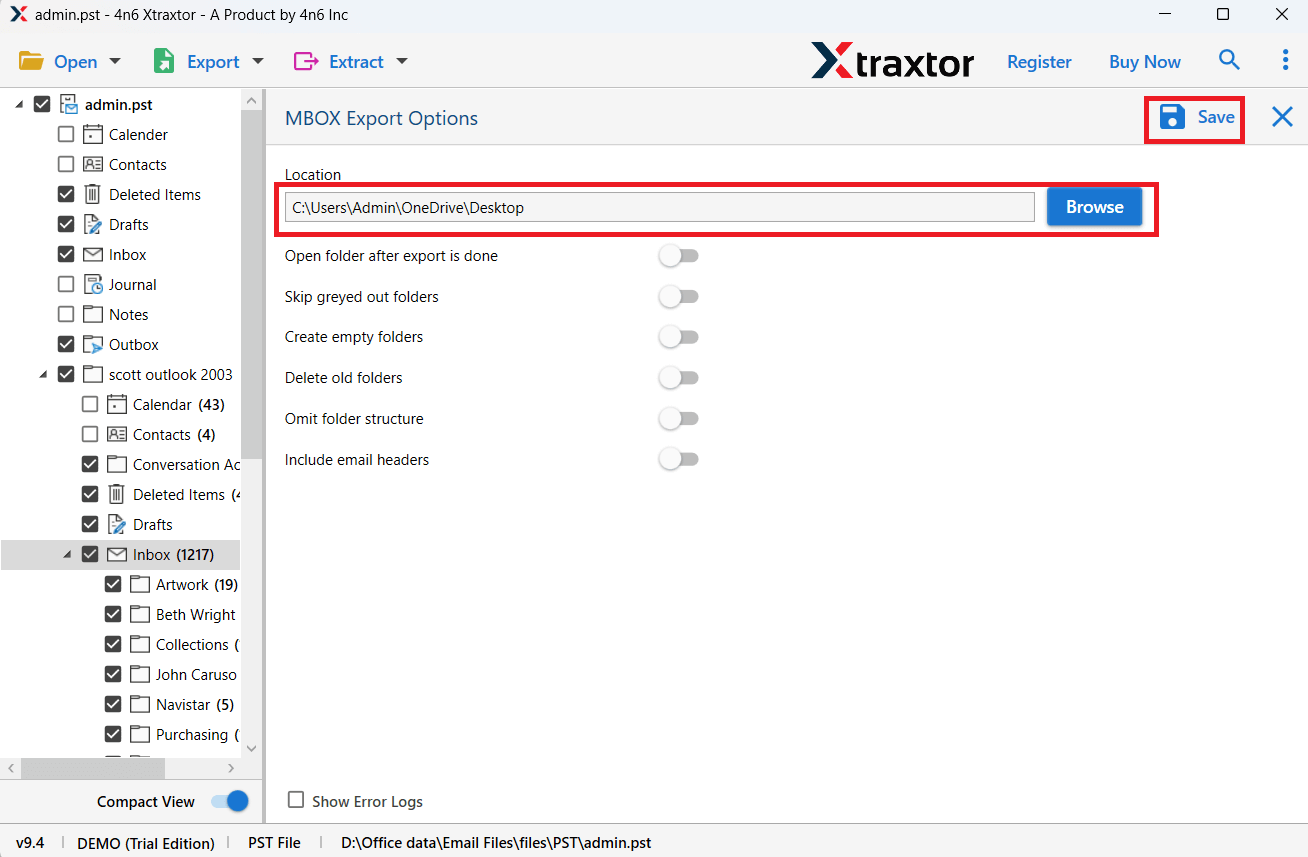
Step 5. Browse the targeted location and hit the Save button.
Step 6. Run Mac Mail and click Import Mailboxes in the menu.
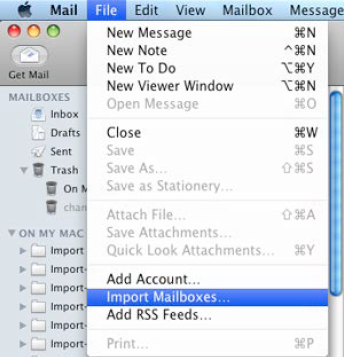
Done! Here, complete the process. Now you can access your PST emails in Apple Mail mailbox.
Prominent Features of Automated Software
- Maintain Data Integrity: It keeps important parts of your emails like to, cc, bcc, images, and special characters just the way they are.
- Helpful Support Team: If you face any problem while using the tool, our support team is ready to help you out.
- Works with Cloud Accounts: It lets you move PST emails to Gmail, Outlook, Office 365, Yahoo, and other email services.
- Saves Attachments: All your attached files, like documents or images, are moved along with your emails without any loss.
- Keeps Folder Structure: The tool keeps your email folders and subfolders the same after moving your emails to Mac Mail.
- Works on All Windows PCs: You can install it on any version of Windows, including Windows 10, 8, 7, Vista, and XP.
- Supports Many Formats: You can also use this tool to change PST files into other popular file types, not just Mac Mail.
Frequently Asked Questions
Q1. Can Apple Mail open PST files directly?
Ans. No. Apple Mail does not support PST files directly. You must first convert the PST file to MBOX format before importing it.
Q2. Can I import multiple PST files into Apple Mail?
Ans. Yes. Using a professional PST converter tool, you can convert multiple PST files in bulk.
Q3. Will my attachments be preserved during the process?
Ans. Yes. A reliable PST converter maintains email attachments and formatting during migration.
Q4. Is it possible to import only selected emails?
Ans. Yes. The software provides filters that allow you to import specific emails based on date, sender, or folder.
Conclusion
Outlook and Apple Mail use different file formats, which makes direct migration difficult. To access PST emails in Apple Mail, the PST file must first be converted into MBOX format.
In this guide, we explained both the manual and automated methods to complete the process. While the manual method works, it can be complicated and time-consuming. Using a professional tool makes the process much easier and helps avoid data loss.
You can try the free demo version, which allows you to export 25 emails from each folder. To migrate the entire PST mailbox, you will need to upgrade to the full version.
