Summary: Are you wondering how to convert PST to MBOX file format on your Windows, Mac or Linux Machine? Well, first of all you need to know that PST is a proprietary file format developed by Microsoft. So, it’s impossible to access PST file without Outlook also there is no other program other than Outlook that supports PST files. Whereas, MBOX is a mailbox format as per RFC 5322 format standard for mailbox storage.
Due to the compatibility of both these file formats, converting PST files into MBOX file, is not about just changing the file extension but actually transforming the complete PST file.
In this comprehensive article, you will learn;
- What are PST and MBOX Files and their Differences?
- Why convert PST into MBOX file.
- Two Trustworthy Ways to Convert PST to MBOX
- Free manual conversion restrictions
- How to Export PST to MBOX without Outlook?
- Which approach is best for your specific needs
By the end of this article, you will be able to pick the best way to convert PST file to MBOX as per your need and requirements.
PST (Personal Storage Table) File
PST (Personal Storage Table) file is a Microsoft proprietary file format which is used by Microsoft Outlook to save emails, attachments, contacts, calendars, tasks, notes, and other mailbox data in a single file. It is often used for email backup, archiving and data migration in the Outlook environment.
Mailbox (MBOX file)
An MBOX (Mailbox) file is an open-standard email storage format in which multiple email messages are stored in a single file. It is well supported by email clients like Mozilla Thunderbird , Apple Mail , SeaMonkey and Postbox and thus is a popular choice for cross-platform email migration , backup and long-term email archiving.
Why Convert PST File to MBOX? Top Reasons Explained
Users generally face the below scenarios when they want to convert Outlook to MBOX format:
- Moving from Microsoft Outlook to Thunderbird.
- Switching to Apple Mail on the Mac.
- Using linux based mail clients.
- A open standard format for creating an email archive.
- Open Outlook emails without MS Outlook.
The right conversion method depends on several factors, such as the size of your mailbox, how many PST files you have, your technical knowledge, and whether or not you have Outlook installed on your computer.
Top 2 Recommended Methods to Convert PST to MBOX File
Due to the incompatibility of these two file formats, there is no direct solution that exists. Also, no email client supports these two file formats altogether. Thus, to export PST to MBOX format, you can use two different email clients one by one and you may use any professional tool. Also, there are several free online tools with PST file size limitations. These solutions allow users to convert PST to MBOX for free with a 250 MB file size limit.
Now, let us discuss the working steps of each free solution one by one in the upcoming blog sections.
How to Convert PST to MBOX Manually Using Outlook and Thunderbird?
If you only need to convert small size of PST file and you have Microsoft Outlook installed on your computer, then you can use Mozilla Thunderbird as an intermediary to create MBOX files. Since Outlook cannot export directly to the MBOX format, Thunderbird acts as a bridge between the two applications.
This method is free but you have to follow some lenghty steps in both these email clients such as set up, account configurations etc. It is good for personal use or a one-time migration, but not for large scale mailbox conversions.
Follow the steps below to convert PST files to MBOX format;
- Launch Microsoft Outlook on your Windows computer.
- Click File >> Open & Export >> Import & Export Wizard.
- Choose Import from another program or a file option.
- Select file type as Outlook data file (.pst) option.
- Click Browse to choose the required PST file.
- Select the required folders that you want import from your PST file and click Finish.
- Check that all mailbox folders are showing properly in Outlook.
- Next, install or open Mozilla Thunderbird on the same system.
- Click Account Settings and add the same email account that you created in Outlook (IMAP is recommended).
- Synchronize all folders in Thunderbird mailbox.
- After the mailbox synchronization, open Thunderbird.
- Ensure that all the folders and emails are downloaded successfully.
- If you need to create a Local Folder in Thunderbird.
- Synchronized emails are stored locally in the Local Folder and you can copy or move them there.
- Open the Profile Folder of Thunderbird:
- Click Help > Troubleshooting Information.
- Click the Open Folder button to the right of Profile Folder.
- Open folder Mail or Local Folders.
- Locate the mailbox files that don’t have file extensions. Here are your MBOX files.
- Copy the MBOX files you want to the location of your choice.
Now, Outlook PST emails are saved in MBOX format. Hence, you can manually convert .pst to .mbox format, but it is a lengthy and time-consuming process. You must have installed both email clients, Outlook and Thunderbird, in your system to perform PST to MBOX conversion.
Also, if Thunderbird import export tools not working, then you cannot save PST in MBOX format.
How to Convert PST File to MBOX with Attachments?
Try Xtraxtor software on your system to complete the process in just a few simple clicks. With this utility, you can directly convert Outlook PST to MBOX Thunderbird without installing any external applications. It preserves data integrity and folder hierarchy as well. Using this tool, you can export PST to MBOX in bulk. Apart from this, it also provides various advanced filter options to convert selected emails.
Tap on the button below and download it for free to explore its work performance.

Steps to Convert PST to MBOX File with Attachments
Step 1. Run Xtraxtor PST Converter on your system.
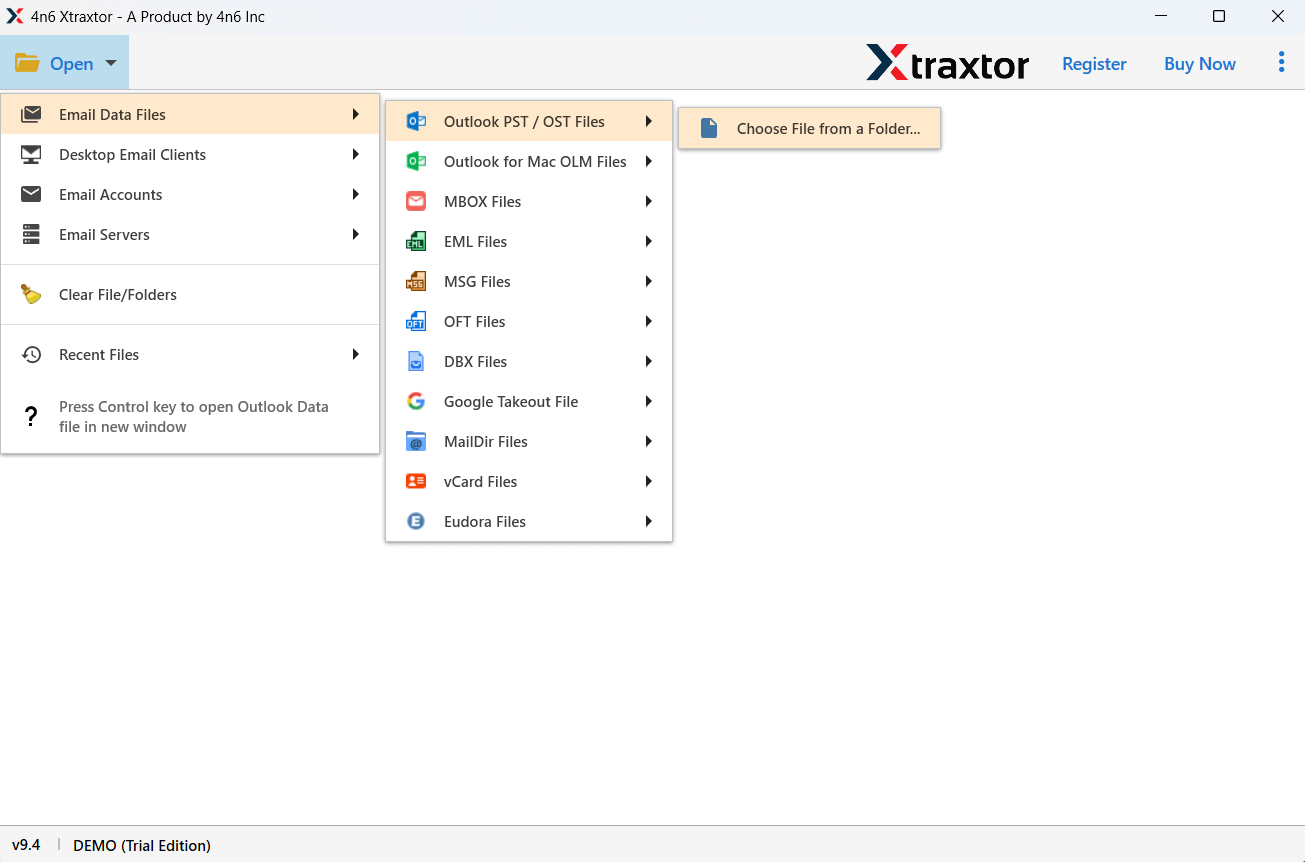
Step 2. Navigate to Open >>Email Data Files >> Outlook PST Files >> Choose Files or Folder.
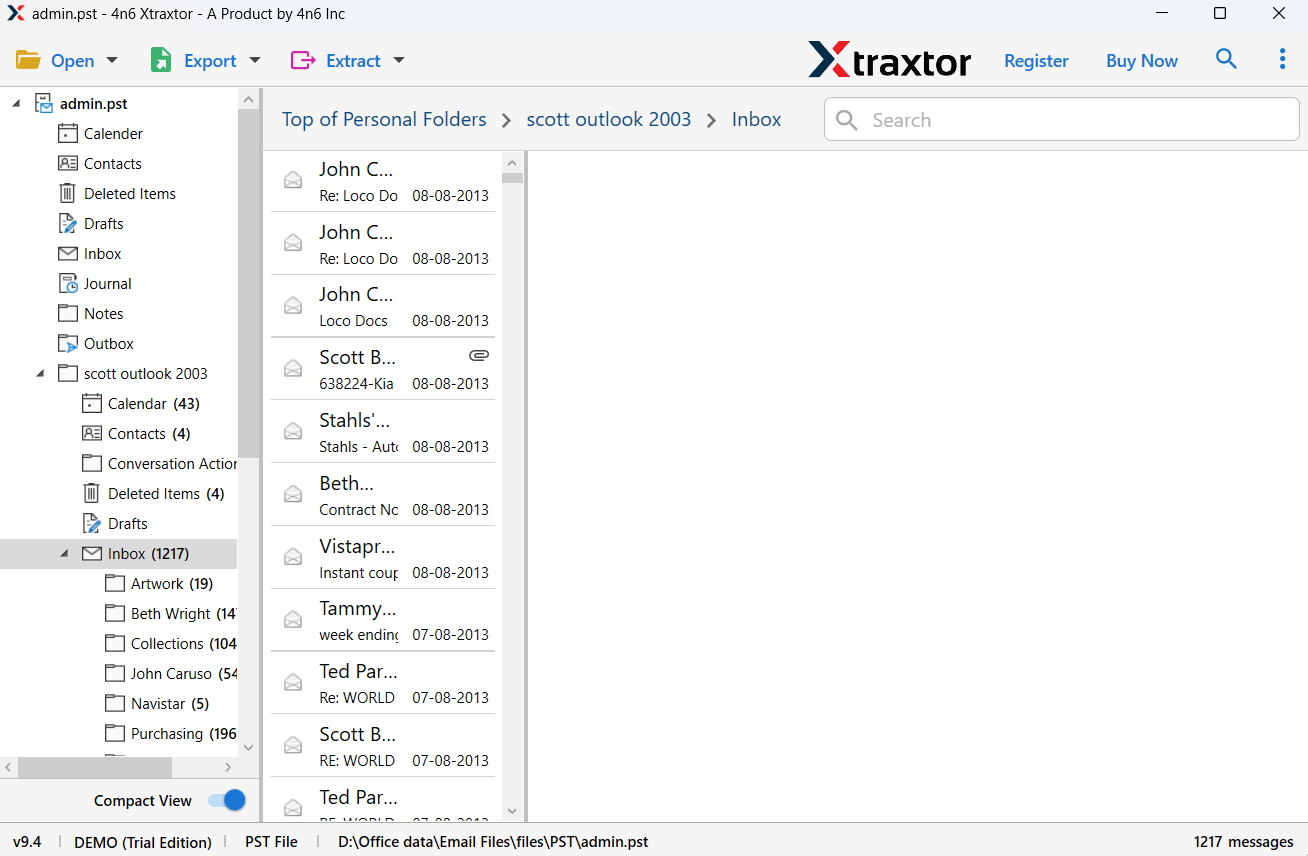
Step 3. Here, you can view PST emails before converting them.
Step 4. Click on Export and choose MBOX.
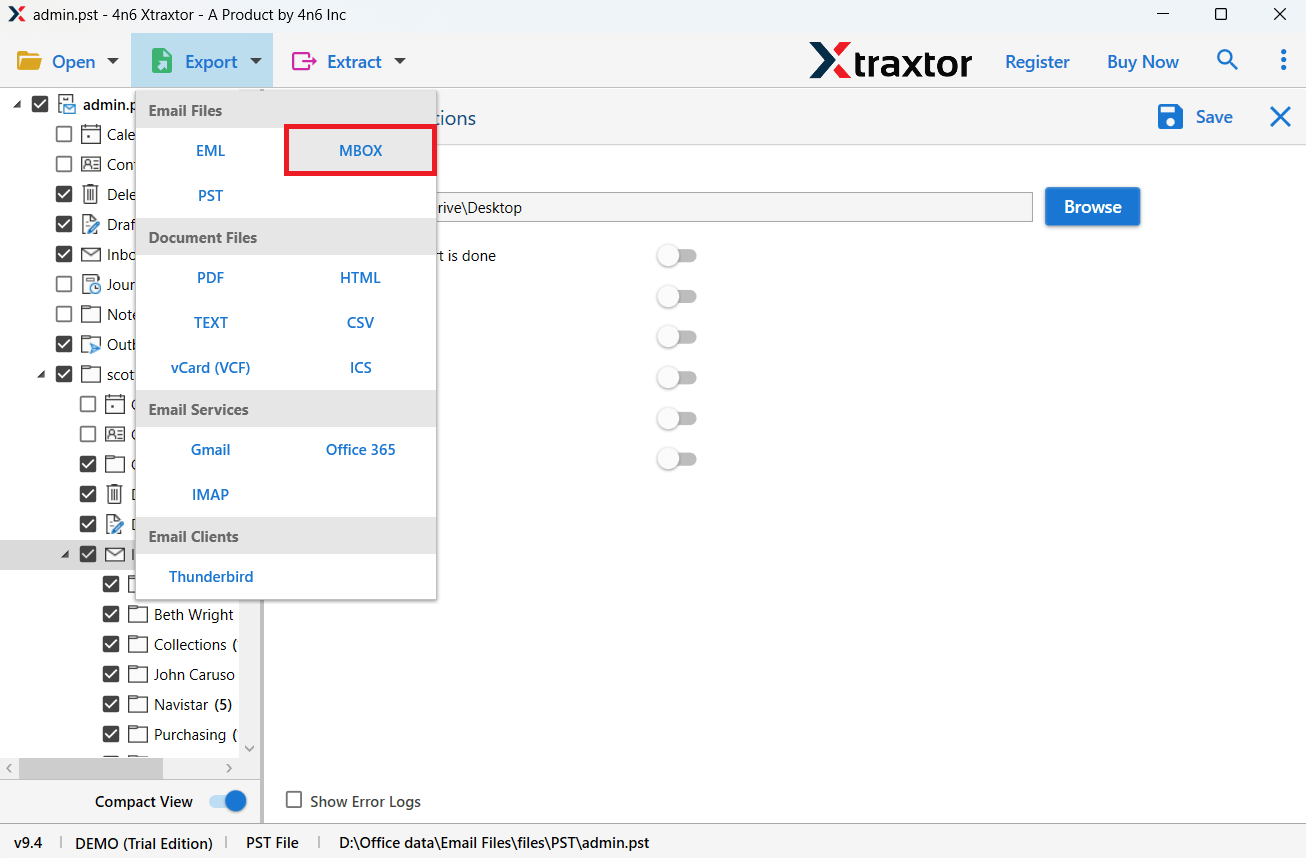
Step 5. Select the required email folders.
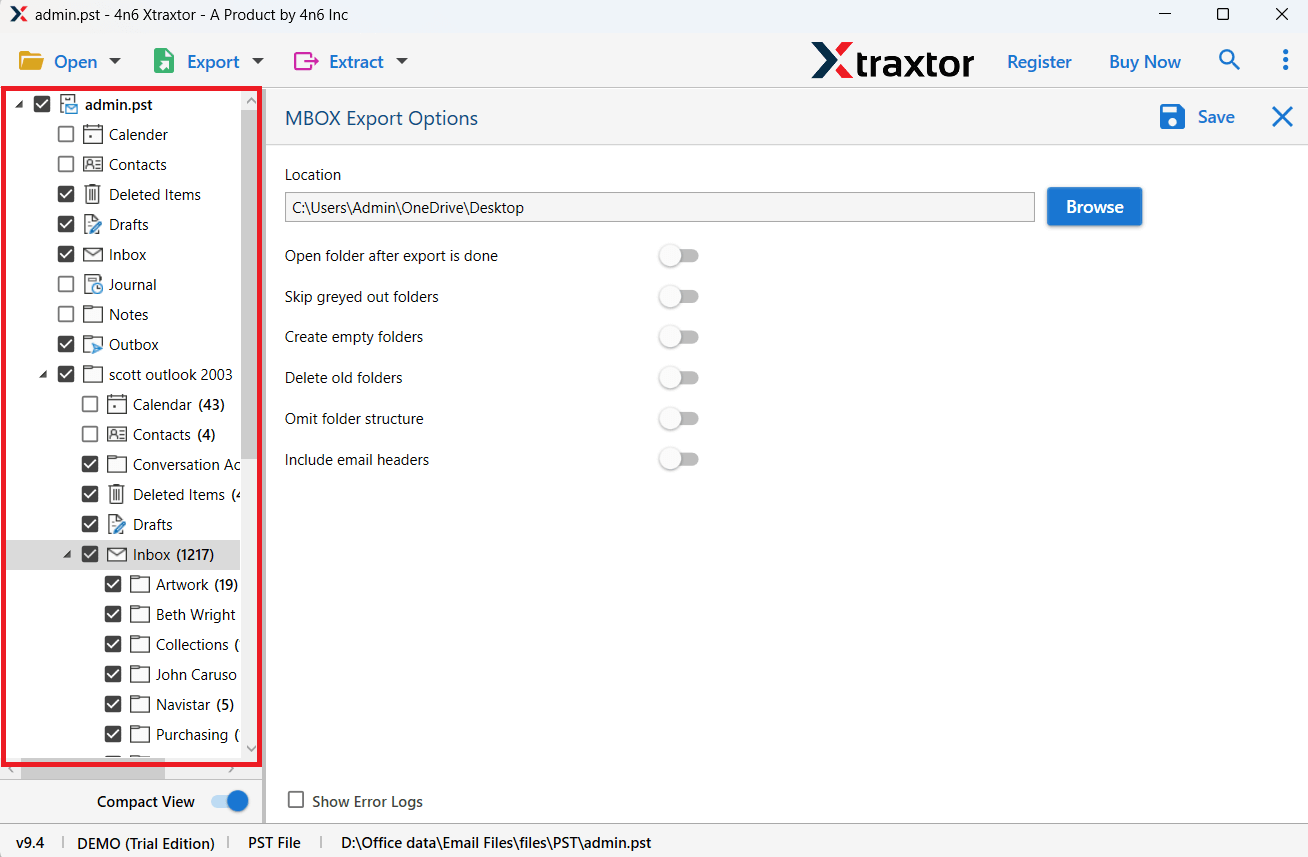
Step 6. Browse the target location and click on the Save button.
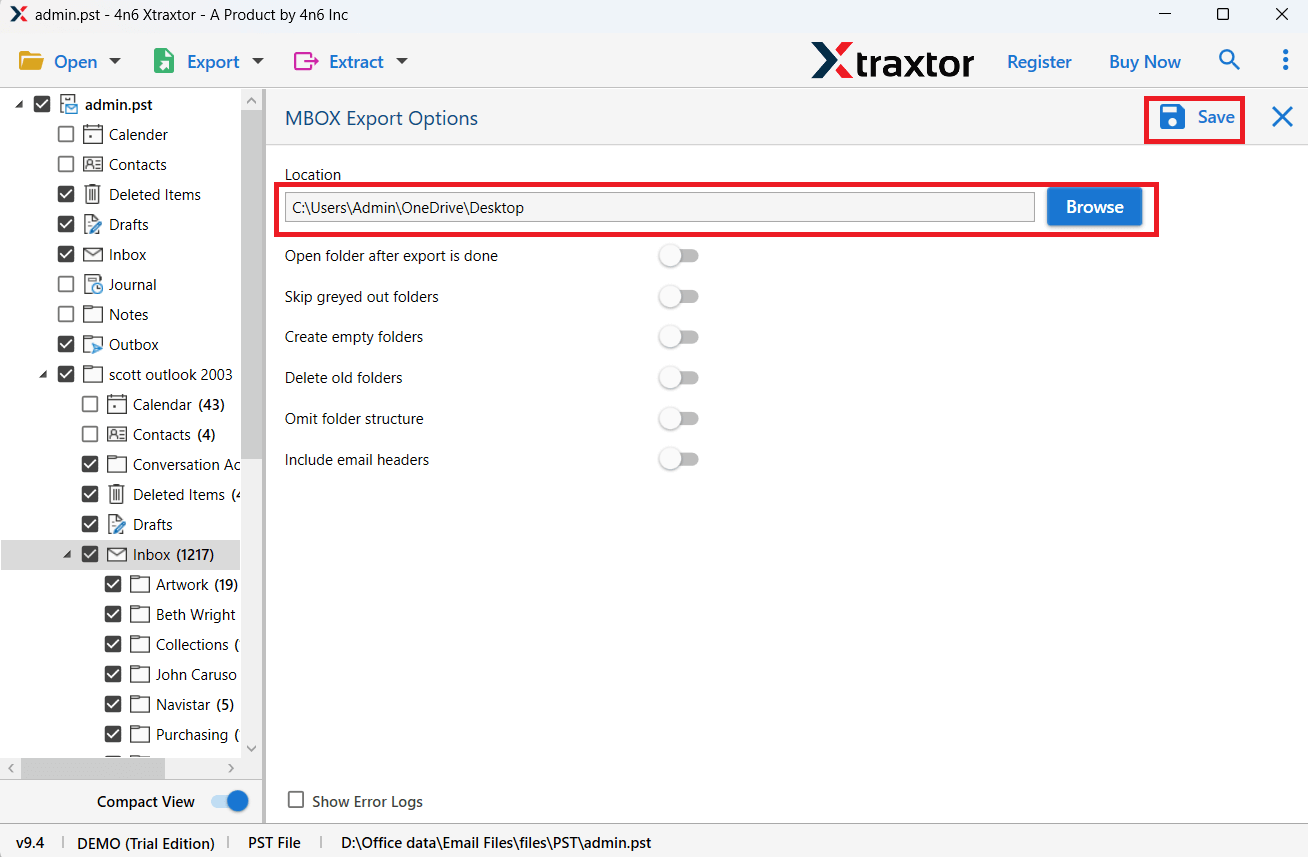
The software will start converting PST emails into MBOX file format. After the process, you will get a successful message with a log report.
Why Choose PST to MBOX Converter?
The software has many advantages that help you to easily complete PST to MBOX conversion. Some of them are given below-
- The tool can convert PST to MBOX without Outlook or any other applications.
- It can convert multiple PST files in a single attempt without any data loss.
- Allows the conversion of selective folders from PST file into MBOX format.
- Options to import PST to Office 365, Gmail, Yahoo Mail, and other email accounts.
- It preserves data integrity and folder hierarchy during the process.
- The tool has various filters to export specific PST emails.
- Its preview mode helps you to view your emails before converting them.
- Advance filters – to, from, cc, bcc, name, date, time, subject, etc.
- It can also convert PST to PDF, EML, and many other file formats.
- It is compatible with all Windows operating system versions.
Conclusion
So, we are ending this informative guide now. Let’s wrap up everything you learned till now. As you were searching for ways to convert PST file to MBOX format, the methods explained in this article are tried and tested for this. However, we have some basic findings, such as that manual solutions work for small files, while a professional approach that we have used in this blog provides a complete method for all bulk files, preserves attachments, takes easy steps, and many more. It’s evident that if you have a few emails and are ready to bear any type of errors, go with the manual method. To avoid these issues, using an automated solution is suggested.
Choose the method wisely, as one wrong selection can cost your important data.
Frequently Asked Questions
Q1. Why do I need to convert PST files to MBOX?
Ans. Converting PST files to MBOX lets you open your emails in other email programs, not just Outlook. It’s helpful if you’re moving to a new email service, need more options, or want to make your email data easier to use elsewhere.
Q2. Will my email attachments be preserved during the conversion?
Ans. Yes, the tool will convert PST emails into MBOX file along with attachments.
Q3. I am using Outlook 2021. Does this tool support converting my PST file data?
Ans. Yes, the tool supports PST file format from Outlook 2021, 2019, 2016, and all other older versions.
Q4. Can this tool convert emails from my corrupted PST file?
Ans. Yes, the tool will export email from a corrupted, damaged, or encrypted PST file into MBOX without affecting your data.
Q5. Do I need to install Outlook to convert PST emails to MBOX file?
Ans. No, with Xtraxtor, you can convert PST to MBOX without Outlook application on your system.