How to Import MSG to AOL Mail? (Step-by-Step Guide)

If you have MSG files and want to import them into AOL Mail, you may quickly realize one thing. There is no direct option to upload MSG files into AOL Mail. This confuses many users, and you will end up losing your crucial data. This guide explains what actually works, what does not work, and why. By the end of this blog, you will clearly know the complete process. So, follow this blog till the end.
An MSG file is a single email file created by Microsoft Outlook. Each MSG file contains one email along with its details, such as Sender and receiver information, email subject, message body, attachments, date, and other email properties. MSG files are designed for Outlook. This means they can usually be opened or managed only in Microsoft Outlook or an MSG viewer.
On the other hand, AOL Mail is a web-based email service. It does not support MSG files and does not provide any option to upload or import MSG emails directly. AOL Mail is mainly for sending and receiving emails and import emails from another mailbox using IMAP.
Because MSG files are not supported, you cannot import them directly into AOL Mail. This creates a problem for users who are moving from Outlook to AOL Mail or who want to restore old MSG email backups into their AOL account.
Don’t worry, we will explain all the possible methods to help you transfer email messages into AOL Mail.
How to Import MSG to AOL Mail? (Manual Method)
Since AOL Mail does not support MSG file upload, the only manual way is to use Microsoft Outlook as a bridge.
In this method, Outlook helps sync MSG emails to your AOL Mail account using IMAP.
Note: This method works only if Outlook is properly installed and configured.
- Install Microsoft Outlook on your system to open and manage MSG files.
- Open Outlook and complete the basic setup.
- Go to File >> Add Account in Outlook.
- Enter your AOL Mail email address and choose IMAP.
- Sign in to connect AOL Mail with Outlook.
- Wait until AOL Mail folders finish syncing in Outlook.
- Locate the MSG files stored on your computer.
- Open or drag the MSG files into Outlook.
- Drag the MSG emails into the AOL Mail inbox folder in Outlook.
- Keep Outlook open until the emails sync completely.
- Check your AOL Mail inbox in a web browser.
Important Limitations of This Manual Method
Before using this method, you should know its drawbacks:
- Outlook installation is mandatory
- IMAP sync can be slow
- Large attachments may fail
- Bulk MSG import is difficult
- Duplicate emails may appear
- Folder structure may not be preserved
Because of these issues, this method is not recommended for large or important MSG collections.
How to Transfer MSG Files into AOL Mail Account? (Quick Way)
As you can see, a manual approach requires an advanced level of technical expertise. So, we recommend that you try a professional solution now. We have Xtraxtor MSG Converter that you can use now to import multiple .msg files into AOL Mail account directly. This software can transfer any number of MSG files into AOL Mail without any size limit. Also, it will preserve email properties throughout the process.
So, give it a free try and check its working process.

Steps to Import MSG to AOL Mail
Step 1. Download and install the Xtraxtor software on your computer.
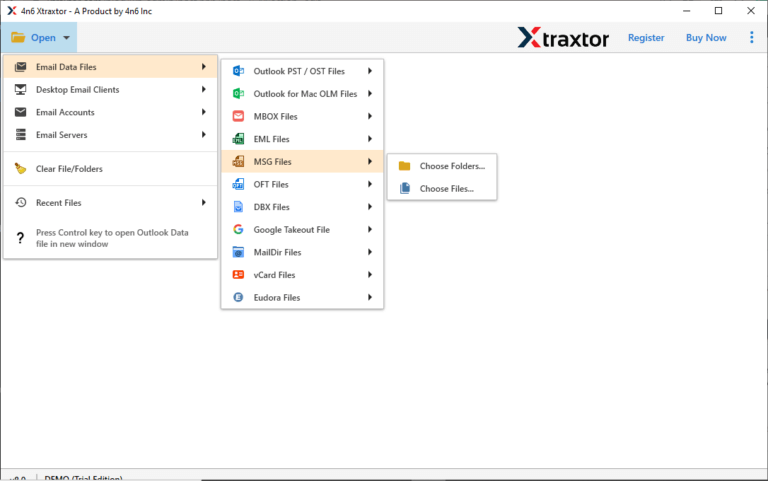
Step 2. Open the tool and add your MSG files or folders.
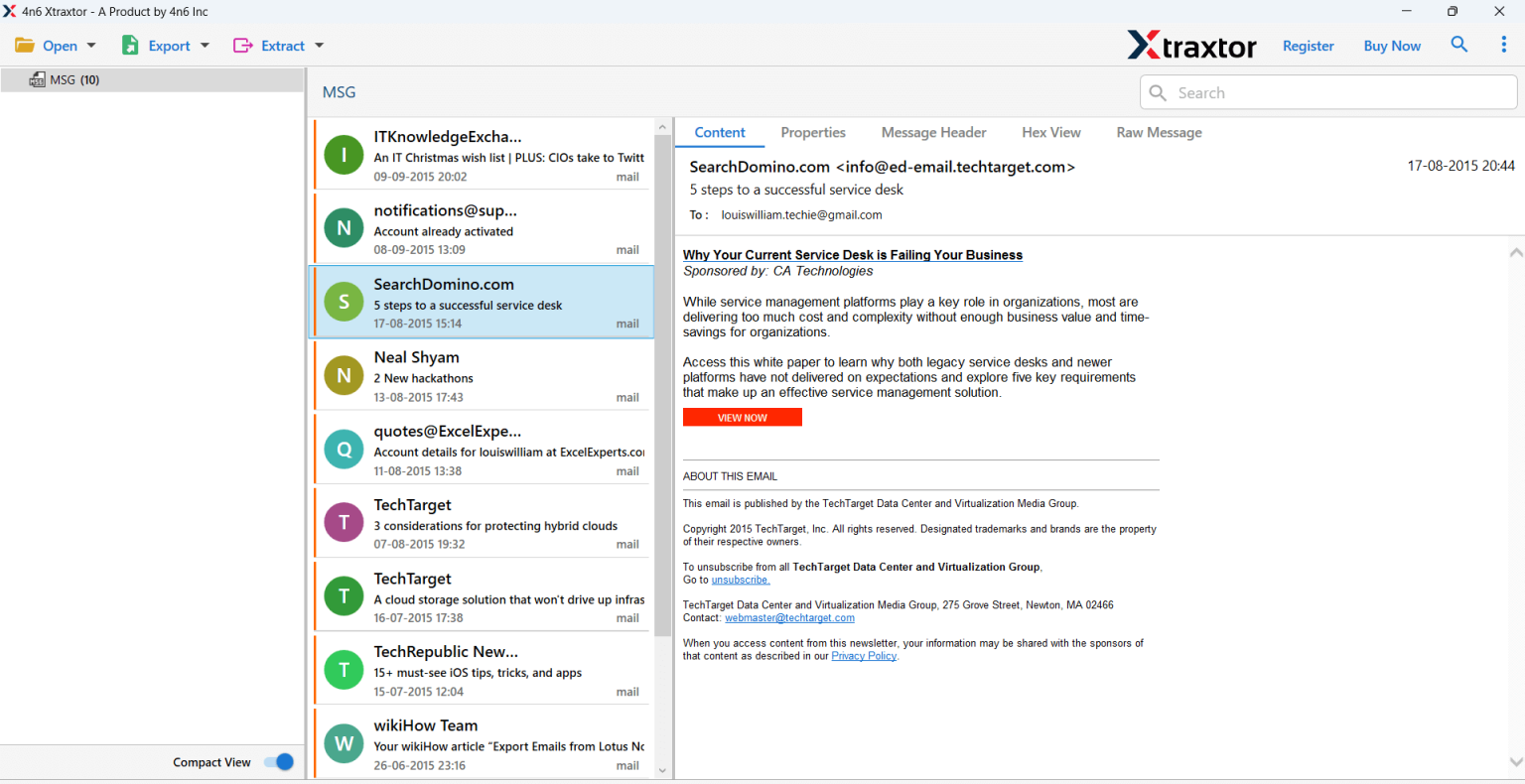
Step 3. Preview the loaded MSG emails to confirm selection.
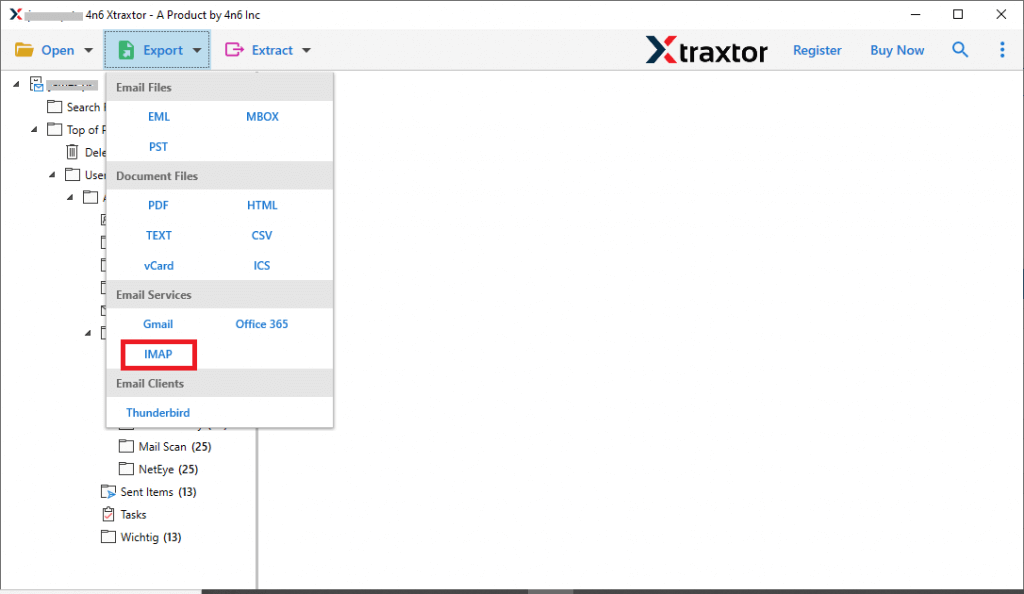
Step 4. Click Export and choose IMAP as the option.
Step 5. Select the required folders to transfer into your AOL Mail.
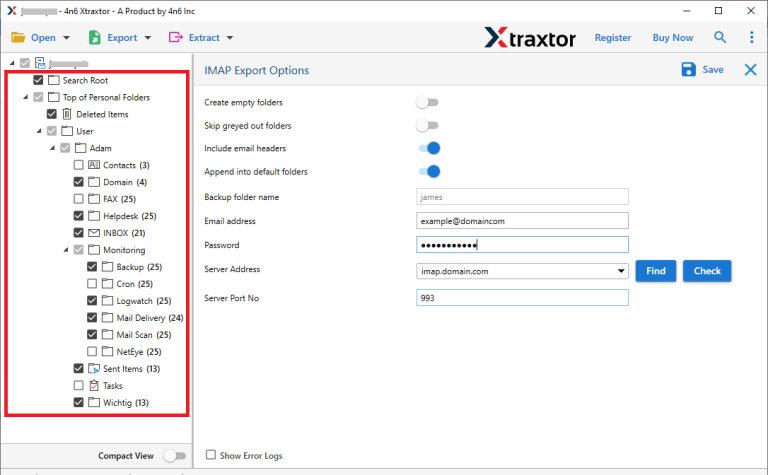
Step 6. Enter your AOL Mail login details & click Save.
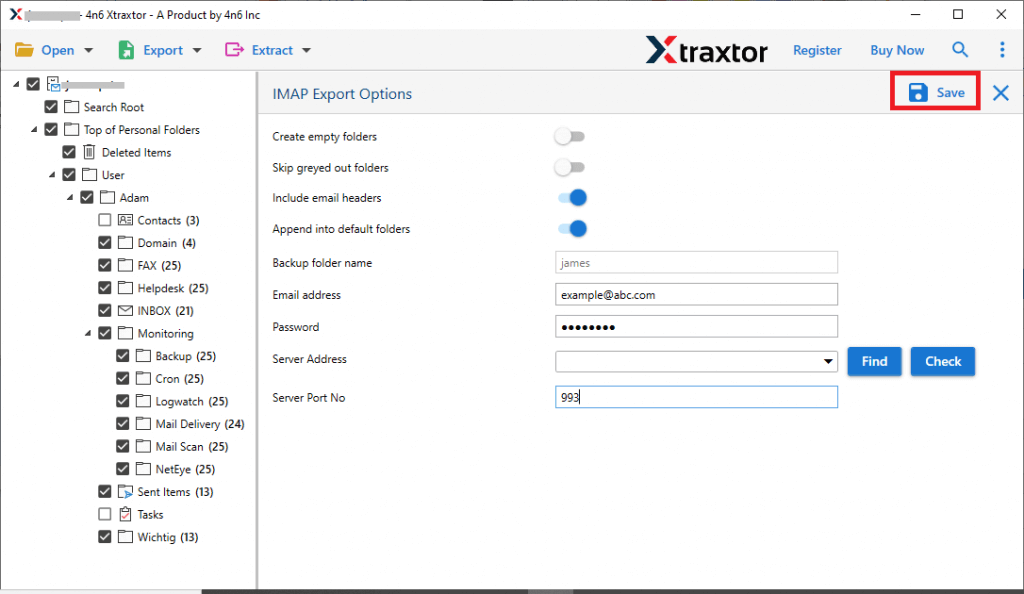
Done! Check your AOL Mail inbox after the process completes.
Benefits of Using the Recommended Software
- You can upload MSG emails straight into your AOL Mail account without complicated steps.
- The tool lets you import many MSG files or folders at once.
- You do not need Microsoft Outlook installed; the software works on its own.
- Also, import MSG files into Gmail, Zoho Mail, Yahoo Email, Yandex Mail, etc.
- All attachments inside MSG emails are kept intact during the import process.
- You can connect securely to your AOL Mail account using your login details through IMAP.
- See your email list, subjects, senders, and attachments before starting the import.
- Choose only the specific MSG files or folders you want to import, not everything.
- The software uploads emails quickly, even when you have many or heavy attachments.
- Supports Windows 11, Windows 10, and older Windows systems.
- The user interface is easy to navigate, so beginners can complete imports without confusion.
- You can search your MSG files inside the software to find specific emails before importing.
- Sender, receiver, date, subject, and other email fields stay unchanged after import.
- The tool minimizes errors and reduces the chance of missing any email content.
Final Thoughts
In this guide, we have shared two tried and tested ways to import MSG to AOL Mail. Both methods are workable in their own situations, so you can choose any of them as per your needs and requirements. However, if you still want to choose a fast and secure solution, the automated solution comes first in this list.
Choose a method that works best for you!
