How to Transfer cPanel Emails to Office 365?

Moving from cPanel webmail to Microsoft Office 365 is a common step for businesses that want better reliability, security, and collaboration tools. If you’re planning to transfer cPanel emails to Office 365, this guide explains the safest methods, manual and automated, so you can choose what works best for your situation.
Whether you’re handling a few mailboxes or a large-scale migration, this article focuses on real user problems, clear steps, and zero data loss.
Ways to Transfer cPanel Emails to Office 365
There are two ways to migrate cPanel emails to Office 365. One is an automated solution and the other one is a manual solution. Both methods are explained in detail in the upcoming section.
Let’s start.
Method 1. How to Migrate Emails from cPanel to Office 365 Manually?
You can manually transfer emails from cPanel to Office 365 via Outlook email client. Add both email accounts in Outlook, export cPanel emails to PST file, and import this exported file into Office 365. Hence, this method works in four phases.
Follow the below-given instructions to migrate cPanel email to Office 365.
Phase 1. Configure cPanel Webmail Account with Outlook
- Launch the Outlook email client on your system.
- Now, click on File >> Add Account.
- Enter cPanel account email address. Click on the Advanced option to tick the box to add your account manually and then press Connect button.
- After that, select the account type is IMAP from the given options.
- Type the Password of cPanel account and click on Connect button.
- Outlook will check the details are correct or not. After checking the details you will receive a confirmation message then press on Done button.
Now, your cPanel Webmail account is successfully 0added in Outlook.
Phase 2. Export cPanel Emails to PST File
- After adding the cPanel account, click on File >> Open & Export >> Import/Export.
- Select Export to a File option and the press Next button.
- Choose Outlook Data File(.pst) and click on Next.
- After that, select cPanel email folders and hit on Next.
- Browse the location to save exported file and then click on the Finish button.
Phase 3. Add Office 365 Account in Outlook
- Again go to File >> Add Account
- to configure Office 365 account with Outlook.
- Enter Office 365 Email address and click on Connect button.
- Type the password of your Office 365 email account and press the Finish button.
Phase 4. Import Exported PST File into Office 365
- After configuring the Office 365 account with Outlook navigate to File >> Open & Export >> Import/Export.
- Select Import from another program or file option and press Next.
- Choose Outlook Data File (.pst) and click on Next button.
- Click on Browse to import the exported PST file and press Next.
- Select the folder to import from and then click on the Finish button to complete the migration process.
The process is complete. Hence, you can manually migrate cPanel emails to Office 365.
Loopholes of the Manual Method
You can manually export emails from cPanel to Office 365 but there are some limitations of this method which are given below-
- It takes lot of time to complete the process.
- Users must have in-depth technical knowledge to configure email accounts with Outlook.
- In case Outlook import export option greyed out, then this method does not work.
- There is no email filter options to migrate selected emails from cPanel to Office 365.
Method 2. How to Move cPanel Emails to Office 365 Securely?
Xtraxtor Email Migration Tool is a secure and reliable solution to directly migrate cPanel email to Office 365 in a few simple clicks. The software allows you to export cPanel emails to Office 365 in bulk. It enables you to transfer emails according to your needs. It preserves 100% data integrity and move emails in their original format without any single change.
You can download the free demo version and complete the cPanel to Office 365 migration process with ease.


Steps to Transfer cPanel Emails to Office 365 Account
Step 1. Launch Xtraxtor cPanel to Office 365 Migration Tool on your system.
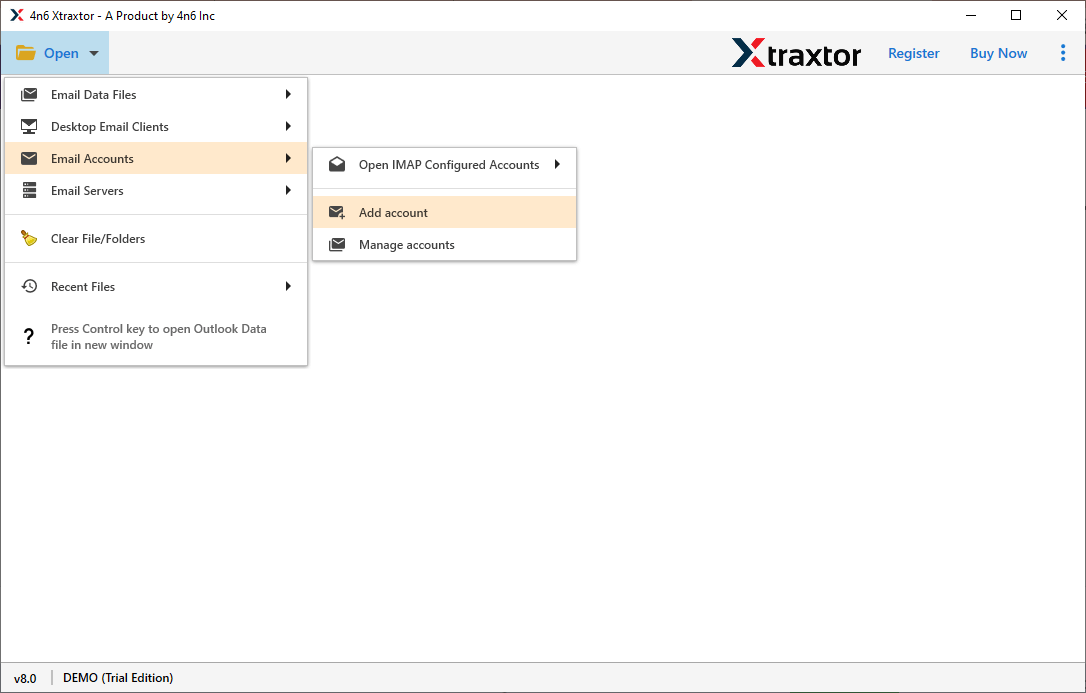
Step 2. Now, Click on Open >> Email Accounts >> Add Account.
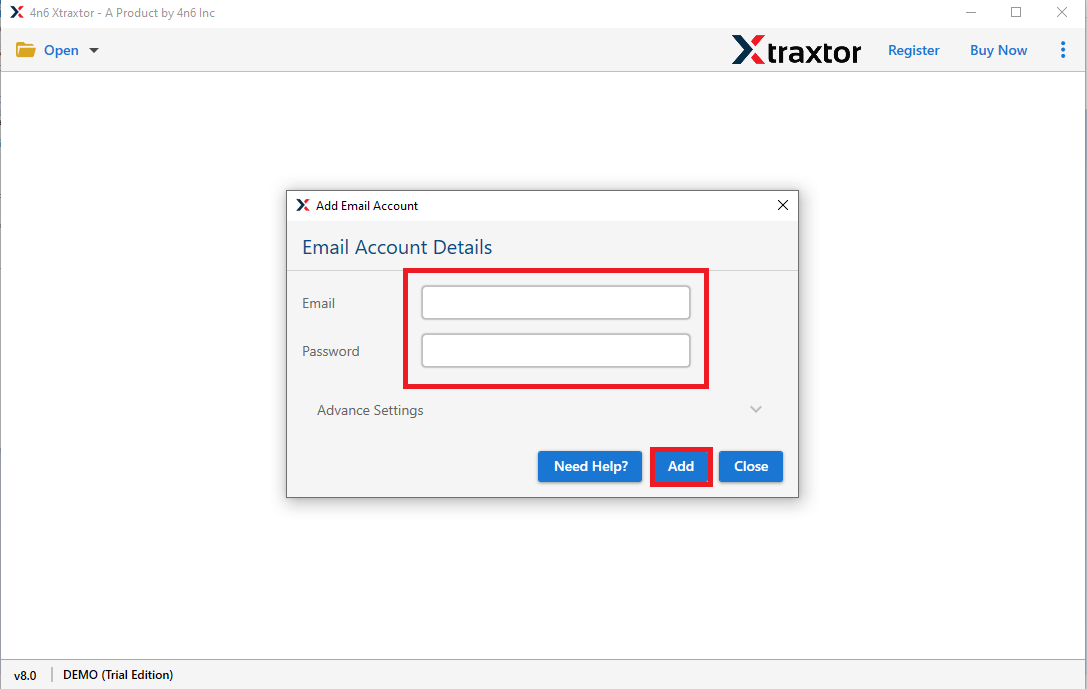
Step 3. Enter the cPanel Webmail account email id and password and then hit on Add button.
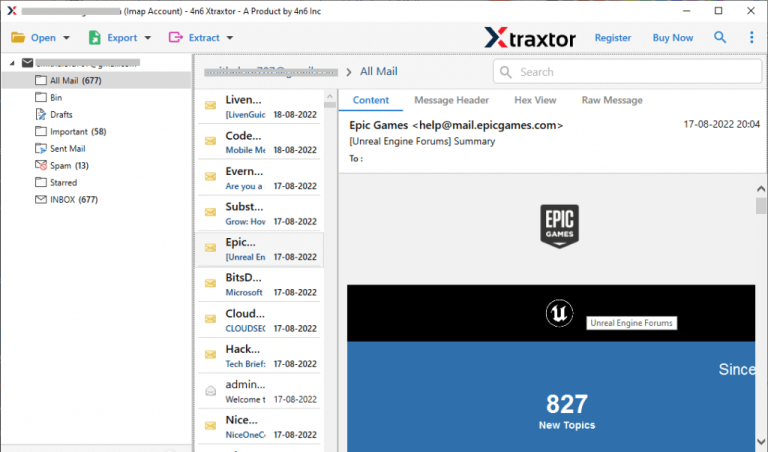
Step 4. Once you add the account, the tool loads all emails from your account before migrating them to Office 365.
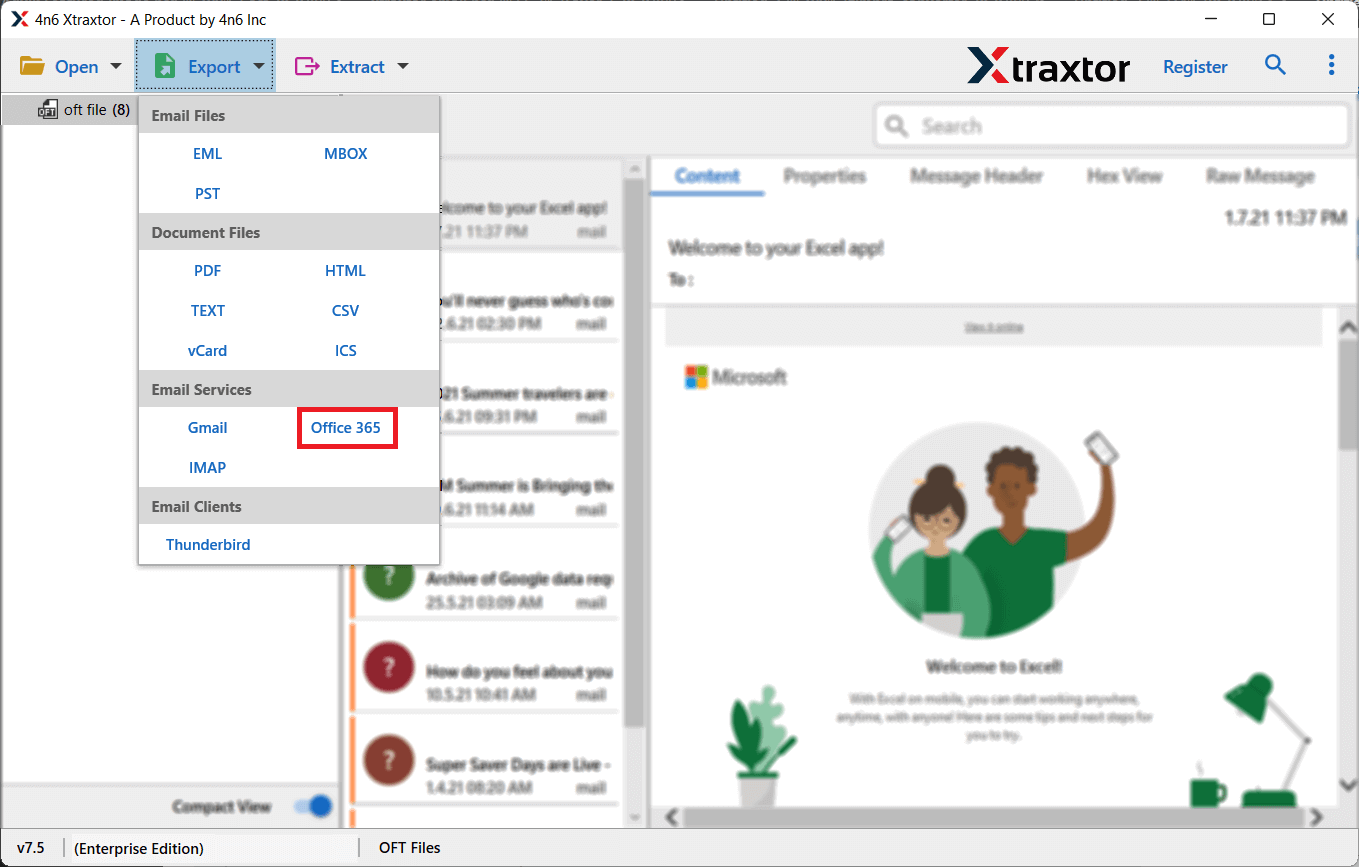
Step 5. After that, Go to Export and select Office 365 from the given options.
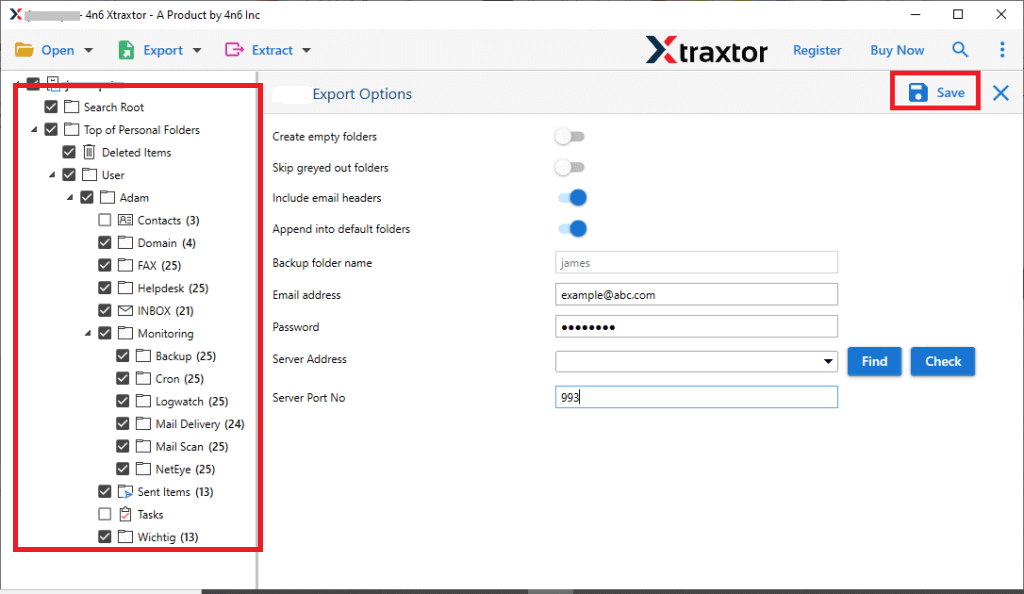
Step 6. Choose cPanel mailbox folders that you want to import into O365.
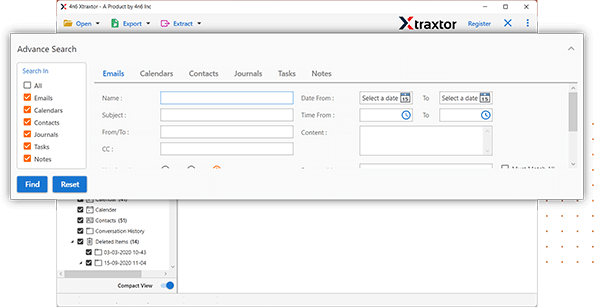
Step 7. Apply the Filters to transfer selected emails from cPanel to Office 365.
Step 8. Enter Office 365 login details in the respective field and then press the Save button to start the migration process.
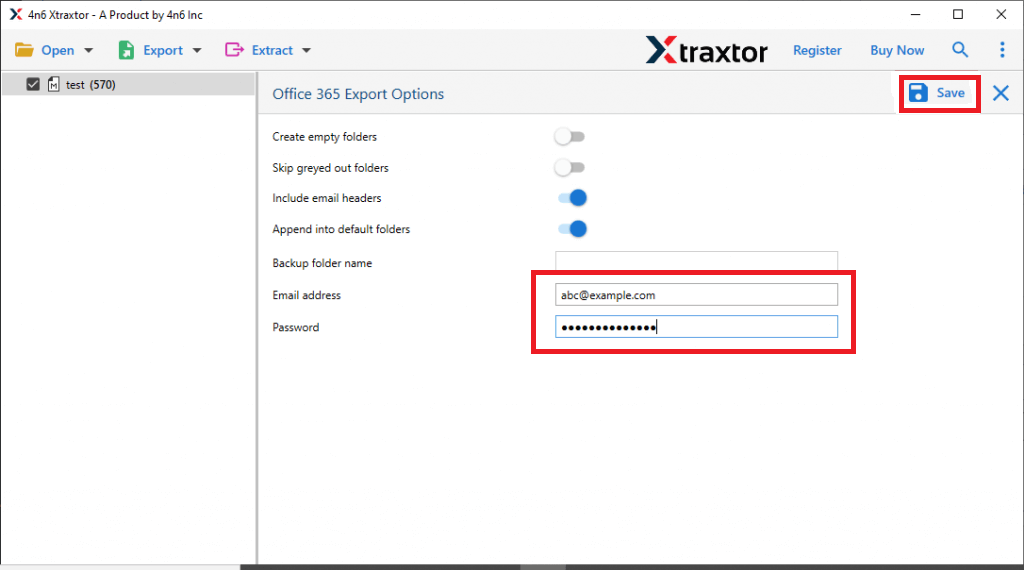
The process is complete. This tool will easily transfer cPanel emails to Office 365 with just a few simple clicks.
Why cPanel to Office 365 Migration Tool is Recommended- Know
The software has many benefits that enable users to easily transfer cPanel emails to Office 365. Some of them are given below-
- Direct Migration: It is a stand-alone utility which means you do not need to install any other application to export cPanel emails to Office 365. You just need to enter the login details of both email accounts, it completes the process in a few seconds.
- Batch Mode: With this utility, you can import all emails from cPanel webmail account to Microsoft 365 at once. The tool saves time and effort to migrate unlimited emails from cPanel to Office 365.
- Secure & Error-Free Solution: Users are always worried about the personal information of their account. This application solves this problem. It does not save the details of your account and migrate emails from cPanel to Office 365 without any data loss.
- Various Saving Options: The software has many saving options that is beneficial when migrating emails from one platform to another. You can export cPanel email to MBOX, PDF, EML, TXT, HTML, etc.
- Maintains Folder Hierarchy: The tool preserves the original structure of emails during the process. It is able to keep the hierarchy of folders and subfolders throughout the process.
- Cloud to Cloud Migration: Using this application, you can directly migrate email from one cloud-based email account to another such as Gmail to Office 365, Yahoo Mail to Gmail, Office 365 to Exchange Mailbox, cPanel to Gmail, and many other email accounts..
- Windows Supportive: There is no compatibility issue with this tool. You can run this application on any Windows-based system. It supports all latest and old versions of Win OS.
Conclusion
In this post, we have discussed how to migrate cPanel emails to Office 365. Here, we have mentioned both manual and automated solutions. You can choose anyone who is best suited for you. However, you can reduce your manual time and effort using the above-suggested tool to complete the cPanel to Office 365 migration process. The software has a lot of advanced features.
Download its free version and use it without any hassle.
