How to Migrate cPanel Email to Google Workspace?

Are you planning to migrate cPanel email to Google Workspace for better security and productivity? This guide explains simple and reliable methods to move your cPanel emails to Google Workspace without losing important data.
Moving emails from cPanel to Google Workspace is a common requirement for businesses that want better reliability, security, and collaboration tools. However, cPanel does not offer a built-in option to directly move emails to Google Workspace, which makes the process confusing for many users.
What Makes Google Workspace Better Than cPanel Email?
Before migrating, it’s important to understand why users prefer Google Workspace:
- Reliable Infrastructure: Hosted on Google’s global servers
- Advanced Security: Two-step verification, encryption, spam protection
- Better Storage: Higher mailbox limits compared to hosting email
- Collaboration Tools: Gmail, Drive, Docs, Sheets, Meet, Calendar
- Anywhere Access: Works smoothly on web, mobile, and desktop
Because of these benefits, many businesses move their cPanel emails to Google Workspace for long-term stability.
Ways to Migrate cPanel Email to Google Workspace
There is no direct native method, but users typically choose between:
- Automated migration (recommended for large or business mailboxes)
- Manual migration using Outlook (best for small mailboxes only)
Let’s break them down clearly.
Method 1. How to Transfer Emails from cPanel to Google Workspace via Outlook?
Using MS Outlook, you can manually transfer emails from cPanel to G-Suite. First of all, configure both email accounts with Outlook. Export cPanel emails to PST format and then import this PST file into Google Workspace. Hence, this method works in four phases.
Follow the instructions below for the cPanel to Google Workspace migration process-
Phase 1. Add cPanel Email Account in Outlook
Step 1. Launch MS Outlook email client on your system.
Step 2. Now, click on File >> Info >> Add Account.
Step 3. Then, enter cPanel email address and tick the box to Set up my account manually, and then click on the Connect button.
Step 4. Choose the account type IMAP.
Step 5. After that, enter the password of cPanel email account and press the Connect button.
Step 6. Now, Outlook will check whether all the filling details are correct or not. Once it’s done, you will get a confirmation message and then click on Done.
Phase 2. Export cPanel Emails to PST Format
Step 1. After completing the phase 1 restart Outlook application and click on File >> Open & Export >> Import/Export.
Step 2. Now, select Export to a file from import export wizard and press Next button.
Step 3. After that, Choose Outlook Data File (.pst) and click on Next.
Step 4. Select cPanel email id and choose email folders.
Step 5. Browse the location to save resultant file and hit on Finish button.
Phase 3. Configure Google Workspace Account with Outlook
Step 1. Sign in to G-Suite account and click on the Settings option.
Step 2. Now, Go to the Forwarding and POP/IMAP tab and Enable IMAP option.
Step 3. Then, click on Save Changes.
Step 4. After that, go to File tab and select Add Account option in Outlook
Step 5. Now, enter the email address of Google Workspace account and in Advanced Option, click the checkbox for Let me Set up my account manually. Then, click on Connect button.
Step 6. Choose IMAP as Account Type and enter the IMAP account settings in the respective field.
Incoming Server- imap.gmail.com, Port- 993, Encryption Method- SSL/TLS
Outgoing Server- smtp.gmail.com, Port- 465, Encryption Method- SSL/TLS
After filling in all the details, click on the Next button.
Step 7. After that, enter the password of G-Suite email account and press the Connect button.
Step 7. Now, Outlook will then run to check with the IMAP Server. After checking, it will send a confirmation message then click on Done button.
Now, your G-Suite will be available in Outlook.
Phase 4. Import Exported PST File into G-Suite
Step 1. Once Google Workspace account is successfully added with Outlook then click on File tab.
Step 2. Click on Open& Export and select Import/Export option.
Step 3. After that, choose Import from another program or file and press Next.
Step 4. Select Outlook Data File (.pst) and click on Next.
Step 5. Click on Browse to select the PST file that is exported in Phase 2 and hit on Next.
Step 6. Choose the import items into the same folder and select G-Suite mailbox.
At last, click on the Finish button to complete the cPanel to Google Workspace migration process.
Hence, you can manually migrate cPanel email to Google Workspace.
Downsides of the Manual Approach
You can manually transfer emails from cPanel to G-Suite, but there are some limitations of this method, which are given below-
- You must have technical knowledge to configure email accounts with Outlook.
- There are many steps in this method. So, it takes a lot of time to complete the migration process.
- It does provide email filter facility to export only required emails.
- Outlook must be installed on your system.
- If import export option greyed out in Outlook then you can not perform the process with this method.
Method 2. How to Transfer Emails from cPanel to G-Suite Instantly?
Download and run Xtraxtor Email Migration Tool and directly migrate cPanel email to Google Workspace without installing any external applications. The software can export cPanel email to G-Suite in bulk. You can also use the filter options of this utility and import selective emails. Apart from this, the tool maintains the email folder and sub-folder hierarchy during the migration process.
Additionally, you can also use this utility to migrate emails from cPanel to cPanel, Office 365, Yahoo Mail, Hotmail, Zoho Mail, Yandax, and many other email accounts. With the simple user interface, any novice user can operate it and migrate cPanel email to Google Workspace without facing any issues.
Try its free demo version and perform cPanel to G-Suite Migration process with ease.


Steps to Migrate cPanel Email to Google Workspace
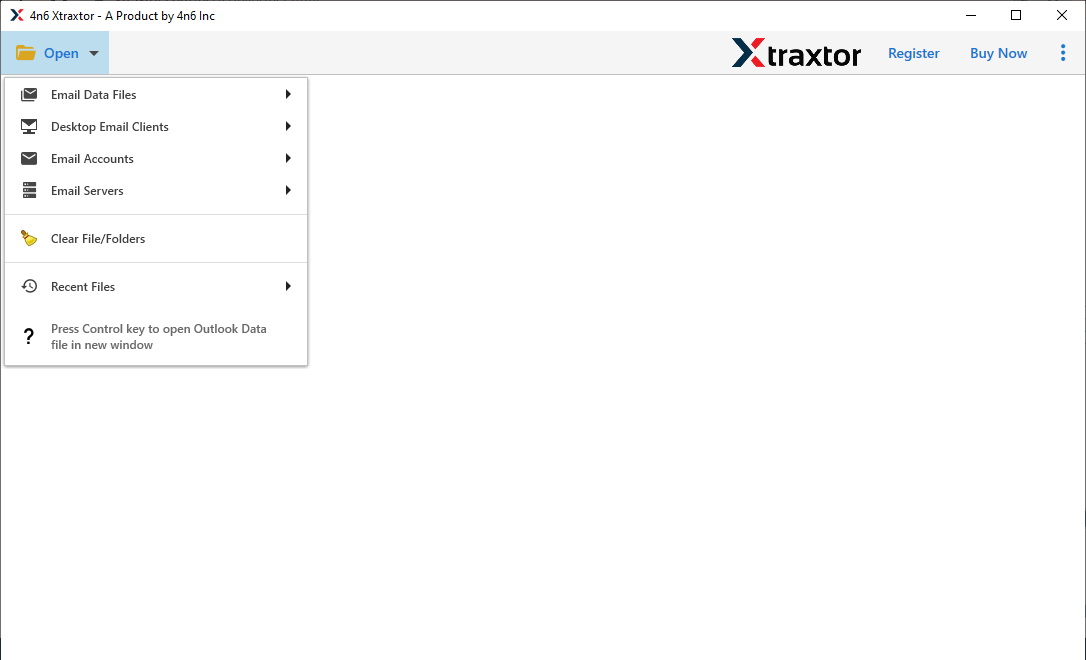
Step 1. Launch this software on your system and click on Open tab to select the given options.
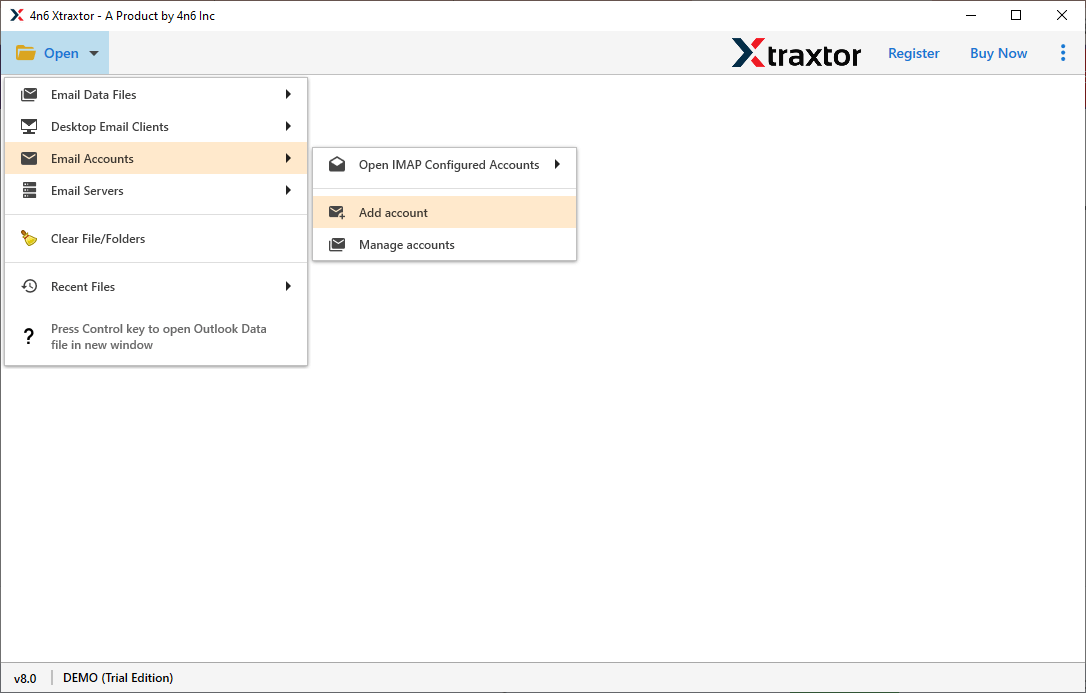
Step 2. After that, Go to Email Accounts and click on Add Account option.
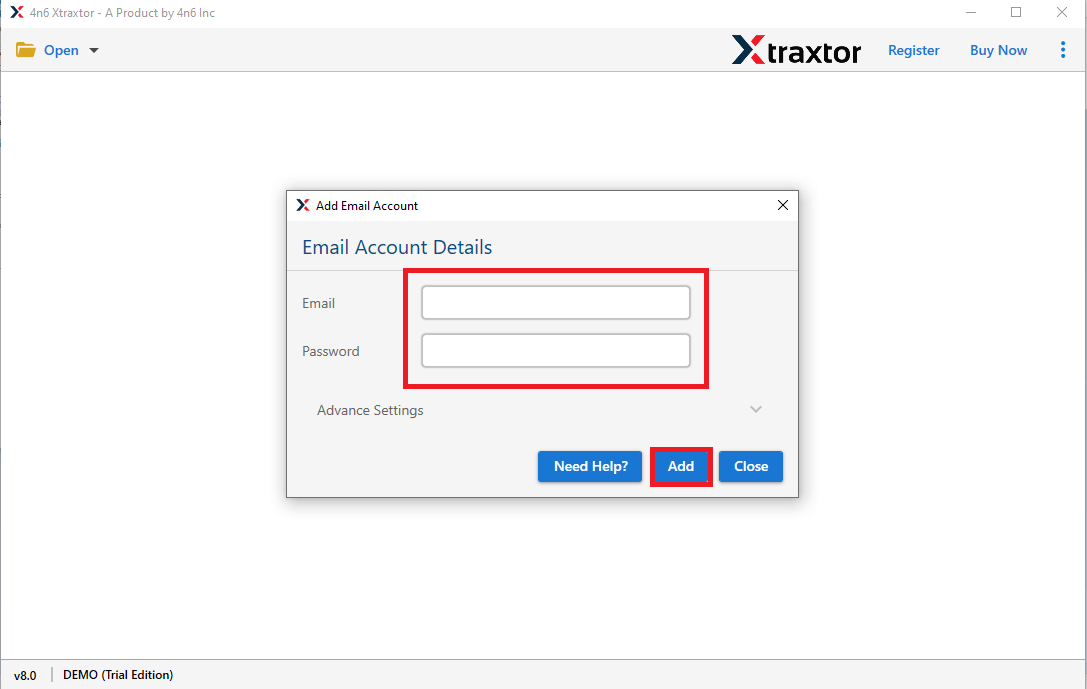
Step 3. Enter the login details of your cPanel email account and then hit on Add button.
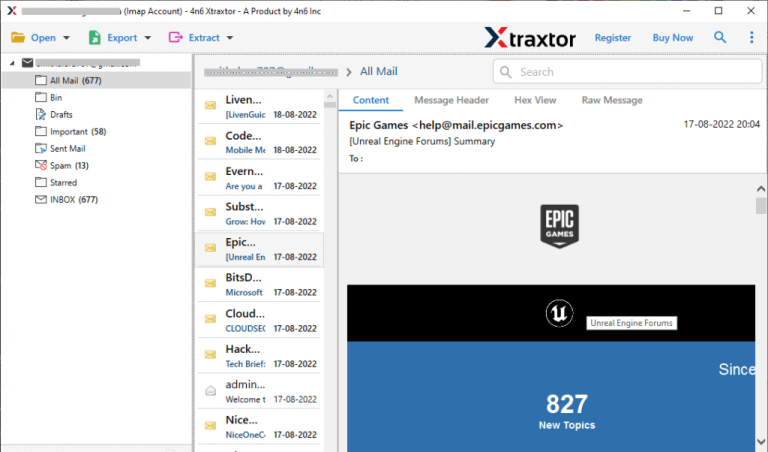
Step 4. Once, you add account successfully then the tool loads all emails from your cPanel account to view emails before migrating them to Google Workspace.
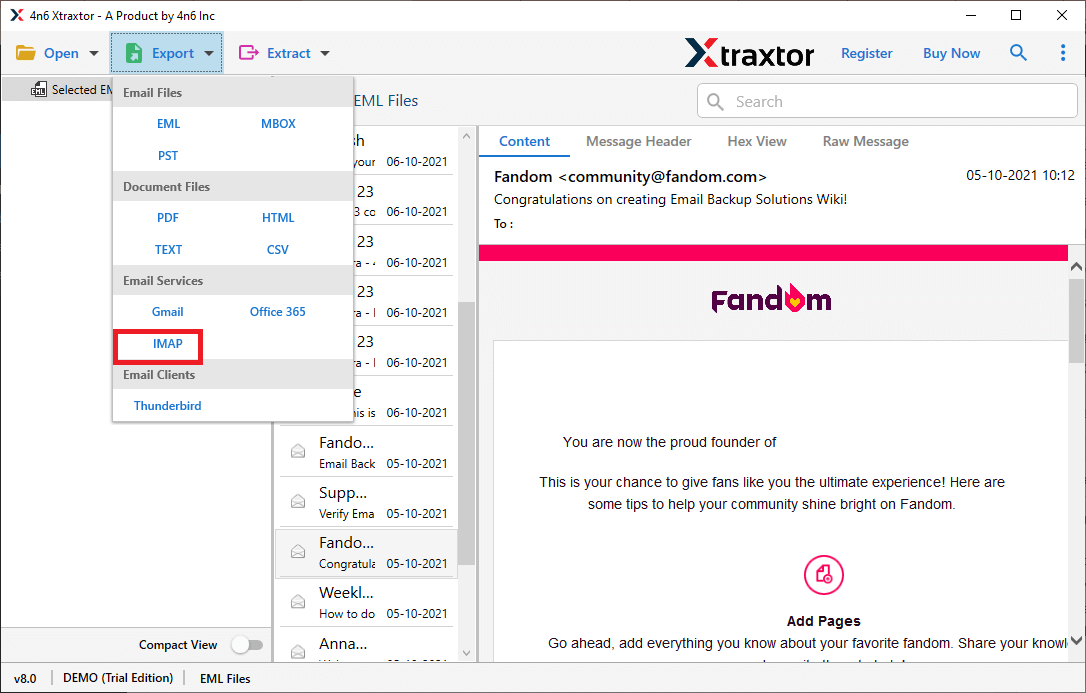
Step 5. Now, Go to Export and choose IMAP option from the given list.
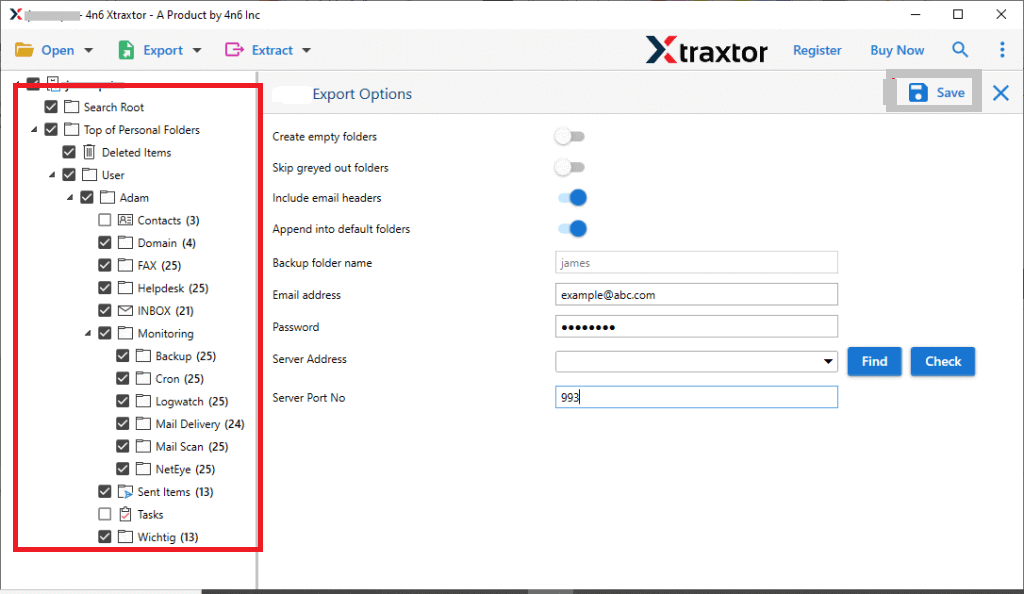
Step 6. Then, Select the cPanel email folders that you want to import into G-Suite.
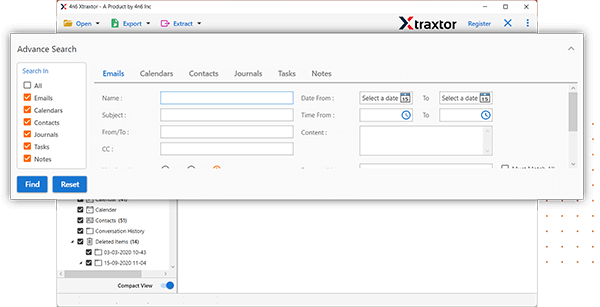
Step 7. Apply the filters to transfer specific emails.
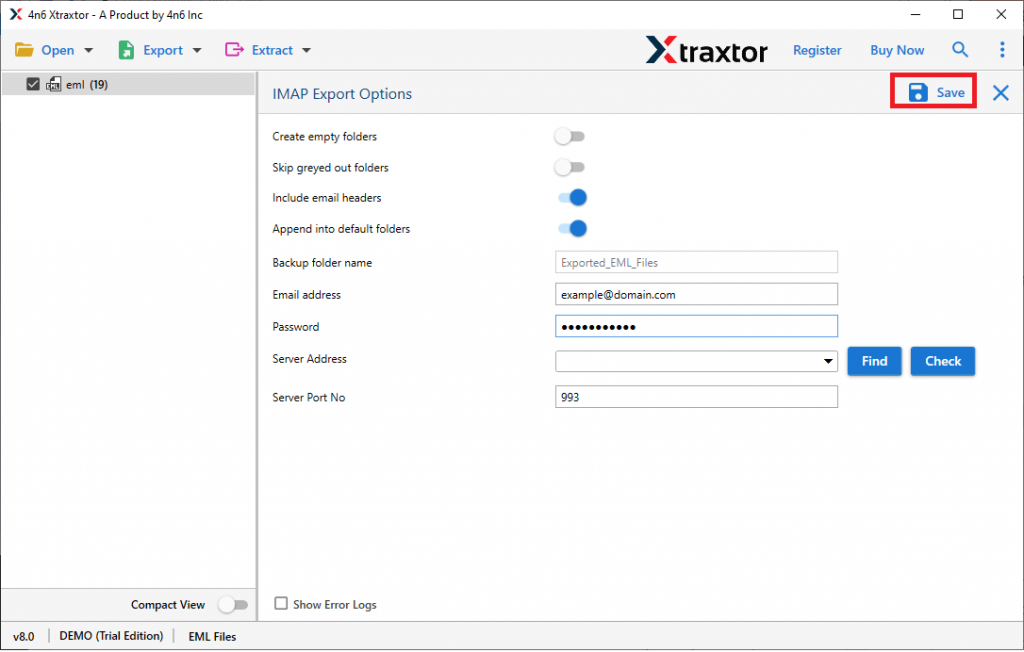
Step 8. After that, type the login credentials of Google Workspace account in the respective field.
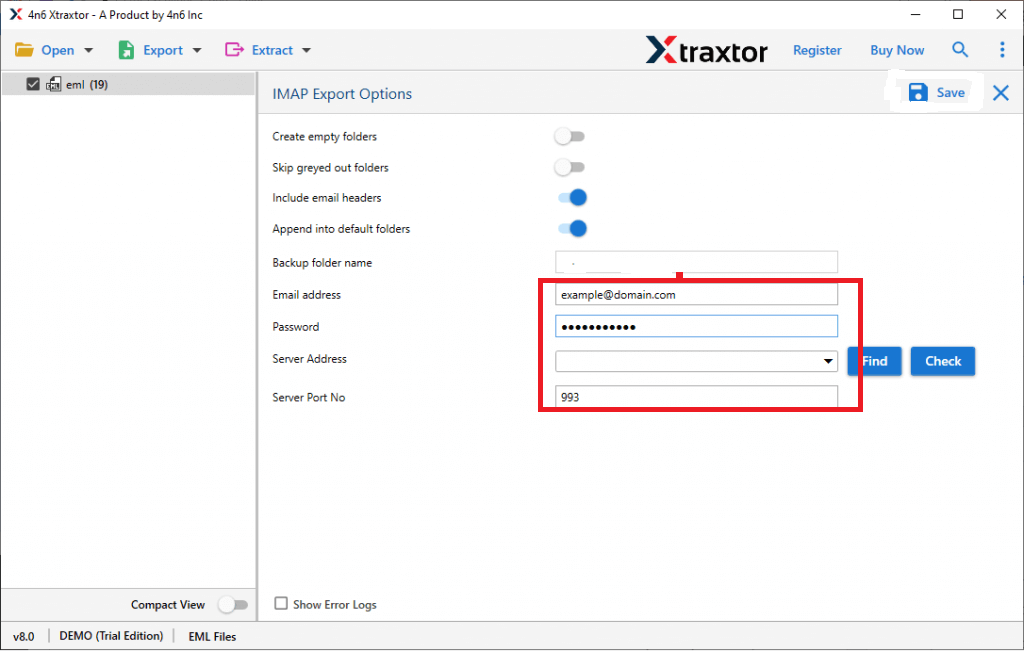
Step 9. At last, click on the Save button to start cPanel to Google Workspace Migration process.
The process is complete.
Highlighted Features of Xtraxtor cPanel to G-Suite Migration Tool
- The software can directly migrate cPanel email to Google Workspace without any external help.
- With this application, you can move multiple emails in a single go without any data loss.
- The tool retains the folder hierarchy and the original structure of emails throughout the process.
- During the transfer of cPanel email to G-Suite, it ensures that no alteration to your email data.
- It provides various filter options such as to, from, date, time, cc, etc. to import selected emails.
- Using this utility, you can also migrate cPanel email to PST, EML, MBOX, PDF, MSG, TXT, HTML, etc.
- The software moves cPanel email to Google Workspace with attachments and other key attributes.
- It can also migrate cPanel email to Yahoo Mail, Gmail, Office 365, and any cloud based email accounts.
- The tool offers a simple and intuitive graphical user interface to complete process without any guidance.
- The software is compatible with various versions of Windows OS including Win 11, 10, 8, 7, Vista, XP, etc.
- A free version is available to check its work efficiency and accuracy before purchasing the licensed version.
- The dedicated customer support team is available 24*7 to solve users doubts related to the product.
Summing Up
It is always suggested a trusted and reliable technique for cPanel to G-Suite migration. Here, we have explained two easy and secure solutions to migrate cPanel email to Google Workspace. You can choose anyone that is best suitable for you. However, experts recommend using the automated solution to directly transfer cPanel email to Google Workspace without any hassle.
