How to Import MSG to Thunderbird? [Updated 2026]

Are you wondering how to import MSG to Thunderbird with attachments? You are in the right place. This guide explains everything step by step, including manual and professional methods, so you can safely import MSG into Thunderbird without losing data.
Why Do Users Need to Open MSG File in Thunderbird?
There are several practical reasons to import MSG to Thunderbird:
- An MSG file stores only one email, making bulk management difficult
- Outlook is paid, while Thunderbird is free and open source
- Thunderbird works on Windows, macOS, and Linux
- Users migrating from Outlook want to import messages to Thunderbird
- Thunderbird offers better long-term access without license dependency
[box type=”shadow” align=”” class=”” width=””]Can Thunderbird Open .MSG Files Directly?
No. Mozilla Thunderbird cannot open .MSG files natively.
MSG is a Microsoft Outlook file format, while Thunderbird uses MBOX and EML formats.
Because of this format mismatch:
- Thunderbird cannot open MSG files directly
- Thunderbird cannot import MSG files in bulk
- MSG files must be converted first [/box]
How to Import MSG to Thunderbird Manually?
Here in this section, we will discuss two workable solutions to import MSG files to Thunderbird mailboxes. Let’s check out both of them.
1. Import By Renaming MSG File
You can manually import MSG to Thunderbird by converting them to EML format. Follow the steps below to open MSG file in Thunderbird-
- Right-click on the MSG file that you want to access in Thunderbird and select the Rename option.
- Now, change the extension of this file from MSG to EML.
- Then, a new EML file is created.
- After that, right-click on this newly created EML file and choose the Open in Thunderbird option.
- Repeat the process to open other MSG files in Thunderbird.
Hence, you can open MSG file in Thunderbird manually.
2. How to Import MSG File to Thunderbird via Outlook?
Using MS Outlook, you can import MSG files into Thunderbird. Follow the steps below to open MSG file in Thunderbird;
- Open the MS Outlook application on your system.
- Select the MSG file that you want to access in Thunderbird and drop it into Outlook.
- Now, click on Save as option and enter the location.
- After that, select the saving option TXT from the Save as Type and click on the Save button.
- Now, right-click on TXT file and select the extension from TXT to EML.
- Then, you will see a warning message on the screen, click on the Yes option.
- Hence, the MSG file is saved in EML format.
- Finally, right-click on that EML file and select the Open in Thunderbird option.
Done! Here, complete the process.
There are some limitations of this method, which are given below-
- With manual methods, you can import only one MSG file at once.
- If you have multiple MSG files then manual solutions are so time-consuming.
- Using these methods, you can not import attachments with MSG file.
How to Import MSG Files into Thunderbird in Batch?
Xtraxtotr MSG Converter is a perfect solution to import MSG file to Thunderbird. It is a trouble-free application that helps you import MSG folders to Thunderbird in bulk. With this utility, you can import MSG files in their original structure without making any changes. The tool enables you to directly import MSG file to Thunderbird without any data loss.
To find out how it works, download the demo version of the software.


Steps to Import MSG to Thunderbird Email App
- Download and Run Xtraxtor on your Windows PC.
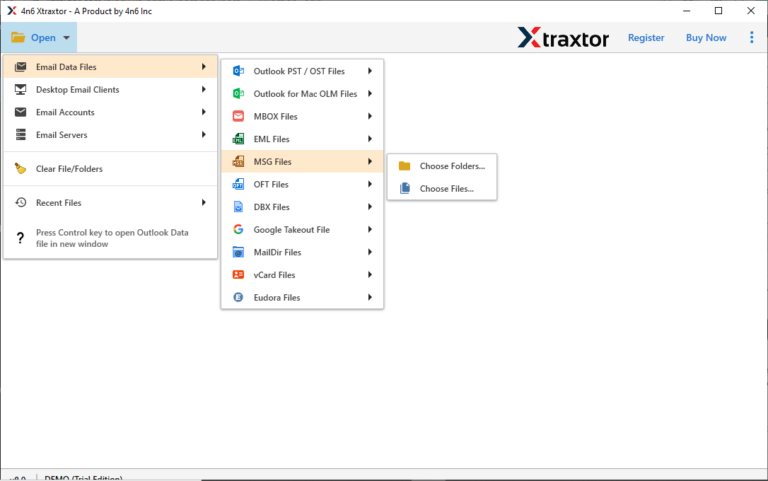
- Now, click on Open >> Email Data Files >> MSG Files >> Choose Files or Folder.
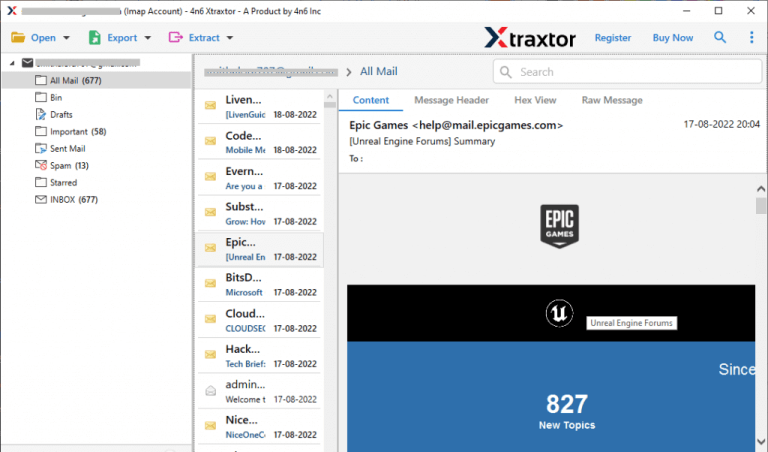
- Here, you can view emails from MSG files before importing them to Thunderbird.
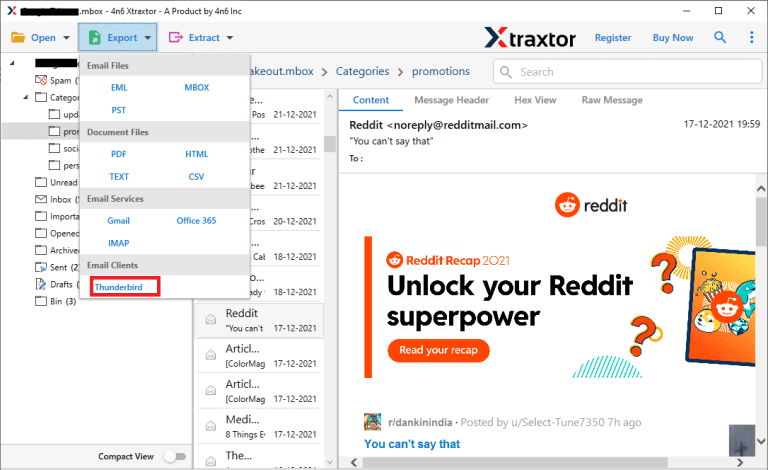
- After that, click on Export and Select Thunderbird from the given options.
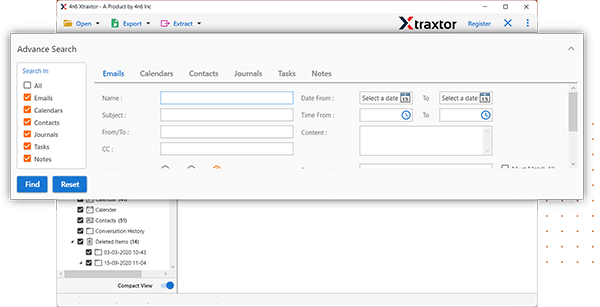
- Apply the filters to import selected MSG files.
- The Software will automatically detect the default location where Thunderbird mailbox is stored and then click on the Save button.
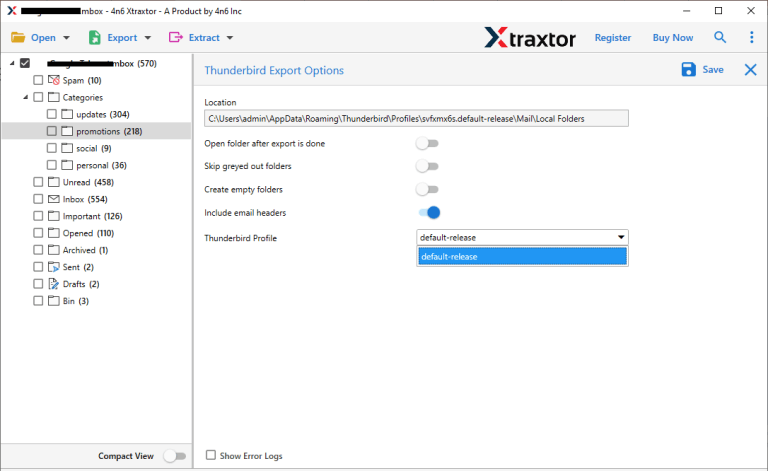
The process is completed!
Advantages of Xtraxtor Software
The tool has many benefits so you can easily import MSG files to Thunderbird. Some of them are-
- The software is able to directly import MSG to Thunderbird without any external help.
- Using this tool, you can convert MSG to PST, EML, PDF, HTML, MBOX, TXT, etc.
- When you select the MSG folder then the tool loads emails from MSG files in the software paneI for preview. You can read and access MSG files before the importing process.
- The tool supports importing MSG files along with their attachments without changing the originality.
- It allows you to batch-import MSG files to Thunderbird with complete accuracy. There are no file size or file number restrictions.
- It preserves the folder hierarchy and also maintains the metadata property of the message during and after the process.
- The software provides advanced filter options. If you do not want to export all data then you can select the desired data using filters based on date, time, subject, sender, recipient, etc.
- With this tool, you can import MSG files to Yahoo Mail, Outlook, Hotmail, Zoho Mail, Gmail, and many other email accounts.
- The tool provides a very simple and user-friendly interface. It is easily accessible for beginners without any technical guidance.
- It supports all latest and old versions of Windows Operating Systems without any compatibility issues.
Final Words
In this post, we have discussed how to import MSG to Thunderbird. Here, we have explained two manual and one automated solution. You can easily open MSG file in Thunderbird using manual solutions, but if you have multiple MSG files then these methods are not suitable. However, with the professional method, you can import MSG files into Thunderbird in bulk with complete accuracy. The software is able to import MSG files with attachments.
