How to Import MBOX to Outlook.com Account?

Handling multiple MBOX files can quickly become confusing, especially when emails are stored across different folders, devices, or email clients. Many users look for a way to import MBOX to Outlook.com so they can manage all emails from one secure, cloud-based platform.
If you’re searching for a safe and reliable method to upload MBOX files to Outlook.com without data loss, this guide explains everything step by step. You’ll learn why Outlook.com is preferred, the best method to transfer MBOX emails, and how to avoid common mistakes.
What Is Outlook.com and Why Do Users Prefer It?
Outlook.com is Microsoft’s cloud-based email service that allows users to access emails, contacts, and calendars from anywhere. Since data is stored securely on Microsoft servers, you don’t need to worry about local storage issues or device failure.
Key Benefits of Outlook.com
- Cloud-based access from any device
- Strong security and spam protection
- Seamless integration with Microsoft services
- Easy email organization and search
- Suitable for both personal and professional use
These benefits are the main reason users want to move MBOX emails to Outlook.com.
How to Transfer MBOX File to Outlook.com Automatically?
Try out the Xtraxtor MBOX Converter on your Windows and instantly import MBOX to Outlook.com. The software has many advanced options, such as batch importing, email filtration, folder selection, export options, etc. Using this tool, you can import MBOX files to Outlook.com in bulk with complete accuracy.
Apart from this, the tool is a stand-alone utility, which means you do not need to install any other applications to upload MBOX file to Outlook.com account. It is designed with advanced algorithms and a simplified interface that helps beginners to transfer MBOX file to Outlook.com without in-depth technical knowledge.
Try the free trial version to check its work efficiency and accuracy.

Steps to Import MBOX to Outlook.com with Attachments
Step 1. Download and run Xtraxtor software on your system.
Step 2. Now, click on Open >> Email Data Files >> MBOX Files >> Choose Files or Folders.
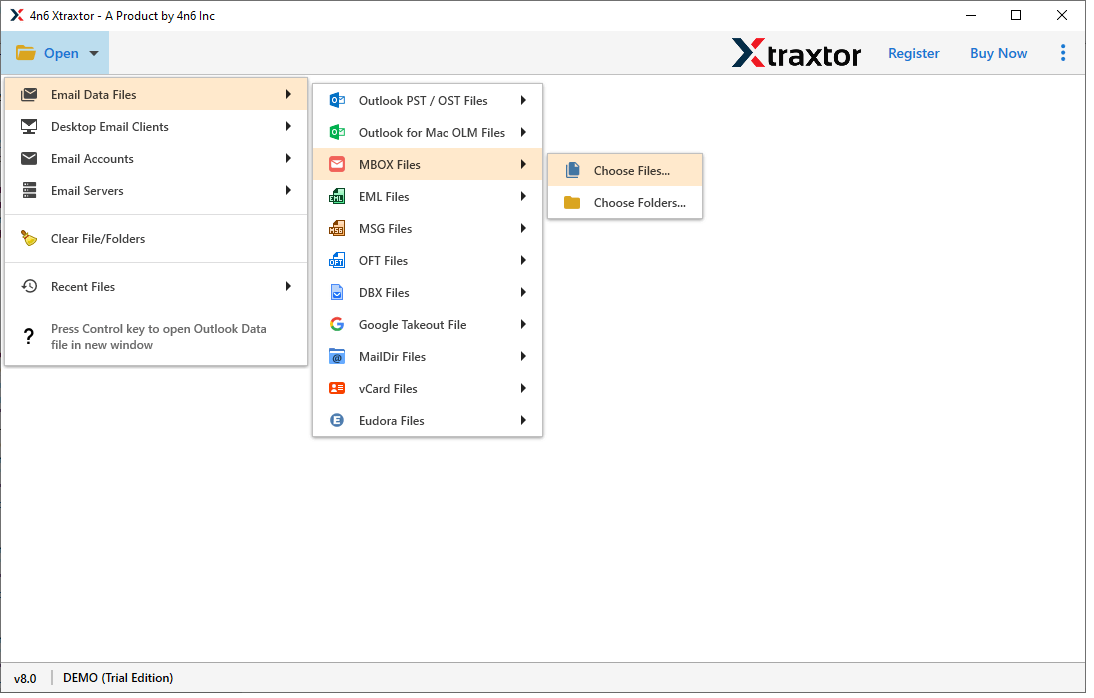
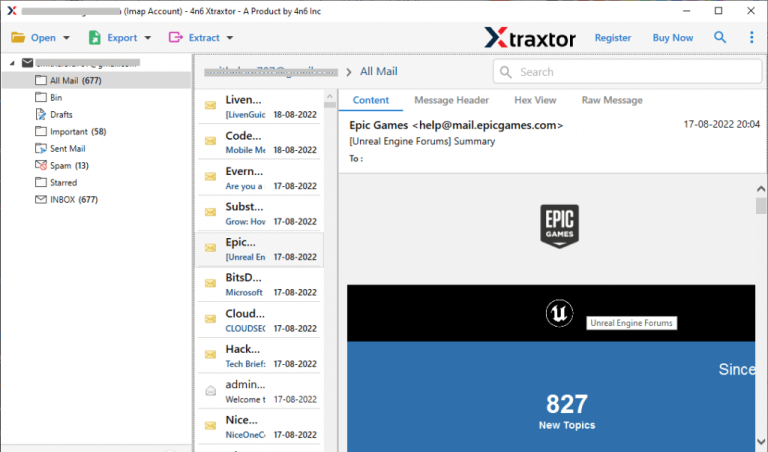
Step 3. Here, you can view emails from MBOX file before importing them to Outlook.com
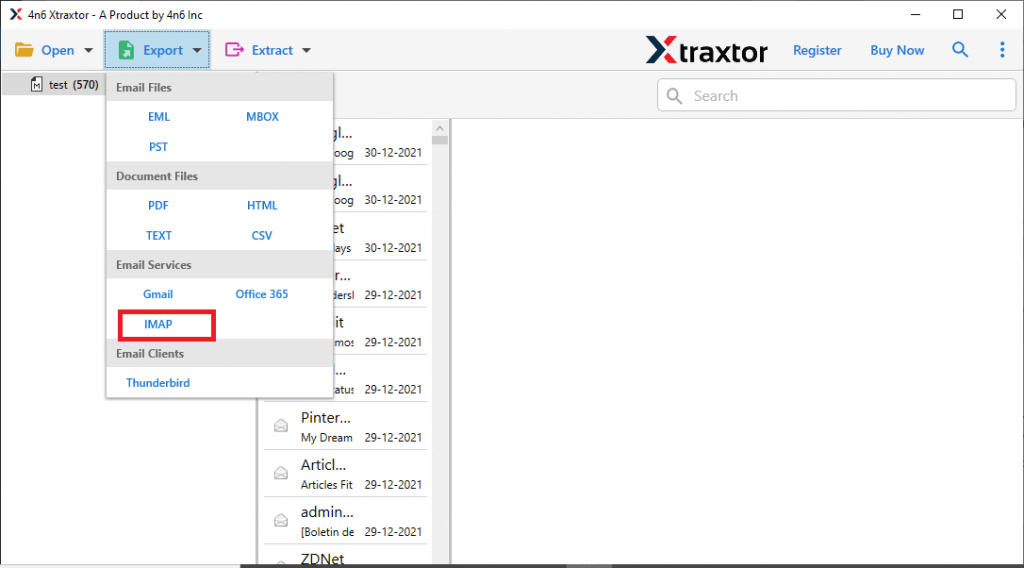
Step 4. After that, Click on Export and Select IMAP option from the given list.
Step 5. Choose the MBOX folders and subfolders that you want to transfer from MBOX to Outlook.com.
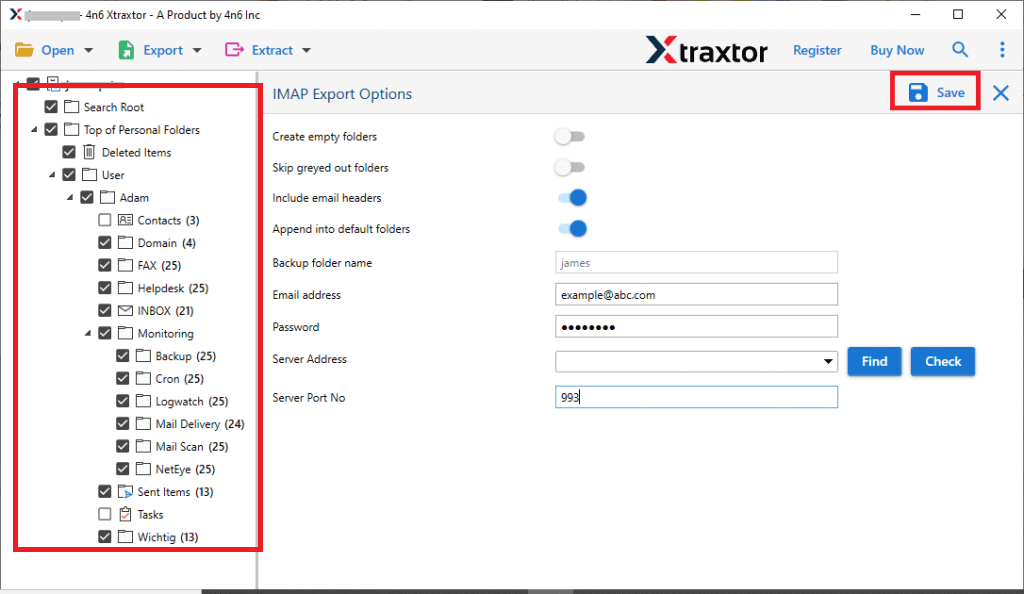
Step 6. Enter the Outlook.com Email Id, Password, and Port No in the respective field, and then click on the Save button to begin the importing process.
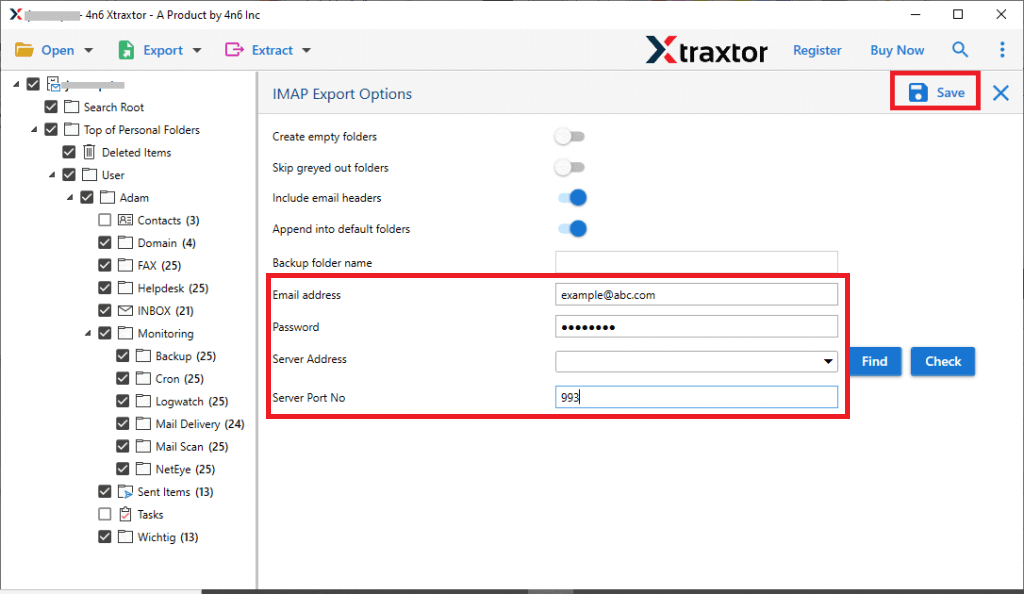
The process is complete. Hence, the software can easily upload MBOX file to Outlook.com in a simple manner.
Prominent Features of Xtraxtor MBOX to Outlook.com Converter
- Directly Import MBOX to Outlook.com- It is an undependable tool which means you do not need to install any other applications to complete the process. With this utility, you can directly upload MBOX to Outlook.com without any external help.
- Export MBOX to Various Formats- The software has various saving options to export MBOX files. You can easily convert MBOX to PST, EML, PDF, HTML, TXT, and 10+ file formats.
- Email Selection- There are various advanced filter options such as to, from, date, time, cc, bcc, etc. If you do not want to import all data from MBOX to Outlook.com then filters help you in the selective importing process.
- Secure and Error-Free Result- The tool export MBOX files with all metadata properties and key attributes. It does not lose any data during the importing process and uploads MBOX files with attachents.
- Maintains Folder Hierarchy- With this utility, you can import MBOX to Outlook.com account in their original format. It transfers all folders and subfolders without any changes.
- Import MBOX to Cloud Base Email Account- With this utility, you can directly transfer MBOX file to any cloud-based email account. The tool can import MBOX to Gmail, Zoho Mail, Office 365, Yahoo Mail, etc.
- Support MBOX File from Different Sources- It allows users to export emails from different sources. It supports MBOX files from Thunderbird, Eudora, Google Takeout, Apple Mail, Opera Mail, etc.
- Windows Supportive- It is a fully Windows-based utility. It supports all latest and old versions of Windows Operating Systems.
Frequently Asked Question
Q1. What is the best method to open MBOX files in Outlook.com?
Ans. Follow the steps to transfer MBOX emails to Outlook.com mailbox –
- Run the Xtxaxtor MBOX Converter on your system.
- Add the MBOX file.
- Choose IMAP from the different export options.
- Enter your Outlook.com login details and hit the Save button.
Done! Here you import MBOX files to Outlook Online App in a few clicks.
Q2. Is there any option to upload selective emails from MBOX to Outlook.com?
Ans- Yes, the data filter options help you to import selected emails from MBOX to your Outlook.com account.
Q3. Can I export attachments from the MBOX file with this utility?
Ans- Yes, you can easily extract attachments from MBOX file.
Q4. What will I get in the trial version?
Ans- You can import the first 10 email items from MBOX to Outlook.com with the demo version.
Conclusion
