
If you’re looking for a reliable way to convert Outlook MSG files to MBOX format, this guide is for you. Many users face difficulties managing hundreds of MSG files, especially when switching from Outlook to email clients like Thunderbird or Apple Mail.
In this blog, you’ll learn:
- What MSG and MBOX files are
- Why users convert MSG to MBOX
- Manual and automated ways to perform the conversion
- Limitations of manual methods
- A faster bulk solution for large MSG collections
Ways to Convert MSG to MBOX Format
There are two different ways to export MSG to MBOX file. One is a manual solution, and the other one is an automated solution. Both methods are explained in detail in the next section. You can choose any one that is most suitable for you.
Method 1. How to Convert Outlook MSG to MBOX Manually?
There is no direct manual solution to export MSG to MBOX format. Using Outlook and Thunderbird, you can perform MSG to MBOX conversion.
Follow the steps for manually converting MSG to MBOX format-
- Go to the location where the MSG files are saved in your system.
- Now, right-click on MSG file and open it with Outlook.
- Then, navigate to File >> Save as.
- Choose TXT as the saving option from the drop-down list and press the Save button.
- After that, right-click on this converted file and select the Rename option.
- Replace .txt extension with .eml extension.
- Now, open the Thunderbird application on your system.
- Right-click on Local Folder and then select the New Folder option to create a new folder.
- Thereafter, go to the location where the EML file is saved.
- Drag and drop this file in newly created folder in Thunderbird.
- After that, install ImportExportTools NG in Thunderbird.
- Now, right-click on the newly created folder >> ImportExportTools NG >> Export Folder.
- Browse the location to save the resultant file and then hit the Save button.
Done! Hence, you can convert MSG to MBOX manually.
Limitations of Manual Solution
- It is such a lengthy and time-consuming process.
- In this method, you need to convert the extension of every file. So, if you have a large number of MSG file it takes a lot of time to complete the process.
- MS Outlook and Thunderbird must be installed on your system.
- In case the Thunderbird import export tool not working, then you can convert file into MBOX format.
Method 2. How to Batch Convert MSG to MBOX Instantly?
Xtraxtor MSG Converter is a direct solution to export MSG to MBOX without installing any external applications. The software can convert multiple MSG files to MBOX at once. It preserves 100% data integrity during the process. Various advanced filters help you to export selected emails from MSG folder.
Apart from this, the tool can also convert MSG to PST, PDF, EML, MBOX, TXT, HTML, and 10+ formats. The simplified user interface helps users to easily export MDG to MBOX without any hassle. You can download its free demo version to check its work efficiency and accuracy.


Step-by-Step Guide to Convert MSG Files to MBOX
- Download and run this software on your Windows PC.
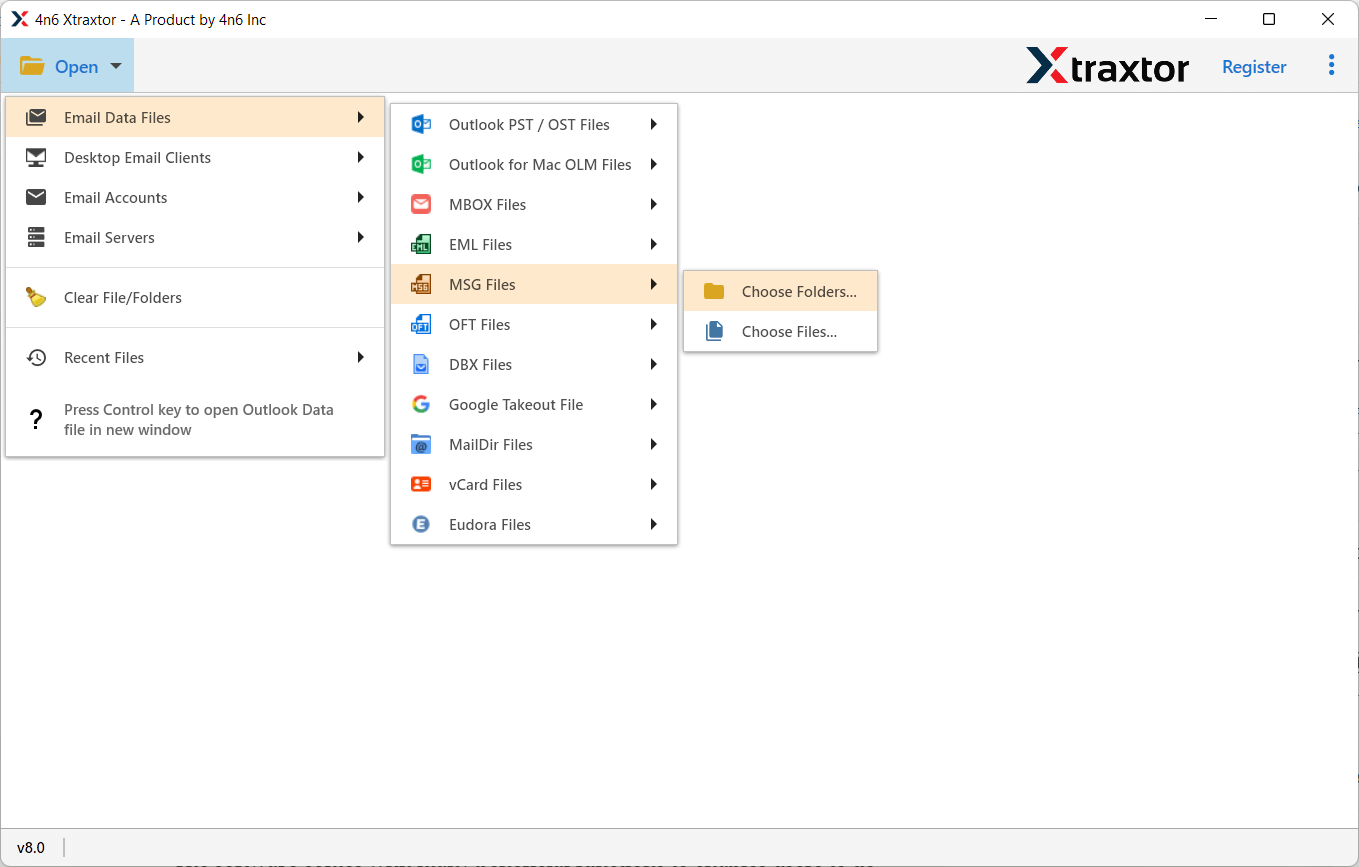
- Now, click on Open >> Email Data Files >> MSG Files >> Choose Files or Folder.
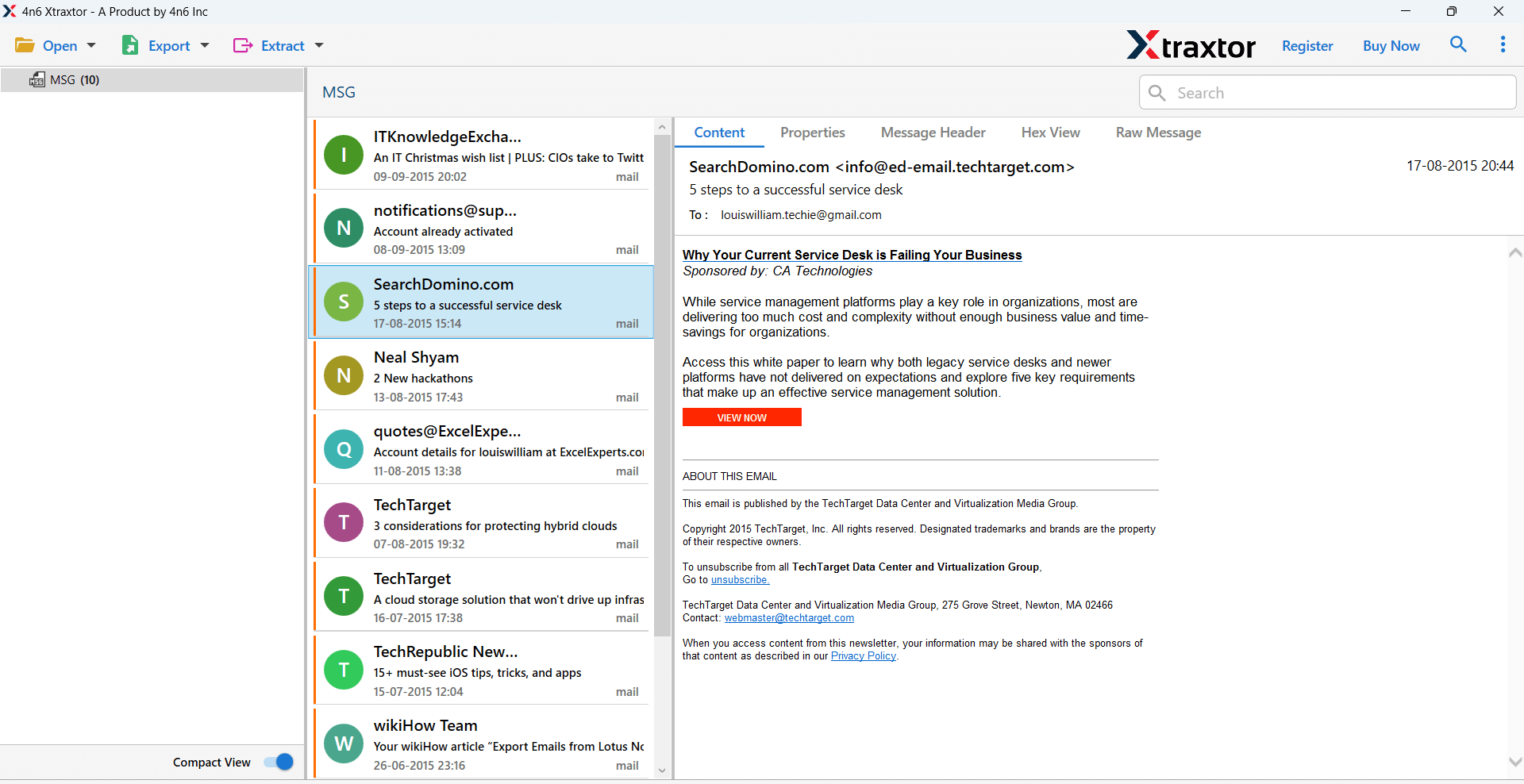
- Then, the software provides preview of Outlook message from MSG files.
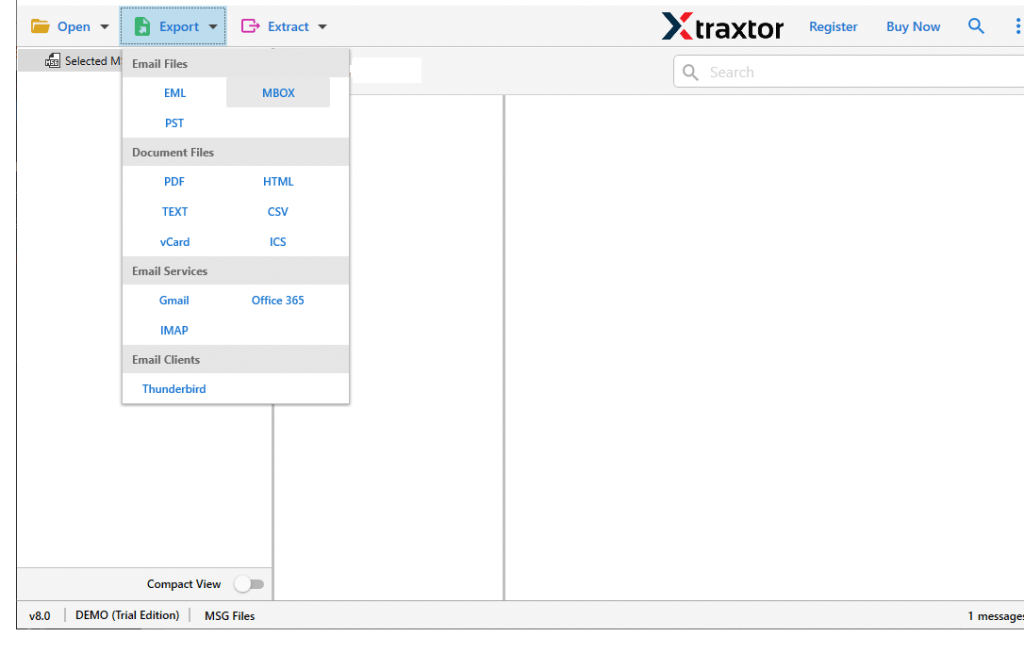
- After that, click on Export and select MBOX format.
- Click on Browse to set the destination location and then hit the Save button.
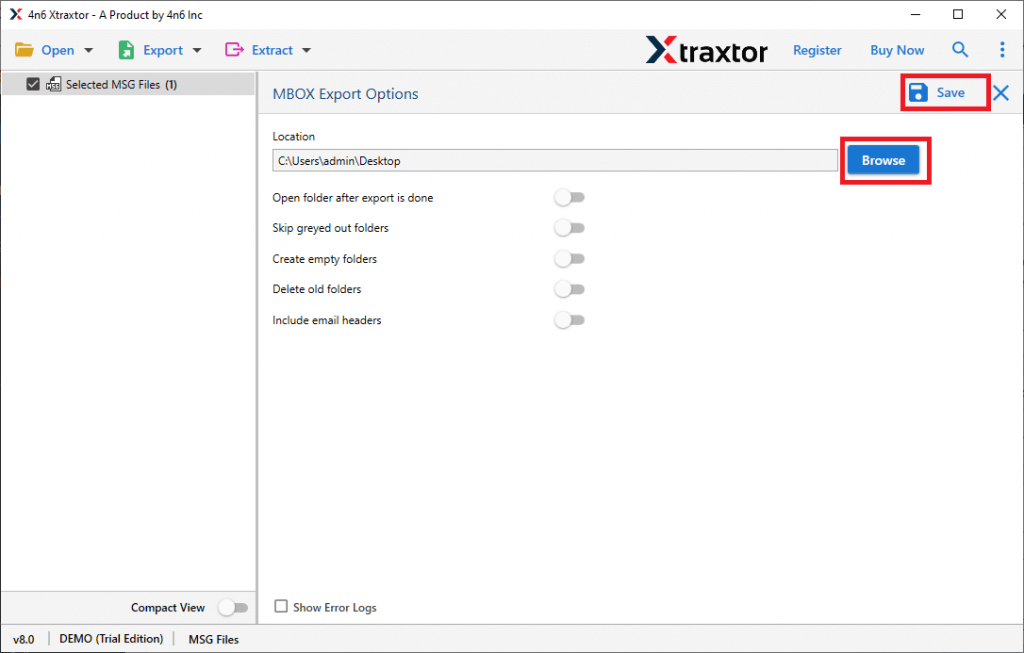
MSG to MBOX conversion is complete.
Benefits of Xtraxtor MSG to MBOX Converter
There are many benefits of this tool which are given below-
- Convert MSG to MBOX in Bulk: Using this tool you can convert multiple MSG files at the same time. So, It saves your time and effort to convert multiple MSG files.
- Various Saving Options: When you export your MSG files using this tool it provides various formats such as PST, MBOX, EML, CSV, PDF, TXT etc. to save the exported MSG files.
- Advanced Filter Option: If you want to convert only selected emails then the software provides various filter options such as to, from, date, time, subject, etc. to select the desired emails for conversion.
- Preview Option: when you select the MSG files or folder then the tool loads all data from MSG files to the software panel. You can preview the data before the conversion process.
- Preserves Data Properties: The tool maintains the original format of the data during the conversion process. It keeps important elements of the email like subject, to, date, time etc.
- Import MSG to Webmail Accounts: The tool not only convert Outlook MSG to MBOX but also import MSG to Gmail, Yahoo Mail, Hotmail, Zoho Mail, and many other email accounts.
- User-Friendly Interface: The interface of this application is very simple and easy to use. Any novice user can easily convert MSG to MBOX without any technical knowledge.
- Windows Supportive – There is no compatibility issue with this utility. It supports all versions of Windows Operating System.
Conclusion
In this post, we have discussed how to convert MSG to MBOX file format. Here, we have mentioned manual as well as automated solutions. You can manually export MSG to MBOX, but it is so time taking process. However, experts recommend using the professional approach to directly convert Outlook MSG to MBOX in just a few seconds.
