
Summary: Many users rely on Gmail for daily communication, but it does not fully integrate with Apple devices. On the other hand, iCloud Mail offers smooth syncing across iPhone, iPad, and Mac along with strong privacy and security features. Because of this, many users prefer to migrate Gmail to iCloud Mail for better access and easier email management. In this blog, we will explain the best methods to transfer Gmail to iCloud, including manual and professional solutions for a safe and complete migration.
When Do You Need to Transfer Gmail to iCloud?
Many users don’t migrate just for fun. There are real situations where this becomes necessary:
- Switched from Android to Apple ecosystem
- Want all emails in one place (iCloud)
- Prefer privacy-focused email services
- Tired of managing multiple inboxes
- Want better integration with Apple Mail app
In simple words, the goal is better control, privacy, and simplicity.
Why iCloud Mail is Preferred in 2026
Here are practical benefits (not just generic points):
- Strong privacy protection (no ad-based tracking)
- Seamless sync across iPhone, iPad, Mac
- Clean and distraction-free interface
- Works smoothly with the Apple Mail app
- Stores emails, contacts, and calendars in one place
- Advanced security, like 2FA and data encryption
Apple focuses heavily on user privacy, which is why many users migrate from Gmail.
Best Ways to Transfer Gmail to iCloud Mail
There are two practical approaches:
- Forwarding (Free but Limited)
- Full Migration (Recommended for complete data transfer)
How to Transfer Gmail Emails to iCloud for Free?
Gmail has built-in features that help you forward your emails to other email accounts. Follow the instructions for that –
1. Go to your Gmail account and open Settings.
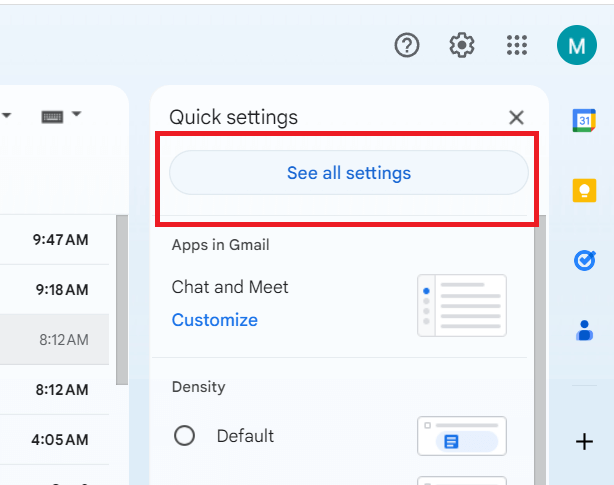
2. Click on “Forwarding and POP/IMAP”.
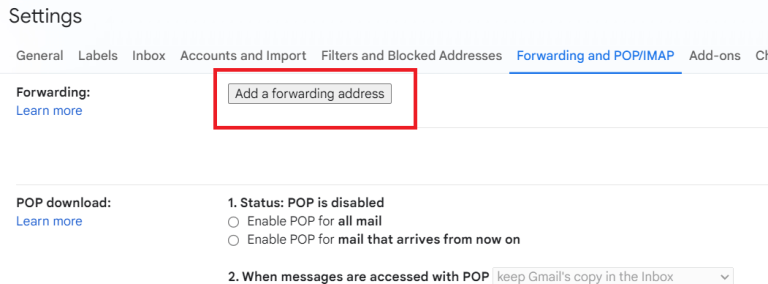
3. Choose “Add a forwarding address” and enter your iCloud email.
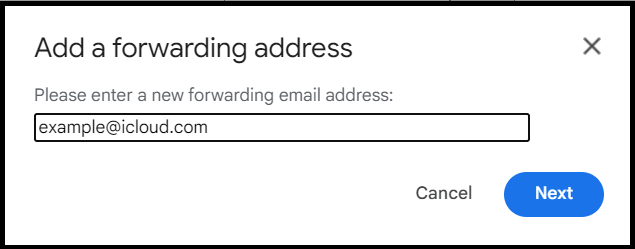
4. Click Proceed, then check your iCloud inbox for a verification code.
5. Enter the code in Gmail and click Verify.
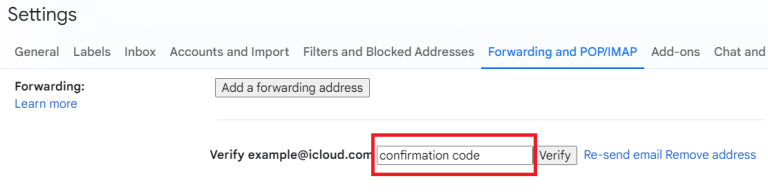
Done! Now Gmail will transfer your emails to iCloud Mail account. However, this method will transfer your emails that you will receive afterward. For a complete transfer, try out the next solution.
How to Transfer Gmail to iCloud Mail Automatically?
Download the Xtraxtor and effortlessly move all your Gmail emails into iCloud account. The tool will transfer emails directly from your Gmail mailbox to iCloud without affecting your emails. Additionally, you can also select the email folders that are important and transfer them only. You can also apply the filters as well – to, from, cc, bcc, name, date, time, subject, etc.
Try out the demo version of the tool and learn the complete Gmail to iCloud migration process.


Steps to Migrate Gmail to iCloud Mail
1. Run the software on your Windows system.
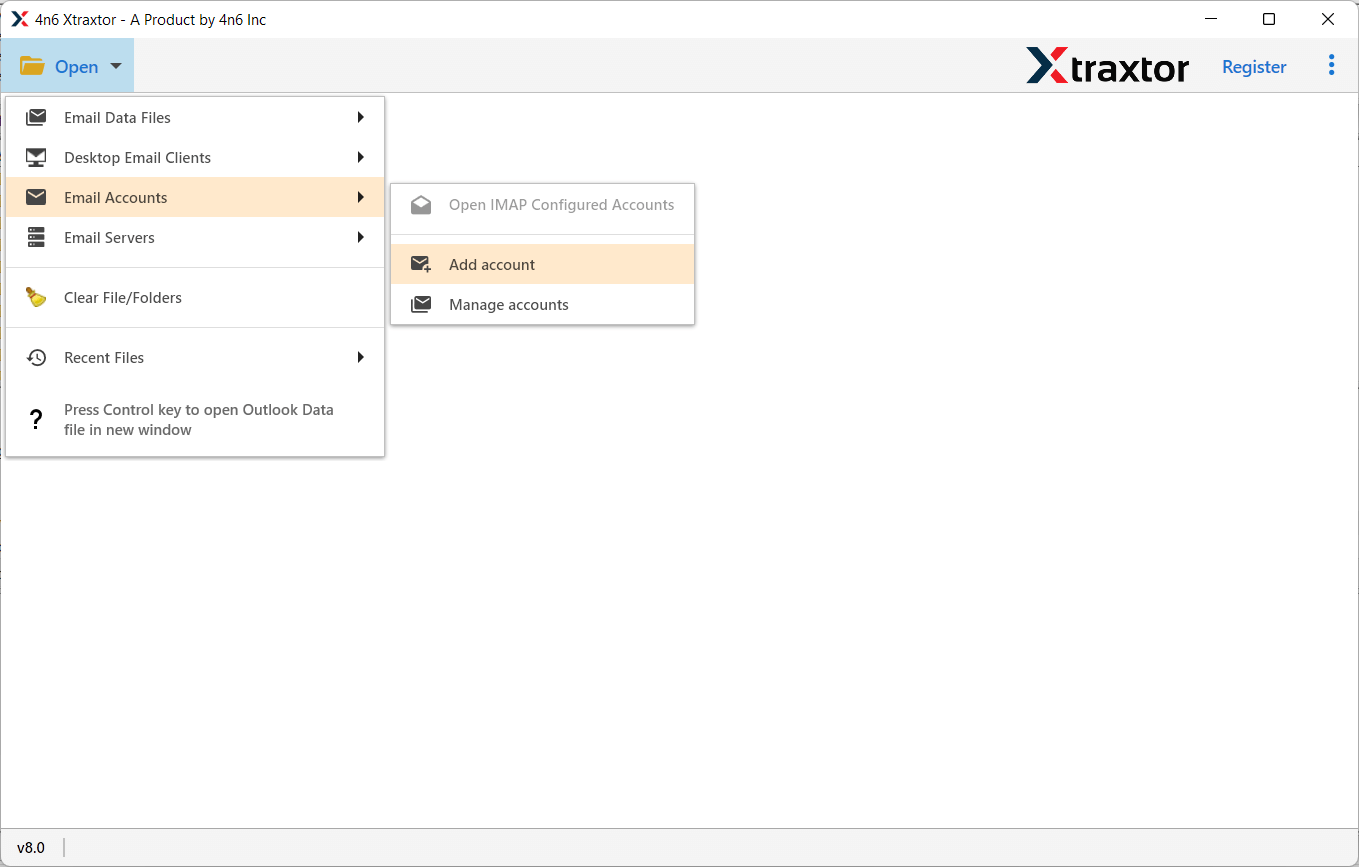
2. Click on Open >> Email Accounts >> Add Account.
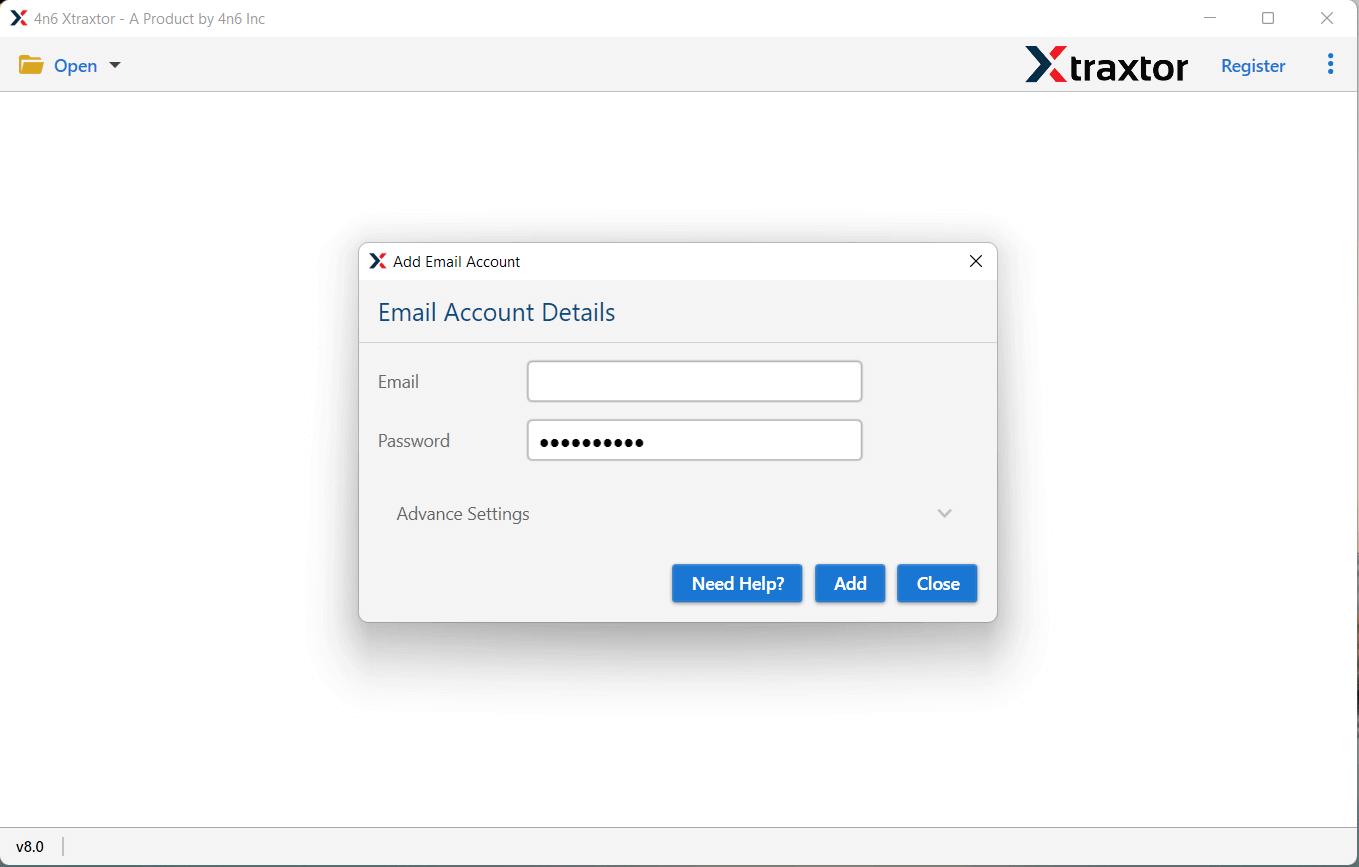
3. Enter your Gmail login details and hit the Add button.
4. Click on Export >> IMAP option.
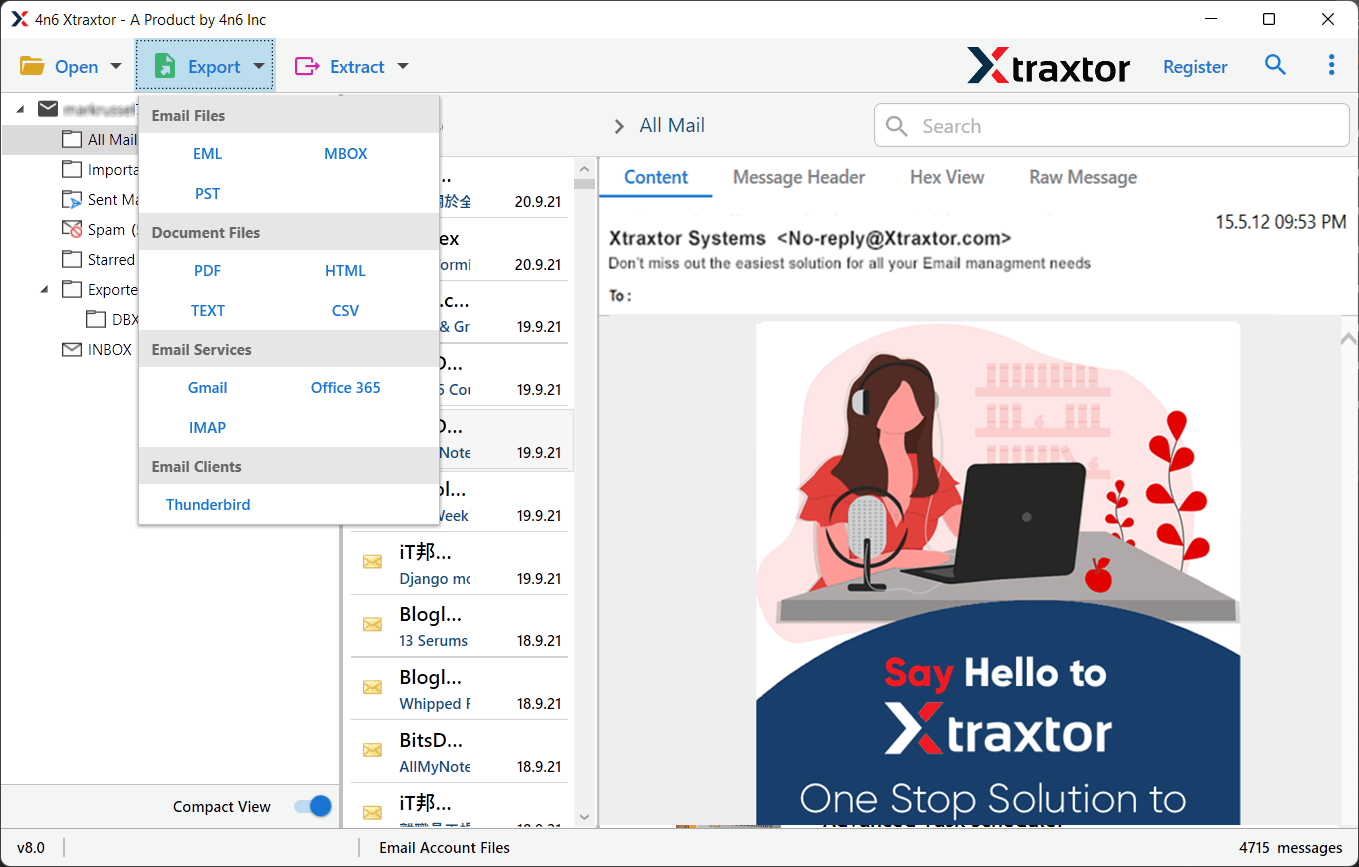
5. Select the email folders you want to transfer.
6. Enter your iCloud login details and hit the Save button.
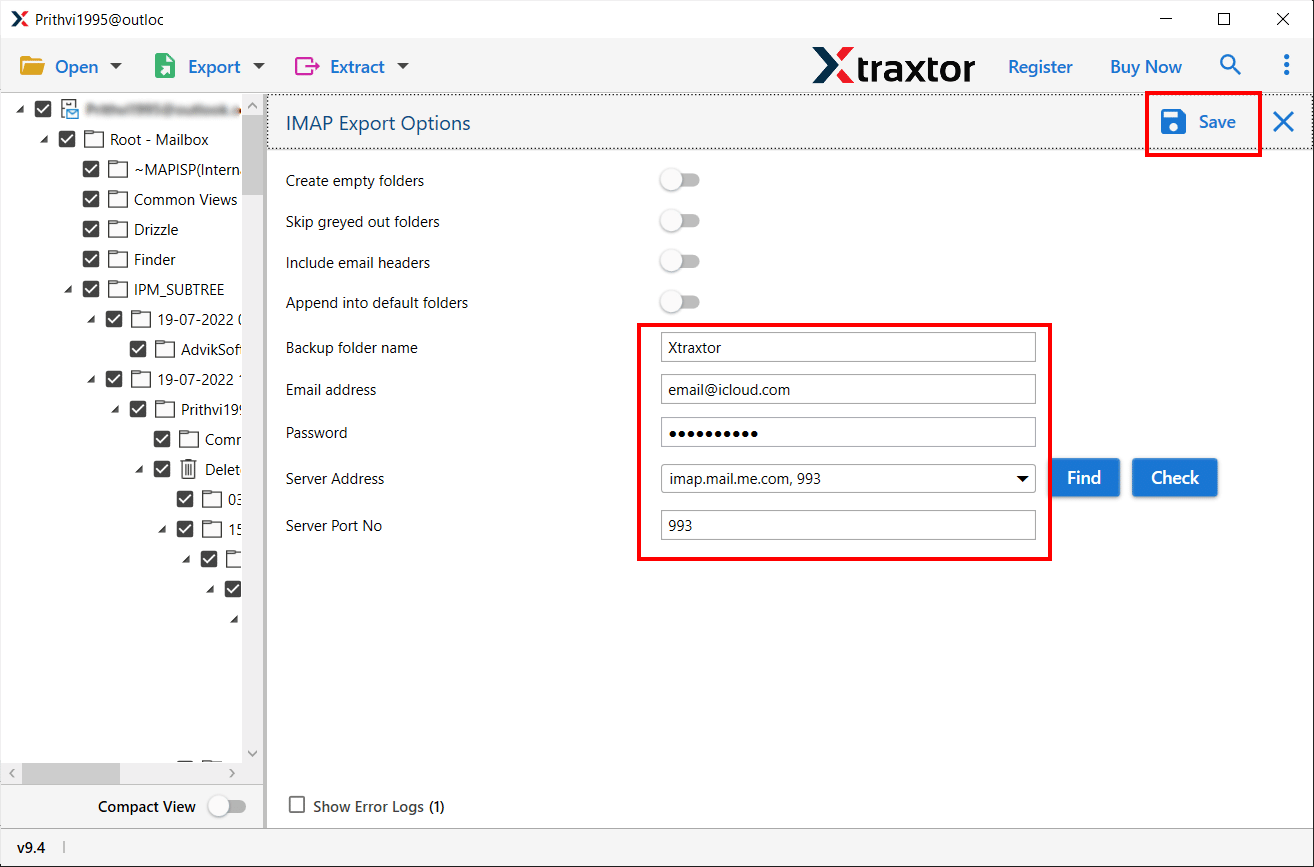
Done! Here your transfer Gmail to iCloud Mail in simple steps.
Why Use Xtraxtor for Gmail to iCloud Migration?
- Direct Migration- The tool can directly migrate Gmail to iCloud Mail without any hassle. You just need to enter your webmail account credentials. Using this utility, you can extract attachments from Gmail easily.
- Bulk Migration- The software is able to save all Gmail data at once. So, it saves your time and effort to transfer complete data.
- Export Gmail Contacts: Using this tool, you can also import Gmail contacts to iCloud Mail account. Just choose the email folder and export your data into a .vcf file.
- Advanced Filter Options- If you do not want to transfer all Gmail emails to iCloud then filters help you for selective migration. It provides various filter options such as to, from, date, time, subject, content, etc.
- Transfer Gmail to Other Email Clients- The tool can migrate Gmail emails to Office 365 and other webmail accounts.
- Export Emails with Attachments- The Gmail Backup Tool helps you to migrate Gmail emails with attachments. It supports all types of attachments like PNG, JPG, PPT, PDF, DOC, ZIP, etc.
- Vast Compatibility- The tool smoothly works with all versions of Windows OS. It supports Windows 11, 10, 8, and older versions. The software provides dedicated customer service to answer users’ queries.
Conclusion
In this post, we have discussed the best techniques to transfer Gmail emails to iCloud Mail accounts. Both manual and professional methods are helpful to migrate Gmail emails to iCloud mail accounts. But experts recommend using an automated approach to complete this task without any hassle. However, the above-recommended tool directly imports all Gmail data to iCloud at once.
