How to Transfer Gmail Labels to Outlook?

Gmail and Outlook are two of the most popular email platforms. Many users switch from Gmail to Outlook for better business features and offline access. However, one common problem users face is how to transfer Gmail labels to Outlook.
Gmail uses labels, while Outlook uses folders. So, during migration, labels need to be converted into folders. In this guide, we will explain the best methods to export Gmail labels to Outlook without losing data.
Why Transfer Gmail Labels to Outlook?
There are several reasons why users want to import Gmail labels to Outlook:
- Outlook offers better integration with Microsoft tools
- Access emails offline in Outlook
- Manage multiple accounts easily
- Better email organization using folders
- Backup Gmail emails into PST format
- Move data for business or personal use
Understanding Gmail Labels vs Outlook Folders
Before starting, it’s important to understand:
- Gmail labels = Tags applied to emails
- Outlook folders = Physical storage structure
During migration, Gmail labels are converted into folders in Outlook.
How to Import Gmail Labels into Outlook? (Manual Method)
You can use IMAP to import Gmail labels into Outlook.
- Enable IMAP in your Gmail account
- Open Outlook on your system
- Go to File >> Add Account
- Enter your Gmail login details
- Allow permissions and complete setup
- Outlook will sync all Gmail emails
Done! Gmail labels will appear as folders in Outlook.
Why shouldn’t you fully rely on the manual method?
- Takes a lot of time for large mailboxes
- Requires a stable internet connection
- Risk of incomplete data sync
- Duplicate emails may occur
- No advanced filter options
- Not suitable for bulk migration
How to Transfer Labels from Gmail to Outlook in Easy Steps?
Try Xtraxtor to export Gmail labels to Outlook in a few simple clicks. The software allows you to directly transfer Gmail emails along with labels (converted into folders), into Outlook PST format without any data loss. It preserves all email properties such as subject, date, attachments, and formatting while maintaining the original folder hierarchy. You can also apply advanced filters like date, subject, sender, or exclude folders to transfer only selected data. The tool supports bulk migration, has no file size limitation, and provides a simple interface suitable for both beginners and professionals.
Click on the free download button and check its complete working process.

Steps to Transfer Gmail Labels to Outlook
Step 1. Download and install the software on your Windows PC.
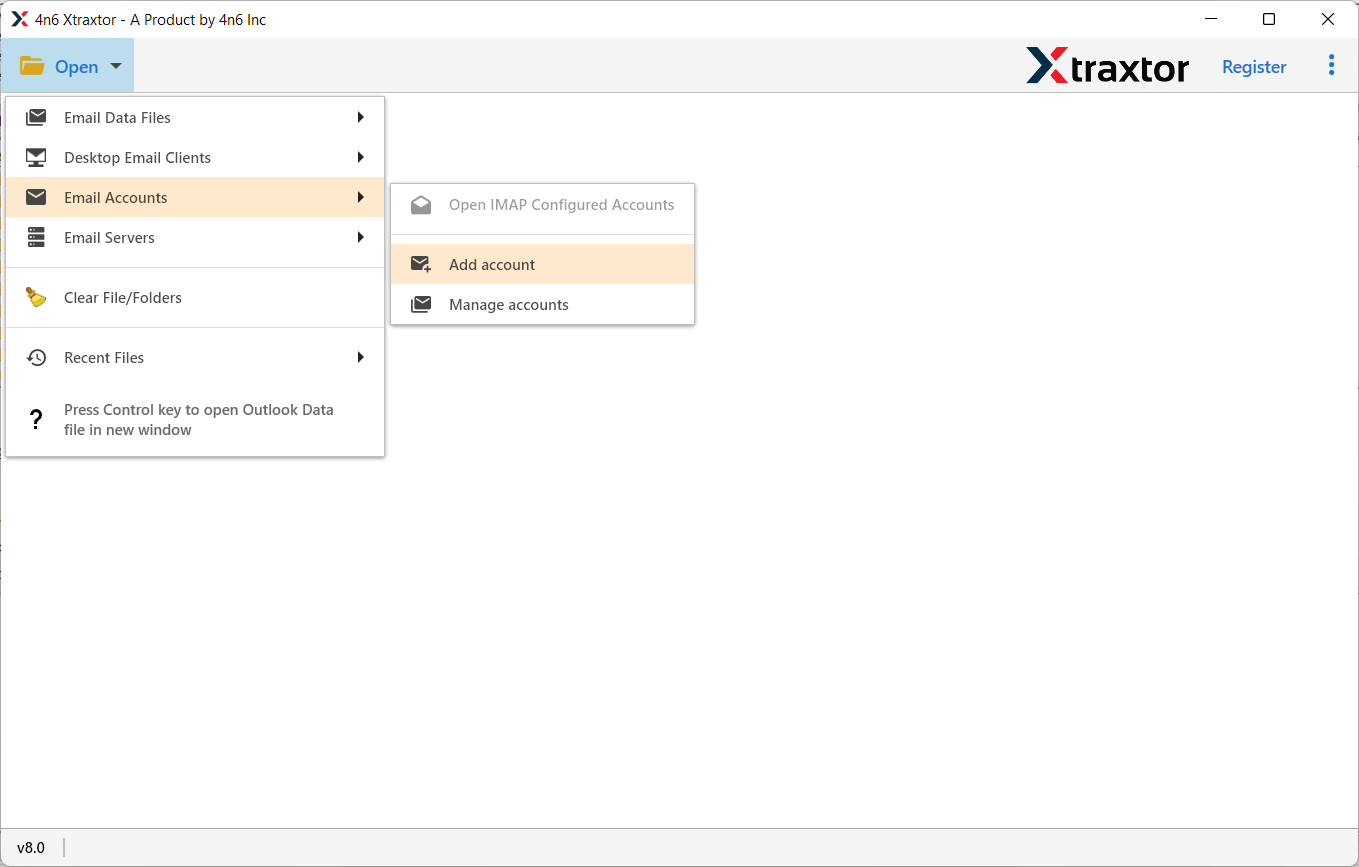
Step 2. Launch the tool and click on Open >> Email Accounts >> Add Account.
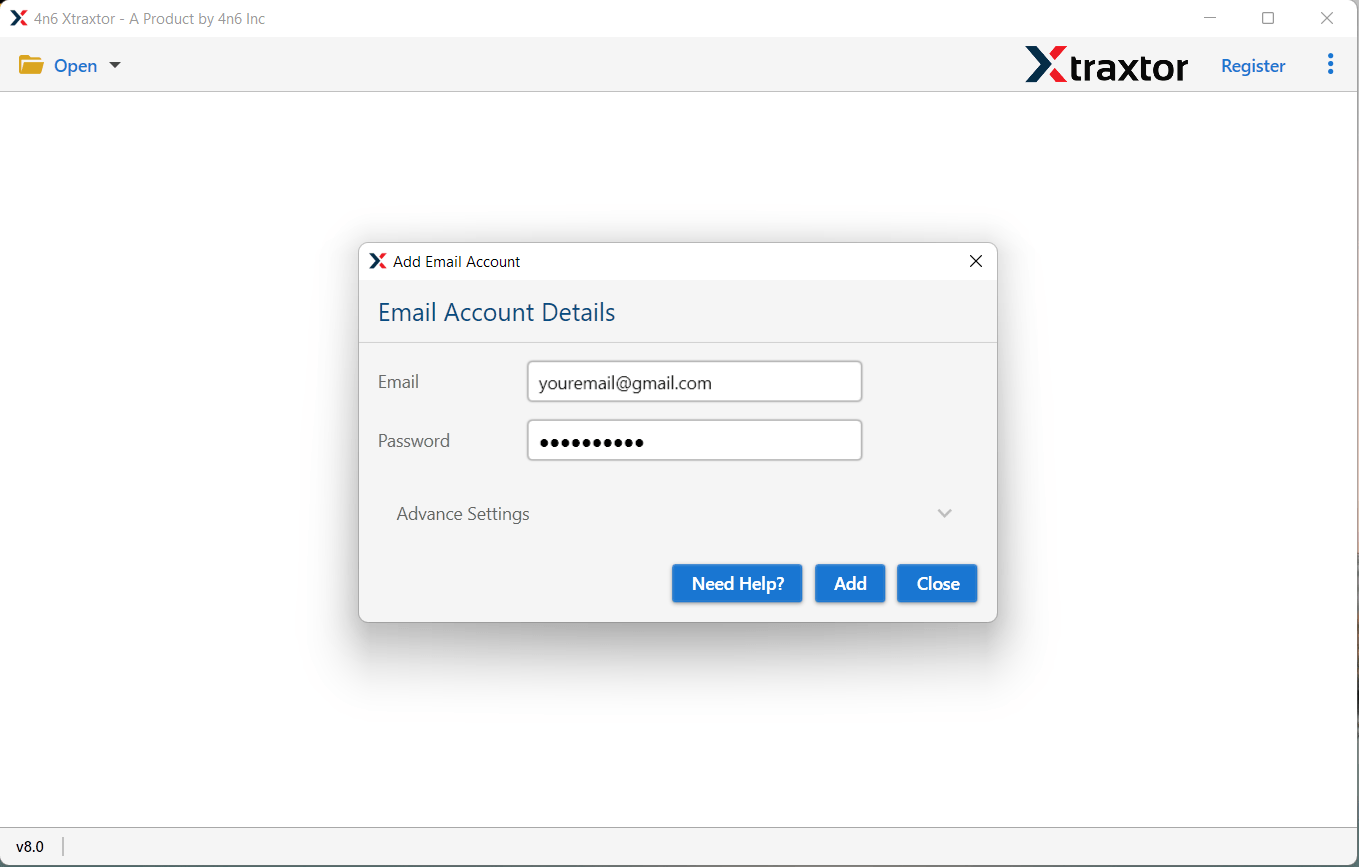
Step 3. Enter your Gmail login details and click on the Add button.
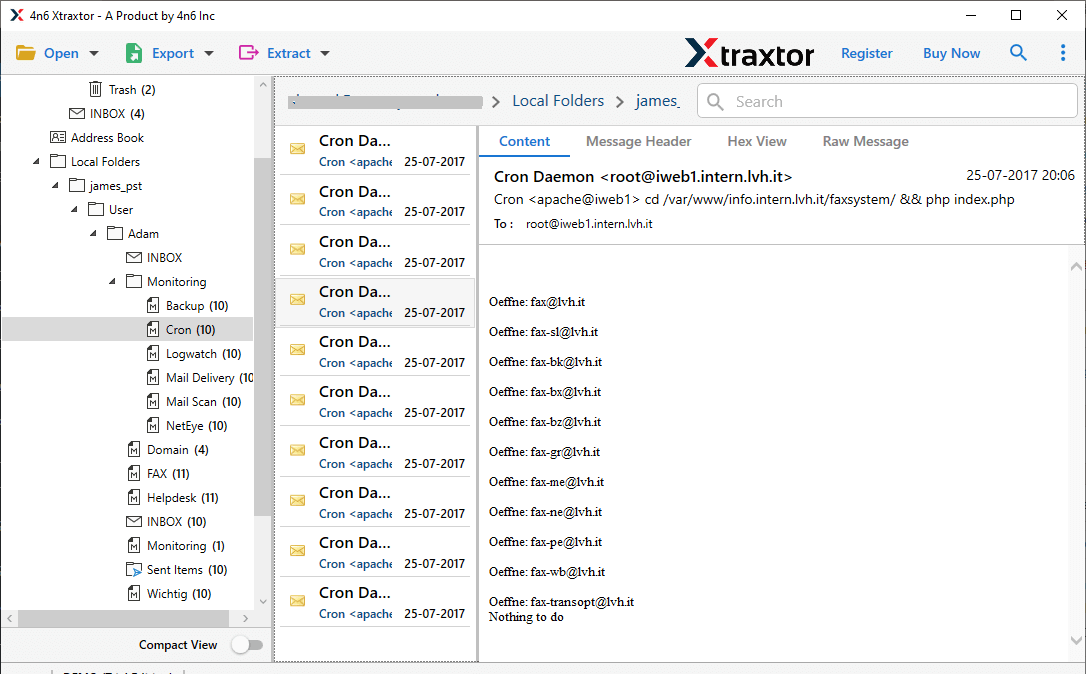
Step 4. The software will load and preview all Gmail emails with labels.
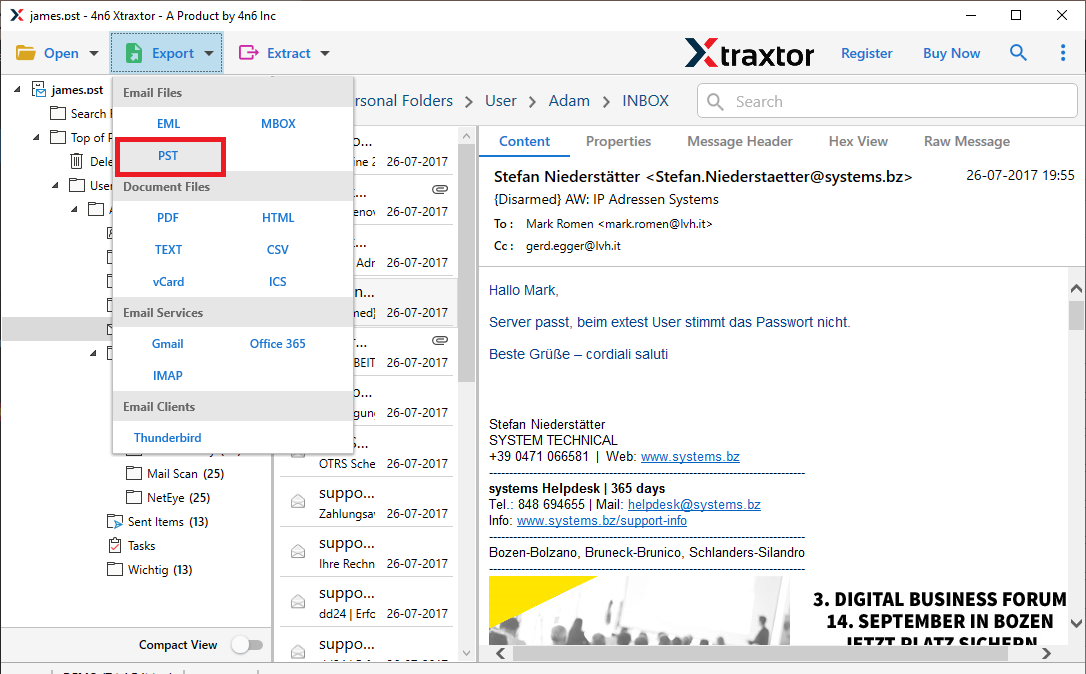
Step 5. Click on Export and choose the PST option from the list.
Step 6. Select the required email folders (labels) to transfer.
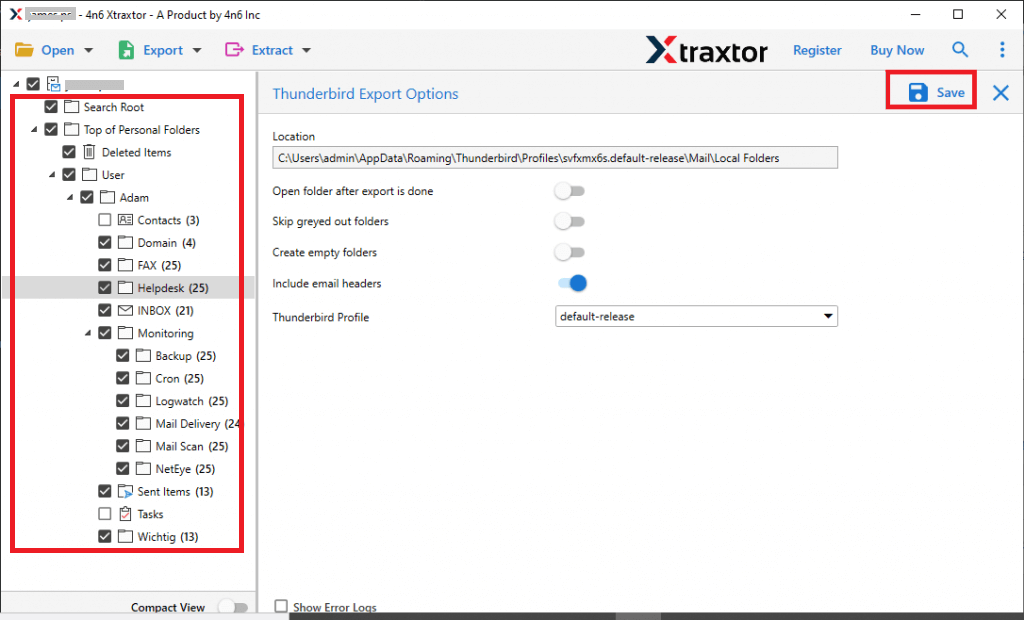
Step 7. Choose the destination path on your system, & Click on the Save button to start.
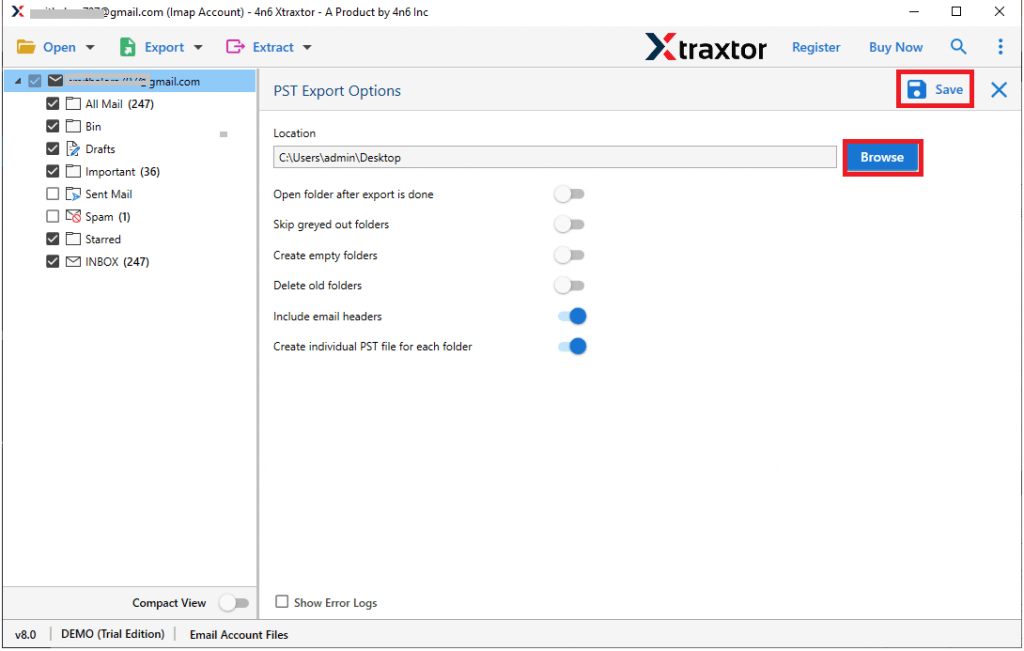
After completing these steps, the software will begin transferring your selected Gmail labels into Outlook file format.
Once the process is finished, you can easily import the generated file into Outlook and access all your Gmail emails with labels converted into folders without any data loss.
Key Features of the Software
- The software allows users to transfer Gmail labels to Outlook easily without requiring any technical knowledge.
- It automatically converts Gmail labels into Outlook folders, for proper organization of emails.
- All email formatting, including attachments, metadata, and structure is maintained throughout the migration process.
- Users can perform bulk migration of Gmail emails to Outlook without facing any file size limitations or restrictions.
- The tool offers advanced filter options that help users export only specific emails based on criteria like date, subject, sender, or folders.
- It preserves the original folder hierarchy so that users can access their emails in the same structured way after migration.
- The software ensures a secure migration process with zero data loss or alteration of email content.
- It comes with a simple and user-friendly interface, suitable for both beginners and professional users.
- The tool is fully compatible with all major Windows versions.
Which Method to Use? Final Thoughts
To sum up, you can transfer Gmail labels to Outlook using manual or professional methods. The manual method works for small data but takes time and may cause issues. On the other hand, the automated solution is faster, safer, and more reliable. It ensures complete data transfer with proper folder structure. This method is ideal for professionals, businesses, and users who want a hassle-free experience.
