How to Transfer cPanel Emails to Outlook.com?

Learn how to transfer cPanel emails to Outlook.com account with complete mailbox folders. Explore two easy approaches to move emails from cPanel to Outlook.com in easy steps.
Tired of using basic webmail with limited features? Outlook.com is a powerful and modern email service that offers better security, easy email organization, and a clean interface. Because of these benefits, many users now want to move their emails from cPanel webmail to Outlook.com.
Outlook.com allows you to manage emails easily, create rules, and access your mailbox from any device. It also integrates well with other Microsoft services, making email management more convenient.
There are two main parts to switching from cPanel to Outlook.com. First, you need to move your existing emails. Second, you can set up your cPanel email to receive future messages in Outlook.com. This guide explains the complete process in simple steps so you can migrate without confusion.
What Makes Outlook.com a Better Choice?
Outlook.com is not just an email service. It is a complete communication platform.
- Clean and modern interface
- Better spam and malware protection
- Easy email sorting and search
- Works smoothly on mobile and desktop
- Integration with Microsoft tools like OneDrive and Calendar
Because of these features, many users want to move emails from cPanel webmail to Outlook.com.
How to Transfer cPanel Emails to Outlook.com Manually?
This is a free method provided by Outlook.com that allows you to connect your cPanel email account using IMAP. It is mainly suitable for users who have a small mailbox or single email account.
- Sign in to your Outlook.com account using a web browser.
- Click on the Settings icon and choose View all Outlook settings.
- Navigate to Mail >> Sync email.
- Under the Connected accounts section, select Other email accounts.
- Enter your cPanel email address and password.
- Provide the IMAP server details such as server name, port number, and encryption type.
- Save the settings and start the synchronization process.
After setup, Outlook.com will begin importing emails automatically.
Although this method is free, it comes with several drawbacks:
- Not suitable for large mailboxes
- Cannot migrate multiple accounts at once
- Sync speed is slow for old emails
How to Move Emails from cPanel to Outlook.com Mailbox Professionally?
If you want a fast and error-free way to transfer emails from cPanel to Outlook.com, using a professional tool is the best option. Xtraxtor Email Migration Tool is one such solution that can easily handle all your needs to move cPanel emails to Outlook.com. It will connect directly to your cPanel mailbox using IMAP and transfer emails to Outlook.com without manual configuration. It keeps your emails, attachments and folder structure intact during the migration process.
Click the free download button to explore all working steps.

Steps to Transfer cPanel Emails to Outlook.com
Step 1. Download and install the Xtraxtor software on your Windows system.
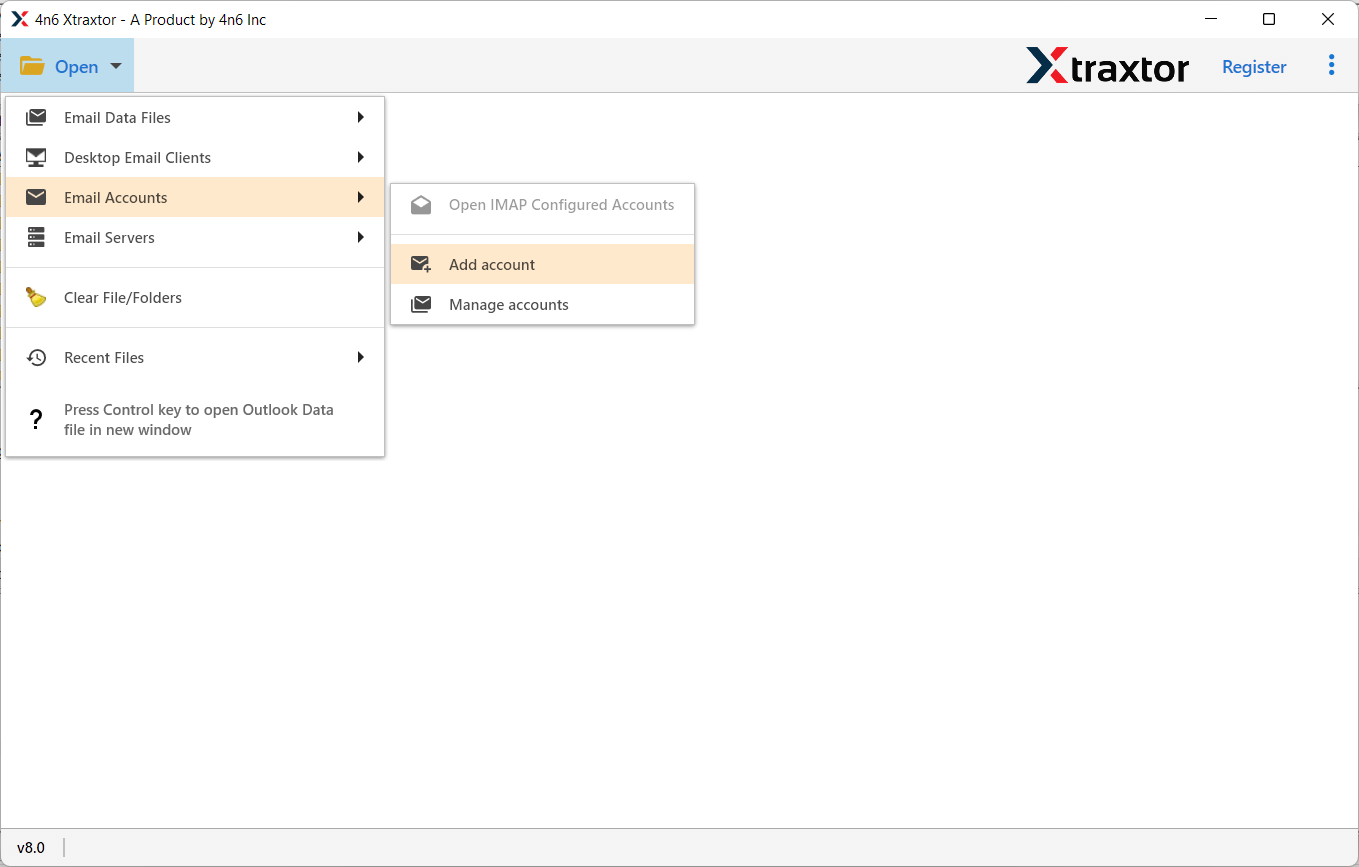
Step 2. Launch the software and click on Open >> Email Accounts >> Add Account.
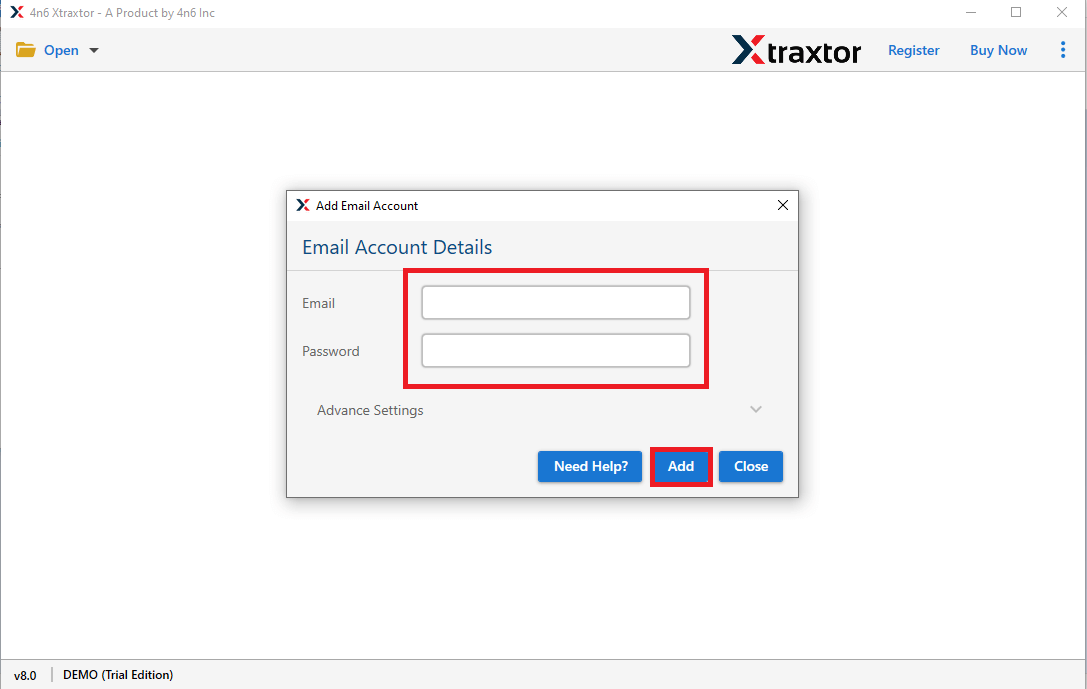
Step 3. Enter your cPanel email address and password, then click Add button.
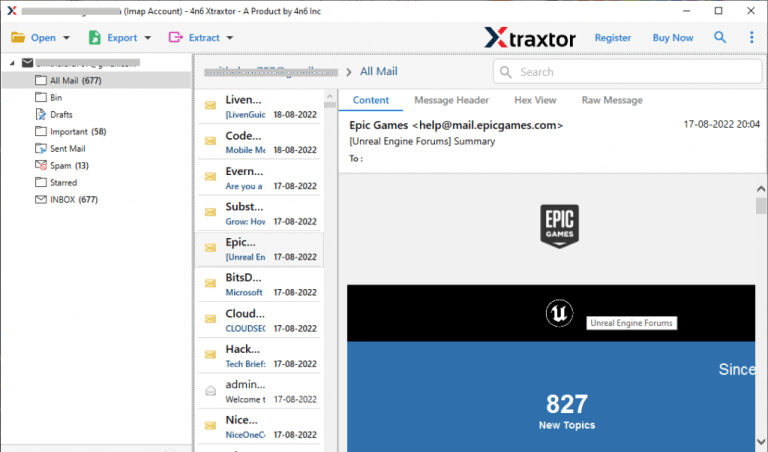
Step 4. The software will load and display all cPanel email folders and messages for preview.
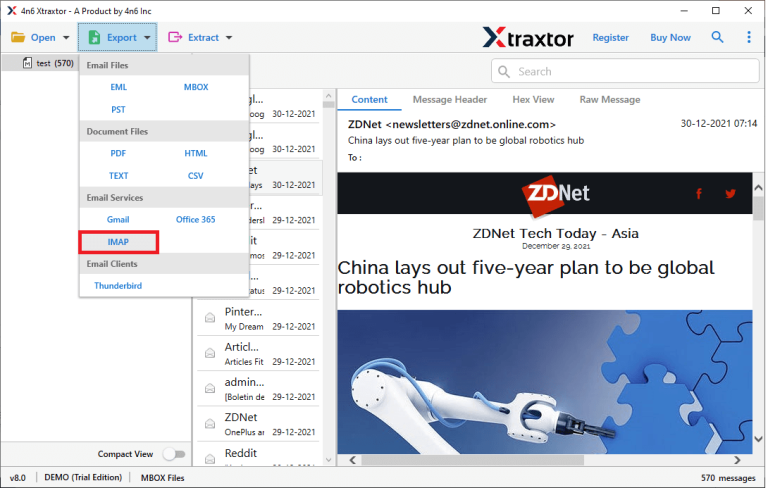
Step 5. Click on the Export option and select IMAP as the destination.
Step 6. Choose the email folders you want to transfer to Outlook.com.
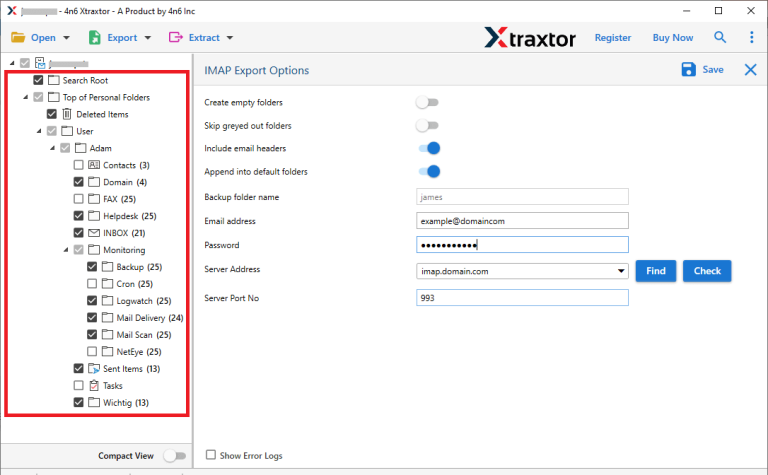
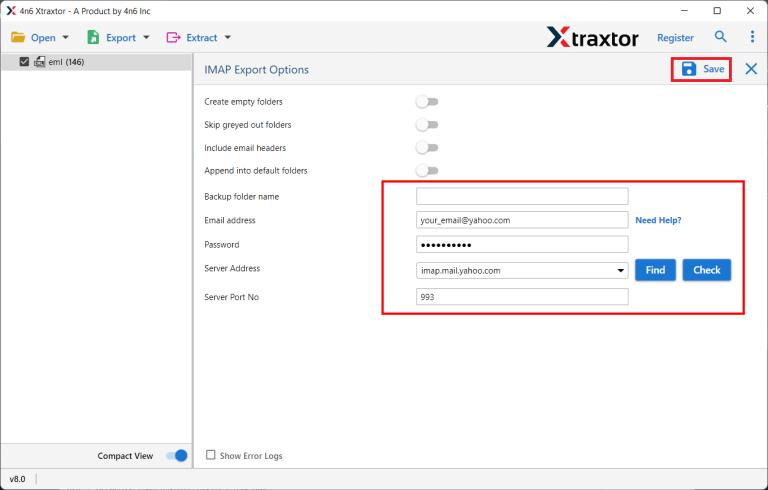
Step 7. Sign in to your Outlook.com account & click Save or Start.
Final Words
If you came here searching for a reliable method to transfer cPanel emails to Outlook.com, you now have a clear and practical solution. In this guide, we explained both manual and professional methods so you can choose the right option based on your mailbox size and needs.
While the manual method works for small mailboxes, a professional solution is recommended for faster and error-free migration. By following the steps shared above, you can move your emails from cPanel to Outlook.com safely.
