How to Open Google Takeout Files? (Complete Guide)

Are you wondering how to open Google Takeout files after downloading your data from Google?
If yes, you are not alone. Many users download their data using Google Takeout, but get confused when they see Google Takeout files in unfamiliar file formats. As a result, common questions arise:
- How do I open Google Takeout files?
- Why can’t I open Google Takeout files?
- How to open Google Takeout MBOX files?
- How to view Google Takeout files on PC?
This guide will answer all these queries in simple words. Read till the end to clearly understand what Google Takeout files are, how to extract them, and how to read them properly.
So, before moving ahead with the methods, let’s first understand a few basic things about Google Takeout files.
What Are Google Takeout Files?
Google Takeout is a free service provided by Google that allows users to download a copy of their data from different Google services.
Using Google Takeout, you can export data from Gmail, Google Drive, Google Photos, Google Contacts, Google Calendar, YouTube, and more.
When the export process is completed, Google provides your data in compressed ZIP files. Inside these ZIP files, your data may be stored in formats such as:
- MBOX: for Gmail emails
- JSON: for settings and metadata
- PDF, JPG, PNG, DOCX: for documents and media files
As these formats are not always familiar to you, you feel stuck and can’t open Google Takeout files.
But, don’t worry, we are going to provide a complete step-by-step guide to understand how you can easily open & read Google Takeout Files.
How to Open Google Takeout Files on PC Manually?
The manual method works well if you have basic knowledge and a small amount of data.
Before opening any file, you must extract the ZIP folder. In that Zip file, you will get various files as we have discussed above. You can view and access other data types, such as photos, documents, etc. However, if you were having a large amount of emails in your Google Takeout files then it will be stored in MBOX file.
Follow the steps below to view Google Takeout files;
- Download your data using Google Takeout.
- Locate the downloaded Google Takeout ZIP file on your PC.
- Right-click on the ZIP file and choose Extract All.
- Select a destination folder and complete the extraction.
- Find the extracted MBOX files inside the Gmail folder.
- Install an email application that supports MBOX files.
- Open the email application and install an MBOX import add-on.
- Restart the email application after installing the add-on.
- Open the menu and select the option to Import MBOX files.
- Browse and select the extracted Google Takeout MBOX files.
Done! This is how you can view and read all Google Takeout emails inside the email application.
However, one limitation of the manual method is that it is slow and difficult when Google Takeout has many MBOX files. You need to import files one by one and use add-ons, which can cause errors.
You can try the method explained below to overcome the above drawbacks.
How to Extract Google Takeout Files Automatically?
To view and read Google Takeout MBOX files automatically, Xtraxtor MBOX Converter provides a simple and reliable solution. It is designed for users who don’t want to deal with technical or manual steps. The software works by directly scanning the downloaded Google Takeout MBOX file or extracted folder and automatically detecting MBOX and other supported files inside it.
Once loaded, it allows you to preview emails and choose exactly what you want to extract, such as complete mailboxes, selected folders, or specific data. Also, this software processes large Google Takeout files smoothly, keeps the original email structure intact, and removes the need to install email clients or add-ons.
With its user-friendly interface and automated work steps, the tool helps users quickly extract and access Google Takeout files without confusion.
Click on the free download button and check its complete working steps.

Steps to Open Google Takeout Files
Step 1. Launch Xtraxtor software on your Windows system.
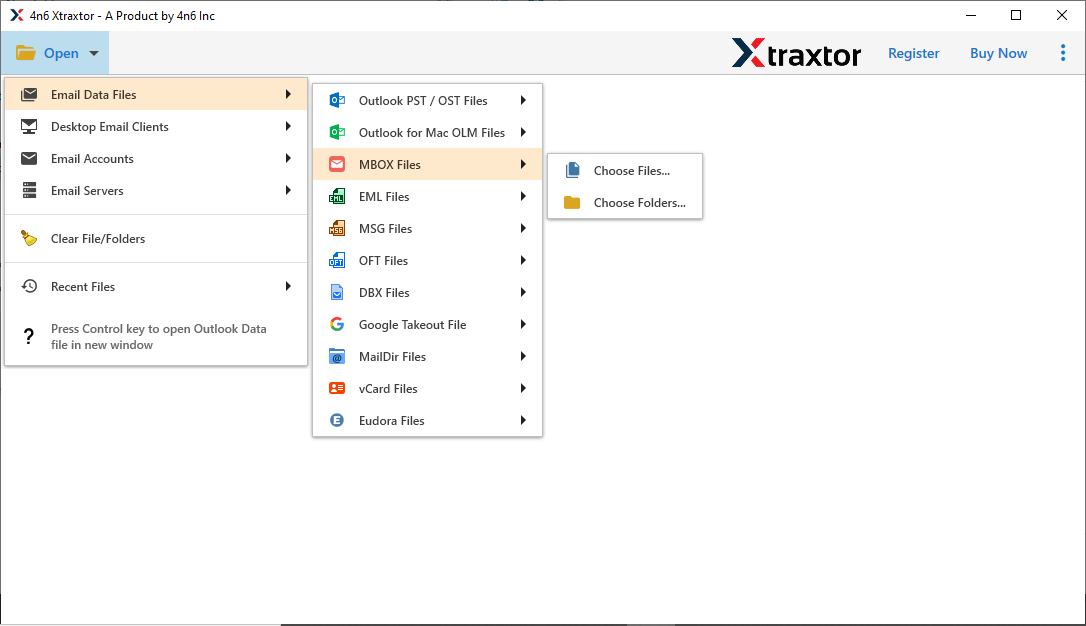
Step 2. Click Open and select Email Data Files, then choose Google Takeout (MBOX) files.
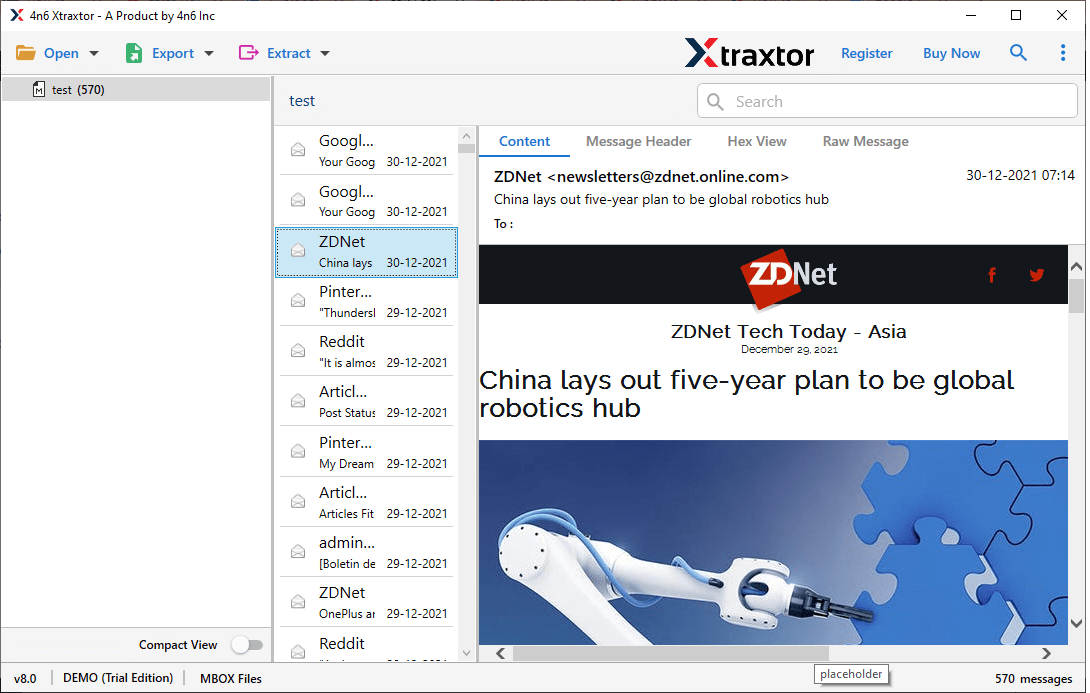
Step 3. The software scans the Google Takeout data and loads all emails automatically. Preview your emails here.
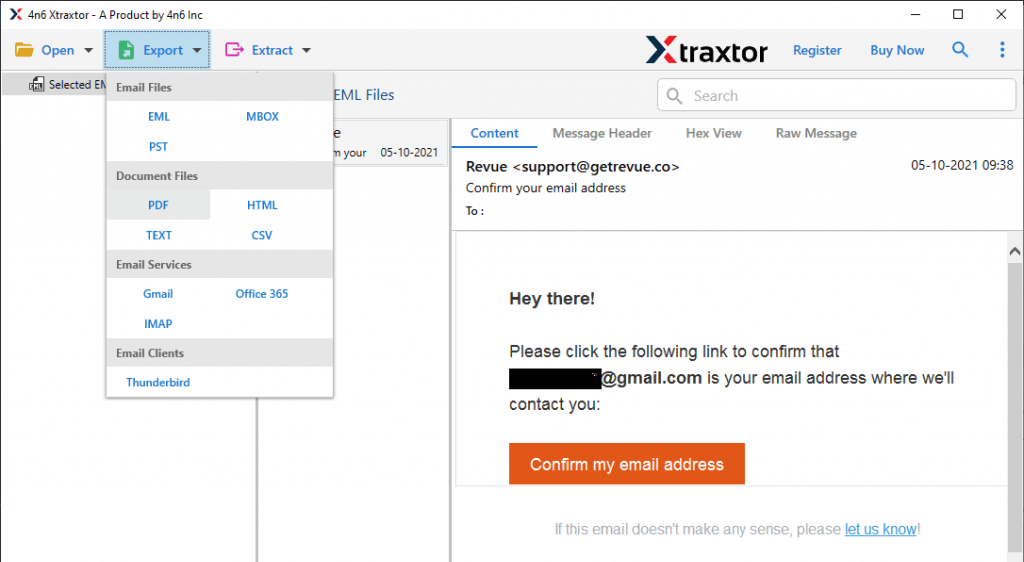
Step 4. Click Export and choose the required file format to open the data easily.
Step 5. Now, select the required folders from which you want to export your emails.
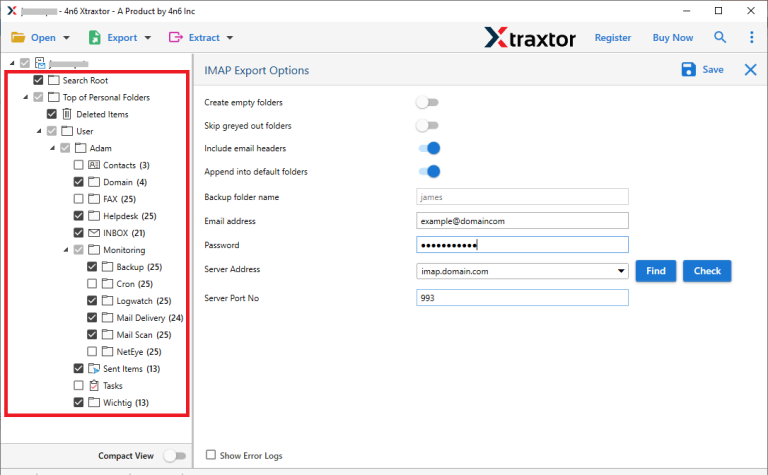
Step 6. Choose a destination folder and click Save to start.
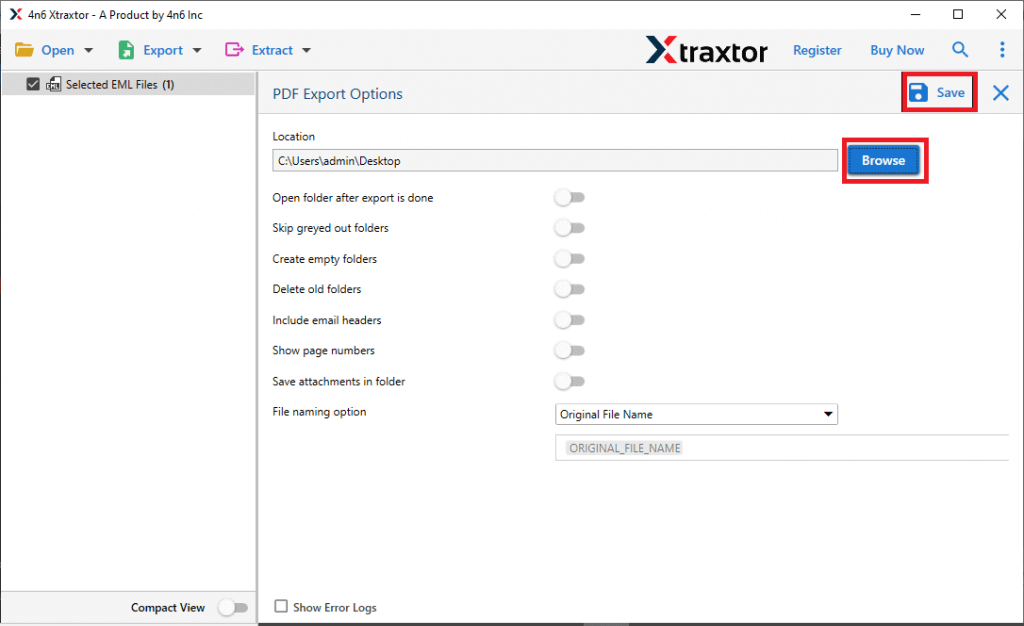
Done! You can now open Google Takeout files without any email client.
Final Words
Many users get confused when they try to open Google Takeout files because the files are not easy to read. The manual method works, but it takes time and is not good for large data. If you want a quick and simple way, an automated method is a better choice. It helps you easily view and read Google Takeout files on your PC and read them without any technical trouble. In the end, choose the method that saves your time and makes your work easier.
