How to Move Business Email to Gmail Account?

Moving a business email to Gmail is a common requirement for companies that want better reliability, security, and collaboration features. Gmail (via Google Workspace) offers advanced tools, large storage, and seamless integration with apps like Drive, Docs, and Meet. However, many users feel confused about how to migrate their existing business emails safely without losing data. In this guide, you will learn both manual and automated ways to move business email to Gmail, along with their limitations and the best recommended approach.
Why Move Business Email to Gmail Account?
Businesses switch to Gmail for several practical reasons:
- Better spam protection and email security
- Easy integration with Google Workspace tools
- Access from any device (mobile, desktop, browser)
- High storage capacity and scalability
- User-friendly interface for teams
- Reliable uptime and performance
If your current email service is slow, outdated, or difficult to manage, moving to Gmail can improve productivity significantly.
Things to Prepare Before Migration
Before you start the migration process, make sure you have:
- Access to your current business email account
- Gmail or Google Workspace account ready
- IMAP enabled on your old email server
- Backup of important emails (recommended)
Proper preparation helps avoid errors during migration.
How to Transfer Emails from Company Email to Gmail Automatically?
If you are planning to move your business email to Gmail directly, using a professional tool like Xtraxtor is highly recommended. Manual methods can be time-consuming, complex, and risky, especially when dealing with important business data. This tool helps you migrate business emails to Gmail with complete data, including attachments and folder structure.
The best part about using this software is:
- Bulk migration support
- No data loss
- No technical complications
- Beginner-friendly interface
- Direct and secure migration
You can download the free trial version and understand the complete working process yourself.

Steps to Move Business Email to Gmail Account
Step 1. Launch the software on your system.
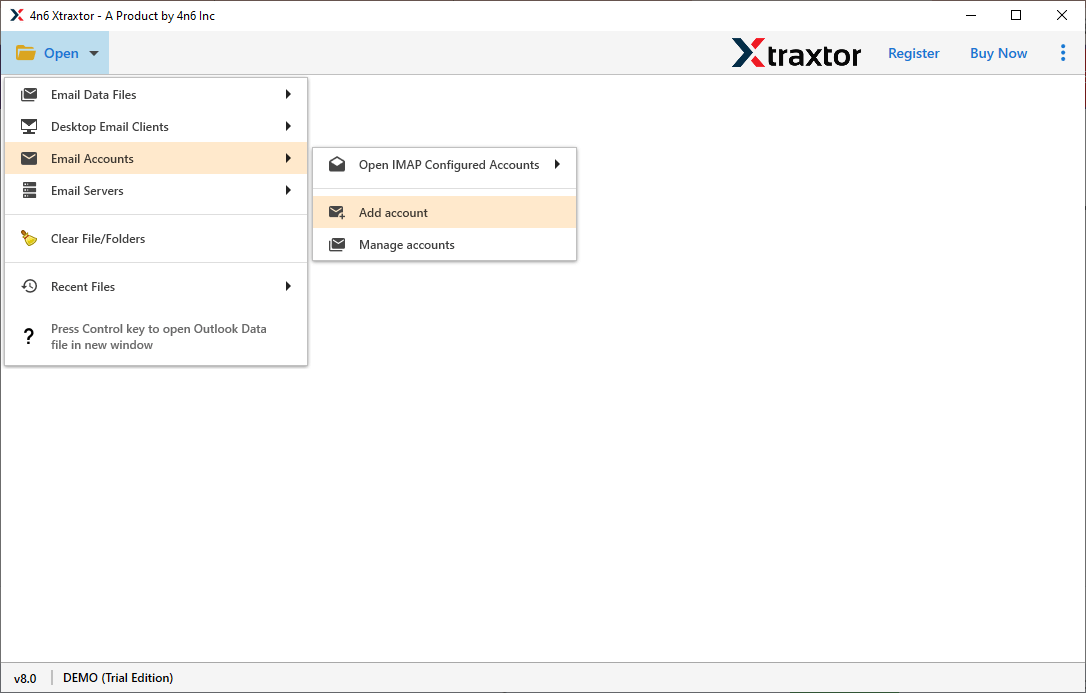
Step 2. Click on Open >> Email Accounts >> Add Account.
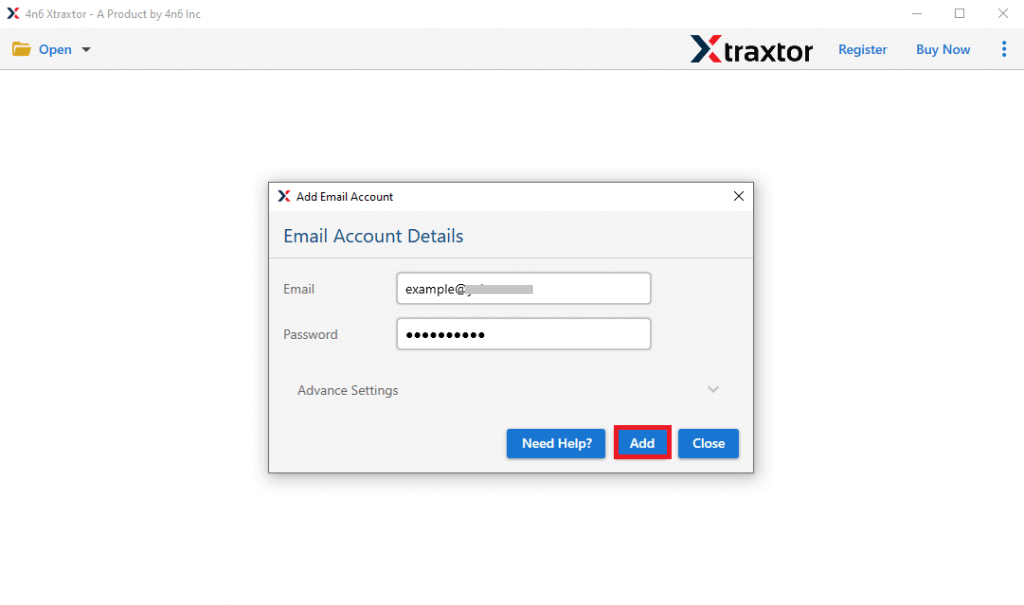
Step 3. Enter your business email login details and click on the Add button.
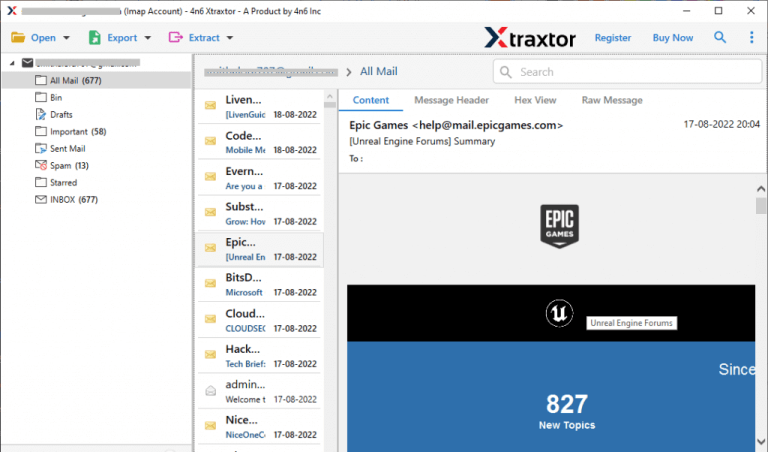
Step 4. After adding the account, the tool will automatically load all mailbox folders and emails.
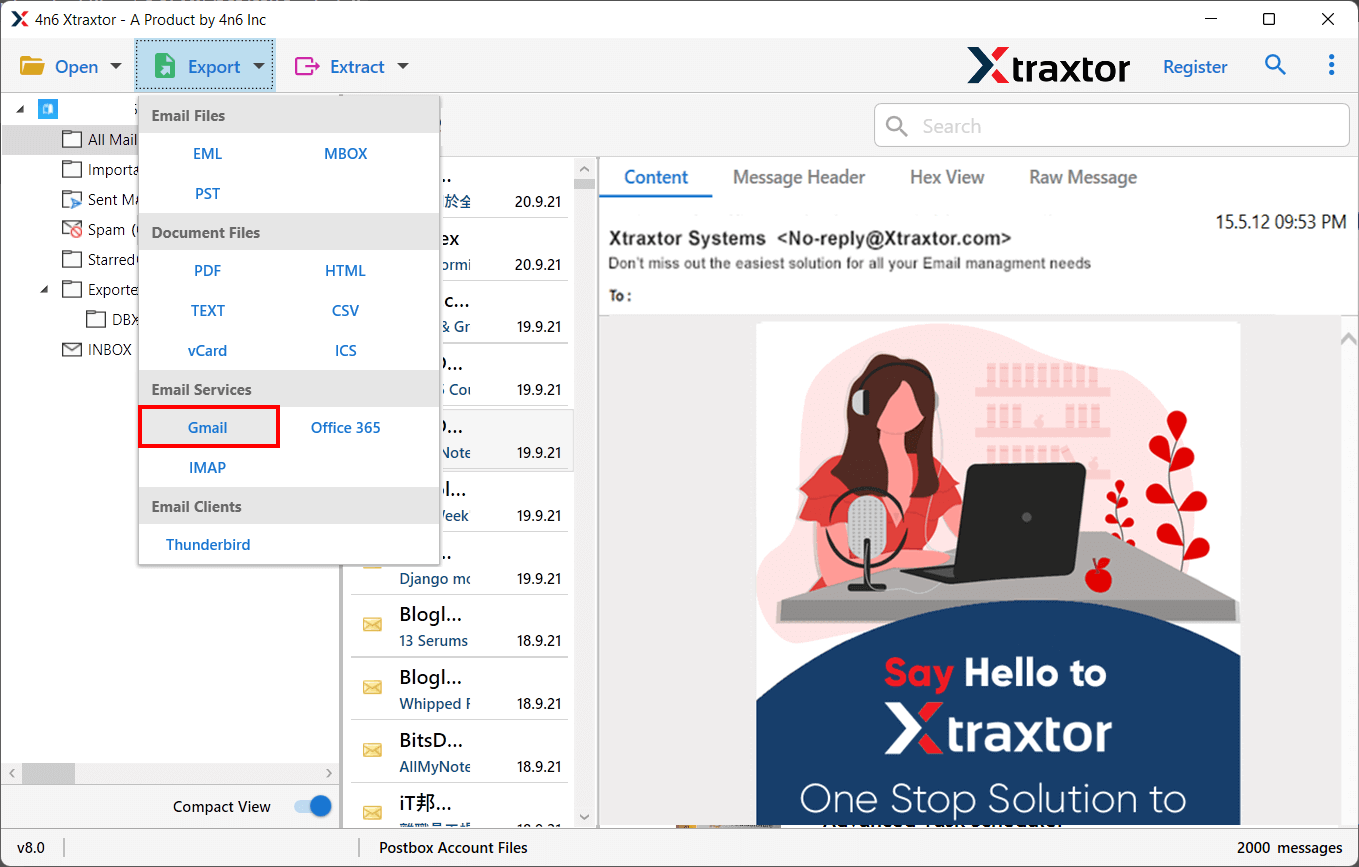
Step 5. Now, go to the Export option and select Gmail as the saving destination.
Step 6. Choose the required mailbox folders that you want to migrate.
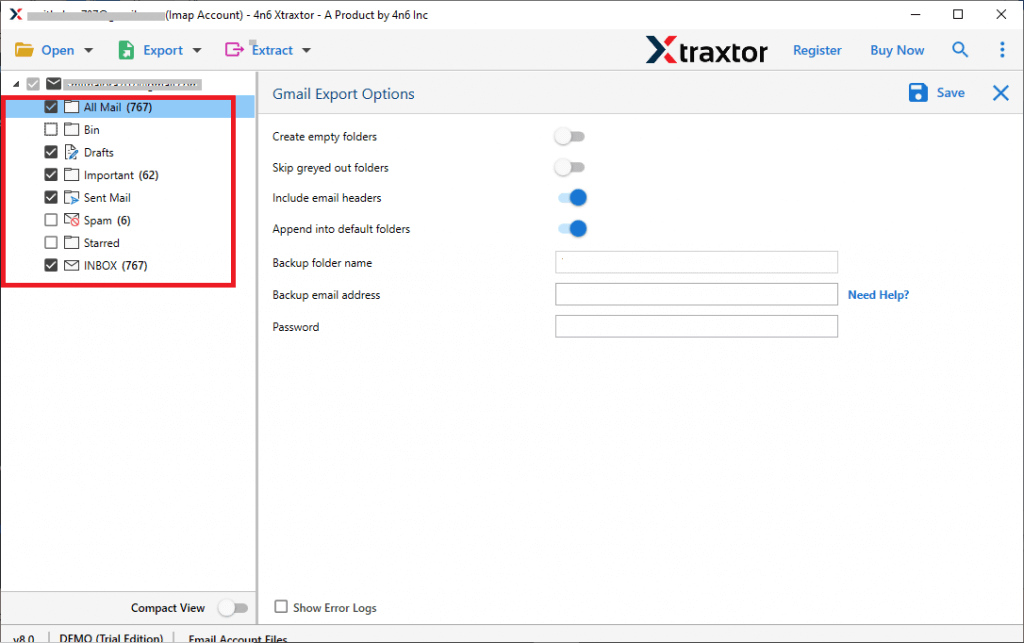
Step 7. Enter your Gmail account login details and click on the Save button.
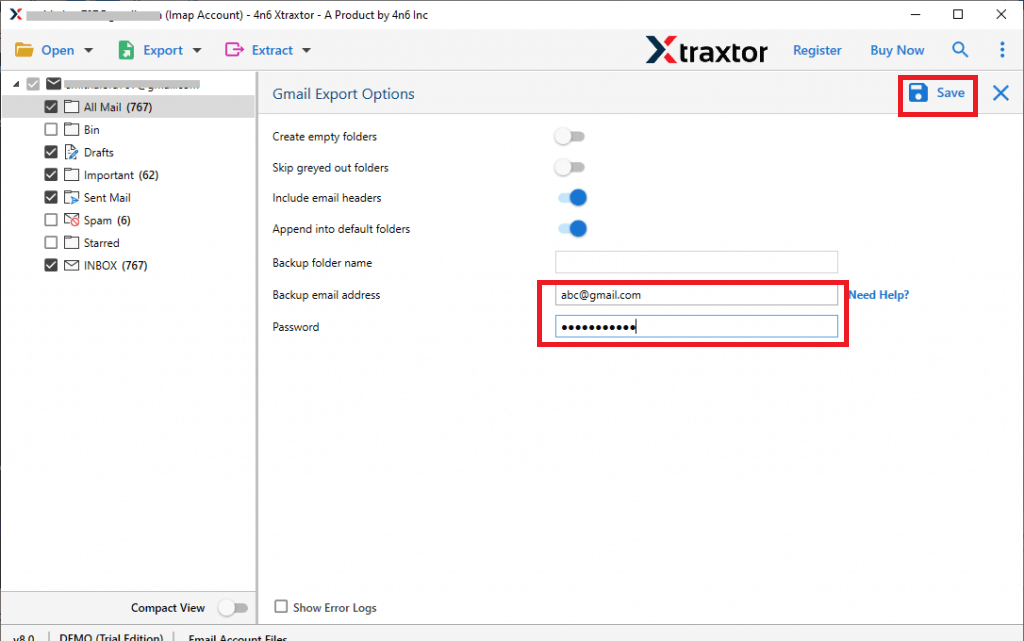
The migration process will now begin. The tool will safely transfer all selected business emails to Gmail in just a few simple steps without any data loss.
Why Business Email to Gmail Migration Tool is Recommended – Know the Benefits
The software comes with many advanced features that make the migration process easy and secure. Some important benefits are explained below:
- Direct Migration: This is a standalone tool that does not require any additional applications. Just add your source and destination accounts, and the tool handles everything automatically.
- Batch Migration: You can transfer multiple business email accounts to Gmail at once, which is very useful for companies and teams.
- Secure & Error-Free Process: The tool ensures complete data safety. It does not store login credentials and performs migration without any data loss.
- Maintain Folder Structure: All folders and subfolders remain intact after migration, so your data stays organized.
- Advanced Filter Options: You can apply filters like date, sender, or subject to migrate only selected emails.
- Preserve Email Properties: The software keeps email formatting, attachments, subject, date, and metadata unchanged.
- Cloud-to-Cloud Migration: Easily move emails between different platforms like business email to Gmail, Gmail to Gmail, Yahoo to Gmail, and more.
- Windows Compatibility: The tool works smoothly on all Windows versions without any compatibility issues.
These features make the software a reliable and efficient solution to move business email to Gmail without any technical hassle.
Conclusion
As we have seen, there is no direct built-in option to move business email to Gmail completely. While manual methods are available, they can be complicated, time-consuming, and risky for important data. Using an automated solution makes the process simple, fast, and secure. It ensures complete email migration without data loss while keeping your folders and attachments safe.
You can choose any method based on your needs, but for a smooth and stress-free experience, using a professional migration tool is always the better choice.
