
Gmail is one of the most popular email platforms used by millions of users worldwide. Nowadays, many users want to migrate Roadrunner emails to Gmail to get better features like security, storage, and easy access.
In this blog, we will explain how to transfer emails from Roadrunner to Gmail using both manual and professional methods. Keep reading to find the best solution for your needs.
Why Migrate Roadrunner Emails to Gmail?
Roadrunner Email is an older email service, while Gmail provides modern features. Here are some reasons why users switch from Roadrunner to Gmail:
- Gmail offers a simple and modern interface.
- Better security with spam protection and 2-step verification.
- More storage space for emails and attachments.
- Easy access on mobile, desktop, and tablets.
- Integration with Google services like Drive and Docs.
- Advanced search, filters, and labels for email management.
You can migrate Roadrunner emails to Gmail using two methods:
- Manual method (using POP3 settings)
- Professional tool (quick and easy solution)
How to Import Roadrunner Email to Gmail?
You can add Roadrunner email to Gmail using Gmail settings. Follow these steps:
Step 1. Login to your Roadrunner email account.
Step 2. Go to email settings.
Step 3. Make sure POP access is enabled.
Step 4. Next, log in to your Gmail account.
Step 5. Click on Settings and go to Accounts and Import.
Step 6. Click on Add a mail account.
Step 7. Enter your Roadrunner email address.
Step 8. Choose Import emails from my other account (POP3).
Step 9. Enter the following details:
- POP Server: pop-server.rr.com
- Port: 110
- Username: Your Roadrunner email
- Password: Your password
Step 10. Click Add Account to start the process.
This method helps you import Roadrunner email to Gmail, but it has some limitations.
Limitations of the Manual Method
- Takes a lot of time for large mailboxes
- Risk of missing emails
- No advanced filter options
- Requires technical knowledge
- Cannot migrate all data at once
How to Transfer Emails from Roadrunner to Gmail in Easy Steps?
For a quick and secure email migration, you can try Xtraxtor on your Windows system. The software comes with many useful features that make the migration process simple and smooth. It allows you to migrate Roadrunner emails to Gmail in just a few clicks without any technical difficulty.
The tool can transfer complete mailbox data from Roadrunner emails to Gmail in bulk. It also provides advanced filter options so you can import Roadrunner emails to Gmail selectively as per your needs. During the process, all emails and folders remain in their original format.
Moreover, the software also supports the migration of emails with attachments without any data loss. Its simple and user-friendly interface makes it easy for anyone to understand and use the tool without extra help.
You can try the free demo version to check its performance and accuracy.

Steps to Migrate Roadrunner Emails to Gmail
Step 1. Download and launch the software on your system.
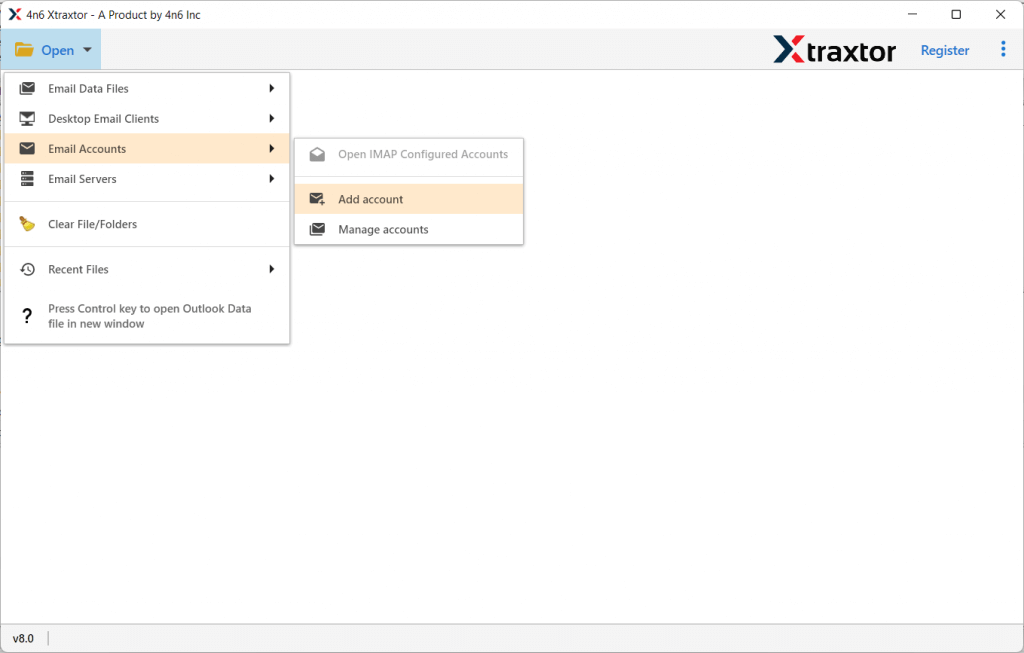
Step 2. Click on Open >> Email Accounts >> Add Account.
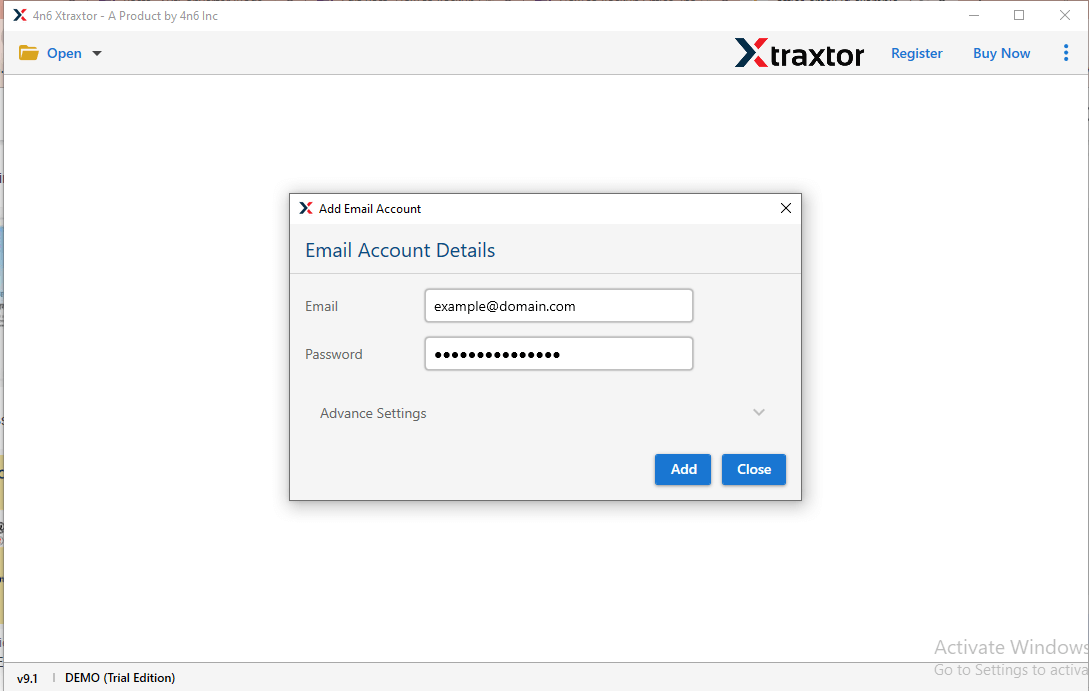
Step 3. Enter your Roadrunner Email credentials and click Add.
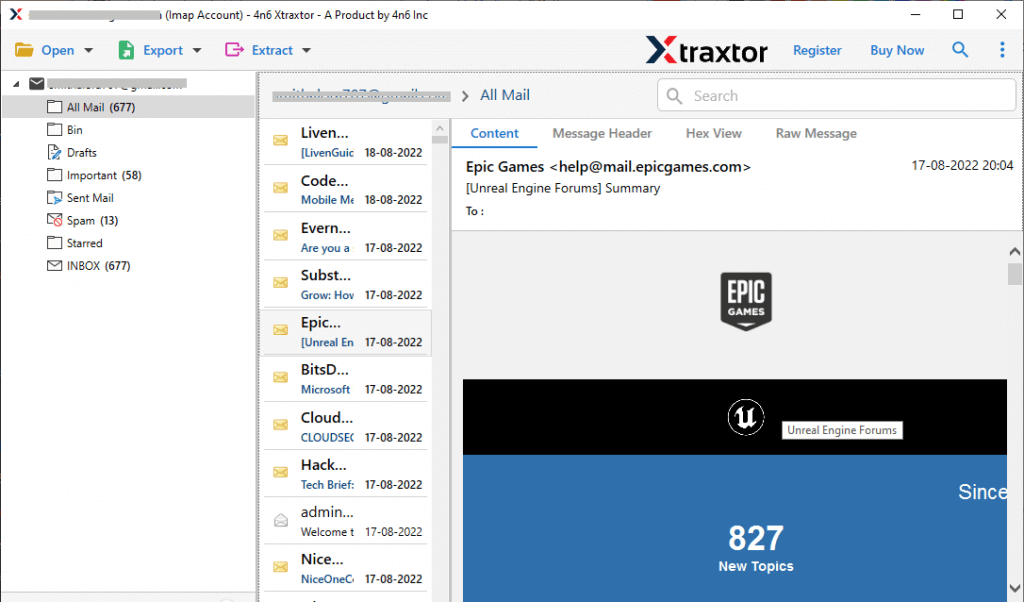
Step 4. Here, see a preview of your Roadrunner emails before transferring.
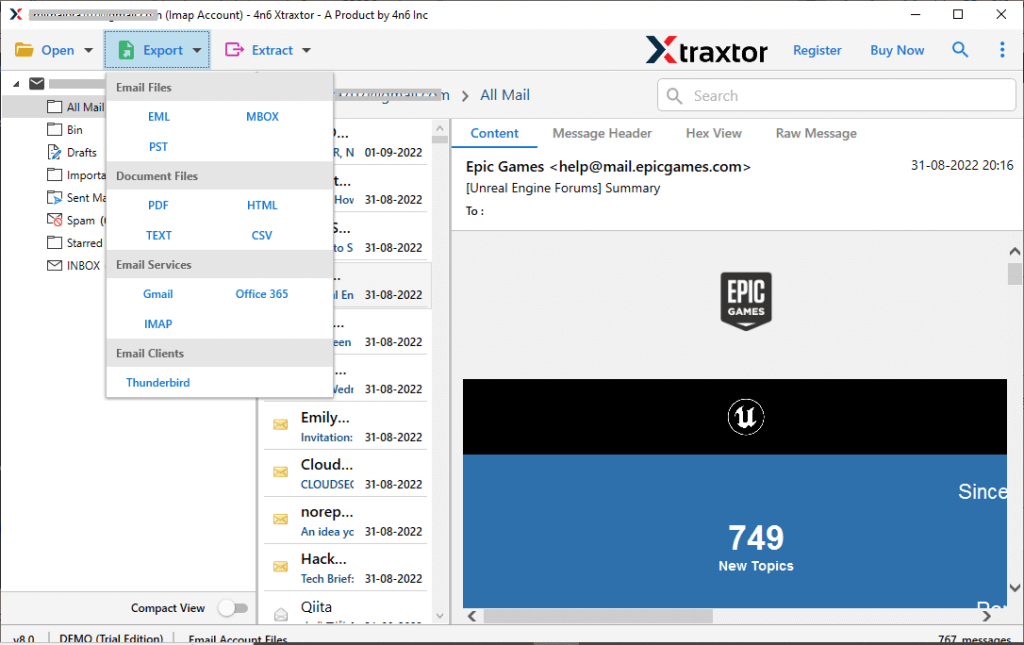
Step 5. Click on Export and choose Gmail as the destination.
Step 6. Select the required email folders to transfer into Gmail mailbox.
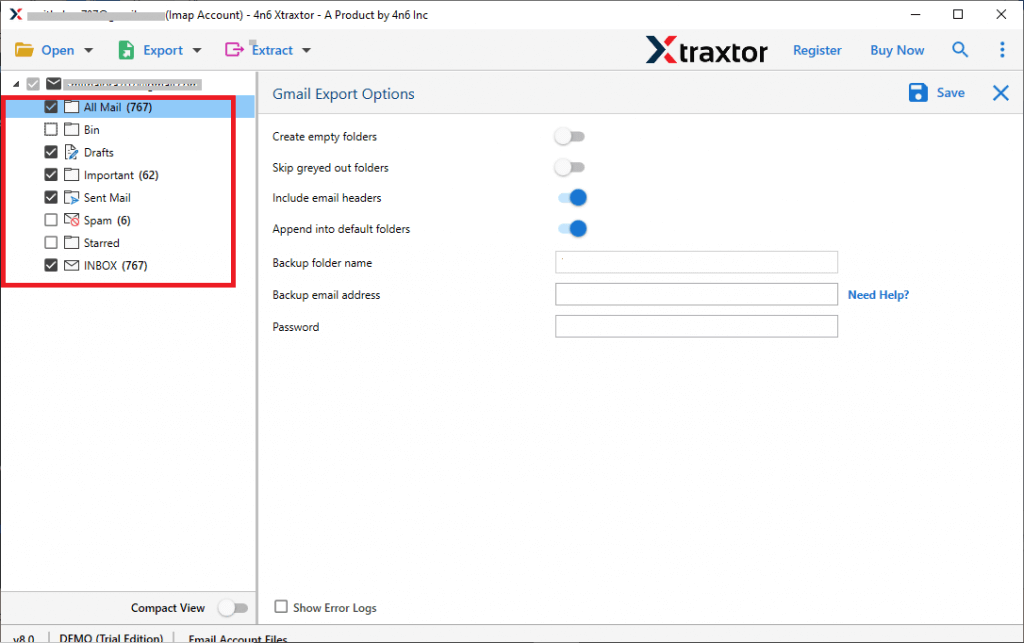
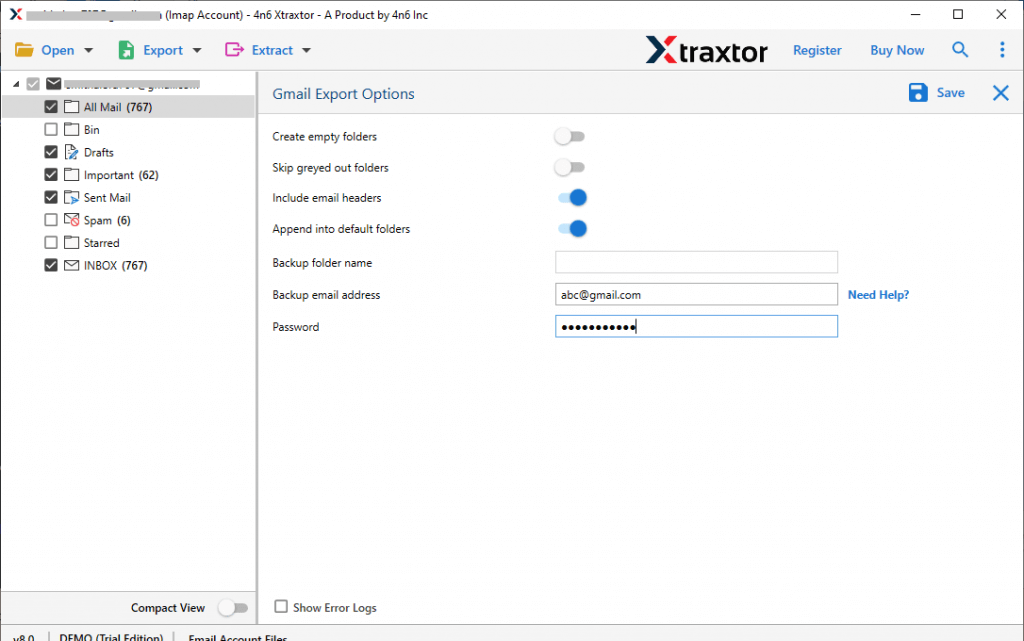
Step 7. Enter your Gmail login details & click on Save to start.
After completion, the tool will show a confirmation message. Open your Gmail account to view all migrated emails.
What are the Key Features of Roadrunner to Gmail Migration Tool?
There are many benefits of this tool that help you easily transfer Roadrunner to Gmail. Some of them are listed below:
- Direct Migration: The software allows you to directly migrate Roadrunner emails to Gmail. Just enter your account details and start the process without any complications.
- Transfer Emails with Attachments: It can import Roadrunner email to Gmail along with all attachments like images, documents, and links.
- Batch Migration: You can transfer complete mailbox data at once. There is no limit on the number of emails.
- Maintain Folder Structure: The tool keeps all folders and subfolders in the same structure during migration. It also preserves email details like sender, receiver, and formatting.
- Selective Migration: You can choose specific folders or emails to transfer instead of moving everything.
- Preview Option: Before starting the process, you can preview all emails in the software panel.
- Wide Compatibility: The tool supports all versions of Windows OS, both old and new.
- Free Demo Version: A free trial is available to test the software. You can check its performance before buying.
It’s Your Turn Now!
Migrating Roadrunner emails to Gmail is easy when you use a professional tool. The manual method can work, but it is not perfect and may not give you complete results, especially for large data. That’s why using a reliable tool is a better choice to transfer Roadrunner emails to Gmail without any trouble. It saves time, reduces effort, and keeps your data safe.
You can also try the free demo version to check how the tool works before using the full version.
