How to Migrate FastMail to Gmail Account Easily?

In this guide, you will learn exactly how to migrate FastMail to Gmail without losing any emails or attachments. Many users start with FastMail for its privacy-focused features, but later decide to switch to Gmail for better integration with Google services and wider accessibility.
If you are planning to move away from FastMail, this article will walk you through every possible method, both manual and professional, so you can choose the one that fits your needs.
FastMail is a reliable and secure email platform. However, many users eventually move to Gmail for flexibility, cloud storage, and ecosystem benefits. Gmail is part of Google and offers seamless integration with Drive, Meet, Docs, and other services.
Let’s understand why users make this switch.
Why Should You Switch from FastMail to Gmail?
There are two main types of users who migrate from Fastmail to Gmail.
1. Users Looking for Ecosystem Integration
Gmail connects directly with:
- Google Drive
- Google Meet
- Google Calendar
- Google Docs
This creates a smooth workflow for both personal and business use.
2. Users Wanting More Storage & Accessibility
- Gmail provides 15 GB of free storage.
- It works smoothly on all devices.
- Easy mobile and web access.
- Advanced spam filtering.
Because of these benefits, many users decide to migrate FastMail to Gmail permanently.
How to Migrate FastMail to Gmail? The Available Methods
There are multiple ways to transfer emails from FastMail to Gmail. Some are free but technical. Others are automated and much easier.
Let’s explore each method in detail.
How to Import FastMail to Gmail Manually?
Gmail also provides an option to import mail from other accounts.
Steps:
- Log in to your Gmail account using your email address and password.
- Click on the Settings (Gear Icon) in the top-right corner of the screen.
- Select See All Settings from the dropdown menu.
- Navigate to the Accounts and Import tab.
- Click on the Import mail and contacts option.
- Enter your Fastmail login credentials when prompted.
Follow the on-screen instructions to continue the setup process.
Once completed, Gmail will automatically start fetching your FastMail emails using POP/IMAP settings
However, this method may not migrate folders properly and can stop working if the connection fails.
The Hidden Risks of Manual Migration
Manual methods are free, but they come with risks:
- High chance of missing emails.
- Attachments may fail to sync.
- Folder structure may not remain intact.
- Time-consuming for large mailboxes.
- No date filter or selective migration.
- Requires technical knowledge.
- If the internet connection drops, the process may fail and require restarting.
How to Transfer All Emails from FastMail to Gmail Automatically?
Looking to transfer your FastMail emails to Gmail easily? Try Xtraxtor Email Migration Tool, which is one of the most reliable solutions to move your FastMail emails into Gmail account in easy steps. Why is it recommended? The tool comes with advanced features that can help you to transfer your emails with complete mailbox folders such as inbox, sent, draft, important, etc. You can even migrate the complete mailbox at once or select specific folders and emails as needed.
The tool provides a 100% secure migration platform using a powerful algorithm and an easy-to-use interface that makes the entire process simple for all users.
Download the demo version and migrate FastMail emails to Gmail in just a few easy steps.

Steps to Migrate FastMail to Gmail Account
Step 1. Download and install the Xtraxtor software on your Windows computer.
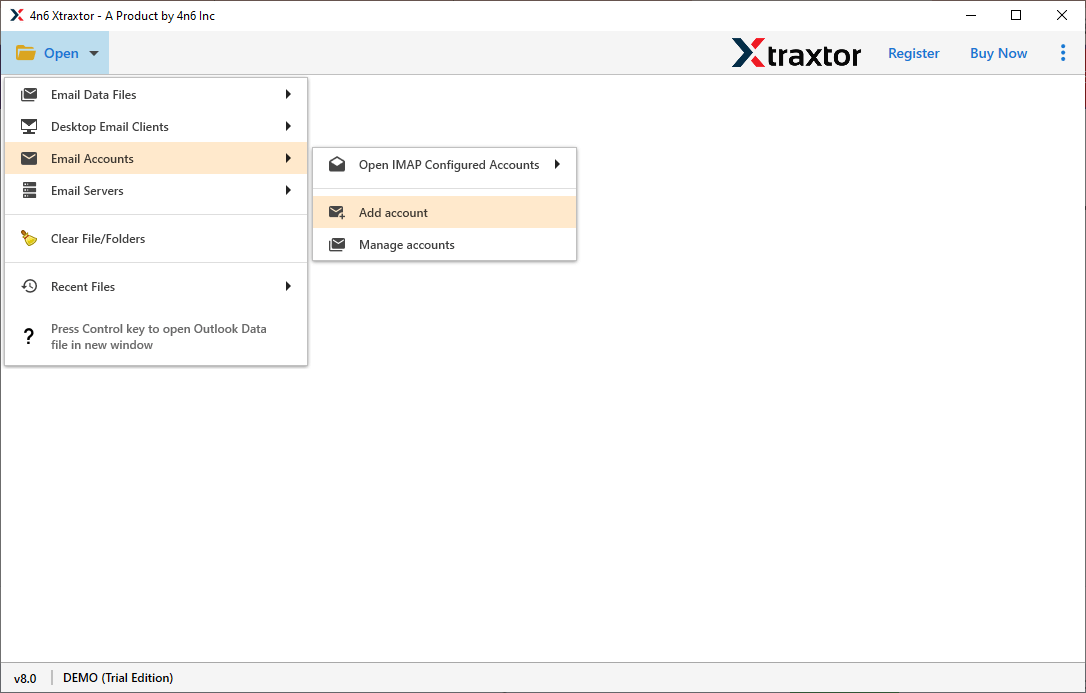
Step 2. Launch the tool and go to the Open >> Email Accounts >> Add Account.
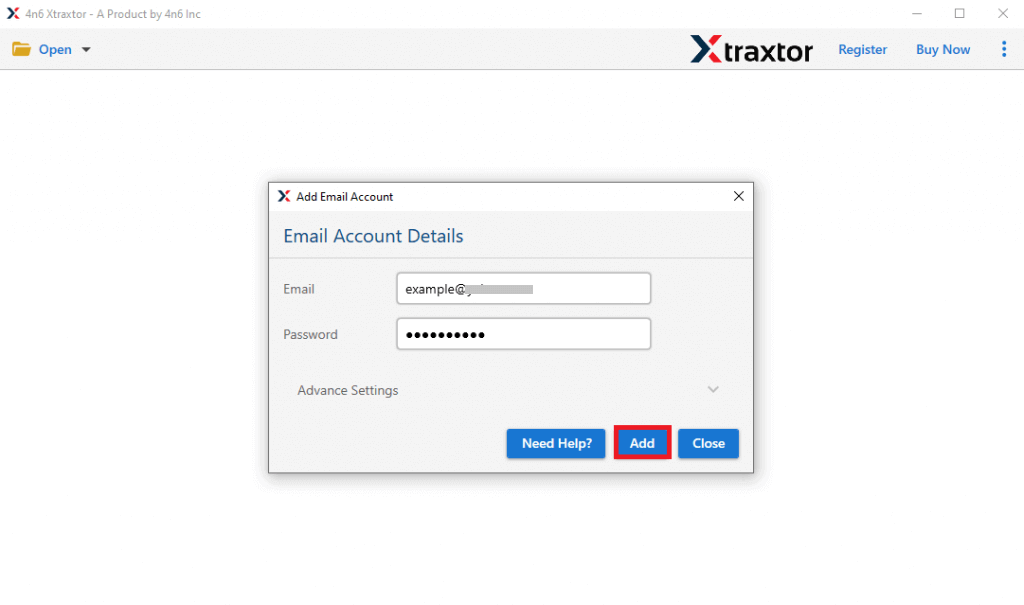
Step 3. Enter your FastMail email address and password, then click the Add button.
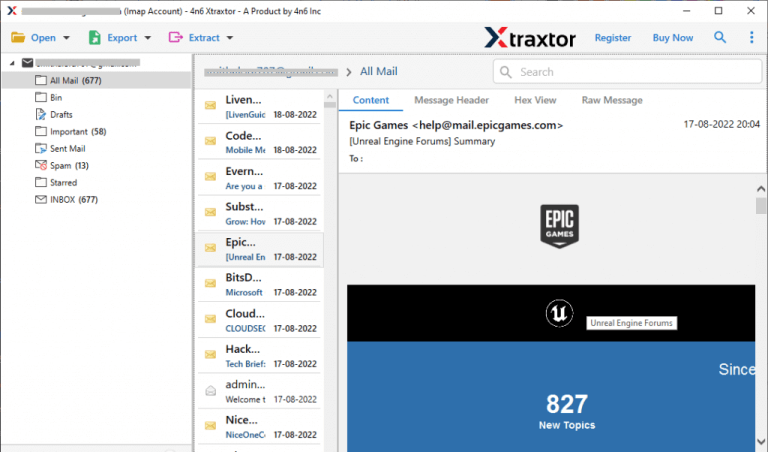
Step 4. The software will preview your FastMail mailbox data before migration.
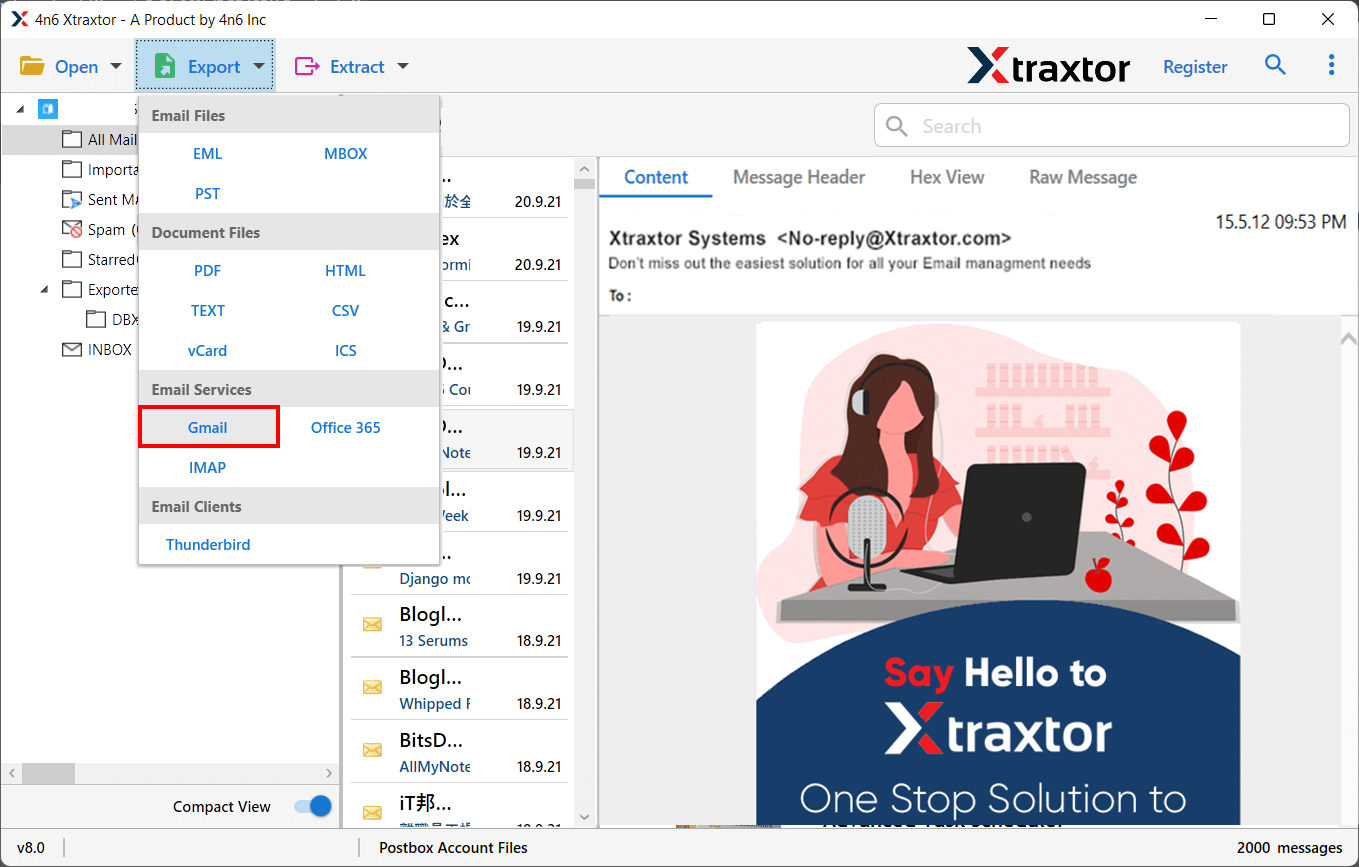
Step 5. Click on Export and select Gmail from the list of email services.
Step 6. Choose the required folders and subfolders you want to migrate.
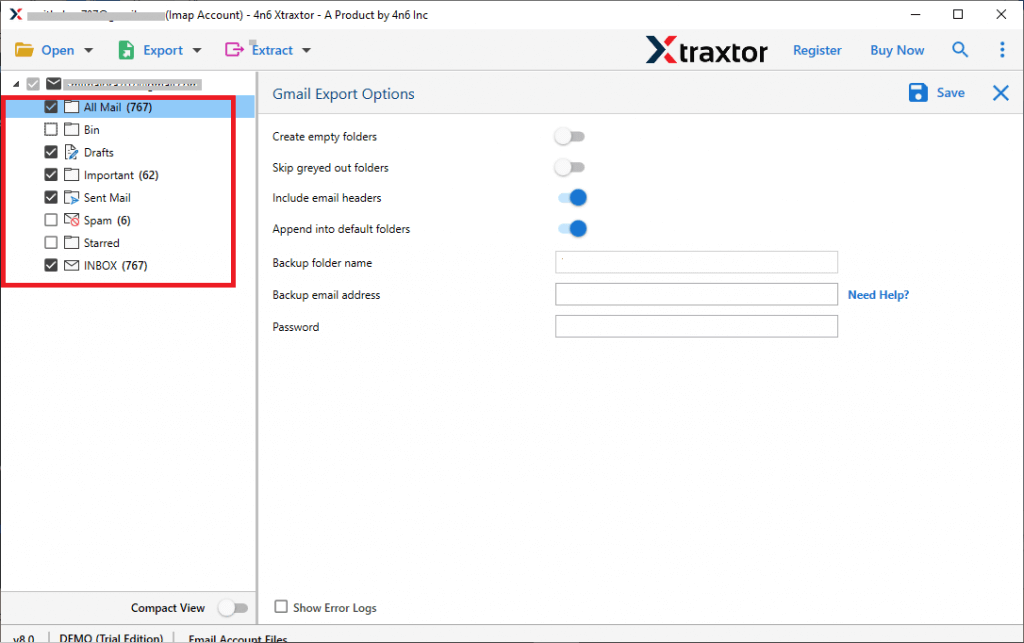
Step 7. Enter your Gmail login credentials & click the Save button to begin.
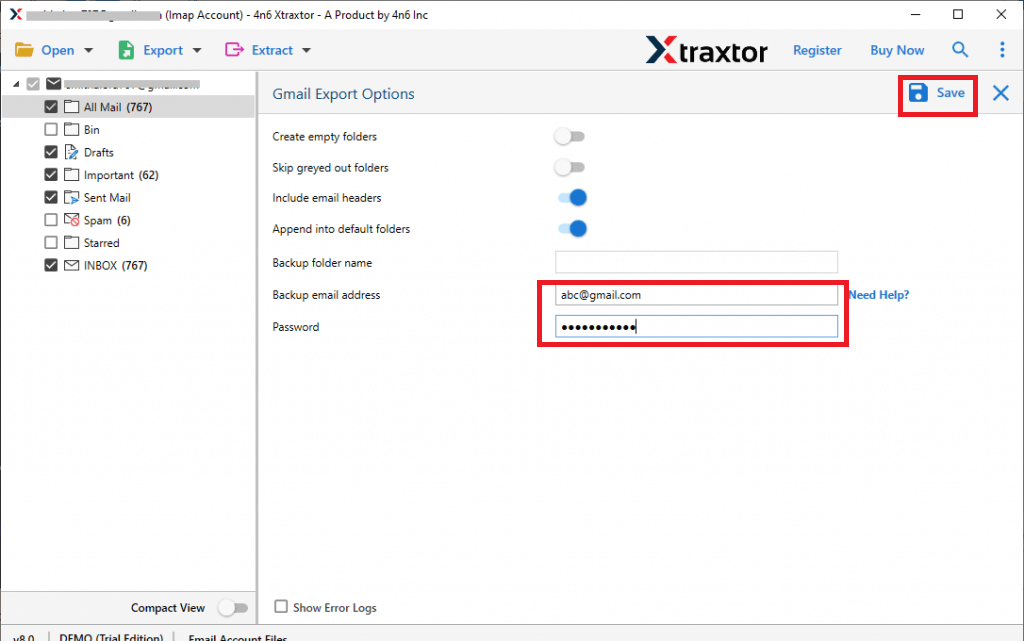
Done! You can now successfully transfer FastMail emails to Gmail along with attachments in just a few clicks.
Prominent Features of FastMail to Gmail Migration Tool
- Bulk Migration: The tool allows you to migrate unlimited FastMail emails to Gmail without any size limitation or data loss.
- Secure Process: Xtraxtor ensures complete data safety during migration. It maintains 100% data integrity and delivers accurate results.
- Preserves Folder Structure: The software keeps the original folder hierarchy intact throughout the migration process.
- Advanced Filter Options: You can transfer selected FastMail emails to Gmail using filters like date range, to, from, subject, etc.
- Migrate Emails with Attachments: The tool transfers FastMail emails along with all attachments and maintains email properties and metadata.
- Cloud-to-Cloud Migration: Apart from FastMail to Gmail migration, the tool also supports migration between various cloud-based email platforms.
- Windows Compatibility: The software works smoothly on Windows 11, 10, 8.1, 8, 7, and earlier versions.
- User-Friendly Interface: The tool has a simple and clean interface that allows both technical and non-technical users to perform FastMail to Gmail migration without any difficulty.
Bringing It All Together
In this guide, we explained how to migrate FastMail to Gmail using both manual and professional methods. Manual methods are free but technical and risky. Professional tools provide a safe, fast, and hassle-free solution, especially for large mailboxes.
