
Hello Readers! This technical guide is for users who want to import PST to Zimbra Mail account. If you are switching from Microsoft Outlook to Zimbra and want to move your existing emails, this article will help you understand the process clearly.
Microsoft Outlook stores mailbox data in PST (Personal Storage Table) files. These files include emails, attachments, contacts, calendars, and other mailbox items.
Zimbra, on the other hand, is a web-based email platform widely used by businesses and organizations for secure communication and collaboration.
Because both platforms use different mailbox formats, transferring Outlook data to Zimbra can be confusing for many users.
- Outlook uses PST format
- Zimbra uses TGZ backup format
Since Zimbra cannot directly open PST files and Outlook cannot export emails to TGZ format, users need a proper migration method.
In this guide, you will learn the easiest way to import PST emails to Zimbra Mail without losing data.
Can Zimbra Import PST Files Directly?
No. Zimbra does not support PST files directly.
Zimbra imports data using TGZ backup files or IMAP-based migration, while Outlook stores data locally in PST format.
To move PST data to Zimbra, users typically need to:
- Convert PST emails into a compatible format
- Upload emails using IMAP migration
Without a conversion or a migration tool, PST files cannot be imported into Zimbra Mail.
How to Import PST to Zimbra Mail Automatically?
Check out Xtraxtor software that will directly transfer emails from PST file into Zimbra mailbox. If your PST file got corrupted or damaged, in that case, this tool also import your data without any hassle. Moreover, while importing PST emails to Zimbra webmail account, the tool maintains folder and sub-folder hierarchy and structure. Additionally, you can also select which email folders you want to import into Zimbra mailbox.
For a detailed process, try out the demo version of the software.


Steps to Import PST Emails to Zimbra Mail
Step 1. Run the software on your Windows.
Step 2. Add the PST File (Open >> Data File >> PST File).
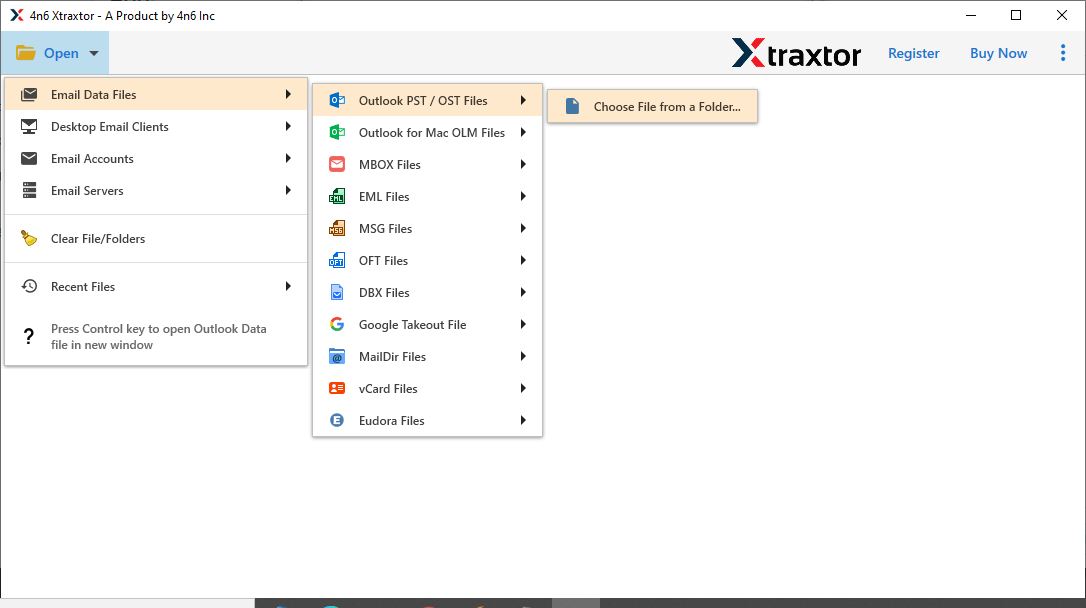
Step 3. Click on Export >> IMAP option.
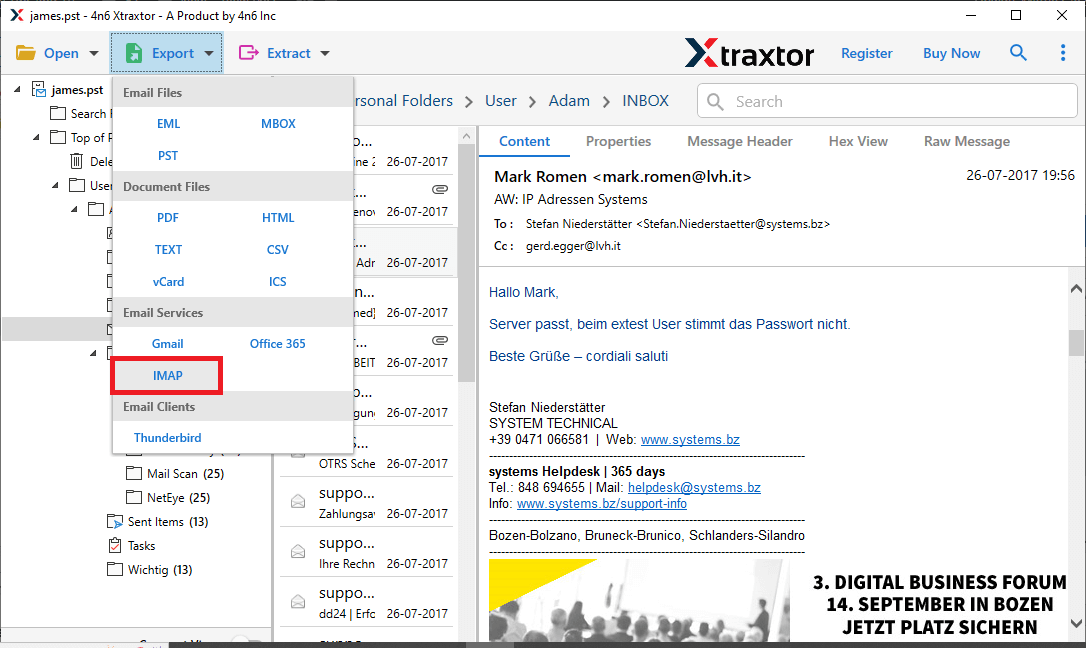
Step 4. Select the email folders you want to import.
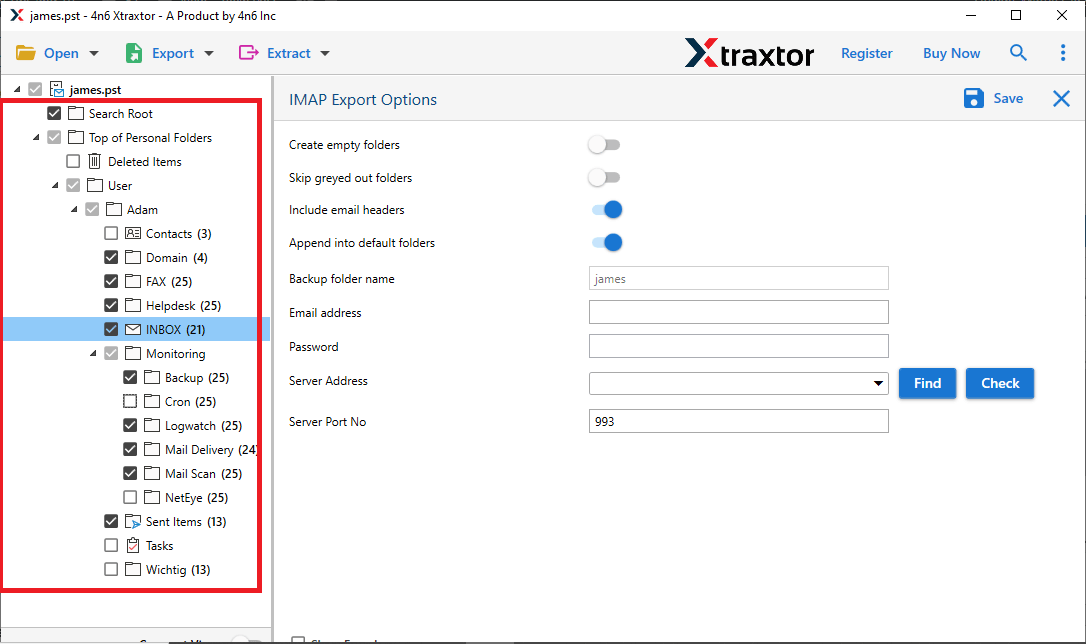
Step 5. Enter your Zimbra Mail account login details and hit the Save button.
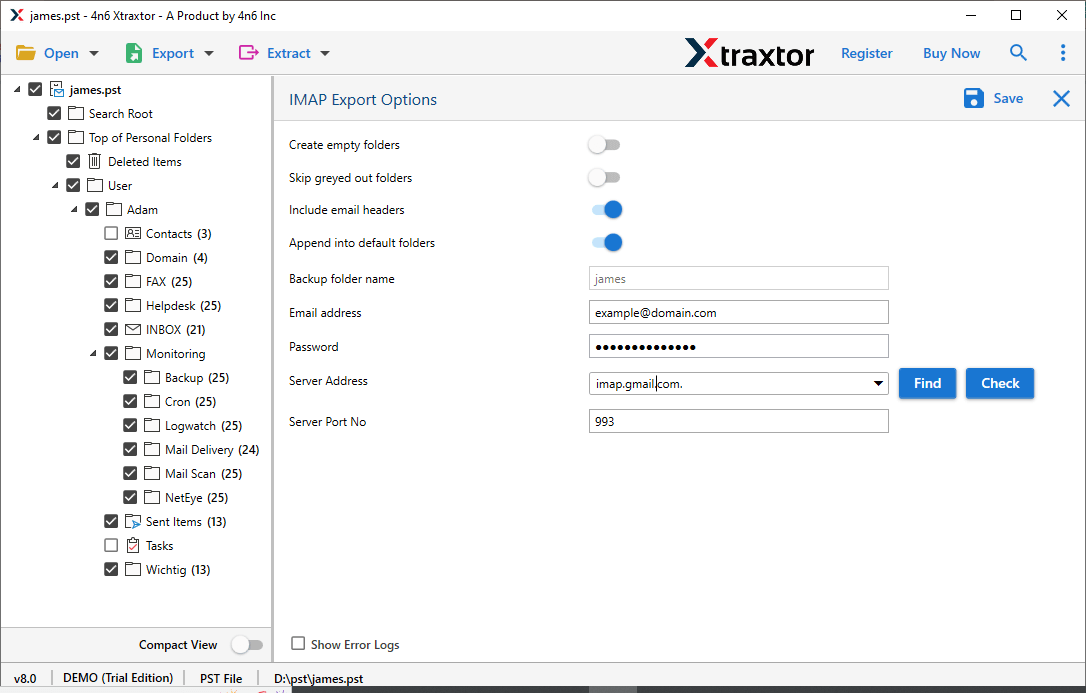
Done! Here, complete the PST to Zimbra migration process.
Prominent Features of Xtraxtor Tool
With this tool, there are various outstanding features, some of which include –
- Transfer emails from PST to Gmail, Office 365, Zoho Mail, and other webmail services.
- Select and import specific PST email folders into Postbox as needed.
- Convert PST files to MBOX, PDF, EML, MSG, DOC, RTF, XPS, and 10+ other formats.
- Easily import PST files into Zimbra Mailbox along with attachments.
- Preview emails before importing to ensure accuracy.
- Preserves email formatting, metadata, and attachments during migration.
- User-friendly interface, suitable for both beginners and experts.
- Supports PST files from Outlook 2019, 2016, 2013, and 2010.
- Fully compatible with Windows 11 and older versions.
Conclusion
Here we can conclude that importing PST file to Zimbra webmail is an easy task to perform. The tool we mention in this post is the best for migrating your emails without any hassle. You can use the demo version and see it for yourself. Hope that after that, you are satisfied and import your emails with Xtraxtor.
