How to Import PST to Spark Mail?

Are you searching for a simple way to import PST to Spark Mail? Don’t worry! Whether you are switching from Microsoft Outlook or simply want to access your old PST emails in Spark Mail, there are workable solutions available. Since Spark Mail does not support PST files directly, users often face difficulties while moving their Outlook data.
In this blog, we will explain how to import PST files to Spark Mail using both manual and professional methods. Read the complete guide to understand the process and choose the best option according to your needs.
Before we begin, let’s understand why users need to import PST files.
Why Users Import PST Files to Spark Mail
- Better Email Management: Spark Mail provides a clean and smart interface to manage emails efficiently.
- Access Old Outlook Data: Users want to view their old Outlook emails stored in PST files within Spark Mail.
- Switching Email Client: Many users move from Outlook to Spark Mail due to its modern features and better productivity tools.
- Centralized Email Storage: Importing PST files allows users to keep all emails in one email client.
- Improved User Experience: Spark Mail offers smart inbox, reminders, and collaboration features which many users prefer.
Now, let’s move ahead and understand the methods to import PST files into Spark Mail.
Can I Import PST to Spark Mail Manually?
Yes, but Spark Mail does not allow direct PST import. Therefore, you need to use a workaround method. In this method, you first import the PST file into Outlook and then sync it with Spark Mail using an IMAP email account.
Follow the steps below carefully.
- Open the Microsoft Outlook application on your system.
- Click on File and select Open & Export.
- Choose Import/Export from the list.
- Select Import from another program or file and click Next.
- Choose Outlook Data File (.pst) and click Next.
- Browse and select the PST file from your computer.
- Click Finish to load the PST file in Outlook.
- After that, the PST file will appear in your Outlook mailbox.
- Open Outlook and click File >> Add Account.
- Enter your IMAP email account credentials.
- Complete the account setup.
- Open the imported PST folder in Outlook.
- Select the emails or folders you want to move.
- Drag and drop them into the configured IMAP mailbox folders.
- Wait for Outlook to sync the emails with the server.
- Open the Spark Mail application.
- Add the same IMAP email account used in Outlook.
- Once the account syncs, all emails moved from PST will appear in Spark Mail.
- These steps help you manually access PST emails in Spark Mail.
However, this method has several limitations.
Drawbacks of Using Manual Solution
- Spark Mail does not support direct PST import.
- The process involves multiple applications and steps.
- Requires Microsoft Outlook installation.
- Time-consuming for large PST files.
- High risk of errors or incomplete migration.
- Not suitable for non-technical users.
How to Import PST Files to Spark Mail Professionally?
To simplify the process, you can use the Xtraxtor software. This tool allows users to open PST files and transfer emails to any IMAP-based email account that can later be accessed in Spark Mail.
The software can convert PST files to different formats or migrate emails directly to IMAP accounts without data loss. It keeps email formatting, attachments, and folder hierarchy intact throughout the process.
You can download the free demo version to test the tool before purchasing.

Steps to Import PST to Spark Mail
Step 1. Run the software on your system.
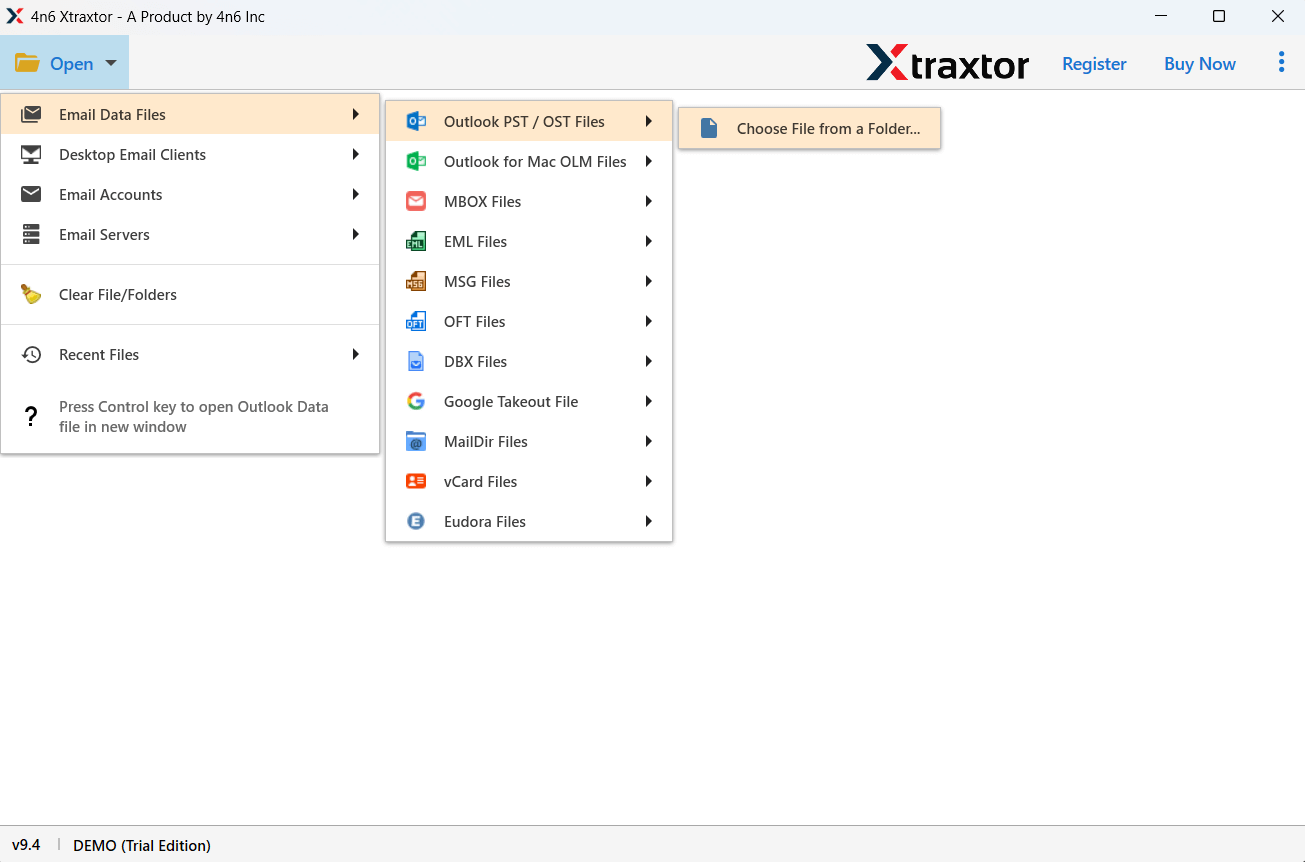
Step 2. Click Open >> Data File >> PST File to add your PST file.
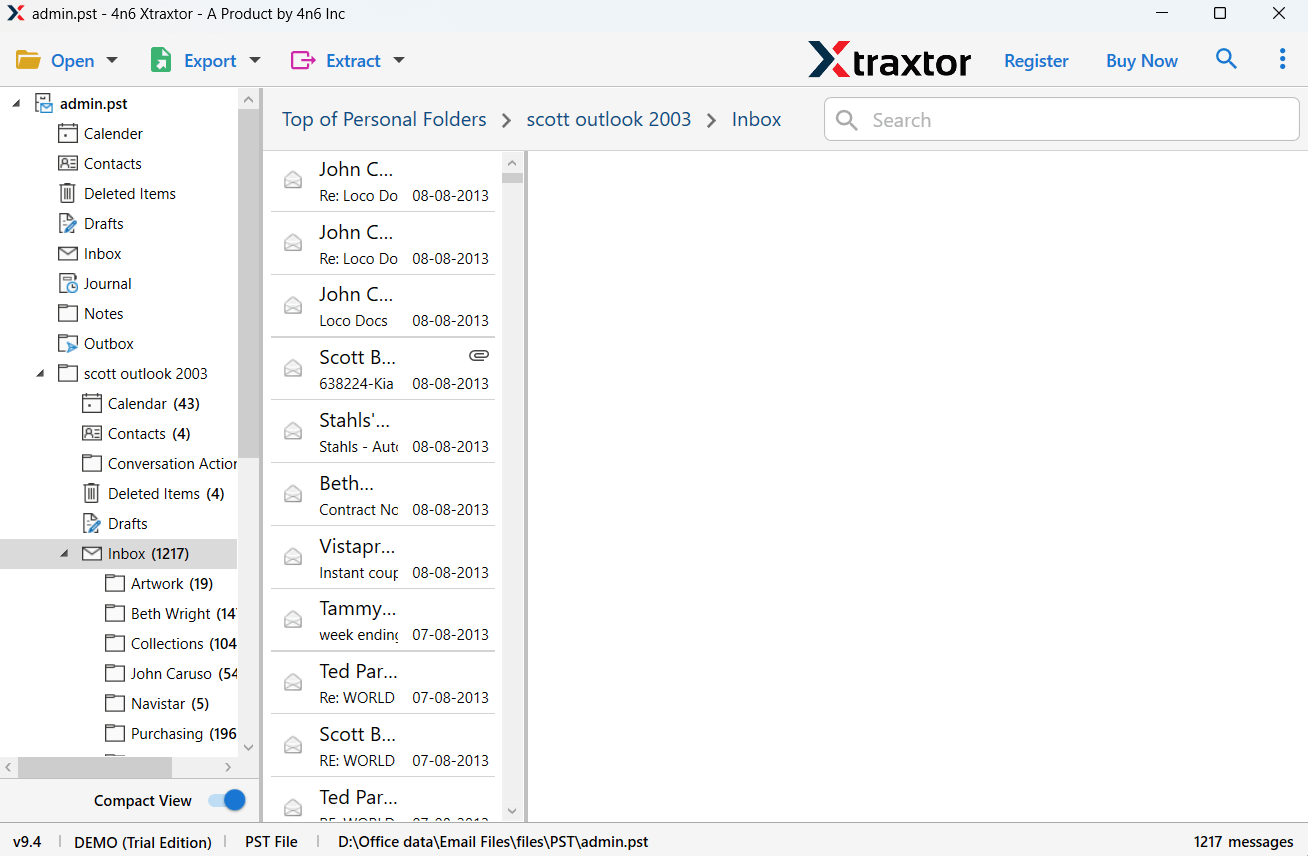
Step 3. Preview all emails and folders in the software interface.
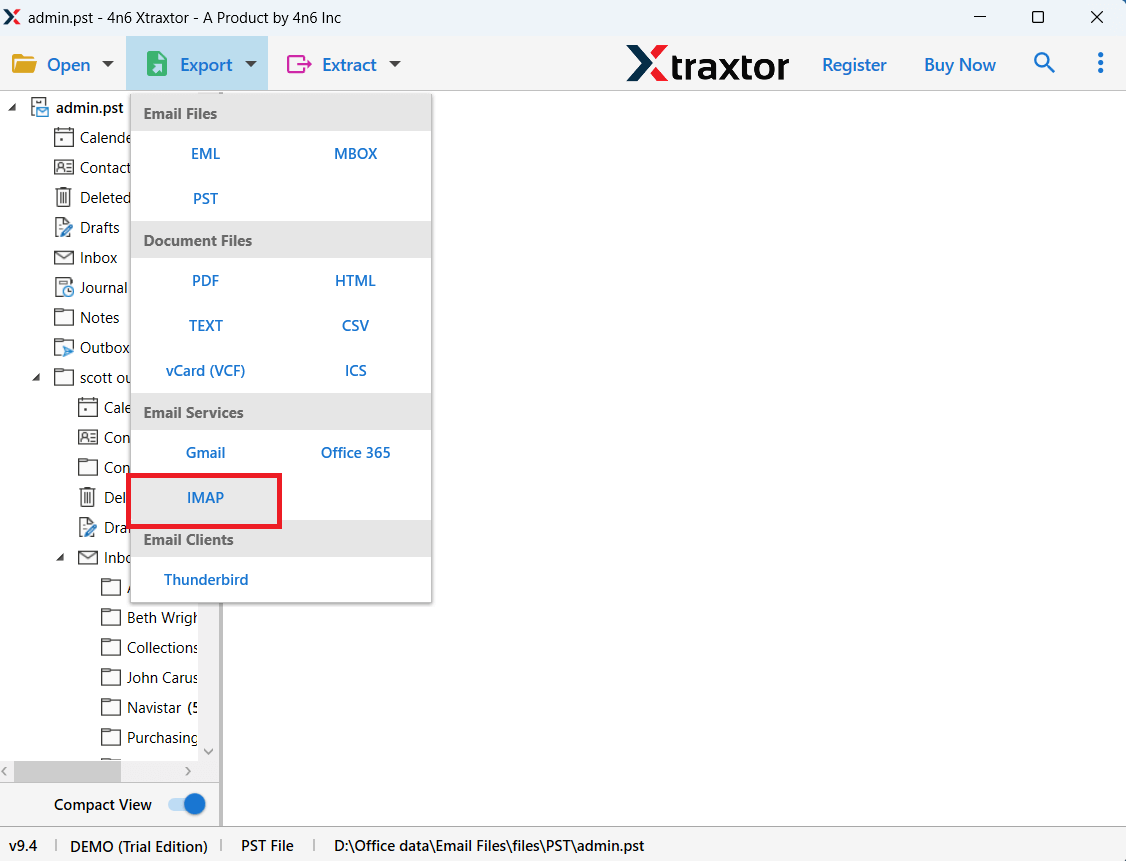
Step 4. Click on Export and select the IMAP option.
Step 5. Choose the email folders you want to transfer.
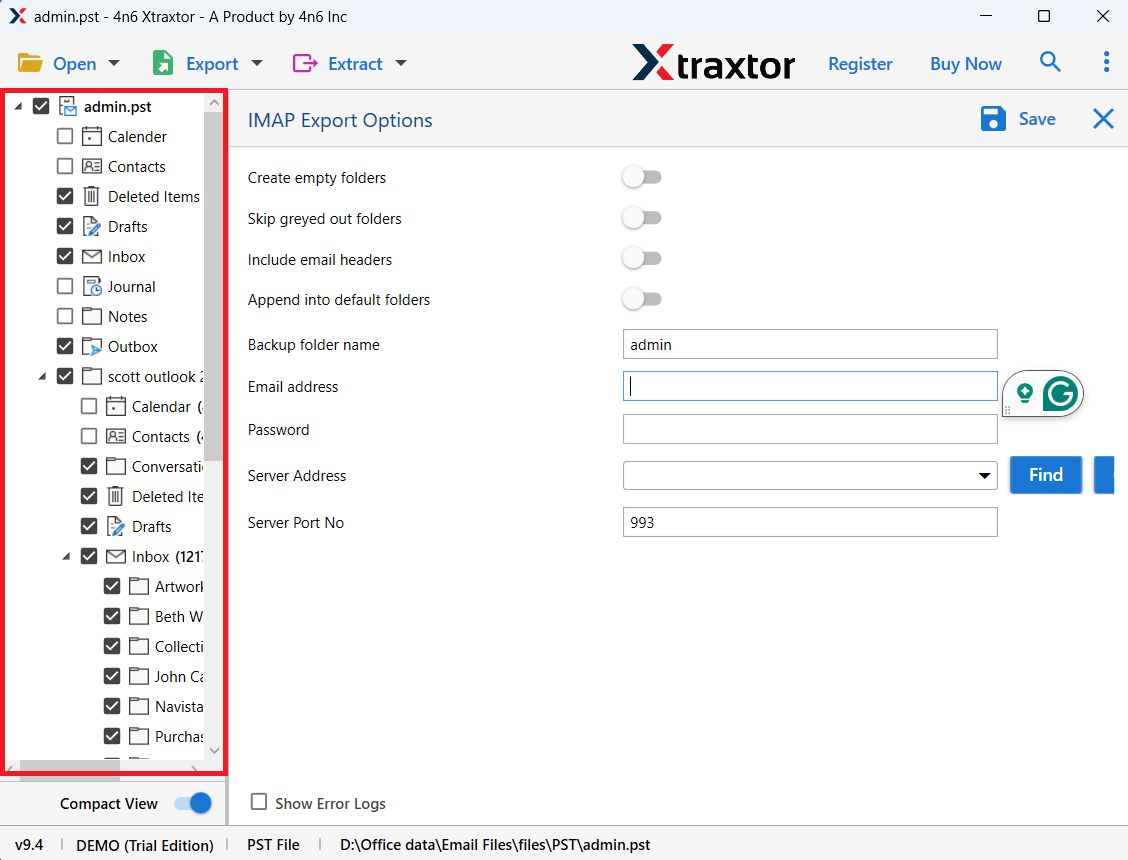
Step 6. Enter your IMAP email account login details & click the Save button.
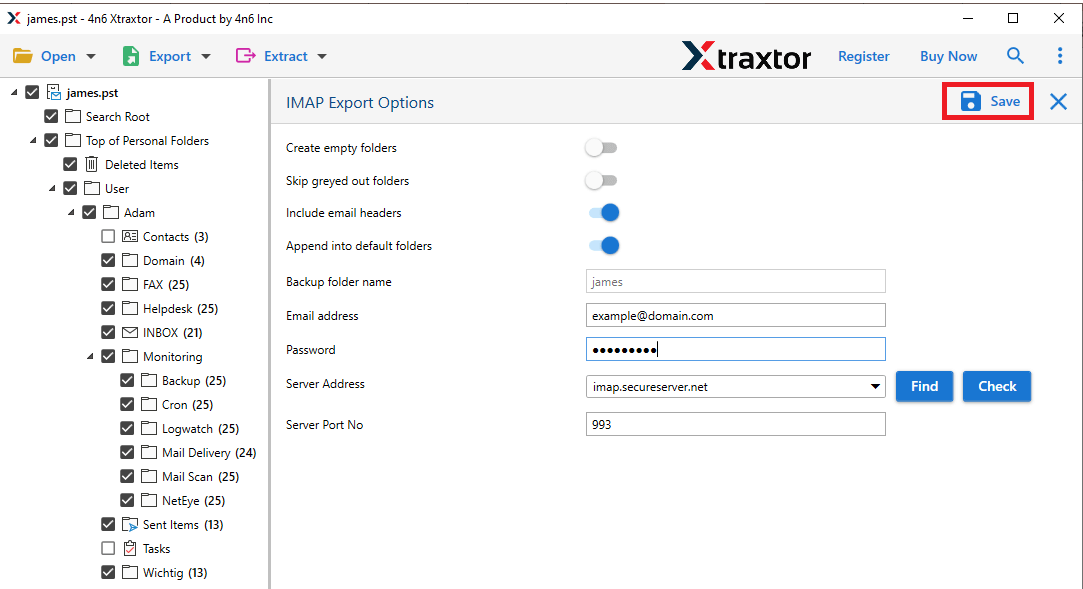
After the process completes, simply open Spark Mail and sign in with the same IMAP account to access all imported PST emails.
- Import PST emails along with attachments.
- Maintain original email folder structure.
- Supports bulk PST file conversion.
- Preview emails before importing.
- Transfer selective folders or emails.
- Convert PST to MBOX, EML, PDF, MSG, and other formats.
- Simple and user-friendly interface.
- Compatible with Windows 11, 10, and earlier versions.
Final Words
In this blog, we explained how to import PST to Spark Mail using both manual and professional methods. The manual solution works but requires multiple steps and technical knowledge. It may also take a lot of time when dealing with large PST files.
On the other hand, using a professional tool makes the process faster, safer, and easier. You can import PST emails with attachments while maintaining the original folder structure. Choose the method that best fits your requirements and complete your PST to Spark Mail migration without any hassle.
