How to Import PST to Excel Spreadsheet?

If you’re trying to import a PST file into Excel, you’re not alone. Many users want to analyze Outlook email data, create reports, or maintain records in spreadsheet format. However, PST files are designed for Outlook, not Excel, so opening them directly is not possible.
This guide explains how to convert PST file to Excel safely, covering:
- A free manual method for small datasets
- A professional method for large or multiple PST files
- Key limitations, best practices, and expert recommendations
By the end, you’ll know exactly which method suits your needs.
Why Do Users Import PST to Excel Spreadsheet?
Outlook PST files store emails, contacts, calendars, and other mailbox items, but they are not ideal for data analysis or sharing. Excel, on the other hand, gives you flexibility and control.
Users usually convert PST to Excel to:
- Analyze email data using filters and sorting
- Create reports for audits or compliance
- Build searchable email records
- Extract sender, receiver, subject, and date details
- Share email data easily in spreadsheet format
Excel gives you full control over your data that PST files don’t offer on their own.
Can You Convert PST File to Excel Directly?
Short answer: No.
Excel does not support the PST file structure. Even if you try to insert a PST file as an object, the data will either not open or appear unreadable.
Why can PST not be converted into Excel format directly
- PST is a proprietary Outlook data format
- Excel cannot read mailbox folder structures
- No control over fields, folders, or metadata
- High risk of corrupted or incomplete data
To import PST into Excel, a conversion is required.
How to Import PST to Excel Free?
If you have a small PST file and Outlook is installed, you can export PST data to CSV, which Excel supports.
Note: Microsoft Outlook must be installed on your system.
Steps to Convert PST to Excel Using Outlook
- Open the Outlook application on your PC.
- Add your mail account to Outlook.
- Navigate to the “File” menu item and open the files.
- Choose the “Open & Export” option.
- Select “Import & Export“
- Choose the option Export to a file, then click “Next“.
- Select the option “Comma Separated Values (.csv)” as file type.
- Click on the “Next” Button.
- Now select the folder and click the “Save” button.
Once exported, you can open the CSV file in Excel and view your PST data.
Limitations of the Manual Method
Although free, this approach has several drawbacks:
- Only one folder can be exported at a time
- Not suitable for large PST files
- High risk of data formatting issues
- No advanced filters (date, sender, subject, etc.)
- Attachments are not included
- Time-consuming and error-prone
For users with large or multiple PST files, this method is not practical.
Why This Method Fails?
- Excel does not support PST file structure
- Data may appear unreadable or corrupted
- No control over what data is imported
- Same limitations as CSV export
Because of these risks, this method is not suitable for professional use.
How to Convert PST to Excel File Professionally? (Recommended)
If you want a safe, fast, and accurate way to convert PST to Excel, a professional tool is the best option. Xtraxtor software allows you to convert PST files into Excel-compatible CSV format with complete data accuracy. The tool works offline and maintains folder structure while exporting.
You can convert single or multiple PST files and apply filters to extract only the required data.
Now, click the “FREE Download” button and see how it works.

Steps to Import PST Files to Excel
- Open the Xtraxtor to your windows.
- Click the “Open” button to select the account option.

- Click the “Open” button to select the PST option.

- Select your PST file and click “Open“.

- Click the “Export” button to see the “import” option.

- Select the CSV option to convert PST files.

- Select the folders you want to use in your CSV file.
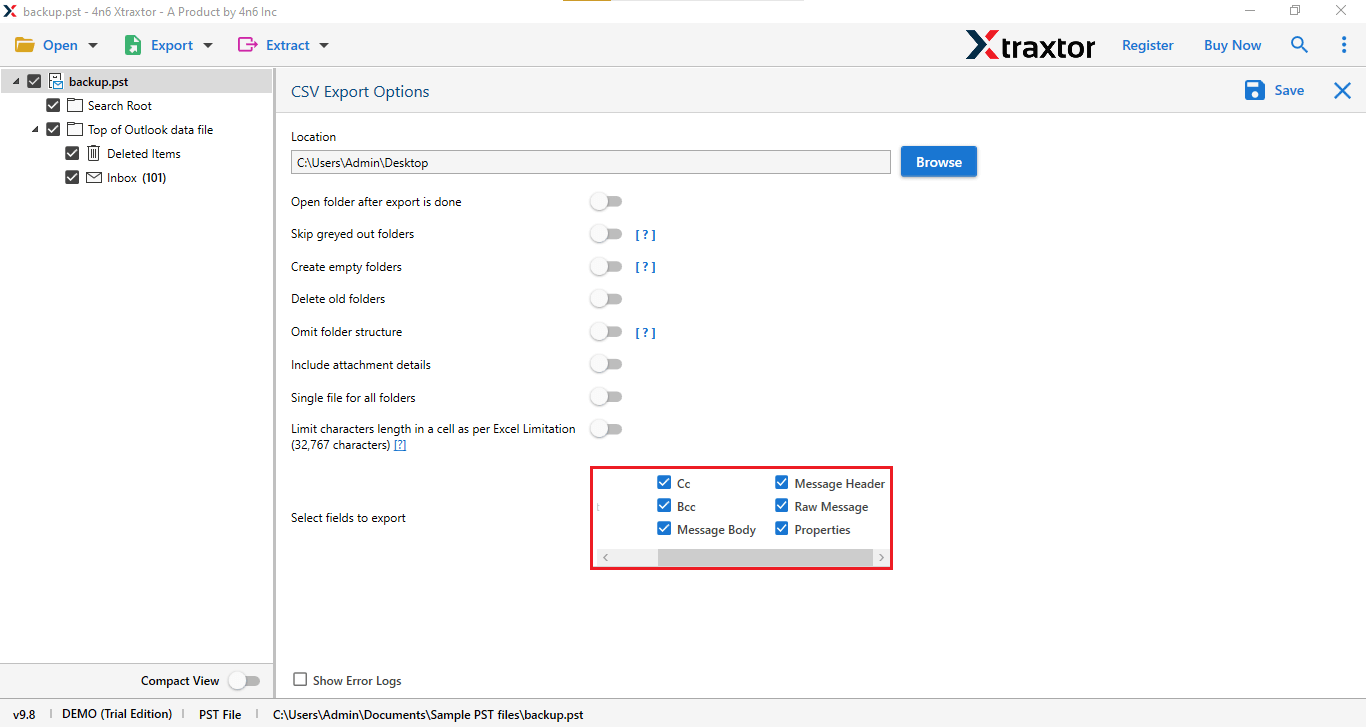
- Now browse to the file location and click “Save“.

That’s it! Your PST file is converted to Excel format within minutes.
Features of Professional Software
- Allows you to convert PST files using advanced filter options (date, sender, subject, etc.)
- Works as an all-in-one solution for email backup and export
- Lets you choose specific folders instead of exporting the entire mailbox
- convert PST to CSV (Excel-supported) format with high accuracy
- Supports single as well as multiple PST files in one process
- Maintains email metadata such as To, From, Subject, Date, and Time
- Preserves the original folder hierarchy during conversion
- Handles large PST files without size limitations
- No requirement to install Microsoft Outlook
- Provides a preview option before exporting data
- Ensures 100% data integrity with no loss or duplication
- Simple and user-friendly interface suitable for beginners
- Fast conversion with high performance and stability
- Compatible with Windows 11, 10, 8, 8.1, 7, XP, and earlier versions
Conclusion
In this blog, we have discussed how to import PST to Excel using both manual and professional methods. We found that manual methods are time-consuming, difficult to use, and can lead to data loss. However, the use of a professional tool to import PST file into Excel will make this process easy and more efficient. Well, the users who have small PST files or only need to extract a limited amount of data can try the manual method, but we highly recommend using the professional method.
Read the complete method described in this guide and then try the free trial version of this tool. If you are satisfied with the trial version, you can go for the licensed version.
