How to Import PST to BlueMail?

Many email users store their important emails in PST files, which are mainly used by Microsoft Outlook. However, when users switch to modern email applications like BlueMail, they often need to move their existing Outlook data. If you are also planning to import PST to BlueMail, this guide will help you complete the process easily.
In this blog, we will explain a simple and reliable method to migrate emails from Outlook PST files to BlueMail without losing any data. Since BlueMail is a popular multi-platform email application, many users prefer it for managing multiple email accounts in one place.
If you are looking for a safe and effective solution to import PST files into BlueMail, keep reading this guide until the end.
Why Do Users Want to Import PST to BlueMail?
BlueMail is a widely used email application that supports multiple email services. It allows users to manage emails from different accounts in one place. Because of its useful features, many Outlook users prefer to move their PST data to BlueMail.
Here are some reasons why users migrate PST files to BlueMail:
- Access Multiple Accounts: BlueMail allows users to manage several email accounts from one interface.
- Easy Email Management: It provides smart notifications, unified inbox, and better email organization.
- Cross-Platform Support: BlueMail works on Windows, Android, iOS, and macOS devices.
- Cloud-Based Access: Users can access their emails anytime using connected IMAP accounts.
- Better User Interface: BlueMail offers a clean and simple interface for managing emails efficiently.
How to Transfer PST File to BlueMail Automatically?
Importing PST files directly into BlueMail is not possible because BlueMail does not support PST format directly. PST files are only compatible with Microsoft Outlook. Therefore, you need a reliable solution to convert PST emails into a supported format or upload them using an IMAP account.
Try Xtraxtor software that provides a simple way to transfer PST emails to BlueMail. The tool helps users transfer PST emails to IMAP-supported accounts or other formats that can be easily accessed through BlueMail. The software comes with a simple interface that allows both technical and non-technical users to complete the process without any difficulty.
You can download the free demo version of the tool to understand how the process works.

Steps to Import PST to BlueMail Account
Follow these simple steps to migrate PST emails to BlueMail:
Step 1. Download and install the software on your computer.
Step 2. Launch the tool and click Open >> Email Data File >> PST File.
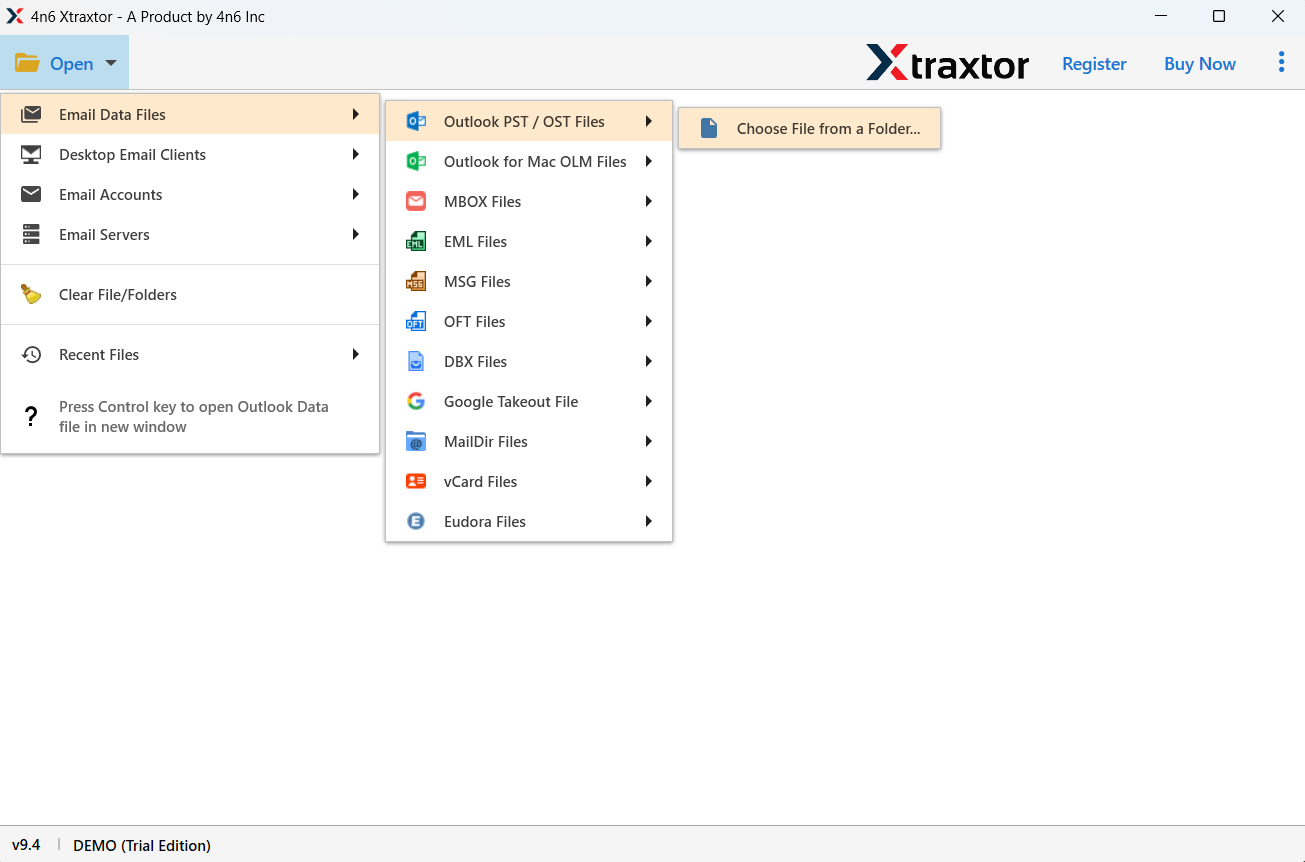
Step 3. Browse and select the PST file from your computer.
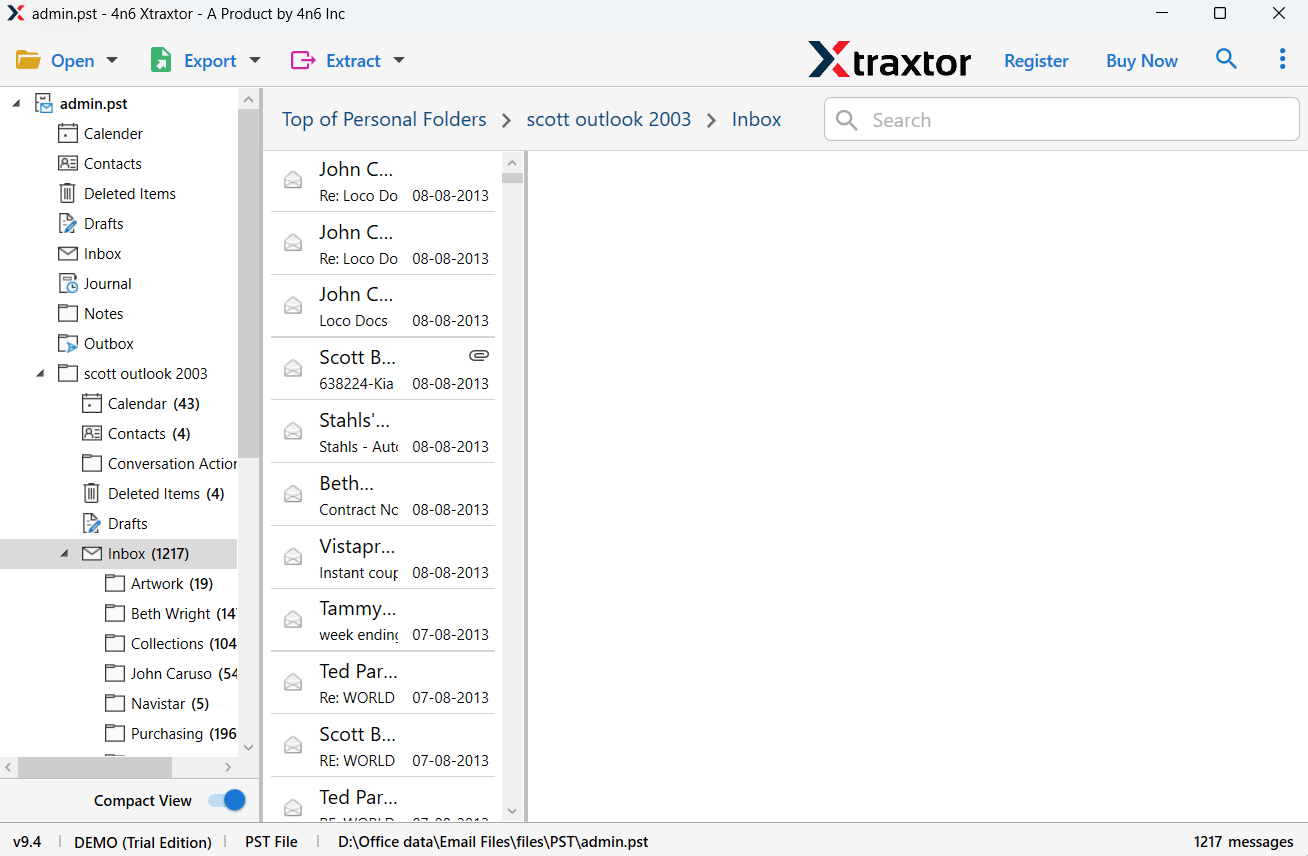
Step 4. After loading the file, you will see all emails and folders in the software panel.
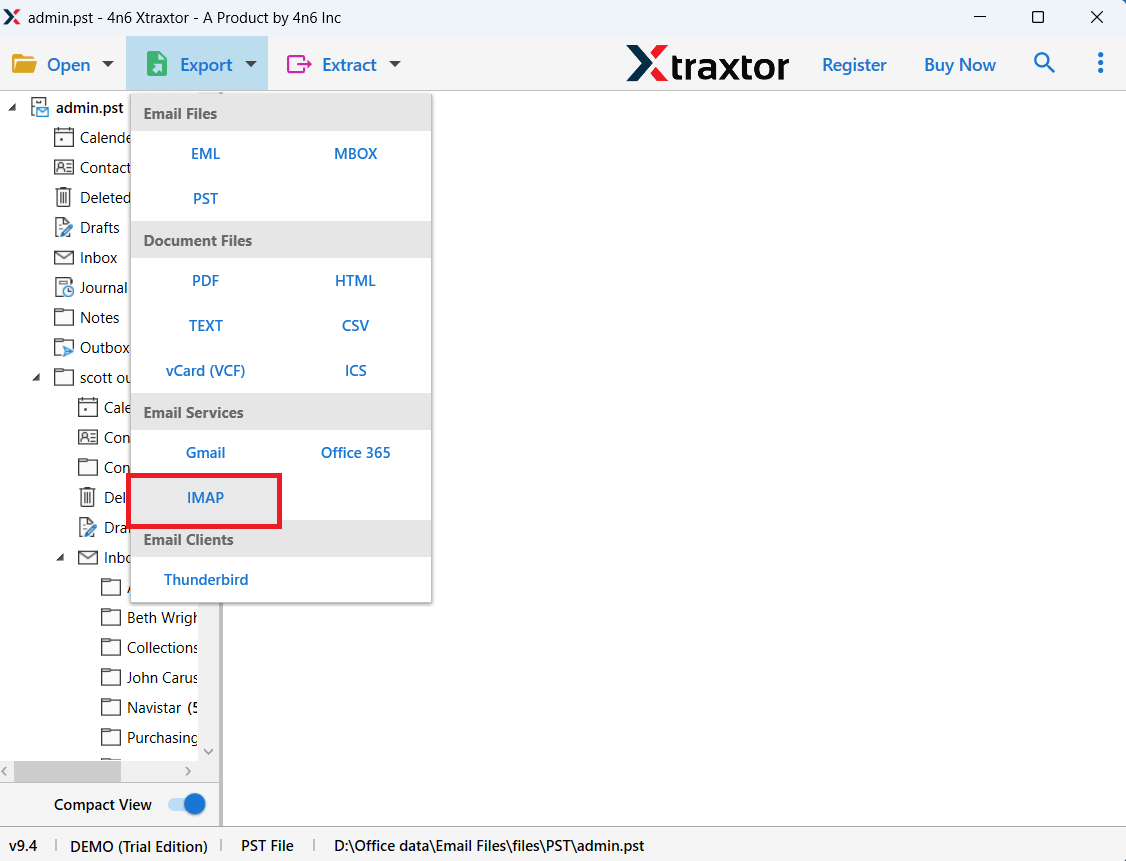
Step 5. Click Export and choose the IMAP option.
Step 6. Enter the login details of the email account configured in BlueMail.
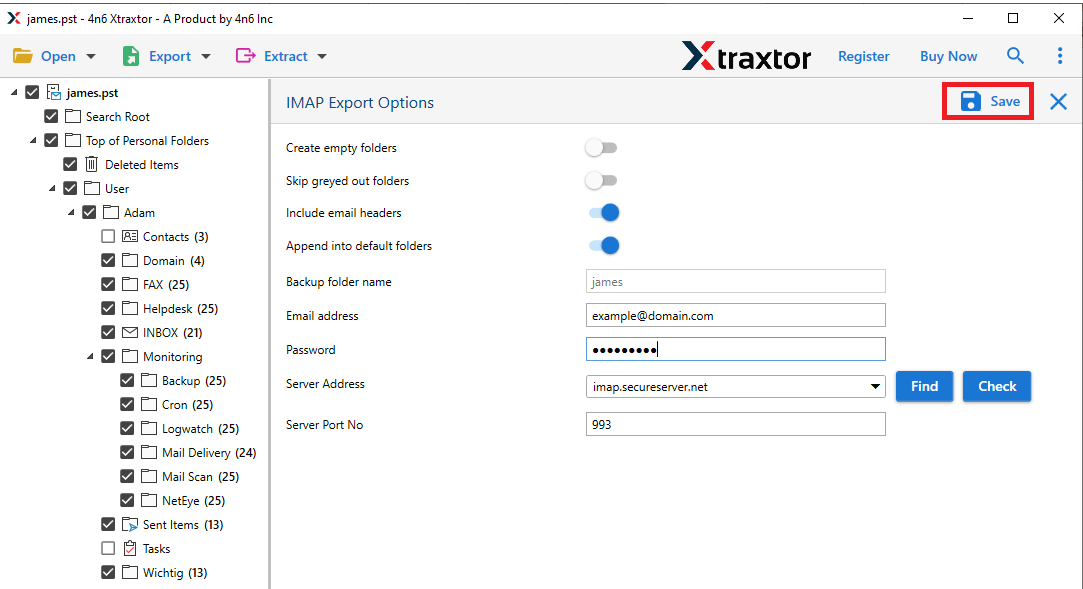
Step 7. Click Save to start the migration process.
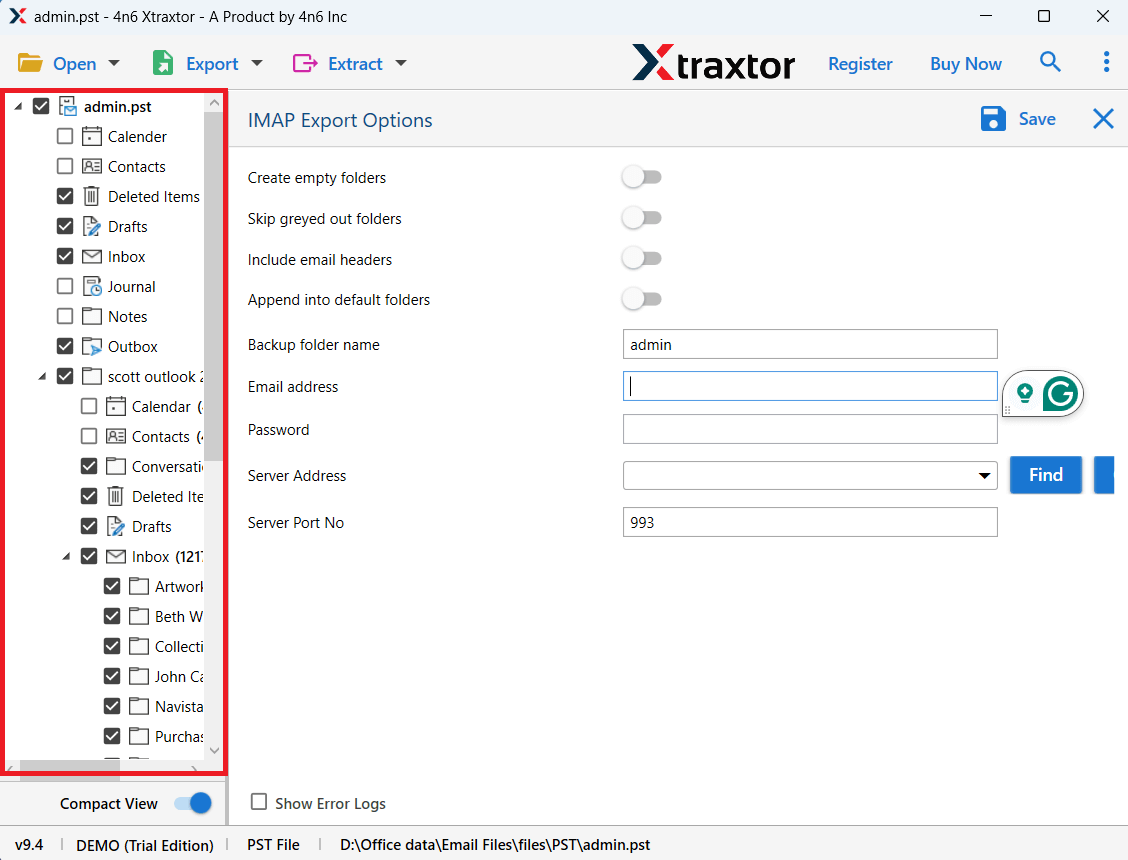
Once the process is completed, all PST emails will be available in your email account, which you can easily access through the BlueMail application.
The recommended tool offers several useful features to make the migration process easier:
- Bulk PST Email Migration: Import multiple PST files at the same time without data loss.
- Maintains Email Structure: Keeps the original folder structure, attachments, and formatting intact.
- Preview Emails: Allows users to view emails before starting the conversion process.
- Advanced Email Filters: Users can export only selected emails using filters such as date, subject, or sender.
- Multiple File Format Support: Convert PST to EML, MBOX, PDF, MSG, HTML, and more.
- Supports Large PST Files: The software can easily process large PST files without size limitations.
- Simple Interface: Designed for both technical and non-technical users.
- Compatible with Windows OS: Works smoothly on Windows 11, 10, 8, and earlier versions.
Frequently Asked Questions
Q1. Can I import PST files directly into BlueMail?
Ans. No, BlueMail does not support PST files directly. You need to convert or upload them through an IMAP account.
Q2. Will my attachments be transferred during the process?
Ans. Yes, the recommended tool imports emails along with all attachments and metadata.
Q3. Does the tool support large PST files?
Ans. Yes, the software supports PST files of any size.
Q4. Is Microsoft Outlook required for the process?
Ans. No, the tool works independently and does not require Outlook installation.
Conclusion
In this blog, we discussed different ways to import PST to BlueMail, including a manual approach and a professional tool. Both methods can help you move your Outlook emails to BlueMail. However, each method has its own advantages and limitations.
Since email data is important, it is always better to choose a safe and reliable solution. If you want a quick and smooth migration without any risk of data loss, using a trusted automated tool is the best option. It helps you import PST emails to BlueMail easily and accurately.
