
Managing emails only in a browser is not always convenient, especially when you need offline access, better control, or a secure backup. That’s why many users choose Mozilla Thunderbird, a free desktop email client, to store and manage their Gmail emails locally. If you are looking for a safe way to import Gmail to Thunderbird, this guide will help you step-by-step.
Here, you will learn both manual and advanced methods, their pros & cons, and which option is best based on your needs.
Why Do Users Need to Switch from Gmail to Thunderbird?
There are several reasons to migrate Gmail mailbox to Thunderbird which are given below-
- Offline Access: Thunderbird allows you to download and store your emails locally, providing offline access to your messages. Once, you migrate Gmail to Thunderbirrd then you can work in offline mode.
- Enhanced Privacy and Security: By importing your Gmail to Thunderbird, you can keep your emails on your local machine instead of relying on Google’s servers. This can provide an additional layer of privacy and security.
- Integrated Calendar and Tasks: Thunderbird includes a built-in calendar and task management functionality through its Lightning add-on. By migrating your Gmail account, you can seamlessly integrate your email, calendar, and tasks within a single application.
- Backup Purpose: By importing your Gmail account to Thunderbird, you can create a local backup of your emails. This ensures that you have a copy of your messages even if something happens to your Gmail account in the future.
There are two effective approaches, depending on mailbox size and technical comfort.
How to Import Gmail to Thunderbird Manually?
You can manually migrate Gmail emails to Thunderbird by configuring Gmail account in Thunderbird email client. After successful configuration, you will get your Gmail emails in Thunderbird application. First of all, enable IMAP in Gmail account and then add Google account to Thunderbird.
Follow the steps to configure Gmail account with Thunderbird and import mail from Gmail to Thunderbird.
Step 1. Log in to your Gmail account.
Step 2. Now, go to the Gear icon and click on Settings.
Step 3. Click on Forwarding and POP/IMAP and enable the IMAP option.
Step 4. Click on Save Changes.
Step 5. Now, open the Thunderbird email client on your system.
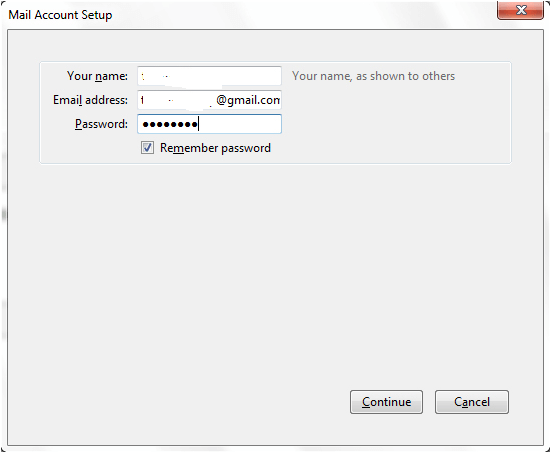
Step 6. After that, enter your name, Gmail email address, password, and then press Continue.
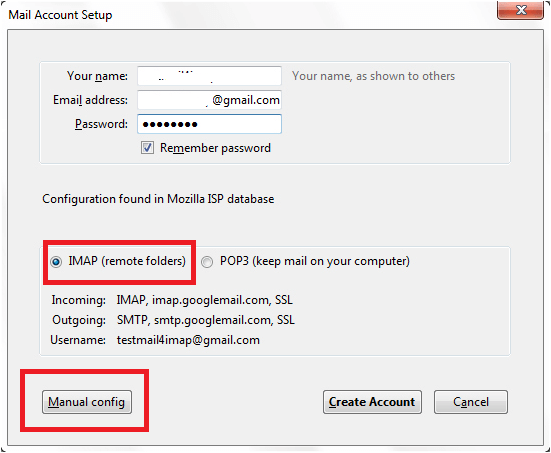
Step 7. Tick the IMAP radio button and click on Manual Config.
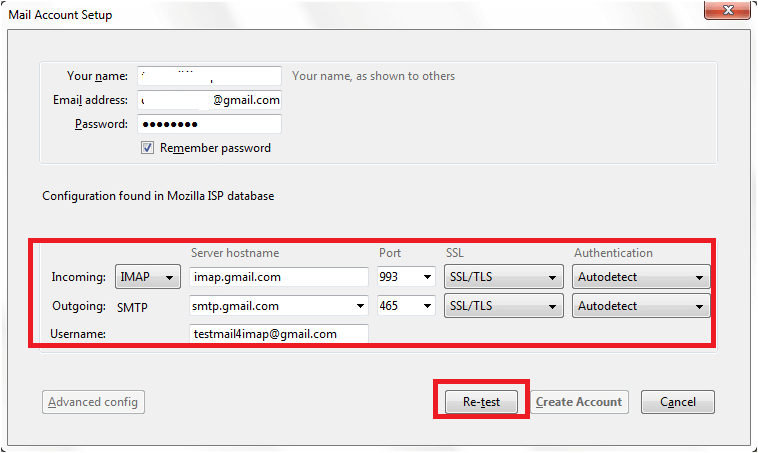
Step 8. Now, Enter the Incoming and Outgoing Server details in the respective filed and then press Re-set option.
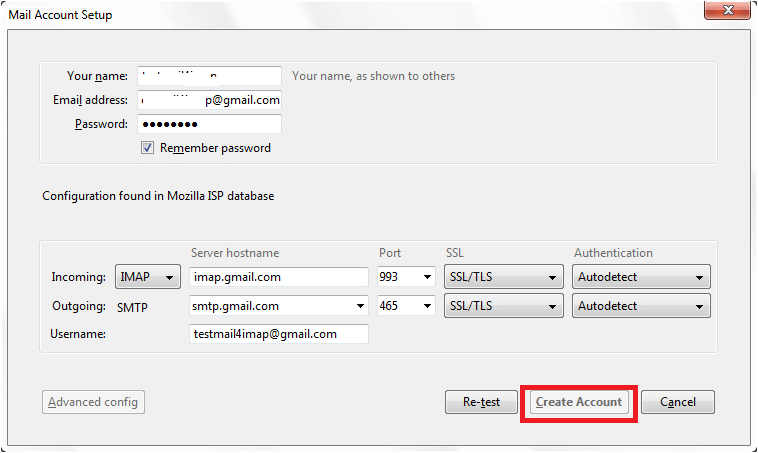
Step 9. If you entered the all details correct;y then the task will be successfully completed, and then click on Create account.
Step 10. Now, you can check your Gmail emails in Thunderbnird.
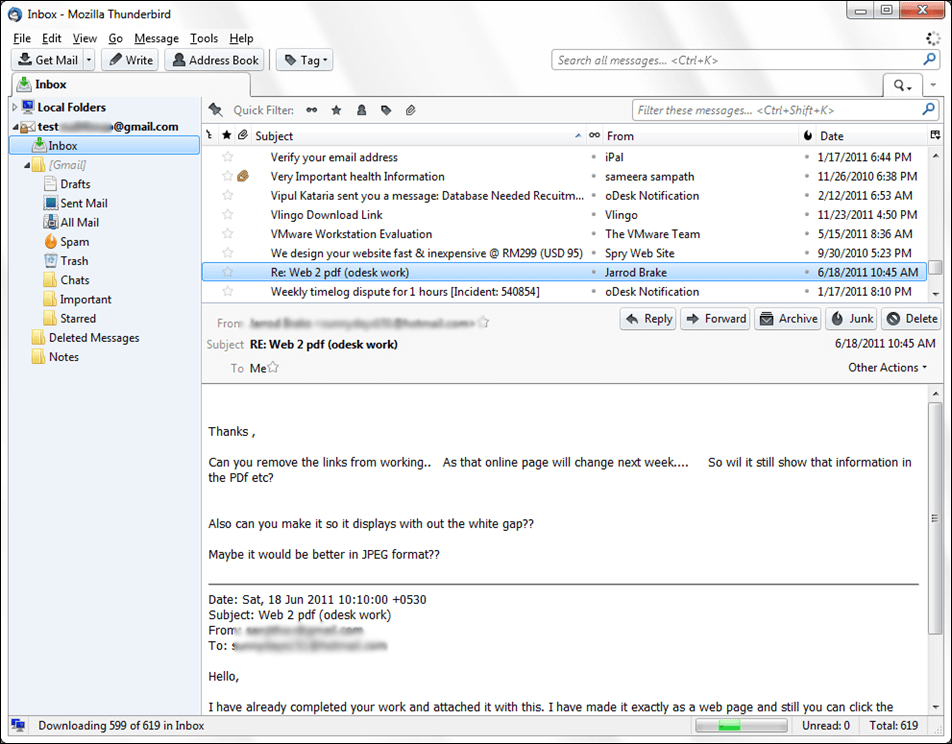
Done! Hence, you can manually import Gmail emails to Thunderbird.
Limitations of Manual Solution
- This method does not import all emails from Gmail to Thunderbird at once. You need to request to load emails each and every time to access old emails.
- Configuring a Gmail account with Thunderbird is a complex process. You must have technical knowledge and need to perform each step very carefully.
- It takes a lot of time to complete the process.
How to Transfer Emails from Gmail to Thunderbird Effortlessly?
Try the Xtraxtor to easily import Gmail emails into Thunderbird without any hassle. This tool allows you to transfer your complete Gmail mailbox in one go, including all emails and attachments. It is simple to use, so anyone can perform the process without technical knowledge.
You can also download its free demo version to test how the tool works and check its performance before using it for full migration.


Steps to Import Gmail to Thunderbird with Attachments
Step 1. Launch the Xtraxtor Email Migration Tool on your Windows system.
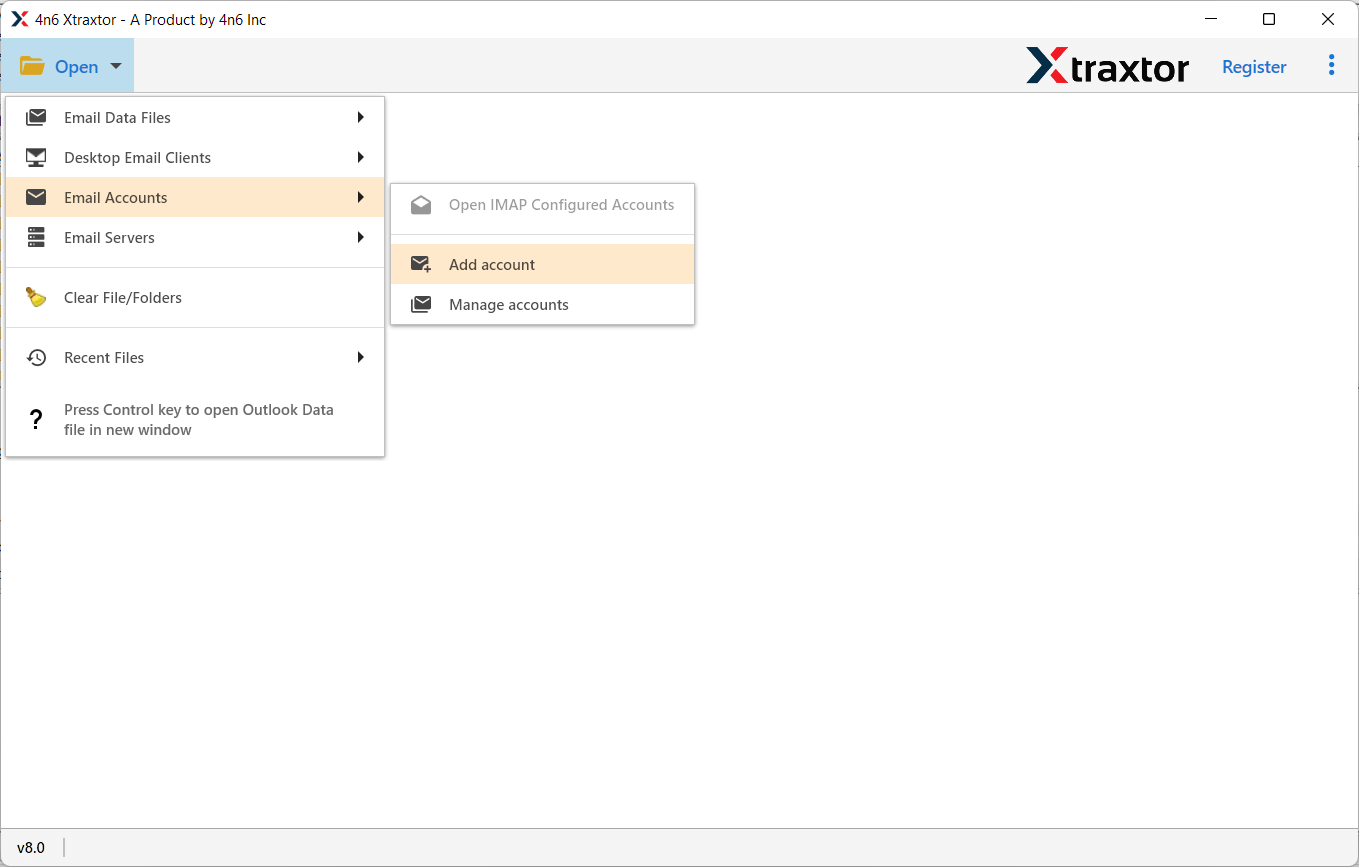
Step 2. Now, click on Open, go to Email Accounts, and then select the Add Account option.
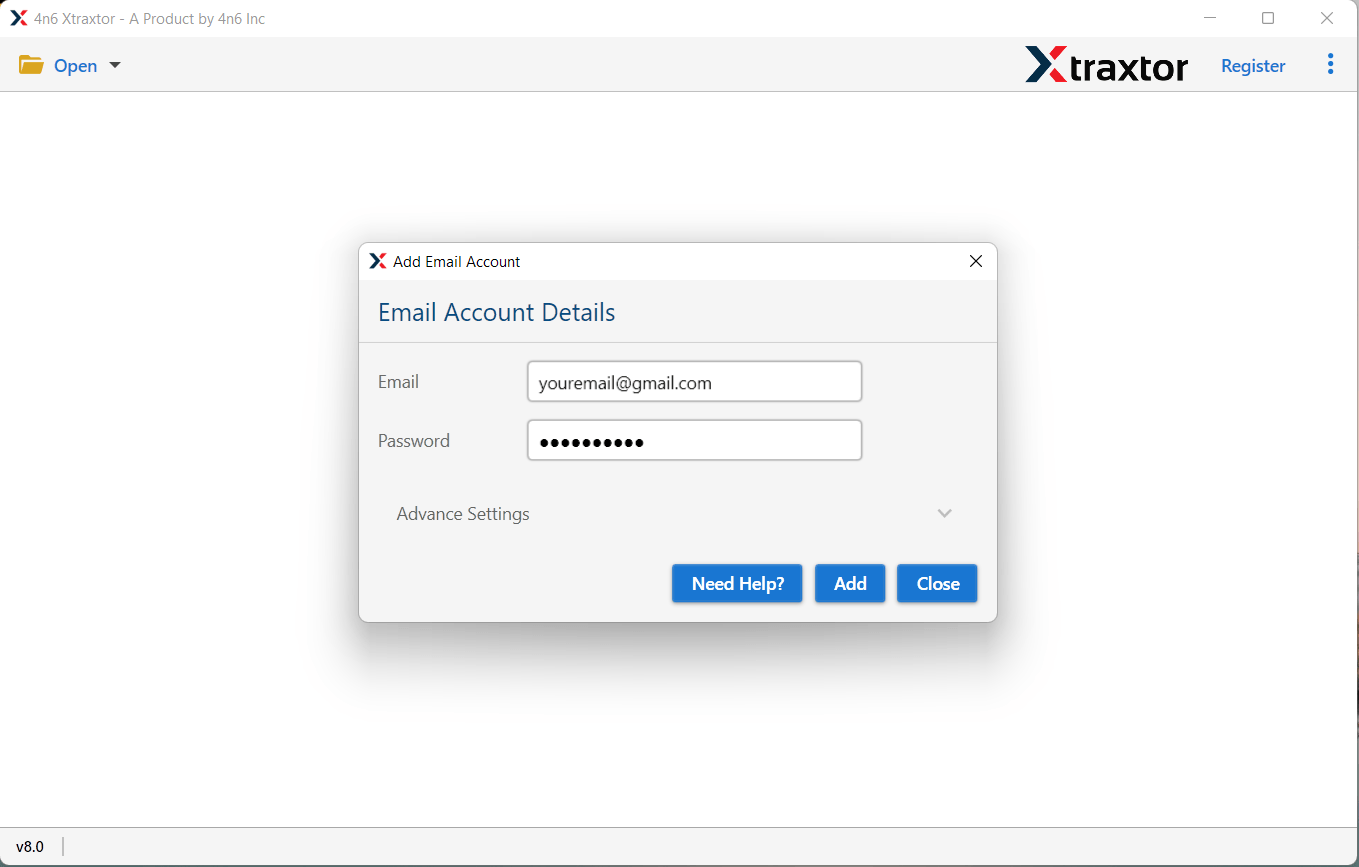
Step 3. Enter the Email Id & Password of your Gmail account and click on the Add button.
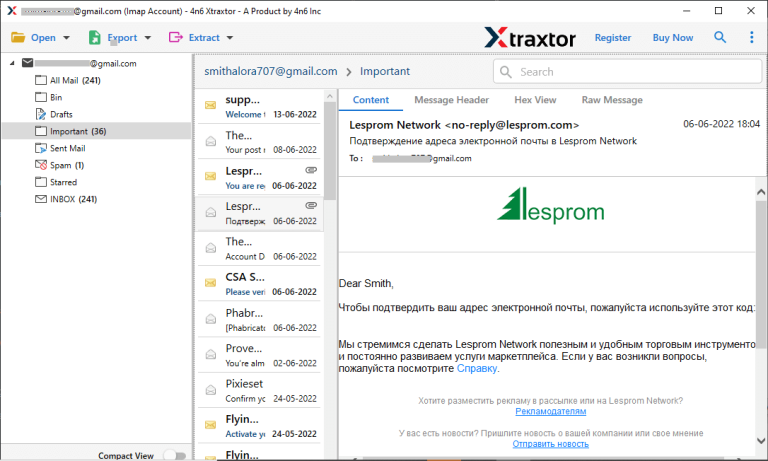
Step 4. Here, Software provides a preview option to view emails before migrating them.
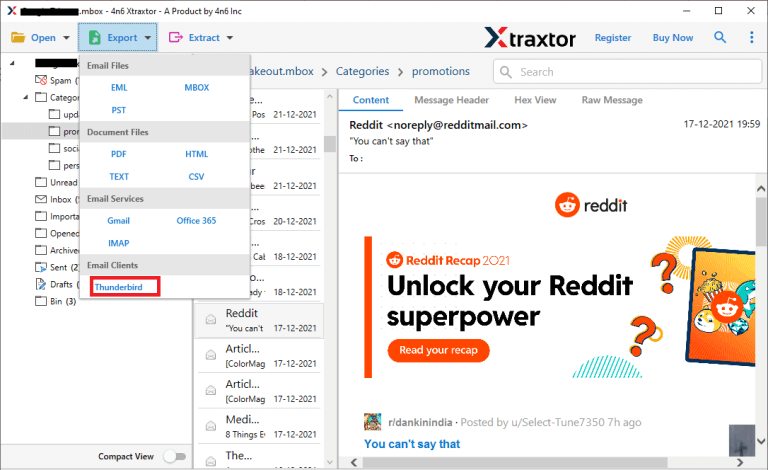
Step 5. After that, go to Export and choose Thunderbird to import Gmail emails.
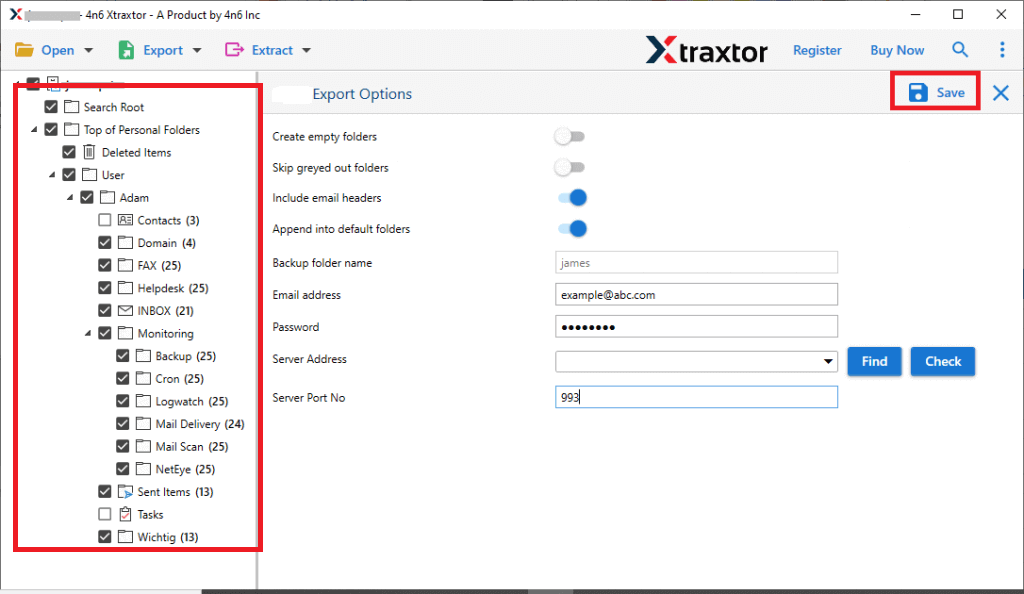
Step 6. Select the folders that you want to transfer from Gmail to Thunderbird.
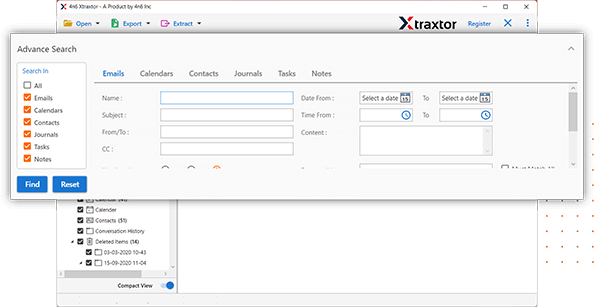
Step 7. Apply the Filters to migrate selected email folders.
Step 8. The tool locates the default location where the Thunderbird mailbox is stored and then clicks on the save button to start the Gmail to Thunderbird migration process.
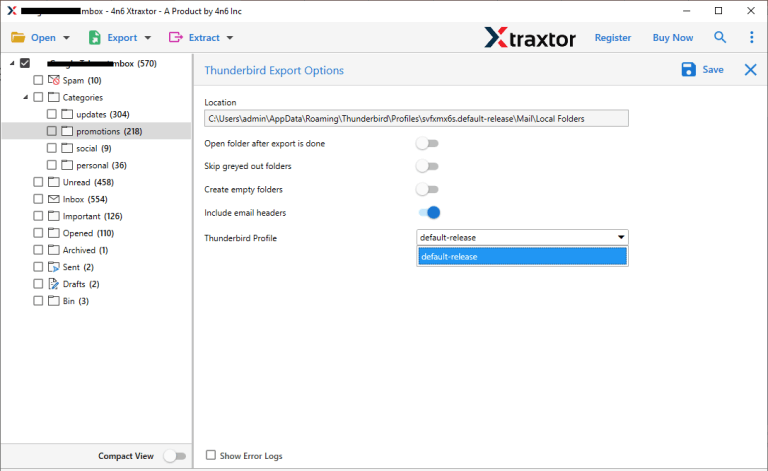
The process is complete! Hence, you can import Gmail to Thunderbird in a few simple clicks.
Why Choose Xtraxtor Gmail to Thunderbird Migration Tool?
The software provides numerous benefits for seamless migration of emails from Gmail to Thunderbird. These benefits includes-
- Direct Email Migration: The Tool enables you to directly transfer Gmail mailbox folder to Thunderbird. Simply add your Gmail account, select the Thunderbird option to export all Gmail emails effortlessly.
- Bulk Export: The software has a batch mode that allows you to easily import multiple emails from Gmail to Thunderbird at once, ensuring no data loss.
- Advanced Filter Options: It offers various advanced filter options, such as by recipient, sender, date, time, and subject, allowing you to selectively export the desired data from Gmail.
- Export to Various File Formats: Choose from a range of saving options offered by the tool to export Gmail emails. The tool can export Gmail email to MBOX, PST, OST, PDF, EML, MSG, etc. This allows you to securely store your mailbox data locally.
- Preserves Data Integrity and Original Structure: The software maintains the metadata properties and attributes of emails. it is able to maintain the structure and formats of Gmail emails remain unaltered during the migration process.
- Migrate Gmail Emails to Various Email Accounts: This tool not only import Gmail to Thunderbird but also transfer Gmail folders to another Gmail account, Hotmail, Zoho Mail, Office 365, Exchange Online, and many other email accounts.
- User-Friendly Interface: The tool offers a simple and intuitive interface, making it easy for both technical and non-technical users to migrate emails from Gmail to Thunderbird without requiring external guidance.
- Dedicated Customer Service: The Tool provides round-the-clock customer service to solve user inquiries and concerns. If you have any questions or doubts regarding the product, the support team is readily available to assist you promptly.
Conclusion
In this post, we have discussed how to import Gmail to Thunderbird. Here, we have mentioned manual as well as automated solutions. You can manually transfer Gmail mailbox to Thunderbird, but there are some limitations to this approach. However, experts recommend using the automated solution to complete the Gmail to Thunderbird migration process without any restrictions. The above suggested tool is able to export Gmail emails to Thunderbird in bulk without any data loss.
Try the free demo version, and if you have any doubts related to the product, then contact the support team, which is available 24*7 to solve your queries.
