How to Export Outlook.com Emails to PST File?

If you use Outlook.com and want to export Outlook.com emails to PST file, you are not alone. Many users need a local backup, offline access, or want to move their emails into Microsoft Outlook for long-term storage. Since Outlook.com does not offer a direct “Export to PST” option, users often feel confused about the safest way to do it.
In this guide, you will learn two reliable ways to save Outlook.com emails to PST:
- A manual method using Microsoft Outlook
- An automated method for users with large mailboxes or no Outlook installed
We will clearly explain who should use which method, along with limitations, so you can choose the best option for your situation.
Method 1. How to Export Outlook.com Emails to PST Manually?
You can manually export Outlook.com to PST using the Outlook email client. You need to configure your Outlook.com account to Outlook. After configuration, you are able to view the Outlook.com email account in the Outlook interface and then you can export Outlook.com email to PST file using the import-export option.
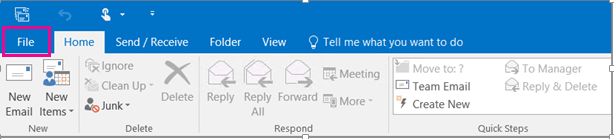
Step 1. Launch the Outlook application on your system and then click on the File tab.
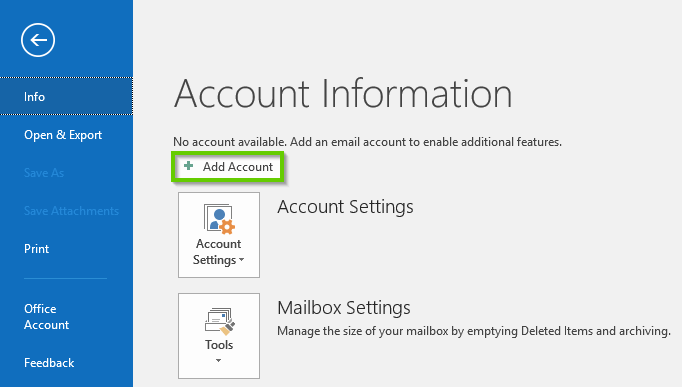
Step 2. Now, Go to Info and click on Add Account option.
Step 3. Then, enter your Outlook.com login details and sign in.
Step 4. After configuration, Outlook will show all folders of your OUtlook.com account.
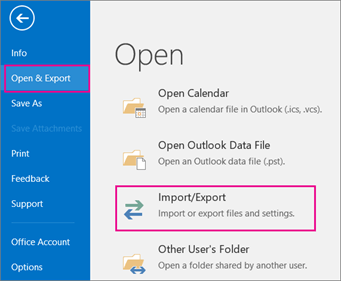
Step 4. Navigate to File >> Open & Export >> Import/Export.
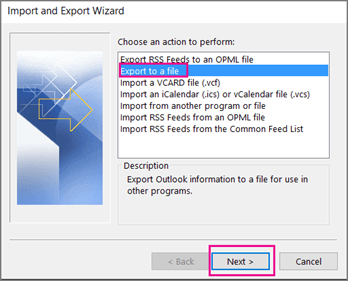
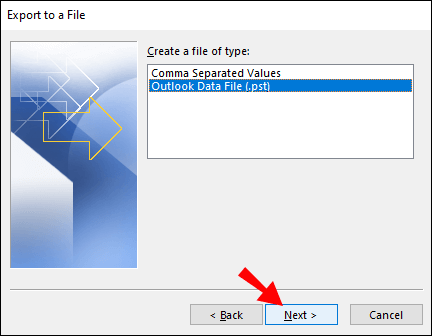
Step 5. Select Export to a File option and click on Next option.
Step 6. After that, Choose Outlook Data File (.pst) and press Next.
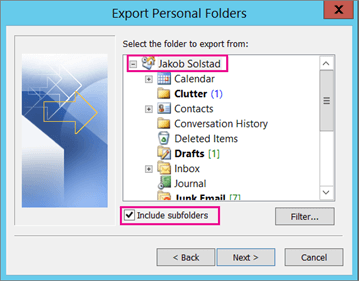
Step 7. Select Outlook.com email folders and subfolders that you want to save into PST format.
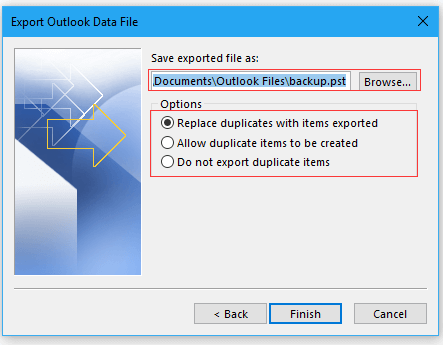
Step 8. Finally, Browse the location to save exported file and then click on the Finish button.
Loopholes of Manual Solution
- Time-Consuming- This approach takes lot of time to configure and export Outlook.com to PST file.
- Outlook Installed- To export Outlook.com email to PST file, MS Outlook must be installed on your system.
- Outlook Error- In case the Import Export option Greyed Out in Outlook then this method do not work.
- No Email Filter- With this approach, you can export selected emails from Outlook.com to PST file.
Method 2. How to Convert Outlook.com to PST Instantly?
To overcome all the limitations of a manual solution try Xtrxator Email Backup Tool on your Windows PC. The software is able to convert all emails from Outlook.com to PST at the same time. With this application, you do not need to install any other application to save Outlook.com emails into PST format. It preserves 100% data integrity during the process and export emails with attachments and all other key attributes. Apart from this, the tool can also transfer emails from Outlook.com to Gmail, Yahoo, Office 365, and many more email accounts.
Steps to Export Outlook.com Email to PST File
Step 1. Download and run Xtraxtor software on your system.
Step 2. After that, Navigate to Open >> Email Accounts >> Add Account.
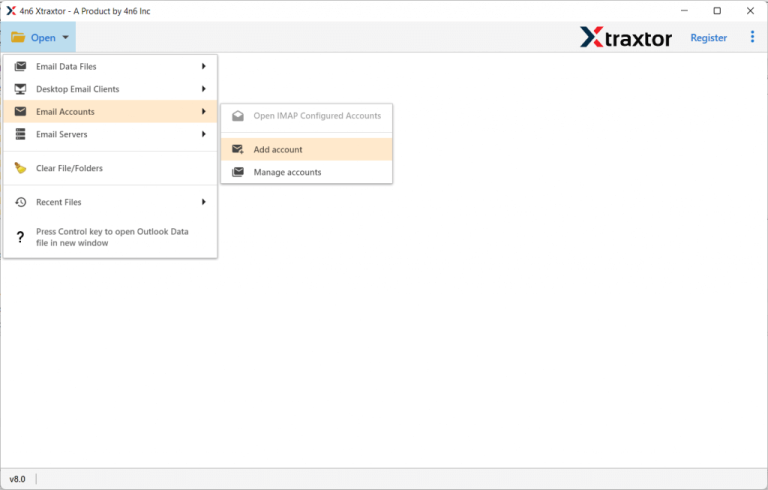
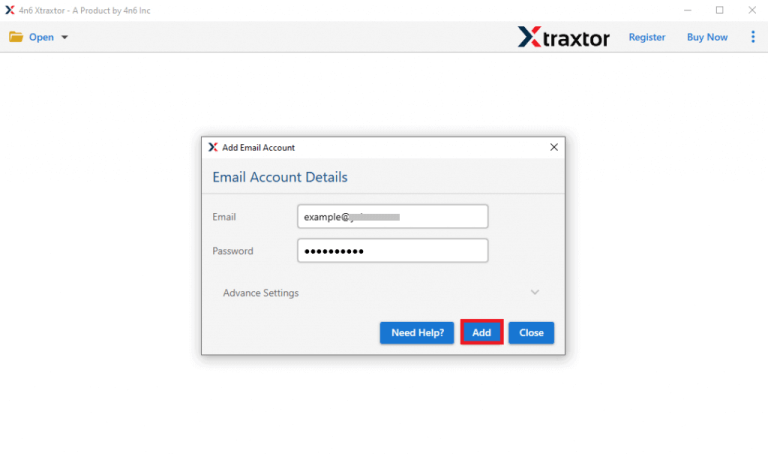
Step 3. Now, enter Outlook.com login details and then hit the Add button.
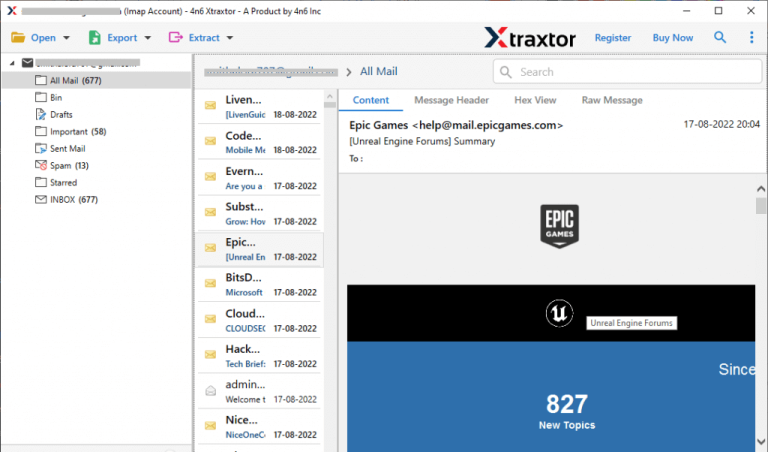
Step 4. The tool will load all your data and preview it.
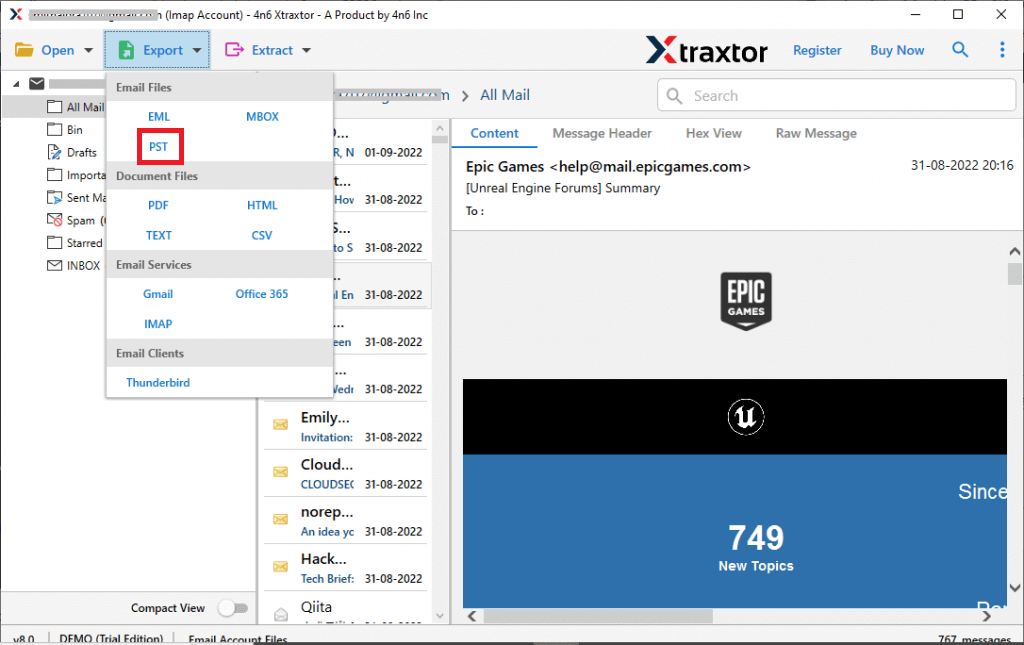
Step 5. After that, go to Export and select PST from the given list.
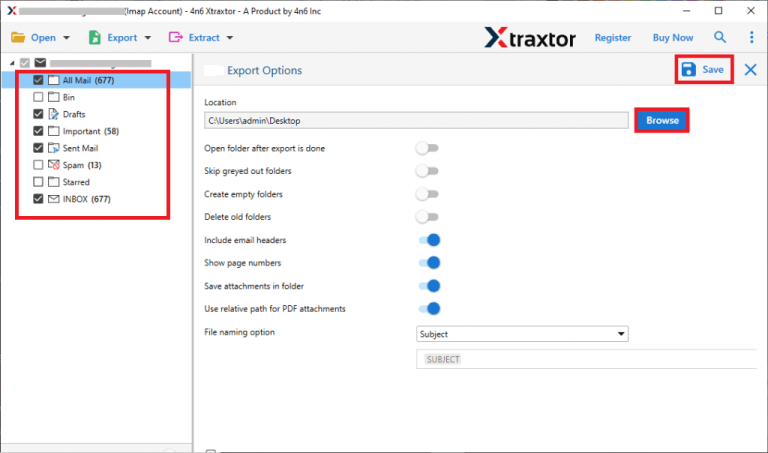
Step 6. Choose Outlook.com email folders to convert into PST format.
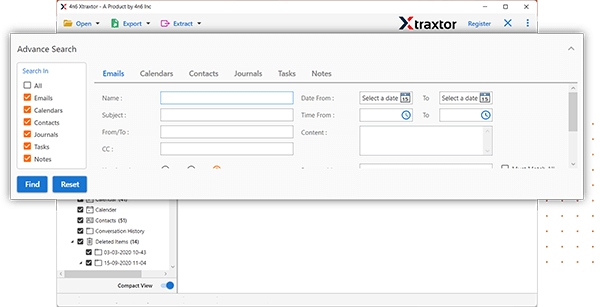
Step 7. Apply the filters to export only selected emails.
Step 8. Finally, click on Browse to set the destination location and then click on the Save button.
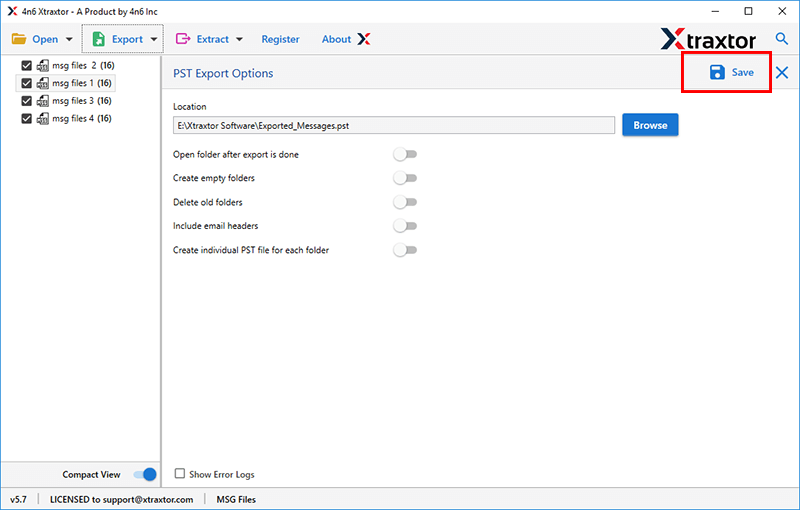
The tool exports Outlook.com emails to PST with attachments and keeps the original folder structure intact.
Why an Automated Tool Is Better for Most Users?
Compared to manual export, an automated solution offers:
- The tool can directly export Outlook.com email to PST file without any external applications.
- It preserves 100% data integrity and saves emails without any single bit of loss.
- There are various advanced filter options, such as to, from, date, time, cc, bcc, etc.
- It maintains folder hierarchy and email structure during the exporting process.
- With this utility, you can also export Outlook.com email to MBOX, PST, PDF, EML, HTML, etc.
- The software can directly migrate emails from Outlook.com to any cloud-based email account.
- The simplified interface helps beginners to export Outlook.com to PST without any assistance.
- It is compatible with all the latest and older versions of Windows Operating Systems.
This makes it the preferred option for professionals and users with large mailboxes.

Frequently Asked Questions
Q1. Does exporting Outlook.com emails to PST delete data?
Ans. No. Exporting creates a copy. Your original emails remain intact.
Q2. Can I export Outlook.com emails without Outlook installed?
Ans. Yes. Automated tools allow export without Outlook.
Q3. Can I export only selected emails?
Ans. Yes, but only with an automated solution that supports filters.
Final Recommendation
If you have a small mailbox and Outlook installed, the manual method may work. However, for large mailboxes, faster results, or Outlook-free export, an automated solution is the most reliable and future-proof option.
Choose the method that fits your needs, but always prioritize data safety, accuracy, and ease of use.
