How to Export Eudora Mail to Outlook?

If you are still using Eudora and now want to move your emails to Microsoft Outlook, you are not alone. Many long-time Eudora users face the same challenge: there is no direct export option, and most online guides are either outdated or incomplete. This guide is written to help users who want a secure, simple, and complete solution to export Eudora Mail to Outlook, including emails, attachments, and folder structure.
Why Move from Eudora to Outlook?
Eudora was once a popular email client, but it is now discontinued and unsupported. This creates long-term risks for users who still rely on it.
Common Reasons to Export Eudora Mail to Outlook
- Outlook is actively developed and supported by Microsoft
- Better email organization, search, and filtering
- Integrated calendar, contacts, and tasks
- Compatibility with Office 365 and cloud services
- Strong security features and spam protection
Is There a Manual Way to Export Eudora Mail to Outlook?
Short answer: Not directly.
Eudora does not offer any built-in export option to Outlook or PST format. However, there is a complex workaround using Outlook Express, which we’ll explain later.
But first, let’s discuss the recommended approach.
Method 1. How to Transfer Emails from Eudora Mail to Microsoft Outlook Manually?
You can manually export email from Eudora to Outlook using Outlook Express. So, first of all install Outlook Express on your system and import Eudora email to Outlook Express and then import Outlook Express into Outlook.
Step 1. Install and run Outlook Express on your system.
Step 2. Now, click on File >> Import >> Message.
Step 3. Then, select Eudora from the list and click on Next.
Step 4. After that, click on Browse to select the Eudora data and then press Next.
Step 5. Select the folders that you want to export from Eudora to Outlook Express and then click on Finish button.
Step 6. Now, Open MS Outlook and click on File tab.
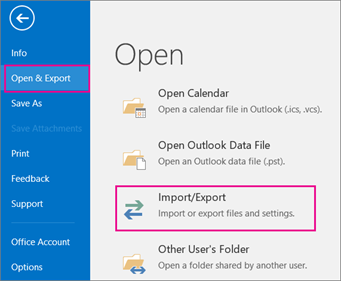
Step 7. After that, navigate to Open & Export >> Import/Export.
Step 8. Select Import Internet Mail & Addresses and hit on Next.
Step 9. After that, Select Outlook Express 4.x, 5.x and press Ok.
Now, your Eudora mails are imported into Outlook.
Limitations of Manual Method
- Outlook Express must be installed on your system.
- With this method, you can not export attachments.
- No email filtration facility to export selected emails.
Method 2. How to Migrate Eudora to Outlook Instantly?
Download and run Xtraxtor Email Migration Tool and transfer emails from Eudora to Outlook in a simple manner. The software can export Eudora Mail to Outlook in bulk. Using this utility, you can export email from Eudora to Outlook based on Date Range, Sender, Recipient, Subject, etc. It preserves 100% data integrity during the process. It is able to maintains the structure of emails throughout the process.
Try its free version and add Eudora email to Outlook in a simple manner.


Steps to Export Eudora Mail to Outlook
Step 1. Launch Xtraxtor Eudora to Outlook Converter on your system.
Step 2. Now, click on Open >> Desktop Email Clients>> Eudora Accounts >> Open Eudora Configured Data.
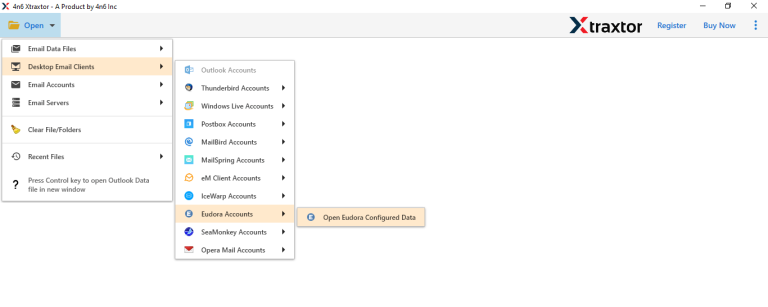
Step 3. Here, you can view all emails from the Eudora account before importing them to Outlook.

Step 4. After that, click on Export and select PST from the given options.

Step 5. Choose the email folders that you want to export from Eudora to Outlook.
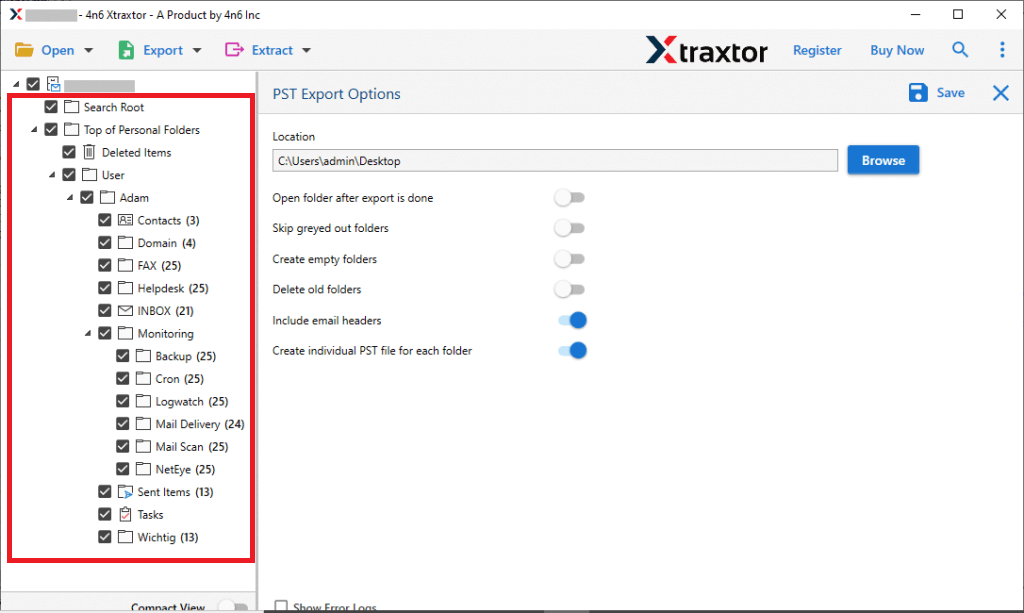
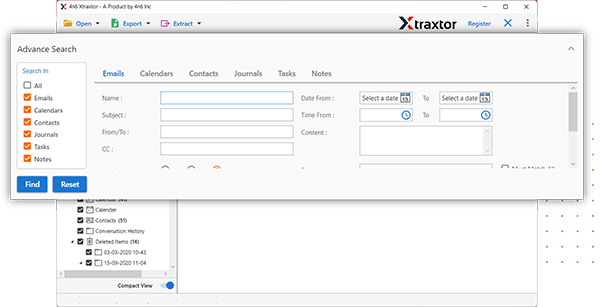
Step 6. If you want to migrate selected emails, then apply the filters.
Step 7. Browse the Destination location and then click on the Save button to start the process.
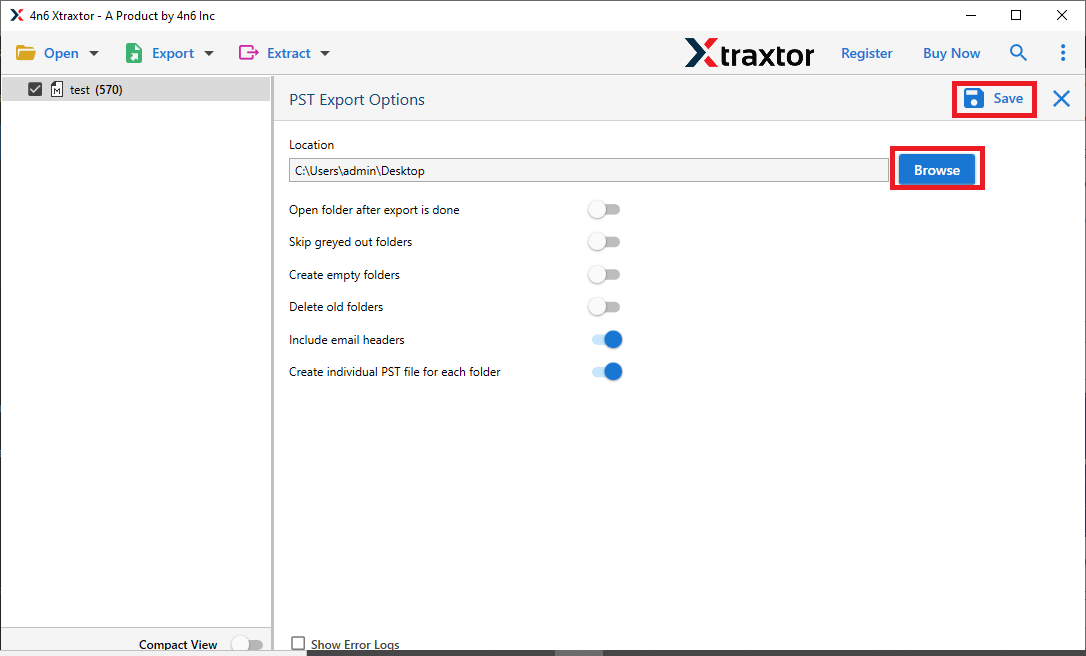
Step 8. At last, import this PST file using Outlook’s import export features.
Done! Hence, you can easily export Eudora mailbox to Outlook.
Why Choose Xtraxtor Eudora to Outlook Converter- Know
The software has many advanced features that attract the users to choosing it. Some of them are given below-
- Export Eudora mail to Outlook in batch without any data loss.
- Automatically locates the configured Eudora email account.
- Provides many advanced filter options to select specific email.
- Convert Eudora mailbox to PST, MBOX, PDF, EML, TXT, etc.
- Preview of mailbox data before migrating them to Outlook.
- Retains the mailbox structure during the exporting process.
- Directly imports Eudora emails to Gmail, Office 365, Yahoo Mail, etc.
- No other application is required to export Eudora emails to Outlook.
- Fully compatible with all versions of Windows Operating System.
- Download the demo version of the tool to check the amazing features.
Conclusion
In this post, we have discussed how to export Eudora Mail to Outlook. Here, we have discussed manual as well as automated solutions. You can manually migrate Eudora to Outlook, but if you face any issues with it, then you can use the above-suggested tool. The software can export Eudora mail to Outlook in a few seconds without any hassle. Download its free version, and if you have any doubts related to the product, then contact the support team, which is available 24*7.
