How to Extract Email Addresses from Apple Mail to Excel?

Many Mac users want to extract email addresses from Apple Mail to Excel so they can store contacts safely, manage them easily, or use them for business communication. However, Apple Mail does not offer a direct option to extract email addresses from emails, which often confuses users.
If you are searching for how to export email addresses from Apple Mail, this guide explains the most practical ways, manual and professional, to get the job done accurately.
Why Users Extract Email Addresses from Apple Mail to Excel
There are several common reasons why people want to export email addresses from Mac Mail:
- Create a backup of important email contacts
- Organize email addresses in Excel or CSV format
- Prepare a contact list for marketing or outreach
- Extract addresses before switching email clients
- Avoid manually copying email addresses from emails
When email addresses are scattered across hundreds of messages, automation becomes essential.
Exporting emails from Mail on Mac is very helpful for both personal and work-related tasks. Now, let’s start the Apple Mail email address extraction process.
How to Export Email Addresses from Mac Mail to Excel (Limited)
To manually save Apple Mail email addresses, you need to install the AB2CSV app from Mac App Store. After that, follow the given instructions –
- Get AB2CSV from the Mac App Store, install it, and open the app.
- In the menu bar, click “Mode” and choose “CSV.”
- Click “AB2CSV” in the menu, then go to “Preferences” to pick your folders.
- When asked for permission to access your contacts, click “OK.”
- Click the “CSV” tab.
- Select the checkboxes for the email folders you want to export.
- Go to “File” > “Export” and choose where to save the file.
- Your contacts will be saved as a .csv file.
Done! Here, complete the extraction process. However, it is a bit time-consuming when there is a lot of data to be exported.
How to Export All Email Addresses from Apple Mail to Excel Automatically?
With the help of the Xtraxtor tool, you can effortlessly save all the Mac Mail email addresses locally on your system. In his way, it is easy for you to access or send the contact details. To complete the extraction process, first, you need to export your Apple Mail mailbox data. After that, using the tool, you can export email addresses from the exported data file. Most importantly, extracting email addresses will not alter your email content in any way.
Download the demo version of the software and analyse its working process.


Steps to Extract Email Addresses from Apple Mail
1. First, open Mac Mail and export the mailbox.
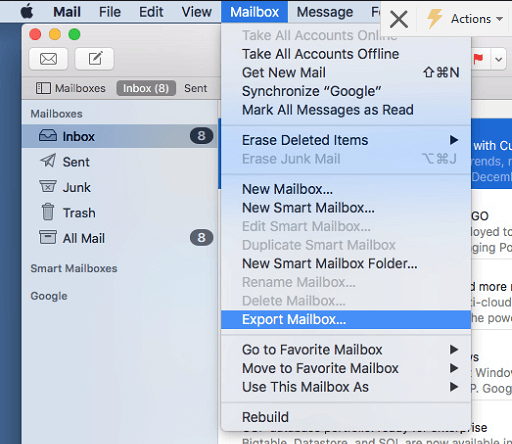
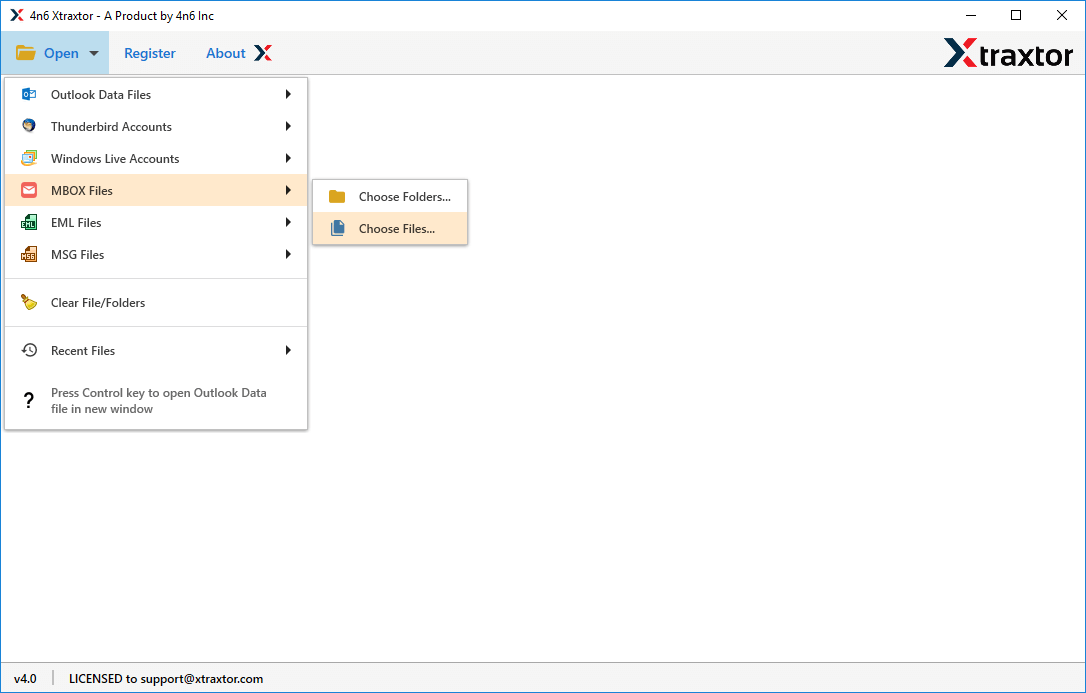
2. Run the Xtraxtor MBOX Converter tool on your systems and add MBOX file.
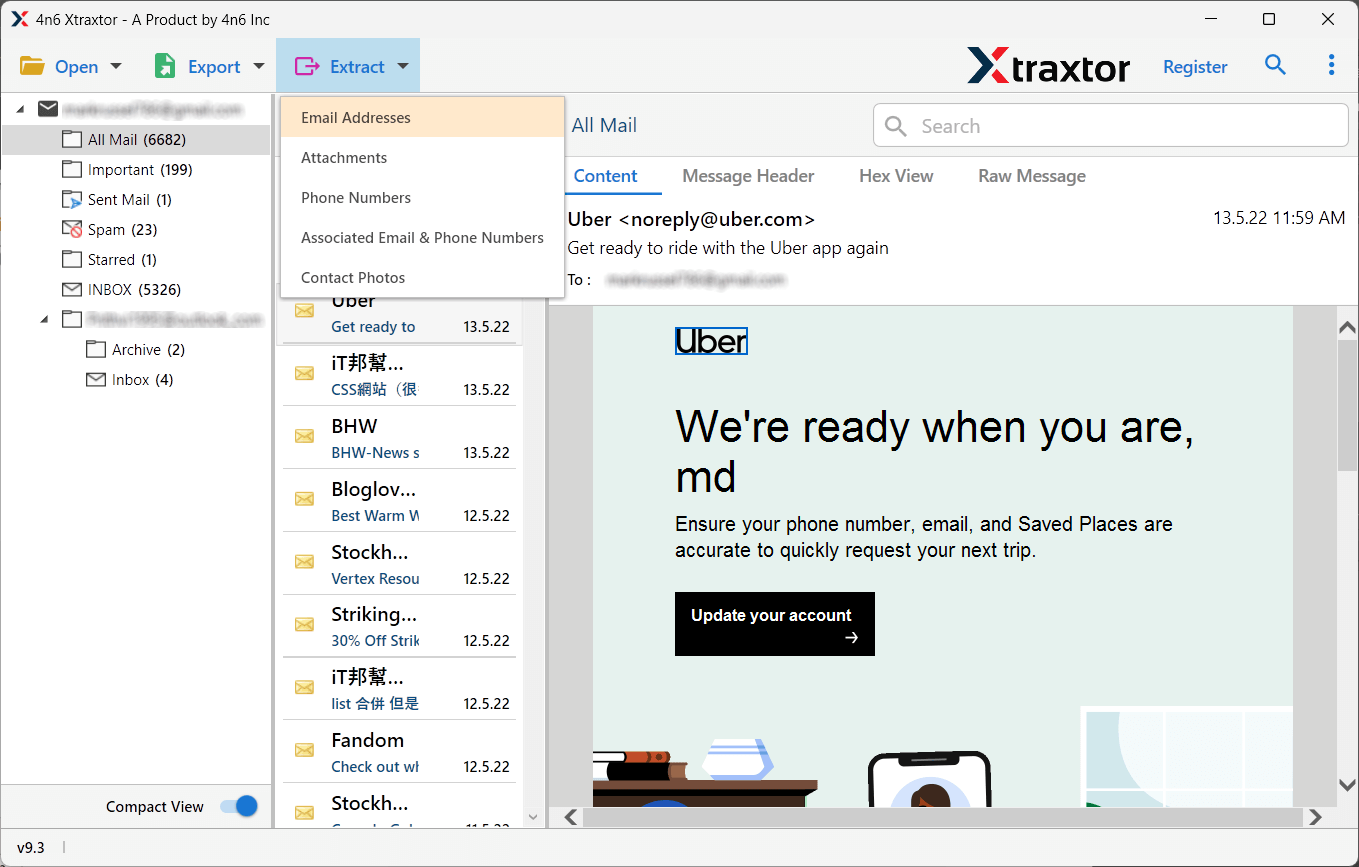
3. Click on Extract >> Email Addresses from the given option.
4. Choose the email folders from which you want to export contacts.
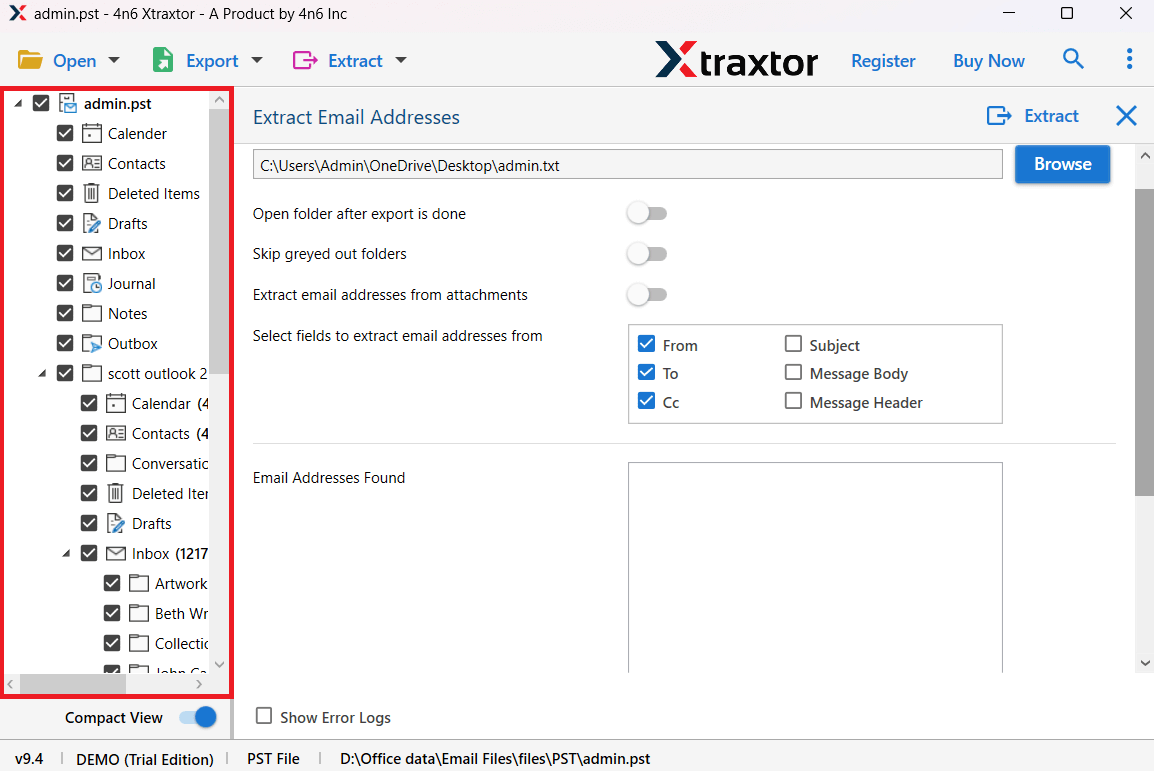
5. Browse the targeted location, and you can also apply filters. Then hit the Save button.
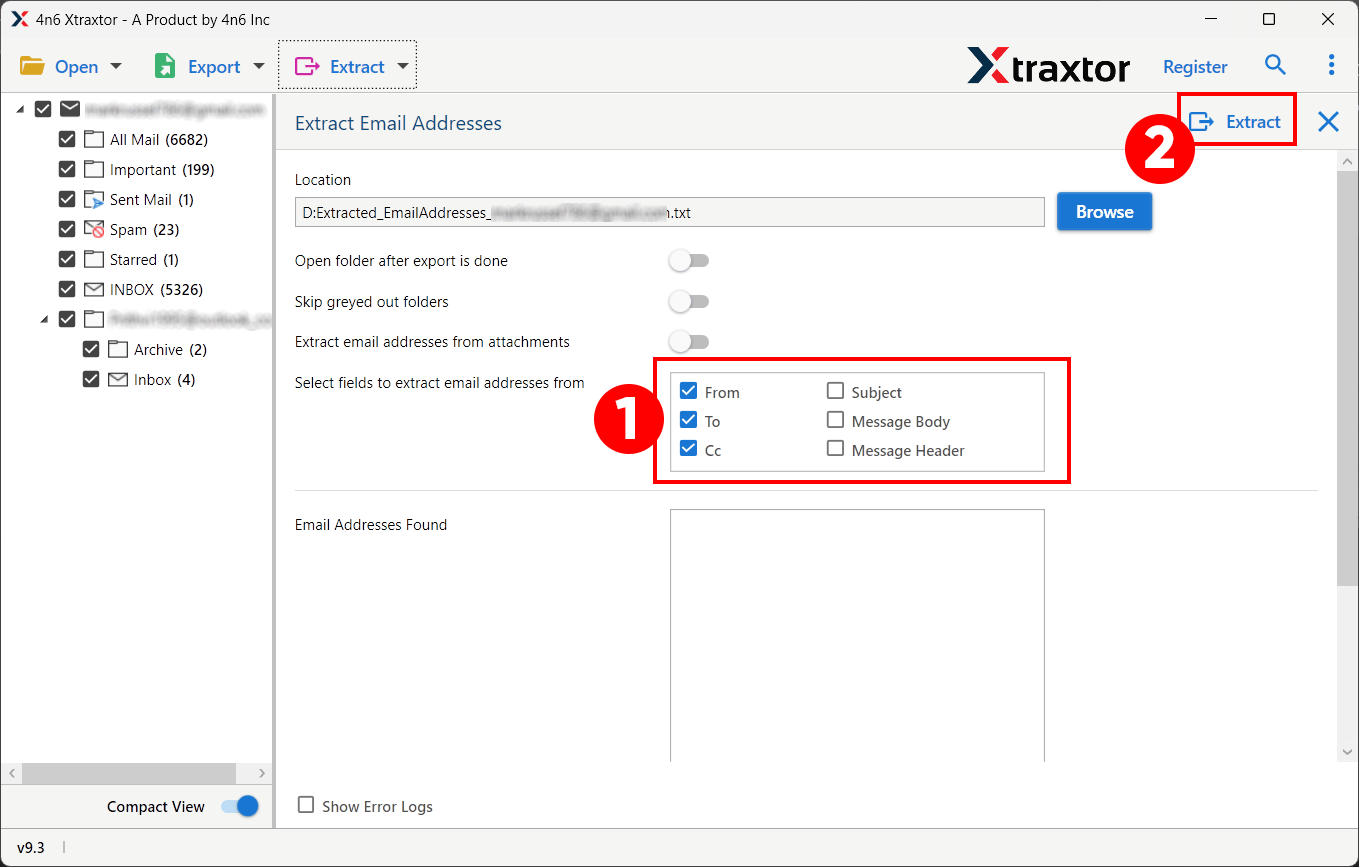
Done! Here, you complete the Apple Mail email address extraction process. The tool will save your email addresses in a simple text file. After that, copy all the email addresses and paste them into an Excel Sheet.
Why This Is the Most Reliable Method
This approach allows you to:
- Export all email addresses from Apple Mail, including Inbox and Sent items
- Extract addresses from To, From, CC, and BCC fields
- Avoid duplicate or incomplete entries
- Handle large mailboxes smoothly
- Save time compared to manual methods
It is ideal for users who frequently search for how to extract email addresses from Apple Mail efficiently.
Benefits of Using Apple Mail Email Address Extractor
With the help of this tool, you can save your Apple Mail contacts easily and effortlessly.
Some of the benefits of using it –
- Allows to extract email addresses from multiple Apple Mail data files
- Extracts all email addresses from Mac Mail in one go.
- Offers advanced filters to extract only the email addresses you need.
- Compatible with large-sized data file and saves email addresses without any data loss.
- Let you select one or multiple folders for extraction.
- Allows you to choose specific fields to pull email addresses from.
Conclusion
After reading this blog post, you should now understand how to extract email addresses from Apple Mail. We’ve explained two effective methods commonly searched by users. Choose the one that fits your needs best—but make sure to review the steps and limitations of each method to avoid any issues.
