
If you are looking for a simple and secure way to extract attachments from Thunderbird emails, this complete guide will help you do it without risking your data.
Mozilla Thunderbird is a popular email client used by millions of users to manage emails efficiently. However, when mailboxes grow large, downloading attachments from multiple Thunderbird emails can become time-consuming and frustrating. Whether your goal is to free up storage, create backups, or access files offline, extracting attachments properly is essential.
In this guide, we explain manual and automated methods to extract all attachments from Thunderbird emails, so you can choose the approach that best fits your needs.
Why Extract Attachments from Thunderbird Emails?
Users download attachments from Thunderbird emails for several practical reasons:
- Free Up Storage Space: Email attachments significantly increase mailbox size. Extracting them helps reduce local storage usage.
- Backup Important Files: Saving attachments separately ensures you have a secure copy in case emails are deleted accidentally.
- Offline Access & Easy Sharing: Downloaded attachments can be accessed and shared without opening Thunderbird.
- Improve Thunderbird Performance: Large mailboxes slow down Thunderbird. Removing attachments helps improve speed and responsiveness.
How to Download Attachments from Thunderbird Emails Manually?
Manually, there are two simple solutions to save your Thunderbird attachments. Let’s check them one by one.
Method 1: Extract Attachment from Single Thunderbird Email At Once
If you only need to extract attachments from one email, follow these steps:
- Open Mozilla Thunderbird.
- Double-click the email containing the attachment.
- Right-click on the attachment and select Save As.
- Choose the desired folder and click Save.
Limitation: This method works for individual emails only and is not suitable for extracting multiple attachments at once.
Method 2: Save Attachments Using an Add-On
For bulk extraction, Thunderbird offers an Attachment Extractor Add-On. Follow these steps:
- Open Thunderbird and go to Tools > Add-ons and Themes.
- Search for Attachment Extractor and install it.
- Restart Thunderbird to activate the extension.
- Select the emails or folders containing the attachments.
- Right-click and choose Extract All Attachments.
- Set the destination folder and save your files.
Done! Here, you extract your attachments, but it may not work in newer Thunderbird versions and requires manual installation.
How to Extract All Thunderbird Email Attachments Automatically?
With the help of Xtraxtor software, you can easily save your Thunderbird email attachments in bulk without any data loss. Its simple and user-friendly interface makes it easy to extract your attachments without any hassle. With this tool, extension filters allow you to refine your attachments according to your needs. You can try out the demo version of the software to know its complete working process.
Click on the link below and download the demo version of the Thunderbird Attachment Extractor tool.


Steps to Extract Attachments from Thunderbird Emails
1. Run the Thunderbird Attachment Extractor Tool on your system.
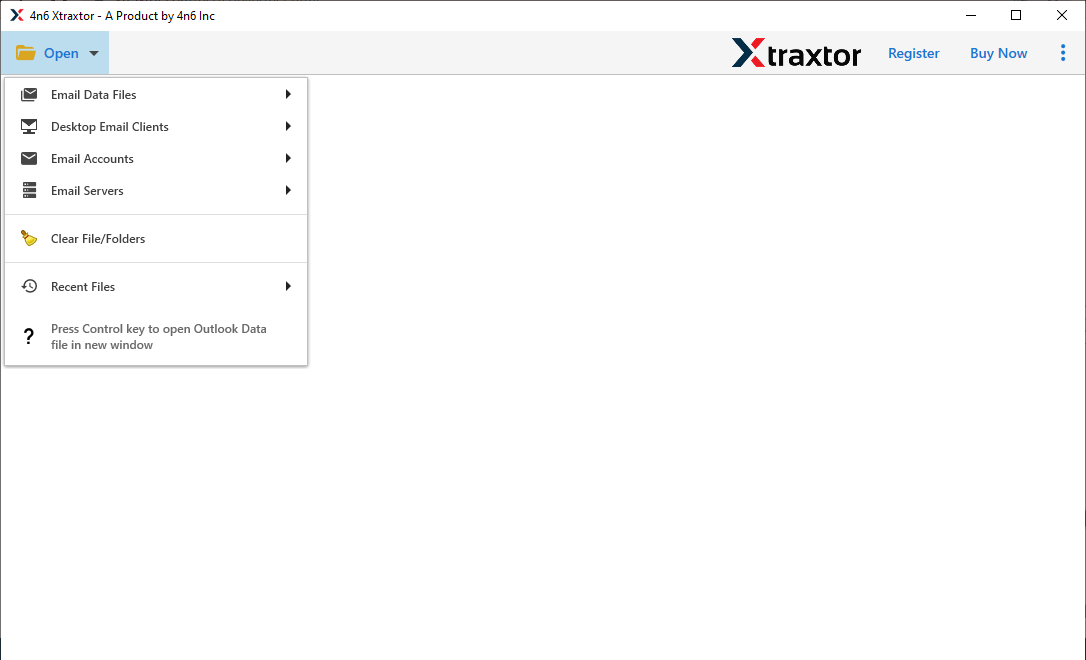
2. Select your Thunderbird profile.
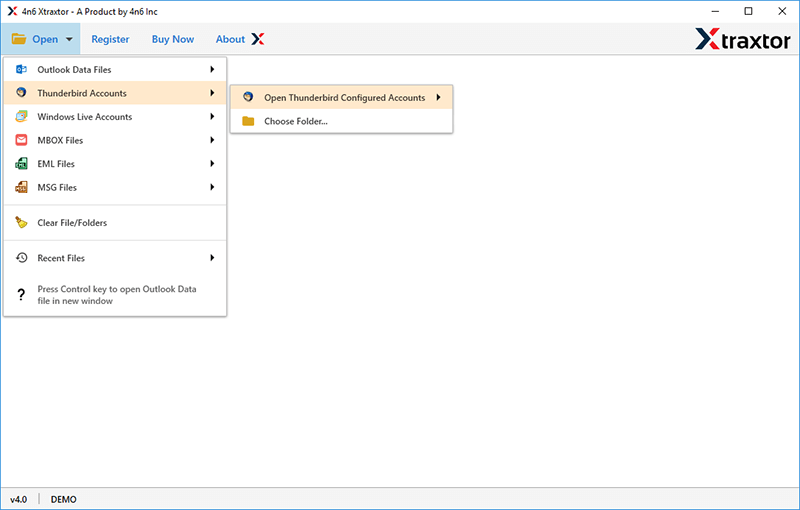
3. Click on the Extract >> Attachments.
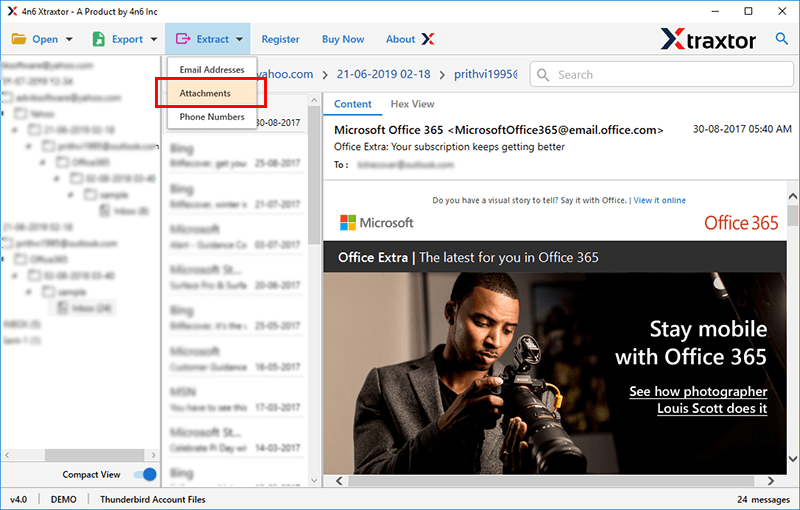
4. Choose the email folders for attachment extraction.
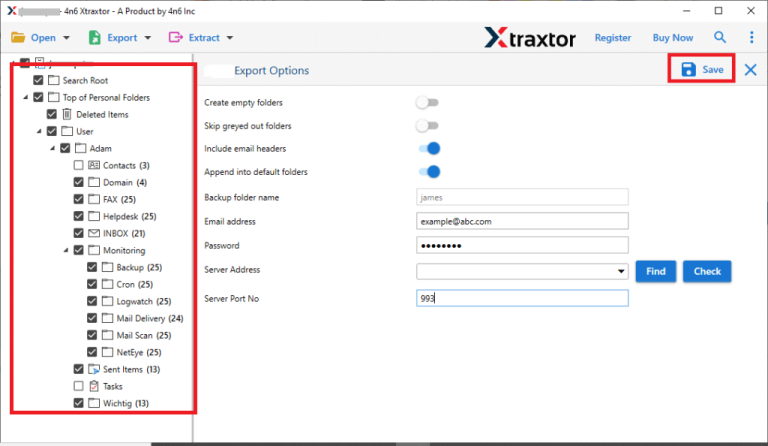
5. Browse the targeted location and hit the Save button.
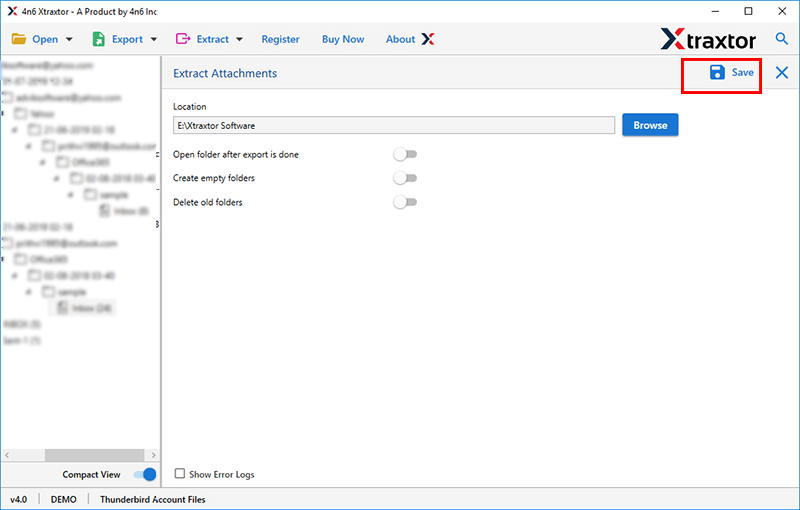
Done! Here, complete the Thunderbird email attachment extraction in a few simple clicks.
Why Thunderbird Attachment Extractor is the Best Choice?
With this tool, there are various outstanding features that make it the best choice. Some of them include –
- Extract Attachments Quickly: Easily extract all attachments from Mozilla Thunderbird in just a few clicks. Works with almost all Thunderbird versions.
- Keeps Folder Structure Intact: Attachments stay in their original folders, Inbox, Sent, Trash, or custom folders, so you can find them easily after extraction.
- Smart Filtering Options: Filter attachments by file type, size, or other criteria to extract only what you need.
- Supports Multiple Email Clients: Save attachments not just from Thunderbird but also extract attachments from Outlook, Windows Live Mail, and more, all in one tool.
- Auto-Detects Thunderbird Files: No need to find files manually. The tool scans and detects Thunderbird data automatically.
- No Extra Software Needed: Extract attachments directly from Thunderbird without installing any third-party applications.
- Choose Your Save Location: Save extracted attachments anywhere on your computer for easy access.
- Easy-to-Use Interface: Simple and user-friendly design, just select your Thunderbird account and extract attachments effortlessly.
- Works on All Windows Versions: Compatible with Windows 11, 10, 8.1, 8, 7, and all Windows Server editions (32-bit & 64-bit).
Conclusion
Now, we would like to conclude this technical guide and hope you were able to extract attachments from Thunderbird emails using the mentioned methods. We have explained both methods in more detail so that you have a better understanding. You can choose any of those methods as per your needs and requirements. Read both methods one by one, and try it with a few emails only. And once you are satisfied with these solutions, move ahead with the complete Thunderbird email attachment extraction process.
