RPMSG files are most commonly associated with protected or rights-managed email messages sent using Microsoft Outlook. An RPMSG file is not a normal email file. It can be encrypted and have restrictions on its use. You can’t just open it up with a normal PDF converter.
If you have multiple RPMSG files and want to archive, share, print or review as PDF documents, converting them one by one can be time-consuming.
In this article, we will discuss three methods to convert RPMSG to PDF files in bulk such as Microsoft Outlook, Microsoft Purview, and a professional way that is a dedicated RPMSG conversion tool. We also discuss the limitations of the online converters and how to choose the right method for multiple RPMSG files.
Quick Answer: To bulk convert the RPMSG file to PDF, you need to open the protected message and then export or print the message content as PDF. For a small number of files, Outlook or Microsoft Purview Information Protection viewer is sufficient. Microsoft Purview can export protected email content for eDiscovery workflows within an organization. A dedicated converter might offer a more streamlined batch-processing workflow for large collections of standalone RPMSG files.
Important: RPMSG is not just any other document format. Because it is protected email content, the ability to open, print, decrypt, or export a message is dependent on the permissions and protection associated with the message.
Microsoft describes RPMSG as the container for rights-managed e-mail content.
What is an RPMSG File?
An RPMSG file is a secure email message file created by Microsoft’s information protection and rights-management technologies.
When Outlook or Exchange processes a protected email, it might put the content of the original message in an attachment called message.rpmsg. Microsoft calls this a rights-managed email message. The original content is saved as encrypted data in the RPMSG attachment.
Because the message may contain protection information, you may encounter limitations when you try to:
- Open file with unauthorized application
- Send the message
- Copy the contents
- Pass on the word on
- Convert it using a generic online converter
- Download attachments from the protected message
The specific restrictions are determined by the rights assigned to the message.
Why Convert RPMSG to PDF Files?
PDF is generally more convenient than keeping a collection of protected email messages in their original form.
You might want to convert RPMSG files to PDF because:
- Long-term storage of documents
- Legal/Compliance records
- Internal docs
- Offline reference
- Print Share
- Share a read-only version
- Building a searchable document collection
- Reviewing multiple e-mail messages at the same time
- Uniform document format
If you are an organization that receives hundreds or thousands of messages, you will soon find that converting files one at a time is not practical. That’s where a bulk conversion workflow comes in.
There are three practical ways to export .rpmsg files into .pdf files in bulk. The selection of the method depends on the number of files and the environment in which you have stored your protected messaged.
Method 1: Convert RPMSG to PDF Using Outlook
If you only have a handful of RPMSG messages and are permitted to print the protected content, Outlook is a manual conversion option.
Step 1. Open the encrypted message in Outlook
Step 2. Depending on the protection applied to the message, Outlook may need you to authenticate before it can show you the contents.
Step 3. Microsoft says recipients of rights-managed messages might need to open the message instead of seeing it in the Reading Pane.
Step 4. Open the message and verify that the Print option is displayed.
This is important because protection policies may stop the printing. In particular, Microsoft says that recipients can’t print, forward or copy rights-managed messages when those permissions are restricted.
Then select; File >> Print Select a PDF printer like: Microsoft Print to PDF
Enter a file name and choose the destination folder.
Click Print to make the PDF.
You now have a PDF version of the message, if printing is enabled by the protection policy.
Downside of this approach
The big issue is that the printing process in Outlook is really a manual one.
If you have;
- 10 rpmsg files
- 100 RPMSG files, 500 RPMSG files
- Thousands of RPMSG files
Therefore this method is more suitable for occasional or limited conversion and not for real bulk processing.
Method 2: Convert Protected RPMSG Messages Using Microsoft Purview
If your RPMSG files are in an organizational environment of Microsoft 365, Microsoft Purview may be a more streamlined workflow for working with protected email content.
Microsoft Purview eDiscovery supports decryption of some RMS-protected email messages at export. “Microsoft says that when the relevant requirements are met, exporting rights-protected email messages can decrypt those messages during the export process.”
Step 1. Sign in to the Microsoft Purview portal by using an account that has the required eDiscovery permissions.
Step 2. Open the appropriate eDiscovery case and find the messages you need to handle.
Step 3. Run the right search and find the protected email messages that you need to export.
Step 4. Next, you review the returned items and decide which messages apply to your case, based on your eDiscovery workflow.
Step 5. Apply the Export options that are available for the eDiscovery results you want.
Step 6. After the export is finished, download the created package and process the exported content as required by your organization.
Does Purview generate PDFs itself?
Purview’s existing eDiscovery tools offer multiple export and review options. In review sets, authorized users may also use Download PDF on selected items. Microsoft says you have to have the correct Export role or permissions to download a PDF from a review set.
This workflow, however, is designed primarily for Microsoft 365 eDiscovery and compliance scenarios, not as a simple desktop batch converter for a folder of random RPMSG files.
Limitation of Purview Method
Microsoft Purview can be powerful but may be overkill for somebody who just wants PDFs from a folder of RPMSG files.
You might need:
- A Microsoft 365 tenant
- Correct eDiscovery Permissions
- Access to the relevant case/mailbox information
- Understanding Purview eDiscovery workflow
- Additional processing depending on the desired PDF outcome
This makes Purview better suited for organizational and compliance workflows than for casual file conversion.
Method 3: Convert Multiple RPMSG Files to PDF Professionally
If you have a large number of RPMSG files then using a dedicated conversion application is suggested to follow a direct conversion approach. This method is particularly useful if you have multiple RPMSG files and all you want to convert in batch.
A typical workflow looks like this:
Add RPMSG files >> Select PDF >> Choose destination >> Start conversion
For instance, if you have proper permission of your restricted .rpmsg files then you can try to convert your files using Xtraxtor MSG Converter. It is one such program that supports converting .rpmsg files into PDF files (after decryption) in bulk. Also, it supports multiple files with any size type and also maintain email properties while converting.
Click on the free download button and check it’s working process.


Note: The trial version will only let you to convert 10 rpmsg files into PDF files. To do more, you will require to upgrade to it’s licensed version.
Working Steps to Change RPMSG Files into PDF Files After Decryption
Step 1. Launch and run this application on your computer.
Step 2. Next, click Open tab and choose Email Data Files >> MSG Files. (It supports both MSG files and decrypted RPMSG files through a single pane).
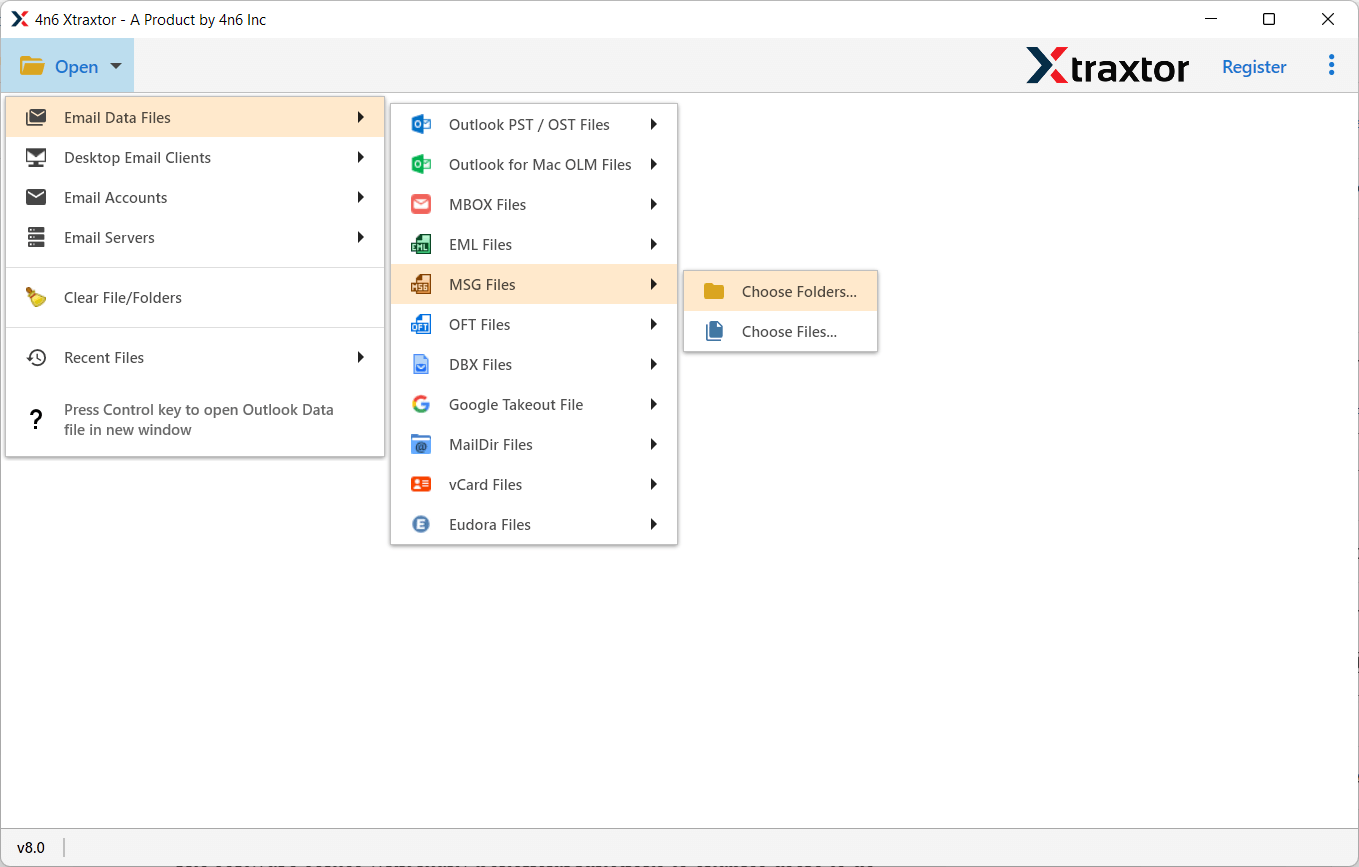
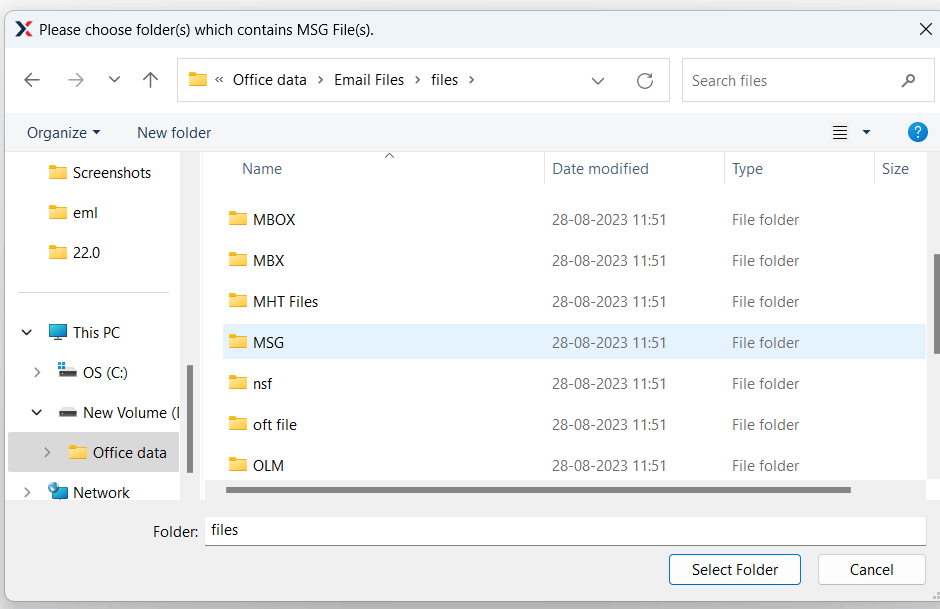
Step 3. You can select multiple files or an entire folder rather than processing each message individually.
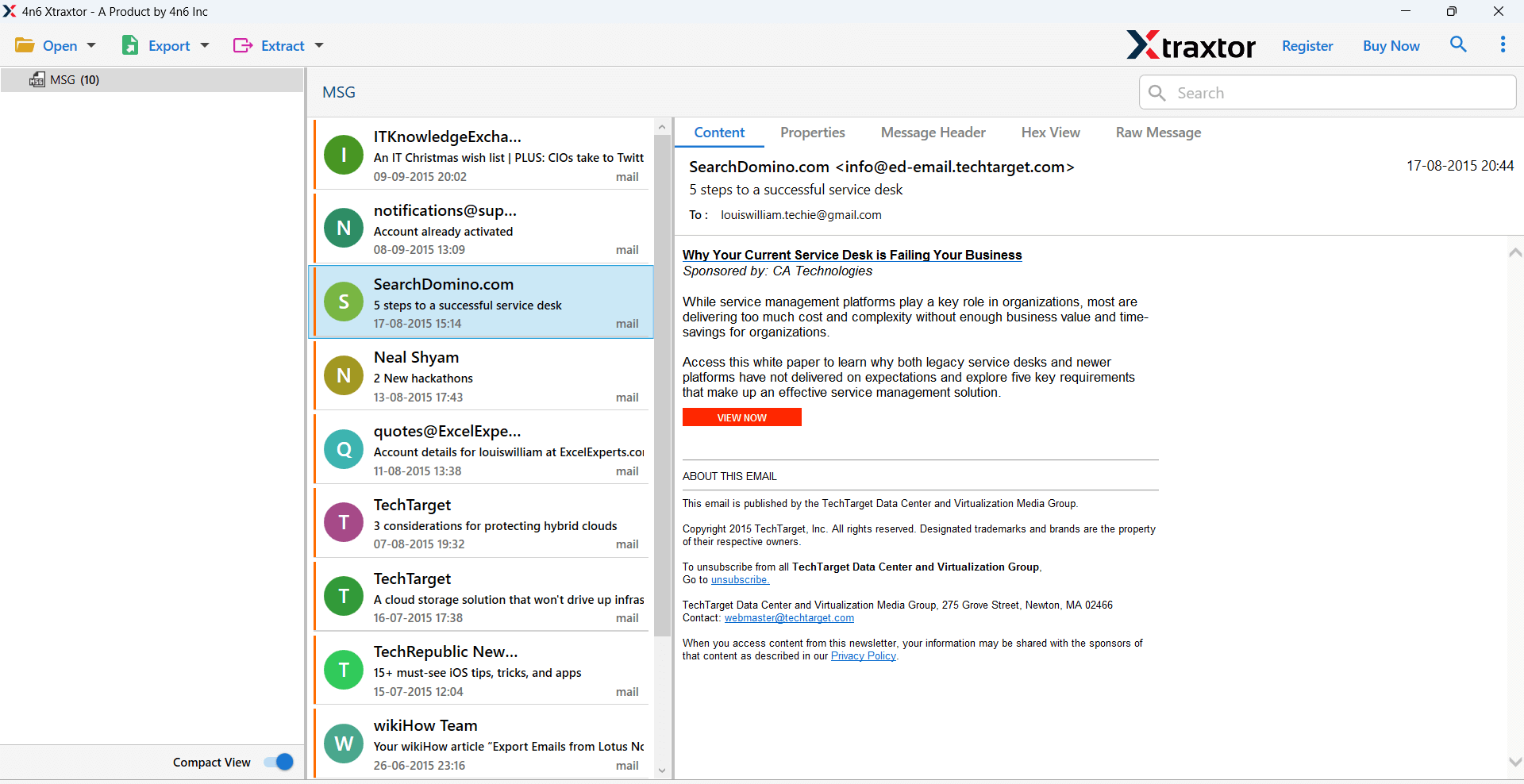
Step 4. Here, you will see a preview of your decrypted RPMSG files in the software interface.
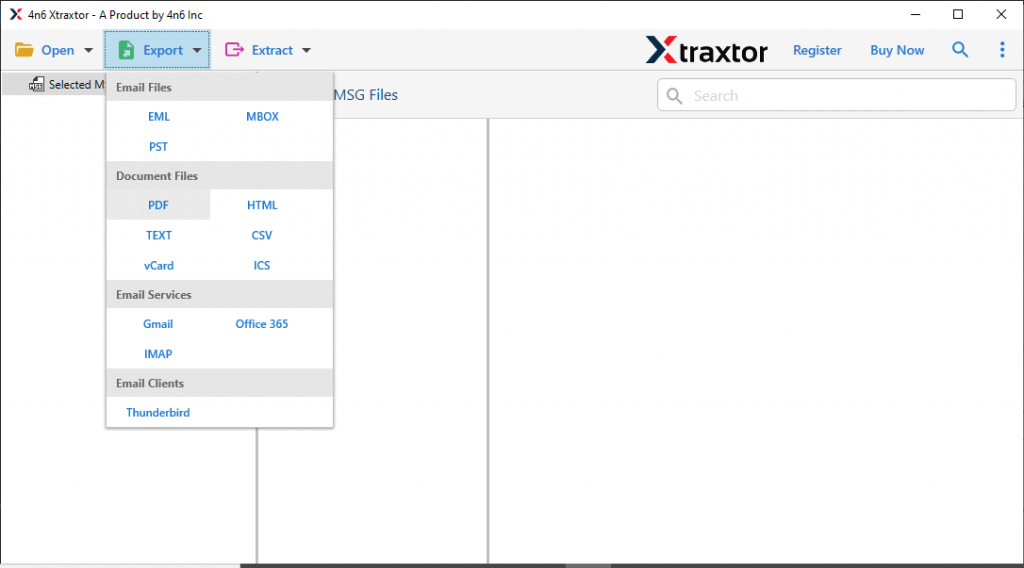
Step 5. Next, click on the Export option and choose PDF as the target format.
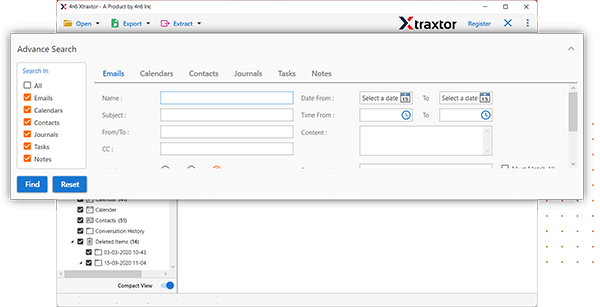
Step 6. Also, you can apply filters to convert messages selectively as per your choice.
Step 7. Tap on the Browse option and choose the destination folder. Such as selecting where the converted PDF files should be saved.
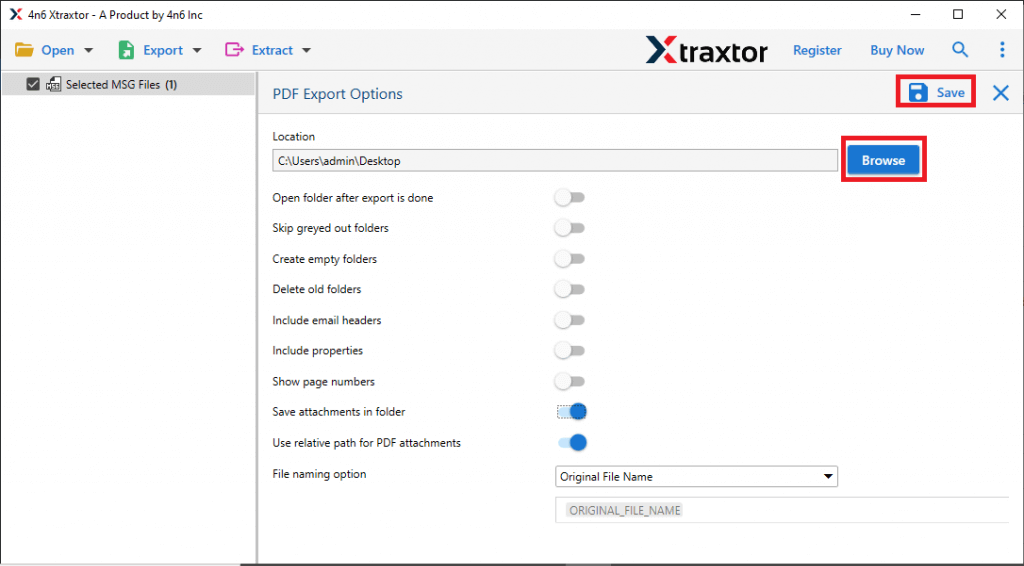
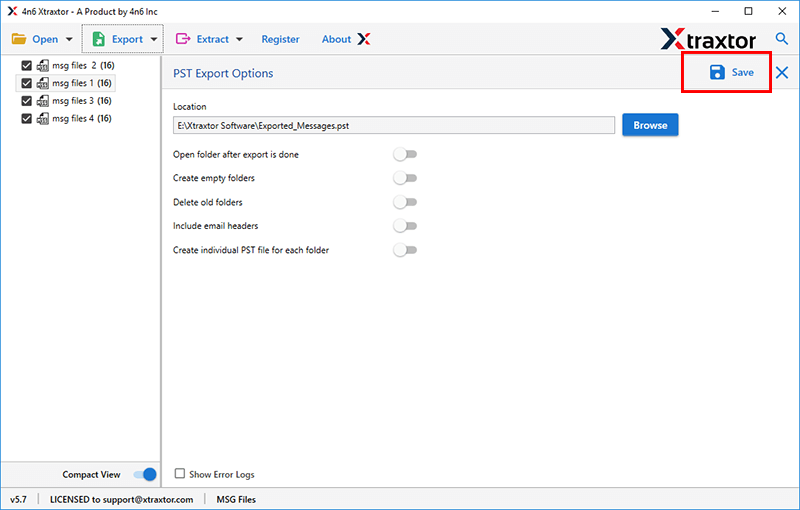
Step 8. Lastly, click the Save button to start the conversion process and allow the software to process the selected files.
After conversion, open several output PDFs and verify your converted files.
Can You Convert RPMSG to PDF Online for Free?
There are many online services that claim to convert RPMSG to PDF, but you should be careful when working with protected business email.
A generic PDF converter may not be able to interpret the rights management information in an RPMSG file.
More importantly, uploading a protected business email to a third-party website of unknown origin could create security, privacy, or compliance concerns.
Do not upload RPMSG files that contain:
- Privileged business information
- Customer details
- Books of account
- Letters on legal matters
- Employee details
- Internal company communications
- Touchy attachments
For protected corporate email, it is generally more appropriate to process the data in an authorized Microsoft environment or trusted local app.
Conclusion
Converting few RPMSG files to PDF is easy, when you have the right permissions to access and print the protected messages. It is more challenging when you have to deal with hundreds or thousands of RPMSG files in bulk.
If the message permissions allows to print, then Outlook or the Microsoft Purview Information Protection viewer can work for individual messages. Purview offers specific workflows for working with protected email in Microsoft 365 compliance and eDiscovery. If you have a large number of decrypted RPMSG files, a dedicated batch conversion tool like the one mentioned in this article might help you.
Always test a small batch of files and check the output, attachments, permissions and document formatting before starting a big conversion job.