How to Convert Google Takeout to PDF Files in Bulk?

Are you looking for a way to convert Google Takeout to PDF files in bulk? If yes, then this guide will help you. Many users download their Gmail data using Google Takeout, but the files are usually saved in MBOX format, which is not easy to read or share. In this blog, we will explain simple methods to export Google Takeout emails into PDF format with attachments. Keep reading to find the best solution.
Google Takeout is a free service provided by Google that allows users to download their data, including Gmail emails, contacts, calendars, and more. When you export Gmail data using Takeout, it saves emails in MBOX format.
However, MBOX files cannot be opened directly without email clients. That’s why many users want to change Google Takeout data into PDF files for easy access.
Why Convert Google Takeout to PDF Files?
Here are some common reasons:
- Easy to Read: PDF files can be opened on any device
- Better Sharing: Easily send PDF files via email or cloud
- Offline Access: No internet required to view emails
- Legal & Backup Use: Useful for records and documentation
- Print-Friendly Format: PDFs are perfect for printing
Before moving ahead with the methods, you must know that there is no direct manual method available that can let you to print Google Takeout emails into PDF files. The reason behind this is that it consists of a mailbox in .mbox file format, which cannot be converted into PDF files directly. So, here, we will use any MBOX-supported email client as a manual method or any third-party tool to quickly convert all Google Takeout emails into PDF files.
So, let’s see how.
How to Export Google Takeout to PDF File Manually?
Follow these steps to manually convert Google Takeout emails to PDF using Thunderbird:
- Install and open Mozilla Thunderbird on your system.
- Install the ImportExportTools NG add-on in Thunderbird.
- Go to Local Folders and create a new folder.
- Right-click on the folder and select ImportExportTools NG.
- Click on Import messages >> choose All Files.
- Select your Google Takeout MBOX file and import it.
- Once emails are loaded, open any email you want to convert.
- Click on File >> Print option.
- Choose Save as PDF as the destination.
- Click Save to export the email as a PDF file.
Note: You need to repeat the print process for each email separately.
Limitations of the Manual Method
- No option to convert emails in bulk
- Time-consuming for large mailboxes
- Requires Thunderbird and add-on setup
- Risk of missing attachments or formatting
- Not suitable for non-technical users
- Add-ons may not support the latest Thunderbird versions
How to Batch Convert Google Takeout Emails into PDF Files?
Check out Xtraxtor software, which is a simple and reliable solution to export Google Takeout emails into PDF files in bulk without any data loss. The software is designed to handle large Takeout archives and allows users to convert multiple emails into PDF format in one go. It keeps all email details intact during the conversion, such as attachments, subject, date, sender, receiver, and formatting. The tool also provides advanced filter options like date range, sender, and subject to export only selected emails as PDF files.
With its easy-to-use interface, both beginners and professionals can complete the batch conversion process without any technical knowledge. It supports all Google Takeout files and works smoothly on all versions of Windows OS.
Users can also try the demo version to check its performance and accuracy before upgrading.

Steps to Convert Google Takeout to PDF Files
Step 1. Download and run the suggested software on your Windows PC.
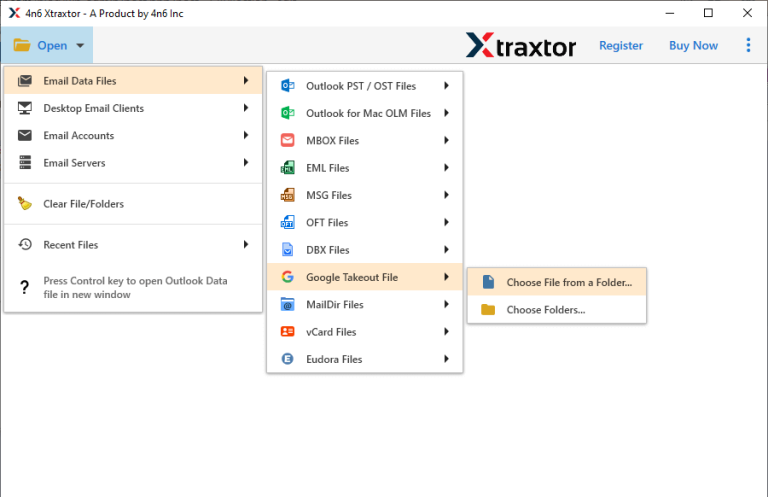
Step 2. Click on Open >> Email Data Files >> Google Takeout File and select your Takeout folder.
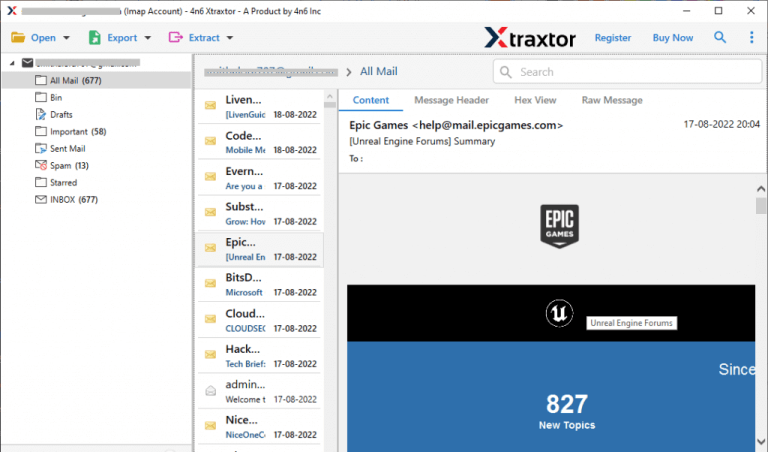
Step 3. The software will load and preview all emails from the Google Takeout file.
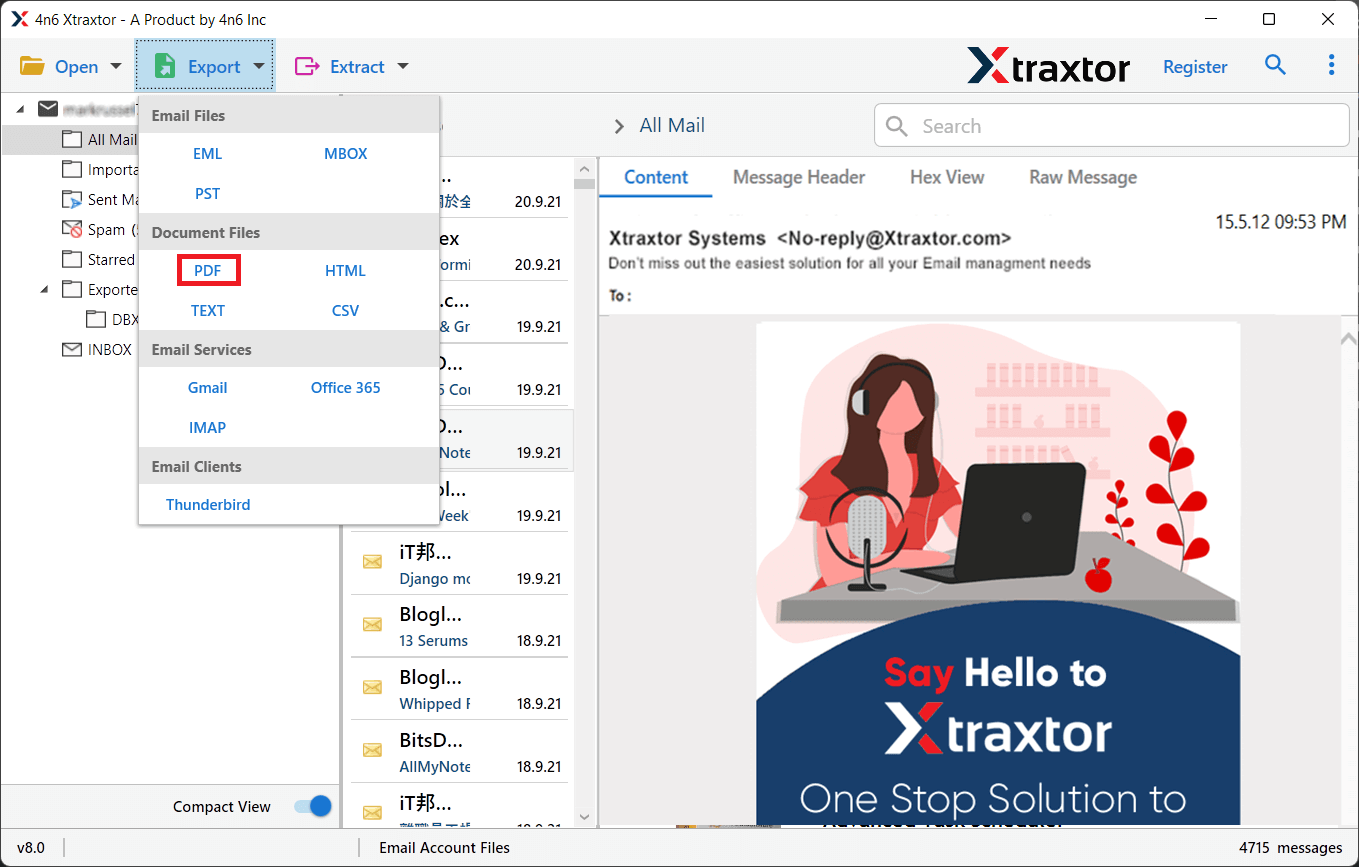
Step 4. Now, click on Export and choose PDF as the saving option.
Step 5. Select the required email folder of your choice.
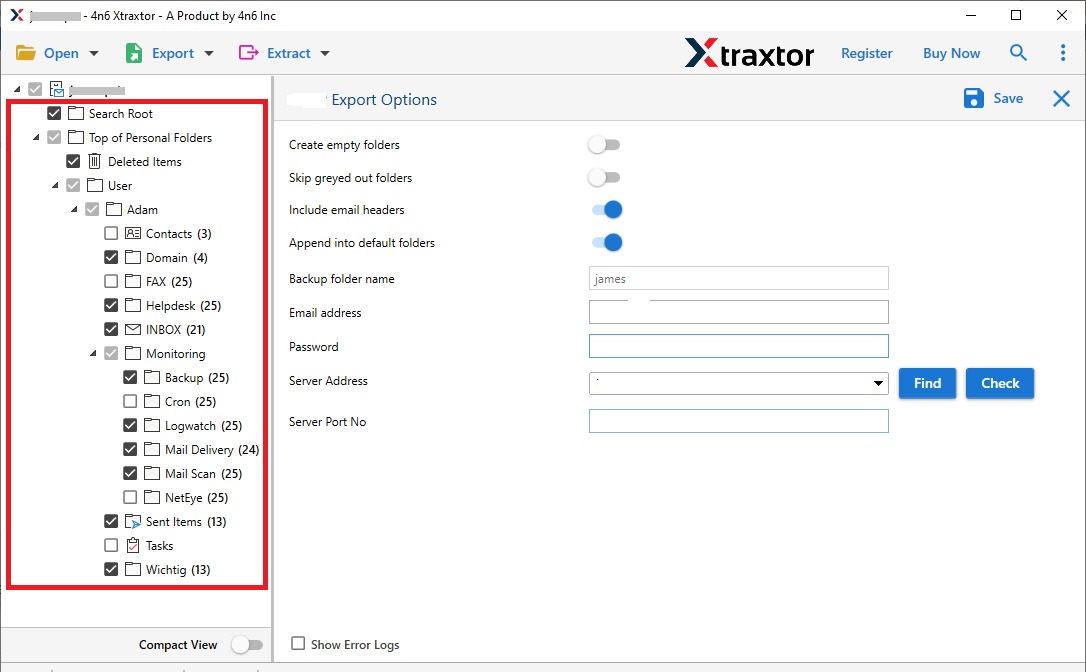
Step 6. Click on Browse to select the destination location & click on the Save button to start.
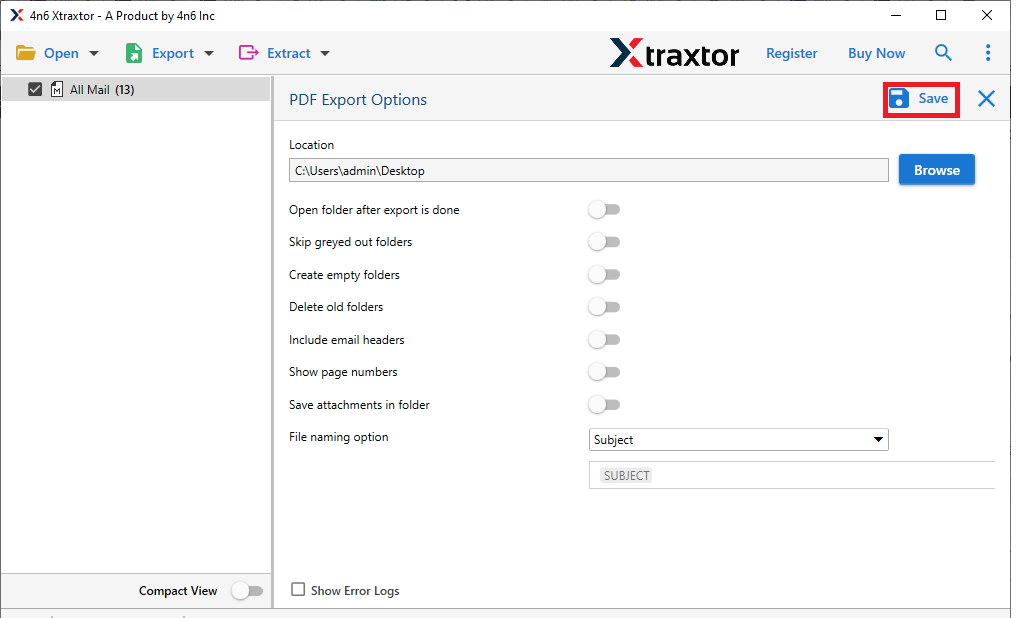
Done! Your Google Takeout emails are successfully converted into PDF format in just a few simple steps.
Advanced Features of Google Takeout to PDF Converter
A reliable tool comes with powerful features that make the conversion process easy and smooth:
- Convert multiple Google Takeout files to PDF at once without any data loss.
- Keeps original email structure, including formatting, layout, and properties.
- Option to download and save all email attachments along with PDF files.
- Extract only selected emails based on date, subject, sender, or keywords.
- View all emails before converting to ensure accuracy.
- Save PDF files with different naming formats for better management.
- Maintains original folder hierarchy during the export process.
- Convert large Google Takeout data files without any restrictions.
- Easy to use for both beginners and technical users.
- Converts emails quickly while maintaining 100% data integrity.
- Apart from PDF, export Google Takeout to PST, EML, MSG, HTML, and more.
- Works smoothly on Windows 11, 10, 8, and older versions.
Final Thoughts
In this blog, we have explained the complete method to convert Google Takeout to PDF files in a simple way. You can use the manual method for basic needs, but it has some limitations. For quick and bulk conversion, using a professional tool is a better choice. It helps you export all Google Takeout emails into PDF format without losing any data. We have shared all the necessary steps and information to make the process easy for you. If you still have any questions, feel free to reach out. Thank you for reading.
