How to Transfer Spectrum Emails to Gmail?

This write-up explains how to transfer Spectrum emails to Gmail account easily. If you no longer want to continue using your Spectrum email but still wish to keep all your old messages safe in another account like Gmail, then this guide will help you. Here, we have shared the best methods to migrate emails from Spectrum to Gmail with all attachments.
Why Transfer Spectrum Emails to Gmail Account?
Spectrum Email is widely used, but many users now prefer Gmail due to its advanced features. Here are some common reasons to switch from Spectrum to Gmail:
- Gmail works smoothly on all devices
- Provides large storage space
- Keeps emails safe from spam and threats
- Easy integration with Google services
- Simple and modern interface
- Faster performance and better search options
How to Import Spectrum Emails to Gmail Manually?
You can also move your emails from Spectrum mail to Gmail using the Gmail Mail Fetcher feature. This method allows Gmail to import emails from another account using IMAP/POP settings.
Follow the steps below to transfer Spectrum emails to Gmail manually.
Step 1. Open your web browser and sign in to your Gmail account.
Step 2. Click on the gear icon at the top right corner and select See all settings.
Step 3. Now, click on the Accounts and Import tab from the menu.
Step 4. Under the section Check mail from other accounts, click on Add a mail account.
Step 5. Type your Spectrum email address and click on the Next button.
Step 6. Select Import emails from my other account (POP3) and continue.
Step 7. Now enter your Spectrum email account details:
- Username: Your Spectrum email address
- Password: Your email password
- POP Server: mail.twc.com
- Port: 995
You can also enable options like Leave a copy of retrieved messages on the server if required.
Step 8. Click on the Add Account button. Gmail will start importing emails from your Spectrum account.
After some time, your Spectrum emails will start appearing in your Gmail inbox.
Limitations of the Manual Method
- The process can be slow for large mailboxes
- Sometimes server or login errors may occur
- It may not transfer all folders properly
- Requires correct server configuration
Because of these limitations, many users prefer using a professional migration tool to transfer Spectrum emails to Gmail quickly and safely.
How to Migrate Emails from Spectrum to Gmail Account?
The best way to transfer Spectrum emails to Gmail is by using professional software, i.e., Xtraxtor. This tool allows you to directly import emails from Spectrum to Gmail without any complicated steps. It supports bulk migration, so you can move all emails in one go. The process is fast, secure, and maintains complete data accuracy.
You can also try the free demo version to check how it works.

Steps to Transfer Spectrum Emails to Gmail with Attachments
Step 1. First of all, download and run the software on your Windows PC.
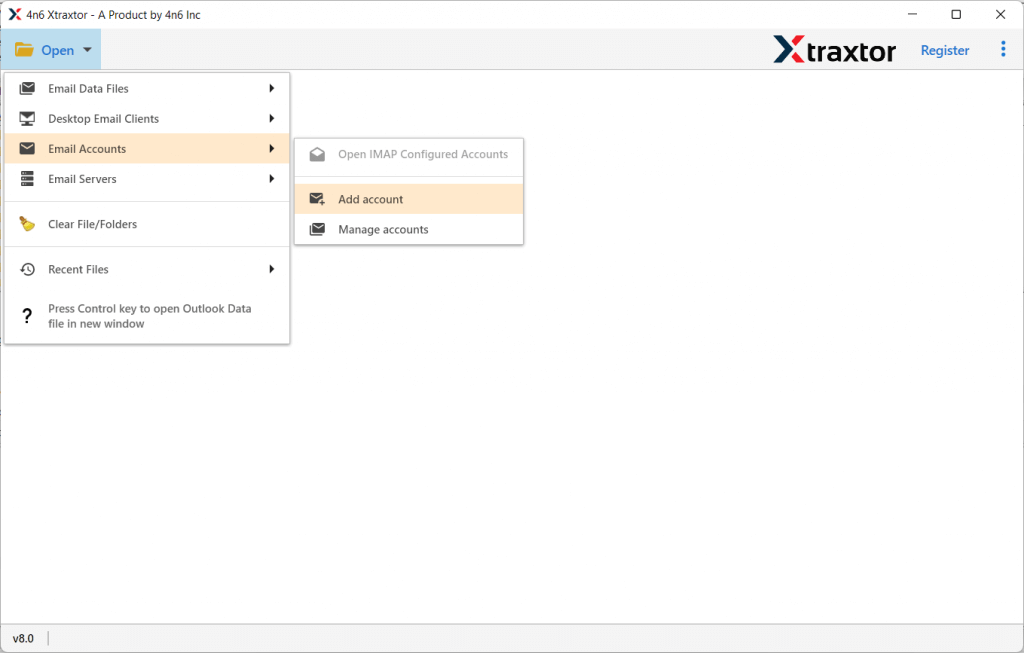
Step 2. Go to the Open menu, select Email Accounts, and click on Add Account.
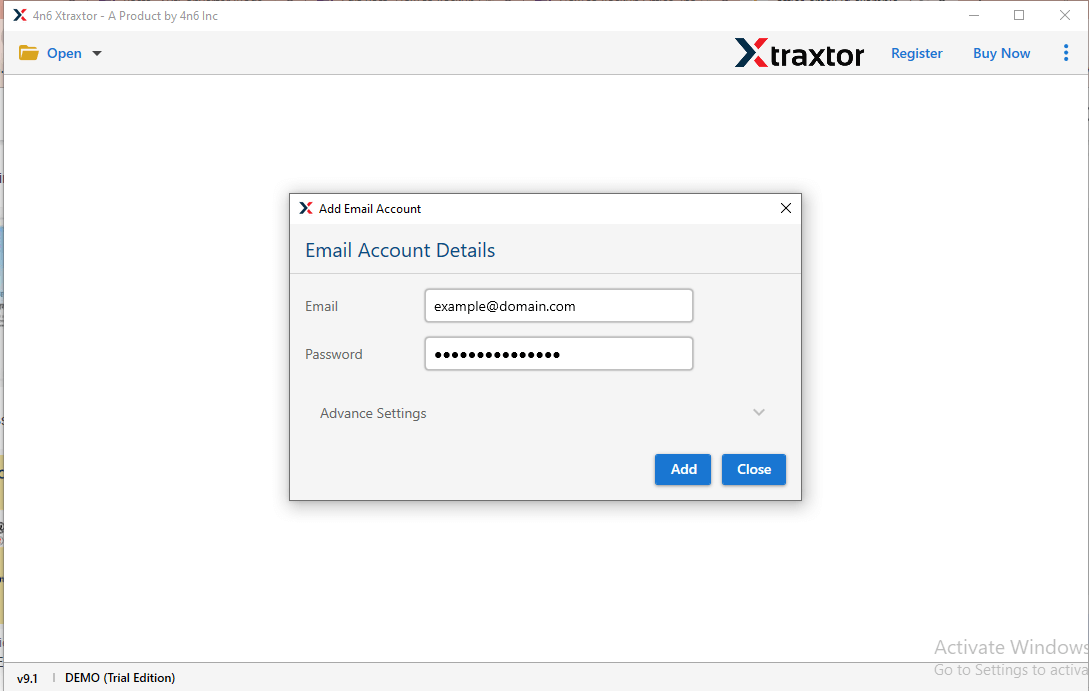
Step 3. Enter your Spectrum email ID and password, then click on the Add button.
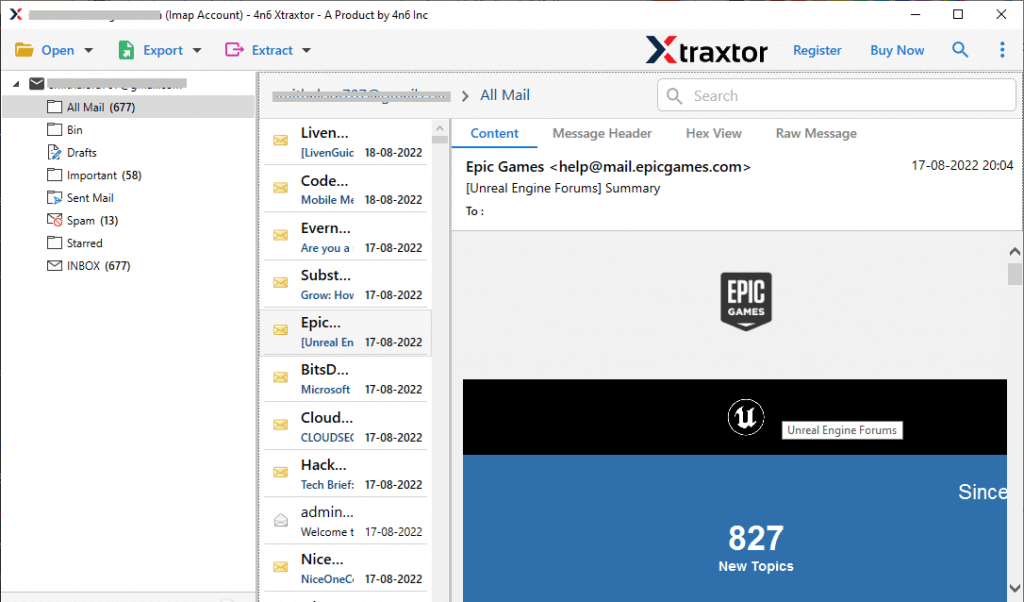
Step 4. The tool will load all your mailbox data so you can preview emails before migration.
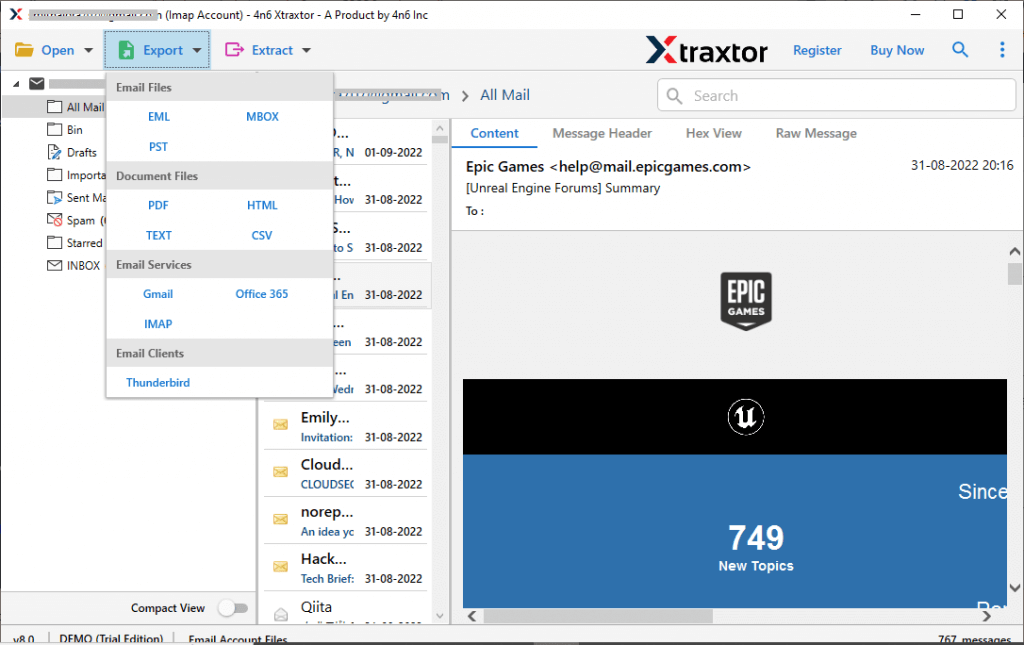
Step 5. Now, click on Export and choose Gmail from the list of email services.
Step 6. Select the folders and subfolders that you want to transfer.
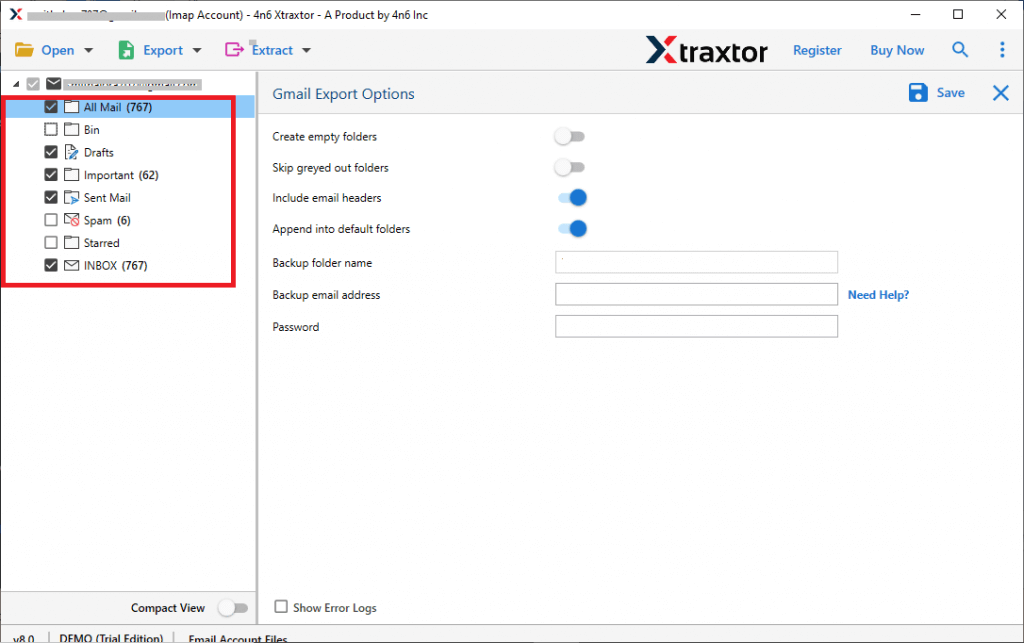
Step 7. Enter your Gmail account login details & click on the Save button.
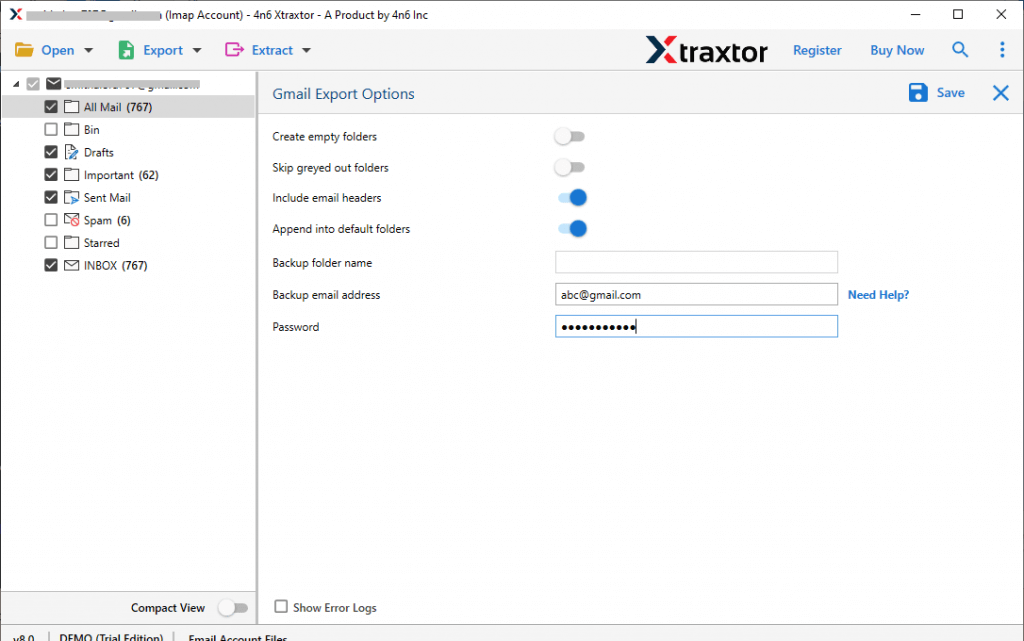
Done! You can now easily transfer Spectrum emails to Gmail with attachments in just a few simple steps.
Prime Features of Spectrum to Gmail Migration Tool
If you want to transfer Spectrum emails to Gmail, this tool provides a simple and automatic solution without any limitations. It helps you move all your emails safely and quickly.
- Batch Email Migration: This tool allows you to transfer thousands of emails from Spectrum email to Gmail at once. There is no limit on the number of emails you can migrate.
- Maintain Folder Structure: The software keeps the original folder hierarchy the same during migration. All folders like Inbox, Sent, Drafts, and others remain unchanged.
- Preserve Email Data: All email properties are maintained during the process. This includes attachments, images, links, subject, sender, receiver details, and formatting.
- Selective Migration Option: You can choose specific emails or folders to transfer. The tool provides filter options like date, subject, and email address to move only important data.
- Multiple Saving Options: Apart from Gmail, the tool also supports other platforms like Office 365, Yahoo Mail, Outlook.com, and more.
- Transfer Multiple Accounts: You can migrate multiple Spectrum accounts at once using batch mode. Just upload a list of accounts, and the tool will handle the process automatically.
- Fast and Reliable Performance: The tool works quickly and ensures a smooth migration without any data loss or errors.
- Easy to Use Interface: The simple interface makes it easy for anyone to use the tool without technical knowledge.
Conclusion
In this blog, you learned how to transfer Spectrum emails to Gmail using both manual and automated methods. The manual method is free and useful for small data, but it can be slow and may not work properly for large mailboxes.
For a faster and more reliable solution, using a professional tool is the best option. It helps you move all emails safely without any data loss. You can try the free demo version to check how the tool works and upgrade only when you are satisfied with its performance.
