How to Transfer Rogers Email to Another Account?

You can transfer Rogers email to another account using manual methods like email forwarding or configuring your account in an email client. However, these free methods often take time, require technical setup, and may not transfer all emails properly. If you want a faster and more reliable solution, you can directly use a professional method trusted by many users.
In case you are wondering, “Can I transfer my Rogers email to another account?”, the answer is yes. But before choosing any method, it is important to understand how each approach works and what limitations it has. This guide will help you learn both manual and automated ways so you can transfer Rogers email to another Rogers account or any other email account easily.
In this Article, you will get;
- Manual Method to Transfer Rogers Email
- Limitations of Manual Methods
- Best Alternative Method
- Why Automated Solution is Better
- Steps to Transfer Rogers Emails Professionally
- Conclusion
Many users face this issue when switching email services or creating a new account. I have also gone through the same situation and tried different methods to transfer emails. Based on that experience, I will explain everything in simple words so you don’t waste time on trial and error.
How to Transfer Rogers Email to Another Account Manually?
Before starting, make sure you have access to both your old Rogers account and the new email account where you want to transfer data.
Step 1. First, download and install an email client like of your choice on your system.
Step 2. Open the email client and add your Rogers email account using IMAP settings.
Step 3. Next, add your destination email account in the same client.
Step 4. Allow both accounts to sync completely so that all emails are visible.
Step 5. Now, select the emails or folders from your Rogers account.
Step 6. Drag and drop them into the desired folder of the new email account.
Once the process is complete, your Rogers emails will be available in the new account.
Important: Although this method works and gives you control over the transfer process, it is not always reliable for large amounts of data. It may take a lot of time, depending on internet speed, and there is a chance that some emails may not transfer properly.
How to Move Emails from One Rogers Account to Another Automatically?
If you want an easy and reliable way to transfer Rogers email to another account, you can use Xtraxtor software. This tool helps you move emails directly from one account to another without any data loss. It keeps your email formatting, attachments and folder structure exactly the same.
With this software, you can also choose specific folders or emails that you want to transfer instead of moving the entire mailbox. It is a great option for users who want a hassle-free solution to transfer their complete Rogers emails from one account to another easily.
You can also try the demo version to understand how the tool works

Steps to Transfer Rogers Email to Another Account
Step 1. First, download and install the software on your Windows system.
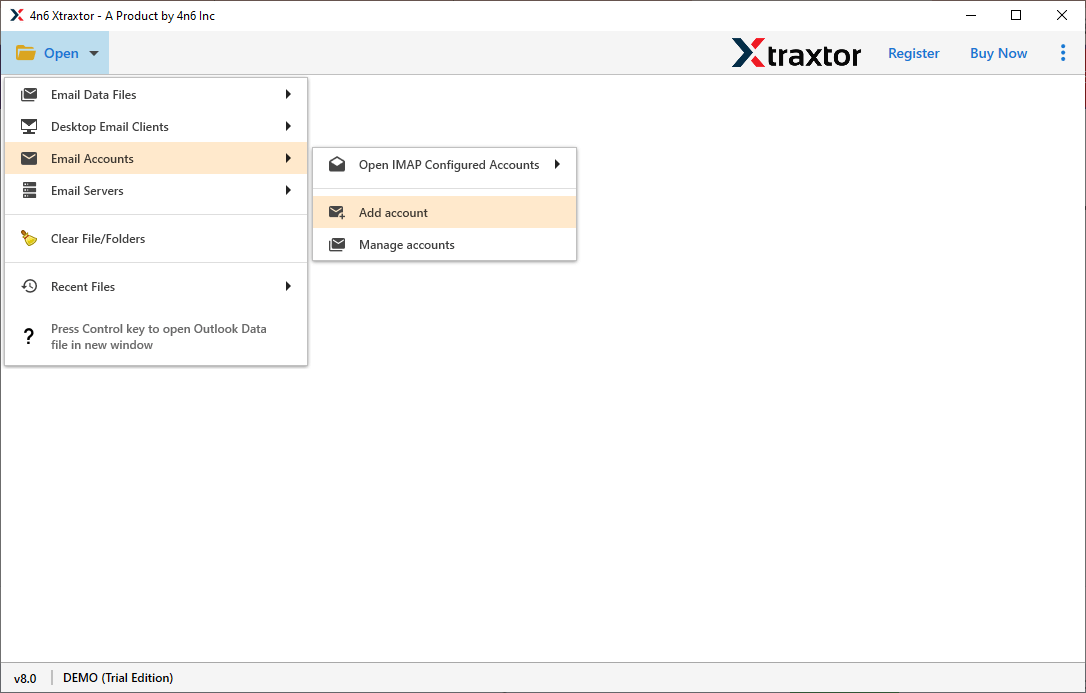
Step 2. Launch the tool and click on Open >> Email Accounts >> Add Account.
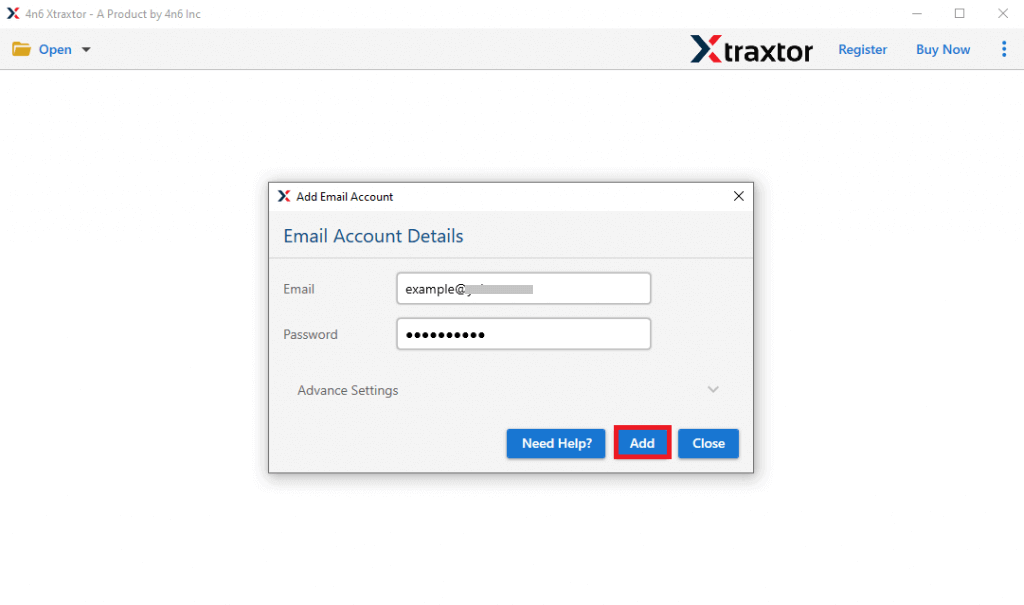
Step 3. Enter your Rogers email login details and add the account.
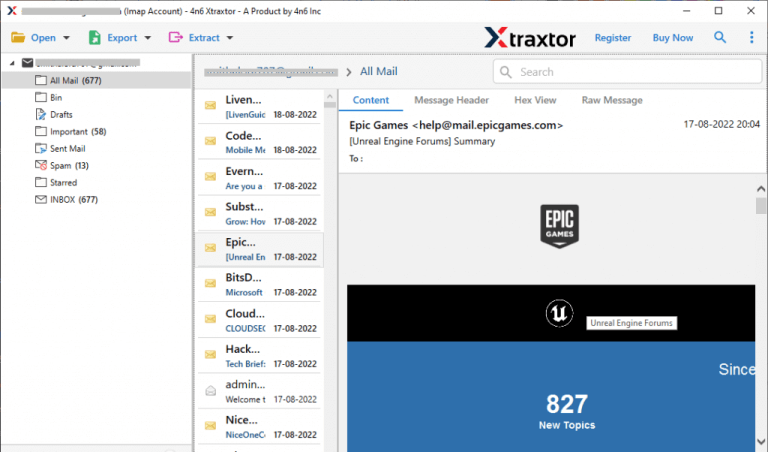
Step 4. After that, preview your mailbox data within the software panel.
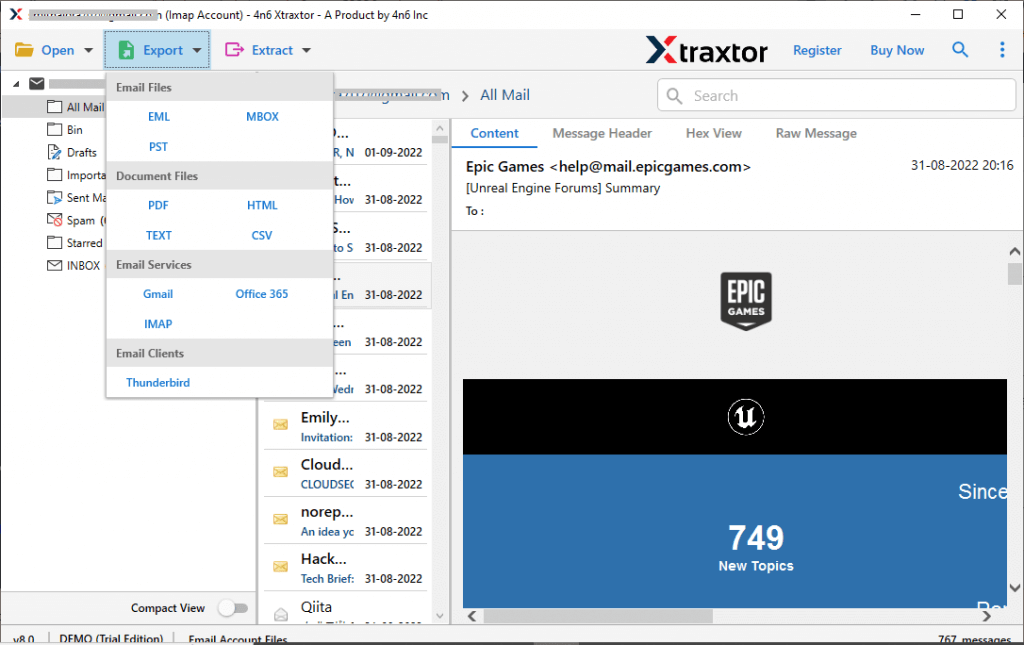
Step 5. Click on the Export option and choose the destination email service.
Step 6. Select the required email folders that you want to transfer.
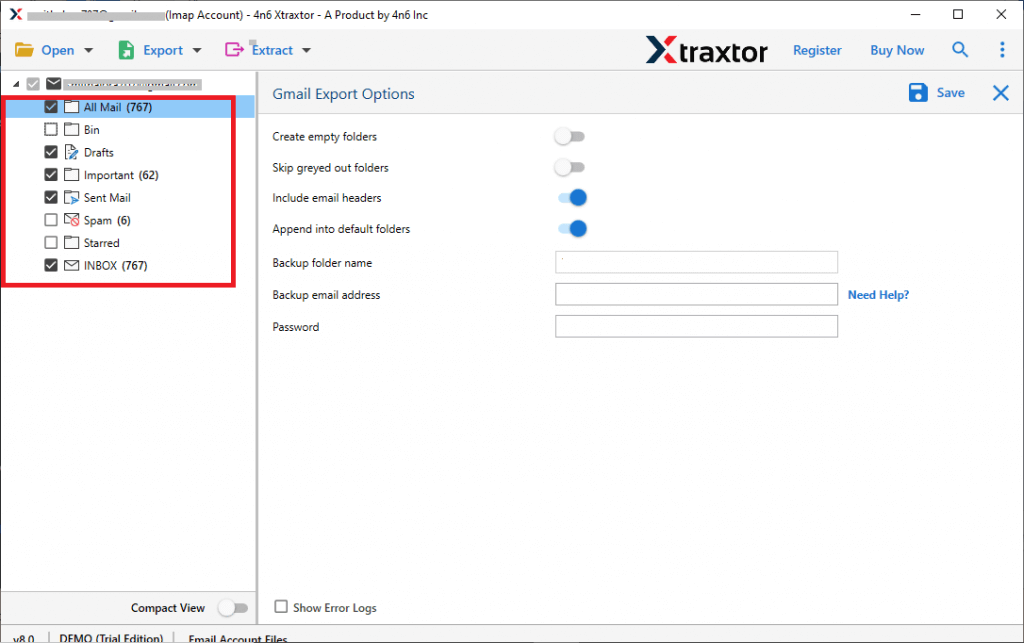
Step 7. Now, enter the login details of the target account & click the save button to start.
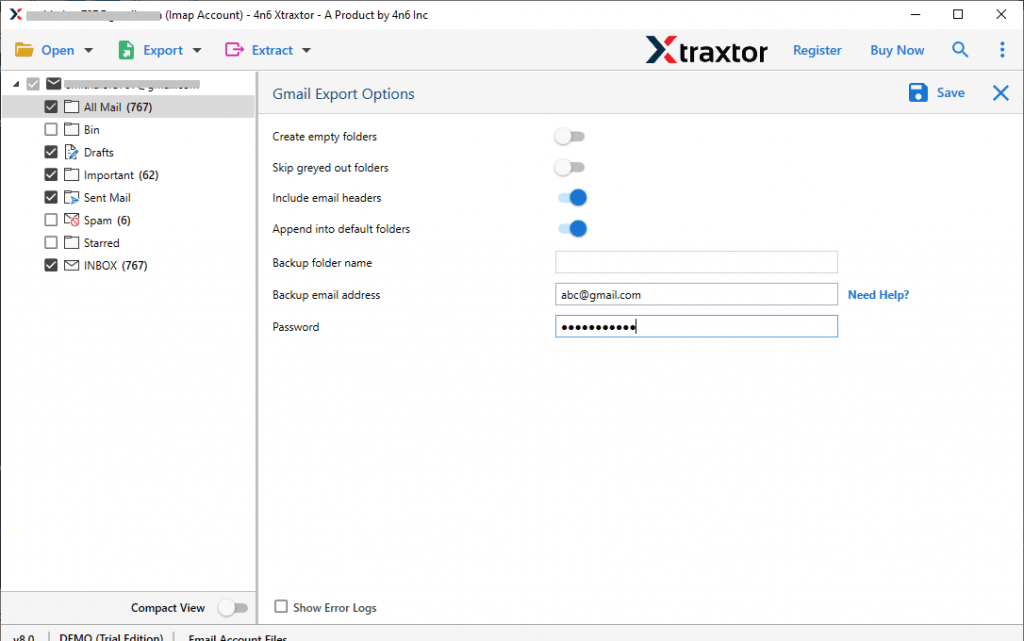
Once the process is completed, all your Rogers emails will be transferred to the new account in a few simple steps.
Why is the Automated Solution Better than the Manual Method?
- Move all Rogers emails to another account in one go without any size or quantity limitation.
- Maintains original folders, sub-folders, and email hierarchy during the transfer process.
- Transfers emails much faster compared to manual drag-and-drop methods.
- Allows selective migration using filters like date range, sender, receiver, subject, etc.
- Simple and interactive interface suitable for both technical and non-technical users.
- Keeps email details like To, From, Subject, Date, and attachments intact.
- Export Rogers emails to PST, PDF, MBOX, EML, HTML, etc.
- Allows users to view emails before starting the transfer process.
- Choose specific folders instead of migrating the entire mailbox.
- Transfer emails from multiple Rogers accounts easily.
- Compatible with Windows 11, 10, 8, and older versions.
Manual methods may work for small tasks, but they are time-consuming and not always reliable for complete email migration.
Conclusion
It’s time to wrap up this article, where we have shared the best possible methods to transfer Rogers email to another account. You can choose any method based on your needs and perform the transfer process accordingly. From a technical point of view, manual methods can be time-consuming and may require extra effort and setup. Therefore, if you are looking for a quick, secure, and hassle-free solution, it is better to go with an automated method and transfer Rogers email to another Rogers account effortlessly.
