How to Transfer Orange Mail to Gmail Account?

Are you looking to transfer Orange Mail to Gmail account? If yes, then you are in the right place. In this complete guide, we will explain the step-by-step process to migrate emails from Orange Mail to Gmail with attachments and other mailbox data. By following the methods below, you can easily move your Orange Mail data to your Gmail account without hassle.
Orange Mail is a popular email service used by many individual and business users. However, due to Gmail’s advanced features, better storage, and seamless integration with Google services, many users prefer to switch from Orange Mail to Gmail.
In this article, we will discuss both manual and professional methods to transfer Orange Mail emails to Gmail. You will also learn the benefits of migrating and how to move contacts along with emails.
What You Will Find Here?
- Why Do Users Transfer Orange Mail to Gmail?
- Manual Method to Move Orange Mail Emails to Gmail
- Limitations of Manual Approach
- Direct Method to Transfer Orange Mail to Gmail in Bulk
- Quick Steps to Migrate Orange Mail Emails
- Advanced Features of Orange Mail to Gmail Migration Tool
- FAQs
- Conclusion
Why Do Users Transfer Orange Mail Emails to Gmail?
There are several reasons why users want to migrate from Orange Mail to Gmail. Some of the common reasons are:
- Gmail offers larger free storage space.
- Advanced spam filtering and security features.
- Integration with Google Drive, Google Meet, Docs, and Calendar.
- Easy accessibility across multiple devices.
- Better search functionality and email organization.
- Reliable performance with fewer server issues.
Because of these benefits, many users are choosing to transfer Orange Mail emails to Gmail accounts.
How to Transfer Orange Mail Emails to Gmail Manually?
You can transfer emails from Orange Mail to Gmail using Gmail’s built-in mail fetching feature. Follow the steps below:
Step 1: Enable IMAP in Orange Mail
- Log in to your Orange Mail account.
- Go to Settings.
- Make sure IMAP access is enabled.
Step 2: Open Gmail Settings
- Log in to your Gmail account.
- Click on the Gear icon.
- Select “See all settings.”
Step 3: Go to Accounts and Import
- Click on the “Accounts and Import” tab.
- Find the “Check mail from other accounts” section.
- Click on “Add a mail account.”
Step 4: Enter Orange Mail Credentials
- Enter your Orange Mail email address.
- Choose “Import emails from my other account (POP3).”
- Provide the required POP/IMAP server details.
- Enter your password.
- Click on Add Account.
Once completed, Gmail will start fetching emails from your Orange Mail account.
Limitations of Manual Method
- Only imports Inbox emails (not full mailbox).
- Folder structure may not be preserved.
- Time-consuming for large mailboxes.
- No batch migration option.
- Risk of missing emails or attachments.
For a complete and secure migration, a professional solution is recommended.
How to Migrate Emails from Orange Mail to Gmail in Bulk?
Now, try Xtraxtor software that allows users to transfer complete Orange Mail mailboxes directly to Gmail without data loss. This solution is suitable for users with large data or multiple accounts. The software securely connects to Orange Mail and migrates emails, attachments, and other mailbox items to Gmail. It maintains folder hierarchy and email properties throughout the process. It is easy to use and does not require technical expertise.
Click Free Download to test how the tool works on your data.

Steps to Transfer Orange Mail to Gmail Account
Step 1. Download and install the software on your Windows or Mac system.
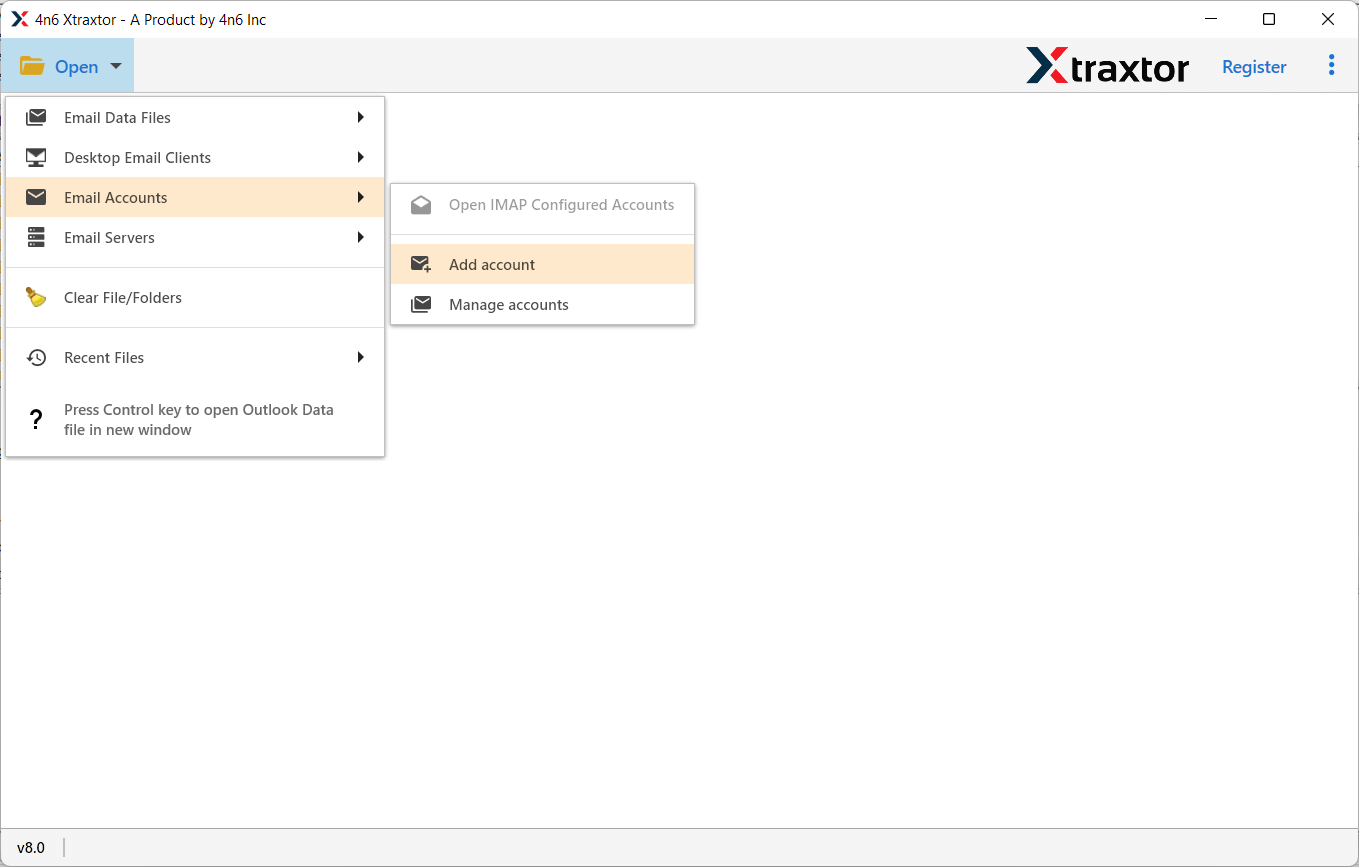
Step 2. Launch the software and choose Open >> Email Accounts >> Add Account.
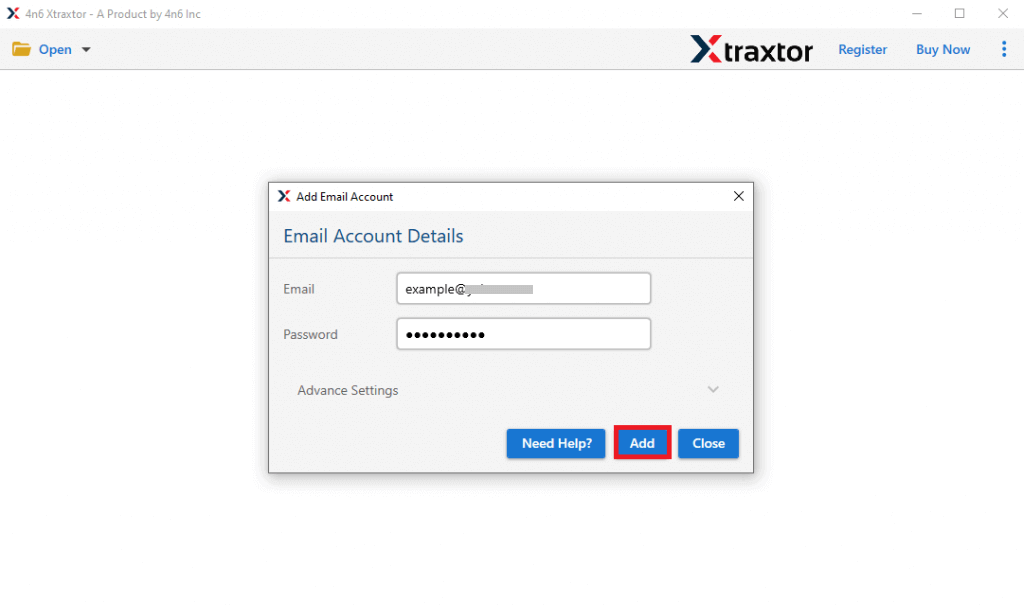
Step 3. Enter your Orange Mail email address and password, then click on Login to load all mailbox.
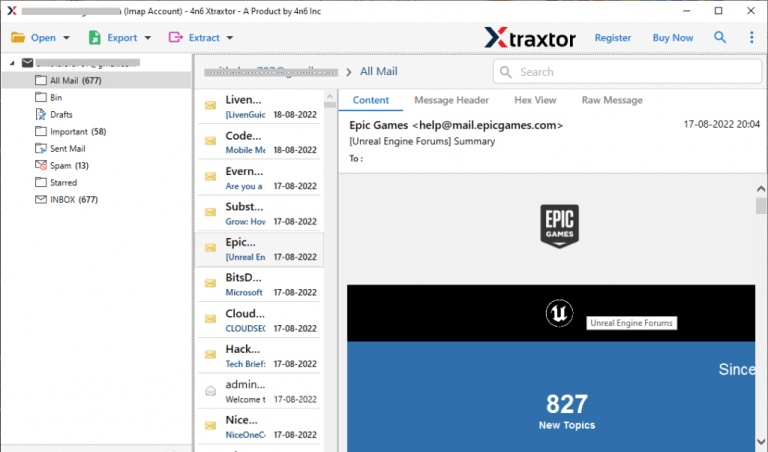
Step 4. Preview all emails and folders directly in the interface. Select the required folders that you want to transfer.
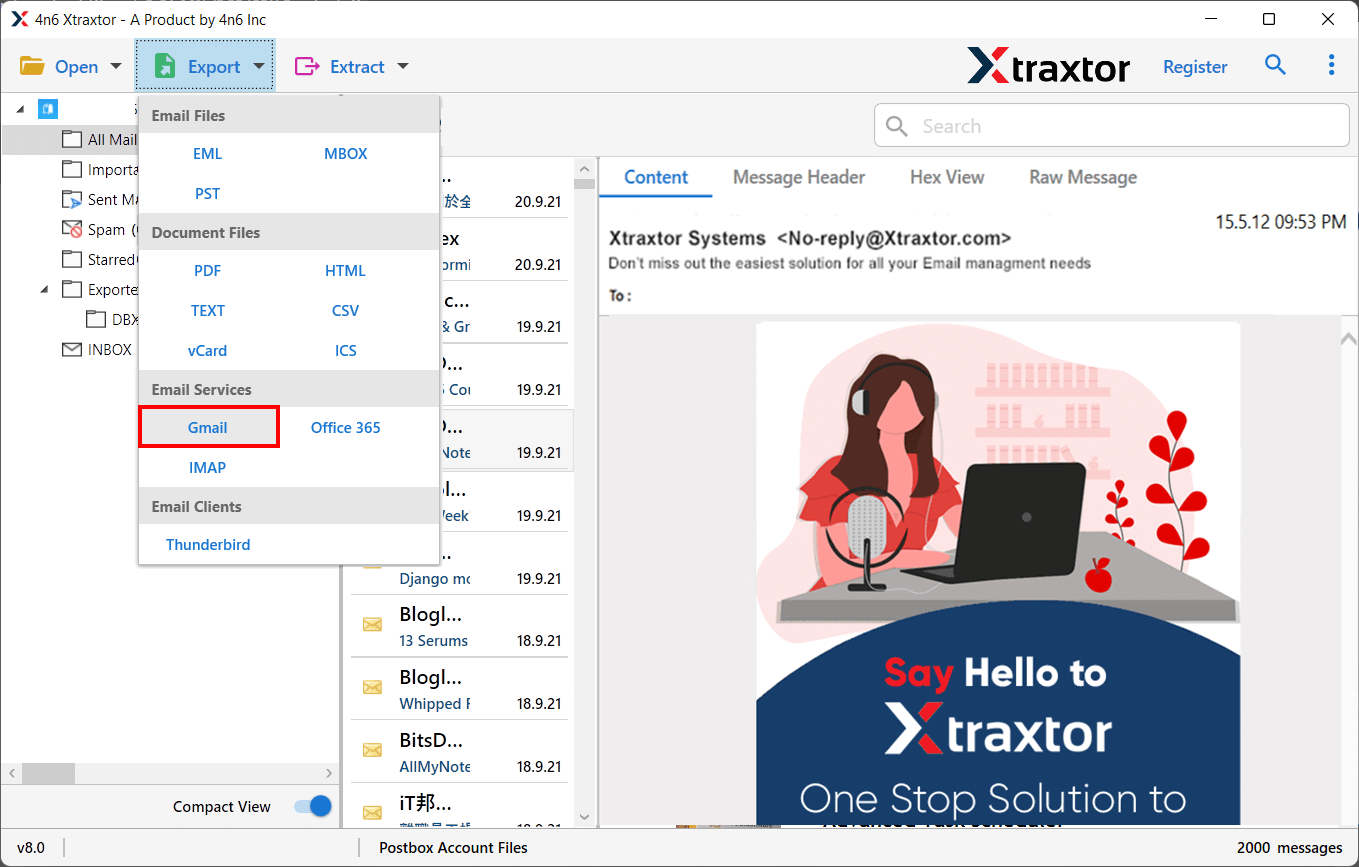
Step 5. Click on Export and choose Gmail as the saving option from the list.
Step 6. Enter your Gmail account credentials and click the Save button.
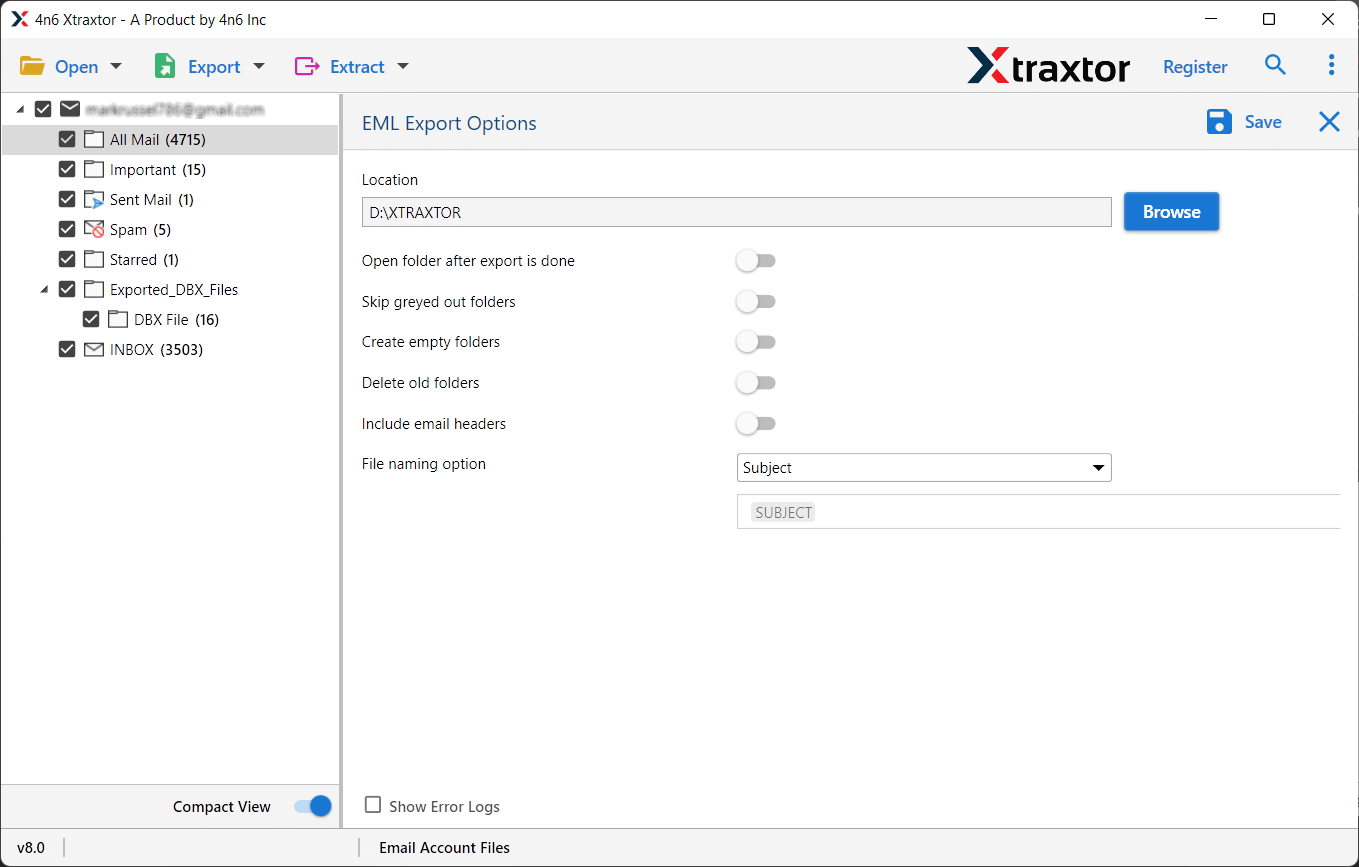
After a few minutes, your selected Orange Mail emails will appear in your Gmail account.
Advanced Features of Orange Mail to Gmail Migration Tool
- Selective Email Migration: Allows the transfer of only selected emails based on specific criteria like Date Range, To, From, Subject, etc.
- Preserve Folder Hierarchy: Maintains the original folder structure during migration so that emails are organized in Gmail exactly like Orange Mail.
- Batch Migration: Supports transferring multiple Orange Mail accounts to Gmail at once without repeating the process.
- Maintain Email Properties: Keeps attachments, inline images, formatting, metadata, and email headers intact throughout the migration.
- User-Friendly Interface: Simple and easy-to-use interface suitable for both technical and non-technical users.
- Wide OS Compatibility: Supports all major Windows OS versions, including Windows 11, 10, 8.1, 8, and 7.
- Secure Login & Authentication: Uses secure protocols to protect account credentials and ensure safe migration.
- Maintains Data Integrity: Ensures zero data loss and keeps the originality of emails during the entire transfer process.
- Preview Before Migration: Allows users to preview mailbox data before starting the transfer process.
- Supports Attachments Migration: Transfers all attachments, including documents, images, PDFs, and other file formats without corruption.
- 24/7 Technical Support: Provides dedicated customer support assistance for smooth and hassle-free migration.
FAQs: Transfer Orange Mail Emails to Gmail
Q1. Can I transfer Orange Mail emails to Gmail manually?
Ans. Yes, using Gmail’s mail fetching feature. However, it has limitations.
Q2. Will attachments be transferred to Gmail?
Ans. Yes, attachments can be transferred, especially with professional tools.
Q3. Is it safe to migrate Orange Mail to Gmail?
Ans. Yes, if you use a trusted migration method or tool.
Q4. How long does the migration take?
Ans. It depends on mailbox size and internet speed.
Q5. Can I transfer multiple Orange Mail accounts?
Ans. Yes, with the help of a professional migration tool.
Conclusion
In this guide, we explained how to transfer Orange Mail emails to Gmail account using both manual and professional methods. If you have a small mailbox, you can use the manual approach. However, for complete, secure, and bulk migration, it is better to choose a professional solution. Select the method that suits your needs and move your Orange Mail emails to Gmail easily and safely.
