How to Transfer Juno Emails to Gmail?

If you’re looking for a simple way to transfer Juno emails to Gmail, this guide will help you. Here, we will explain both manual and automated methods to migrate emails from Juno to Gmail without losing any data. Whether you want better features, more storage, or improved security, this step-by-step guide will make the process easy for you.
Juno Email is an older email service, while Gmail is widely used for its advanced features and reliability. Let’s first understand why many users switch from Juno mail to Gmail account.
Reasons to Migrate Juno Emails to Gmail
Users prefer to transfer Juno to Gmail because Gmail offers:
- Better security with spam and phishing protection
- More storage space for emails and attachments
- Easy access on mobile and desktop
- Integration with Google services like Drive and Docs
- Faster performance and better search options
- Simple and user-friendly interface
How to Import Juno Emails to Gmail Account Manually?
This is the easiest method using Gmail’s import feature:
- Login to your Gmail account.
- Go to Settings > See all settings.
- Open the Accounts and Import tab.
- Click on Import mail and contacts.
- Enter your Juno email address.
- Allow permissions and click Start Import.
Your Juno emails will start importing into Gmail.
Drawbacks of this Method
- Slow process for large mailboxes
- May take hours or days
- Does not always maintain folder structure
- Limited control over data
How to Transfer Emails from Juno to Gmail Instantly?
If the manual method does not work properly, takes too much time, or shows errors, then you can use a professional tool. One of the best options is Xtraxtor. It helps users to transfer Juno emails to Gmail directly without any complications.
This tool supports large mailboxes and allows you to import Juno email to Gmail with complete accuracy. You can also select specific folders and maintain the original folder structure during the process.
Click on the free download button and try it now!

Steps to Transfer Juno Emails to Gmail Account
Follow the steps below to migrate Juno emails to Gmail easily:
Step 1. Install and launch the software on your Windows system.
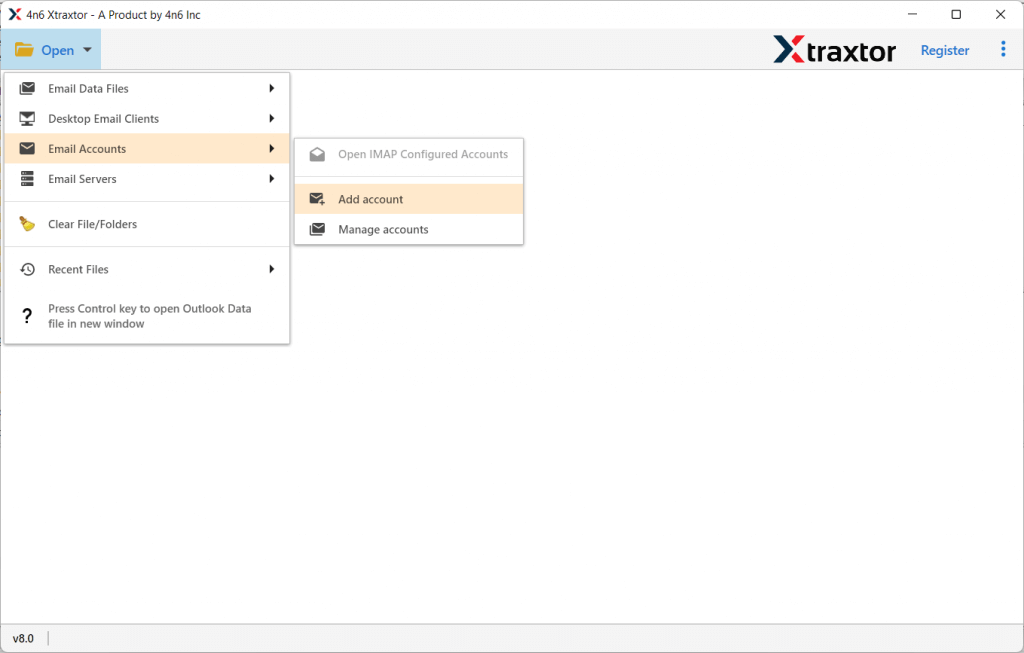
Step 2. Click on Open >> Email Accounts >> Add Account.
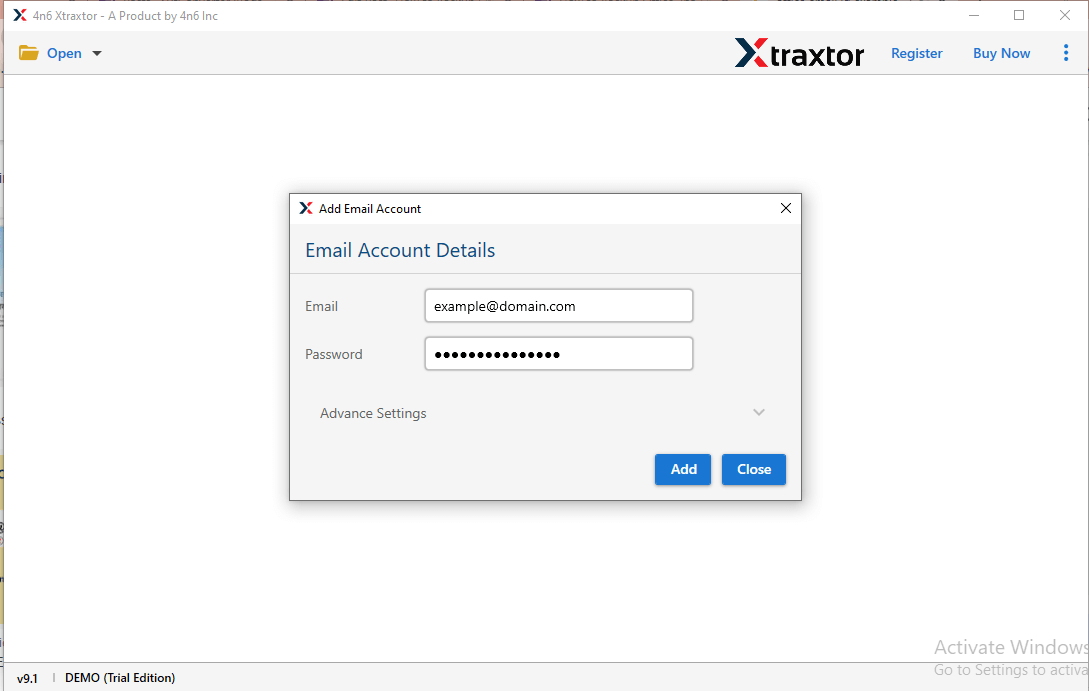
Step 3. Enter your Juno Email login details and click on the Add button.
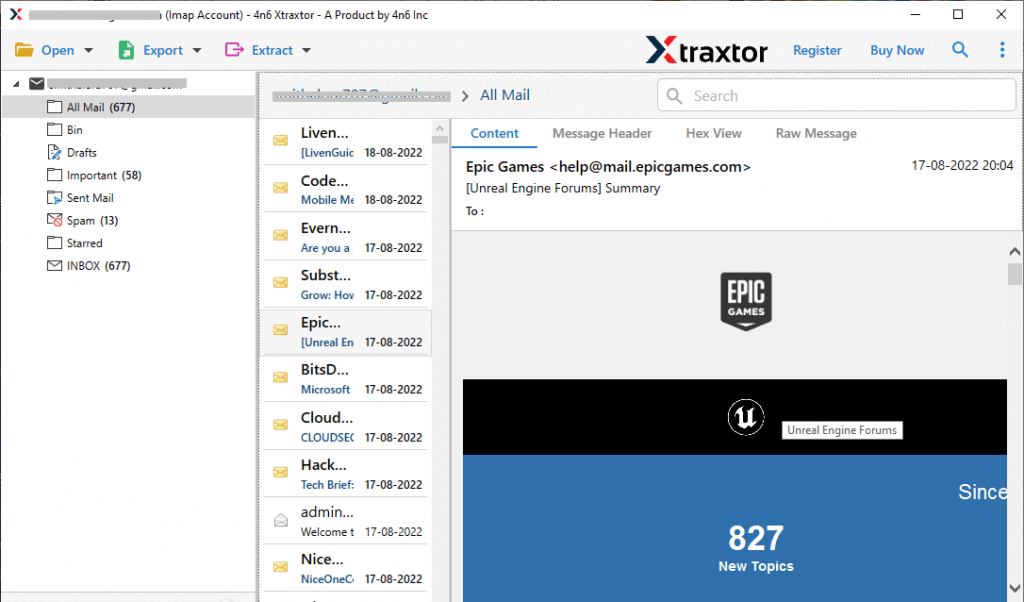
Step 4. The software will load all your emails. You can preview them before migration.
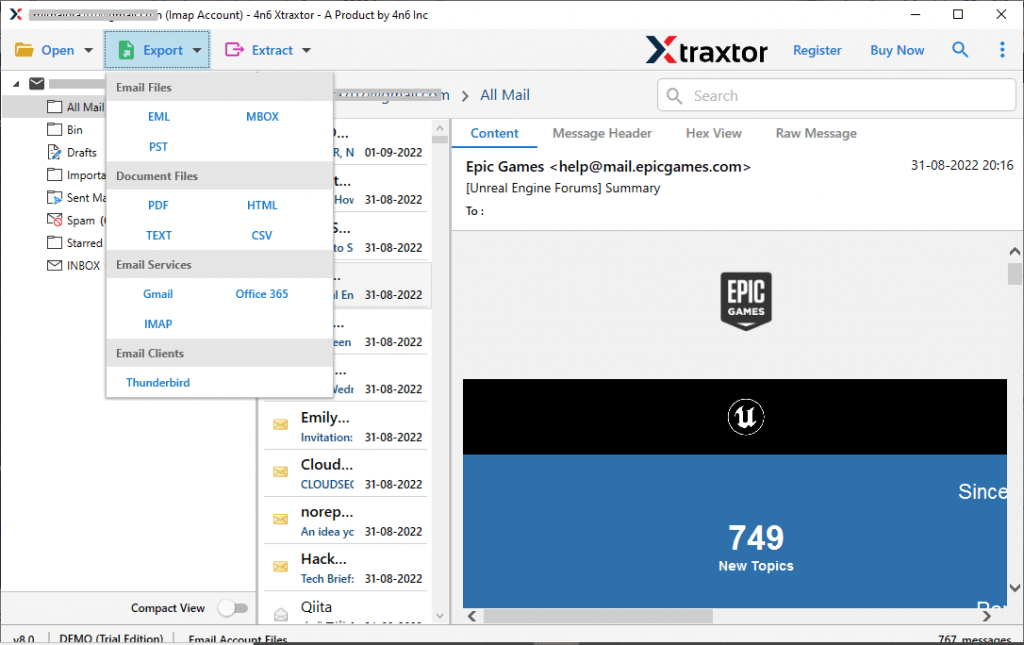
Step 5. Click on Export and select Gmail from the list.
Step 6. Select the folders you want to transfer.
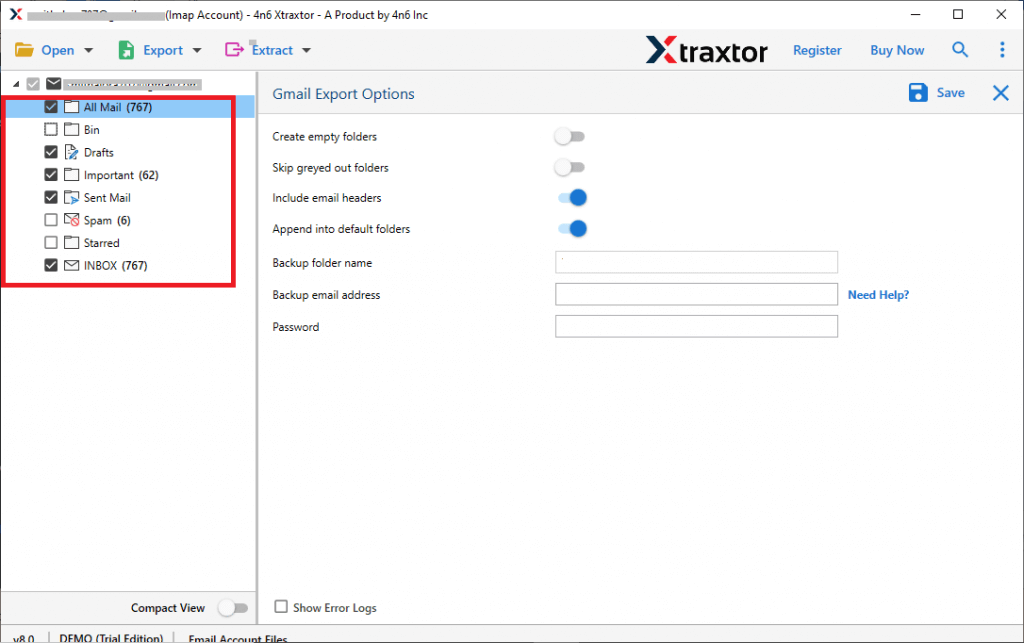
Step 7. Enter your Gmail login details and click on the Save button.
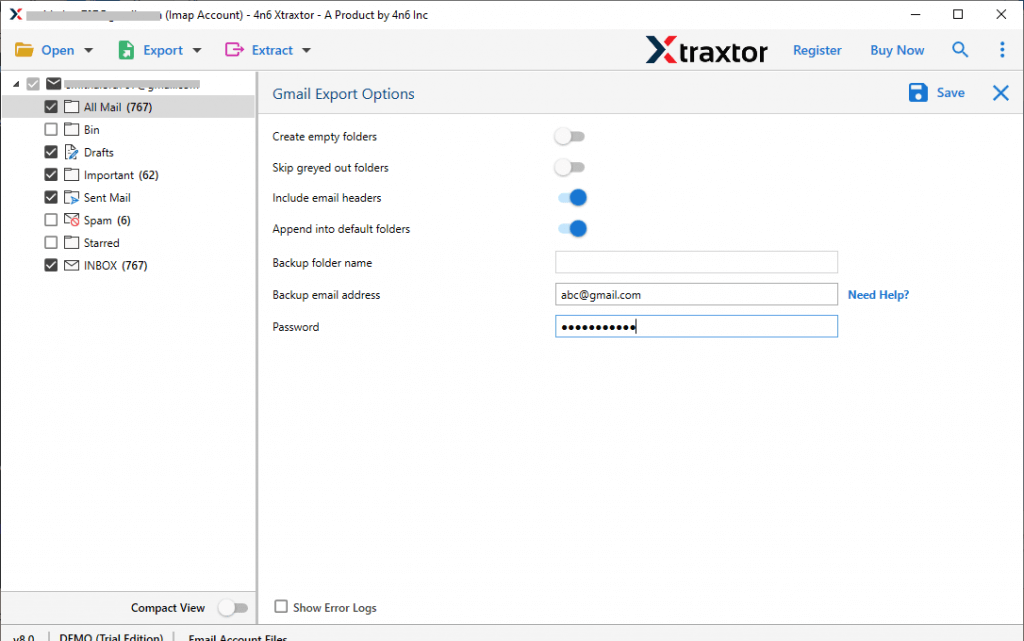
Done! You can now transfer Juno emails to Gmail in just a few clicks without any data loss. You can also use the demo version to test the tool.
Prominent Features of Xtraxtor Software
Xtraxtor comes with many useful features that make it easy to transfer Juno emails to Gmail. Some of the key features are listed below:
- Bulk Email Migration: Move all emails from your account to Gmail at once without any limit.
- 100% Data Safety: Keeps your emails safe and maintains complete data accuracy during the process.
- Advanced Filter Options: Transfer only selected emails using filters like date, subject, sender, etc.
- Direct Migration: Easily migrate Juno email to Gmail without any complicated steps.
- Maintain Folder Structure: Keeps all folders and subfolders in the same structure after migration.
- Preview Emails: View all emails before starting the migration process.
- Supports Attachments: Transfer emails along with all attachments without missing anything.
- No Extra Software Needed: Works independently without requiring any other application.
- Wide Windows Compatibility: Supports all Windows versions, including 11, 10, 8, and older ones.
- User-Friendly Interface: Simple design so even beginners can use it easily.
- Fast Performance: Quickly transfers large mailbox data without delays.
- 24/7 Support: The customer support team is available anytime to help users.
Conclusion
This guide explained how to transfer Juno emails to Gmail using both manual and automated methods. While the manual methods are free, they can be slow, complex, and may not work properly for large mailboxes.
For a safe and complete Juno to Gmail migration, using a professional tool is the best option. It makes the process quick, easy, and error-free.
You can also try the free demo version to check the tool’s performance before buying the full version.
