How to Transfer Hostinger Emails to Gmail Account?

If you are someone who wants to transfer Hostinger emails to Gmail and complete the process quickly, you are at the right place. In this guide, we will explain everything in simple words. You will learn how to move all your emails from Hostinger to Gmail and also how to make sure all your data is being transferred securely.
Overview of Hostinger Email
Hostinger is a popular web hosting provider known for affordable hosting, domains, and website services. Along with hosting plans, Hostinger also offers professional business email services that allow users to create domain-based email addresses (like yourname@yourdomain.com).
Hostinger email provides standard features such as webmail access, IMAP/POP configuration, spam protection, and basic security tools. Users can access their mailbox through a browser or configure it in email clients like Microsoft Outlook or Apple Mail.
While Hostinger’s email is good for business communication, many users eventually prefer moving to Gmail due to its advanced features, global access, and better storage options.
Now the question is, if Hostinger email works well, why do so many users migrate to Gmail? Let’s understand with a quick benefit.
Why Transfer Hostinger Emails to Gmail Account?
- Better Integration: Gmail connects easily with Google Workspace tools like Drive, Docs, Calendar, and Meet.
- Modern Interface: Gmail has a clean and easy-to-use design.
- Advanced AI Features: Smart suggestions, automatic filtering, and powerful search make email management easy.
- Cross-Device Access: Gmail works smoothly on desktop, mobile apps, and web browsers.
- More Storage: Free 15 GB storage, expandable anytime.
- Better Spam Protection: Strong spam and phishing filters keep your inbox secure.
- Long-Term Reliability: Gmail is continuously updated and supported by Google.
Because of these benefits, many users choose to transfer Hostinger emails to Gmail.
How to Migrate Hostinger Emails to Gmail Account for Free?
There are several manual ways to move emails from Hostinger to Gmail. Gmail can fetch emails directly from Hostinger using POP3.
Follow the steps below to manually transfer Hostinger emails to Gmail:
Step 1. Log in to your Gmail account and open Settings.
Step 2. Go to the Accounts and Import tab.
Step 3. Click on Import mail and contacts.
Step 4. A small pop-up window will appear. Enter your Hostinger email address.
Step 5. Enter your Hostinger login details along with the required mail server (POP/IMAP) settings.
Step 6. Click the Import button to begin transferring emails from Hostinger to Gmail.
That’s it. This is the simple manual method to import Hostinger emails into your Gmail account.
Although these manual methods work, they come with several limitations.
Limitations and Cons of Manual Methods
- The process can take many hours or even days.
- No proper folder selection option.
- Risk of missing or duplicate emails.
- No advanced filter for selective migration.
- Technical setup may confuse non-technical users.
- Not suitable for bulk or multiple accounts.
- Possible syncing errors.
If you have large data or multiple mailboxes, manual methods become difficult. That’s why using a professional solution is a smarter choice.
How to Move All Emails from Hostinger to Gmail Automatically?
If the manual method feels confusing, slow, or does not work properly, you don’t need to worry. A safer and easier way to transfer Hostinger emails to Gmail is by using the Xtraxtor software. It allows you to directly move multiple Hostinger email accounts to Gmail without long steps or technical problems. You can choose specific folders, transfer complete mailbox data, and make sure no email or attachment is lost during the process.
The tool is simple to use and suitable for both technical and non-technical users. It provides a fast, secure, and smooth migration experience. That is why many IT professionals and regular users prefer using a professional solution for accurate and hassle-free email transfer.
Download the free edition to examine the software’s working method.

Steps to Transfer Hostinger Emails to Gmail Account
Step 1. Download and install the software on your Windows PC.
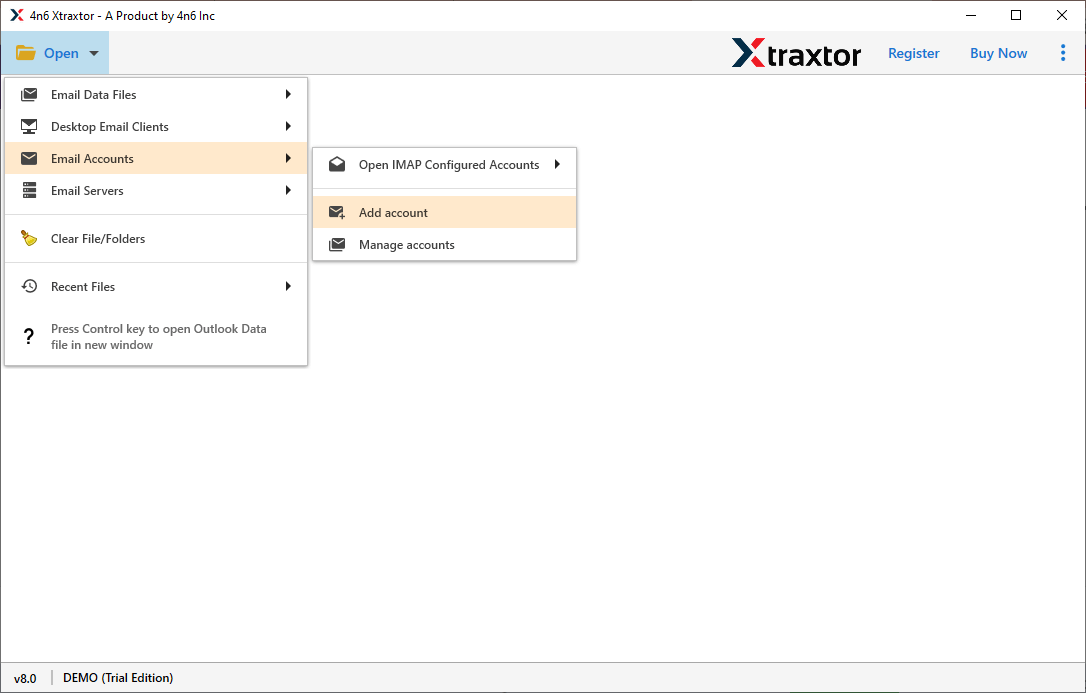
Step 2. Click on Open >> Email Accounts >> Add Account.
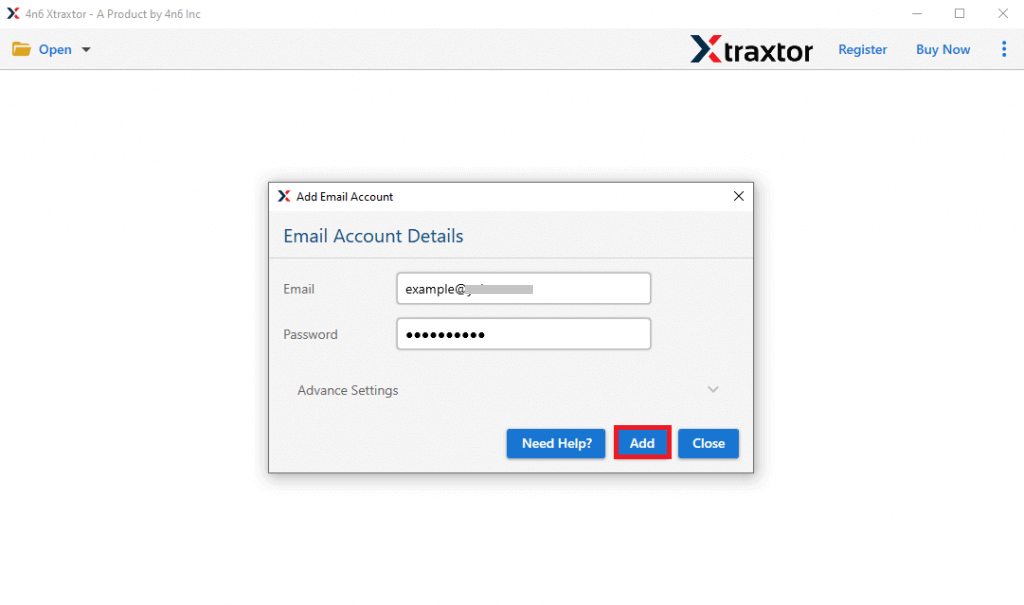
Step 3. Enter your Hostinger email login details and click on the Add button.
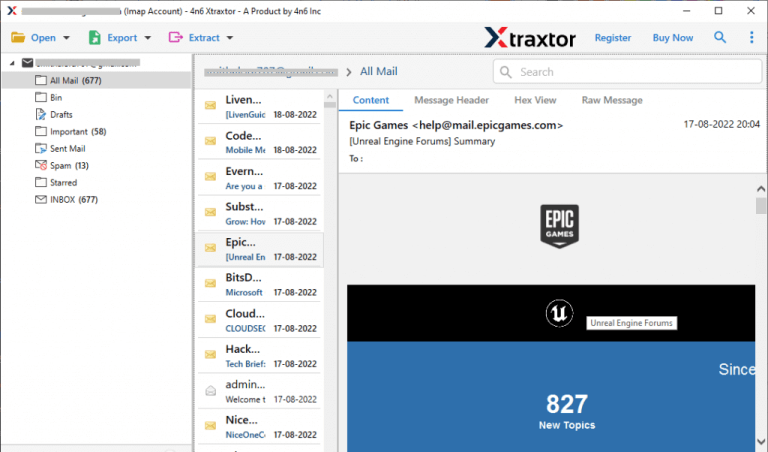
Step 4. After login, you can preview and select the emails you want to transfer.
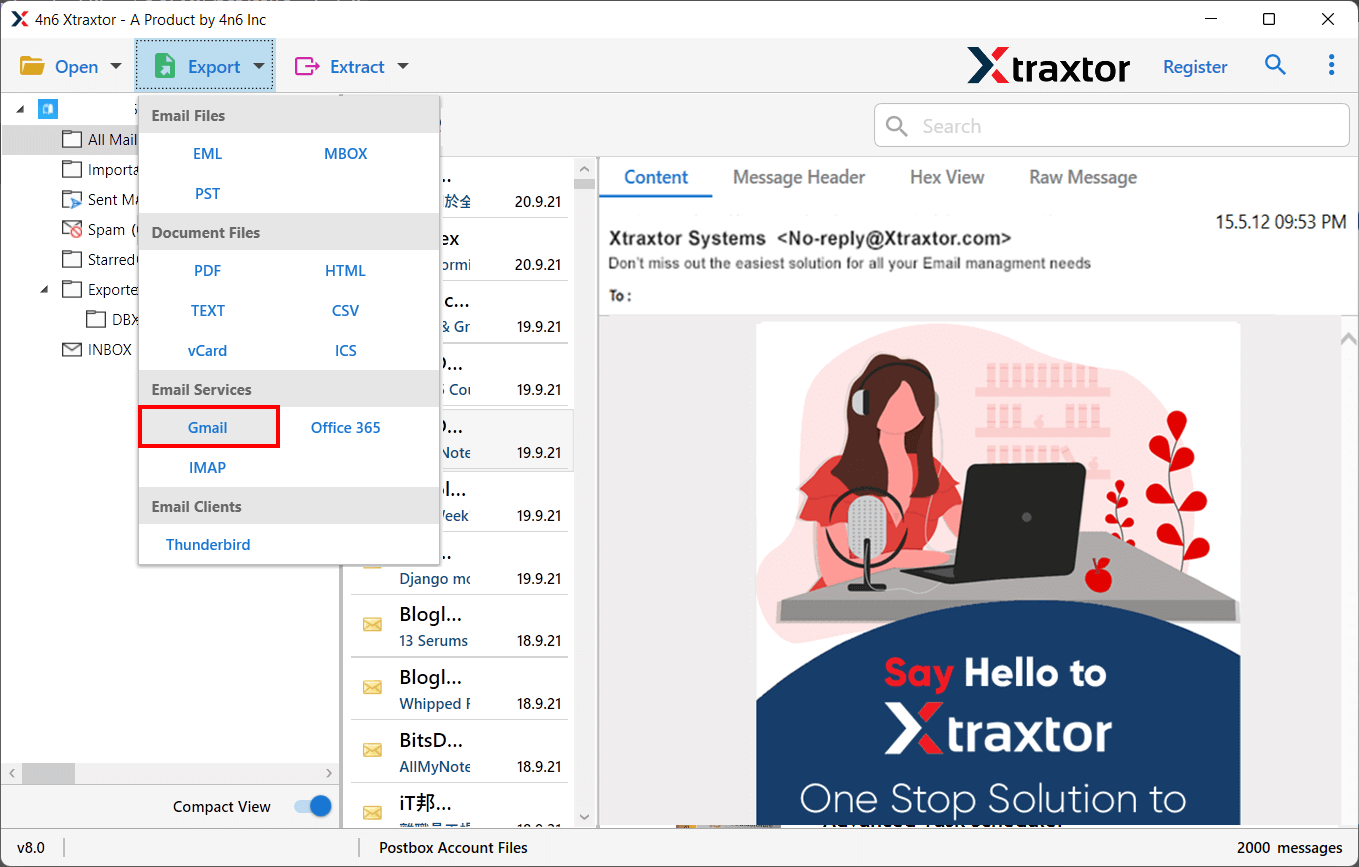
Step 5. Now, click on the Export option and choose Gmail from the list of saving options.
Step 6. Select the Hostinger mailbox folders that you want to migrate to your Gmail account.
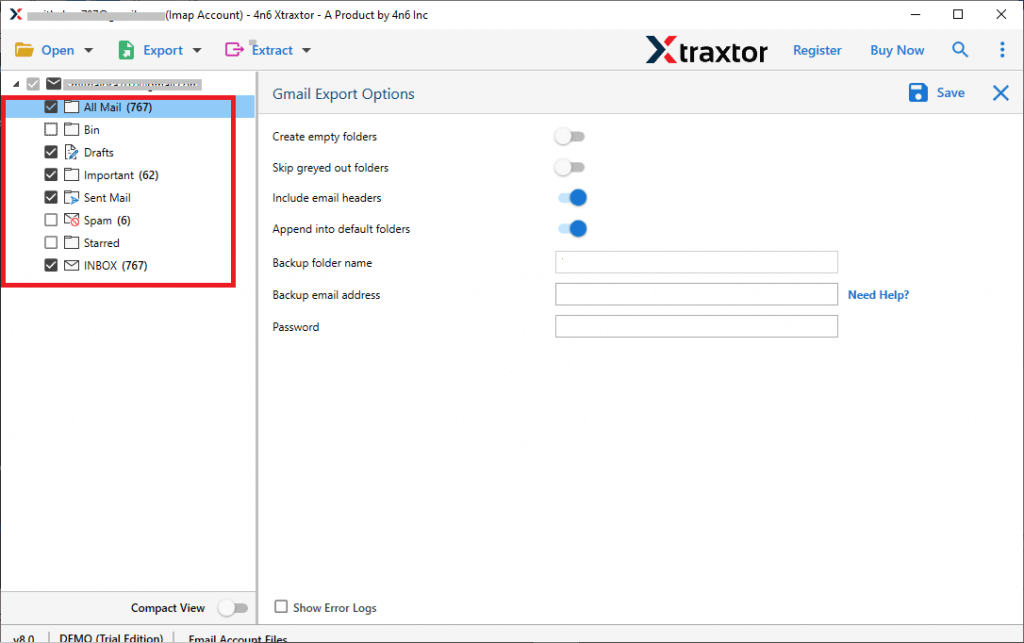
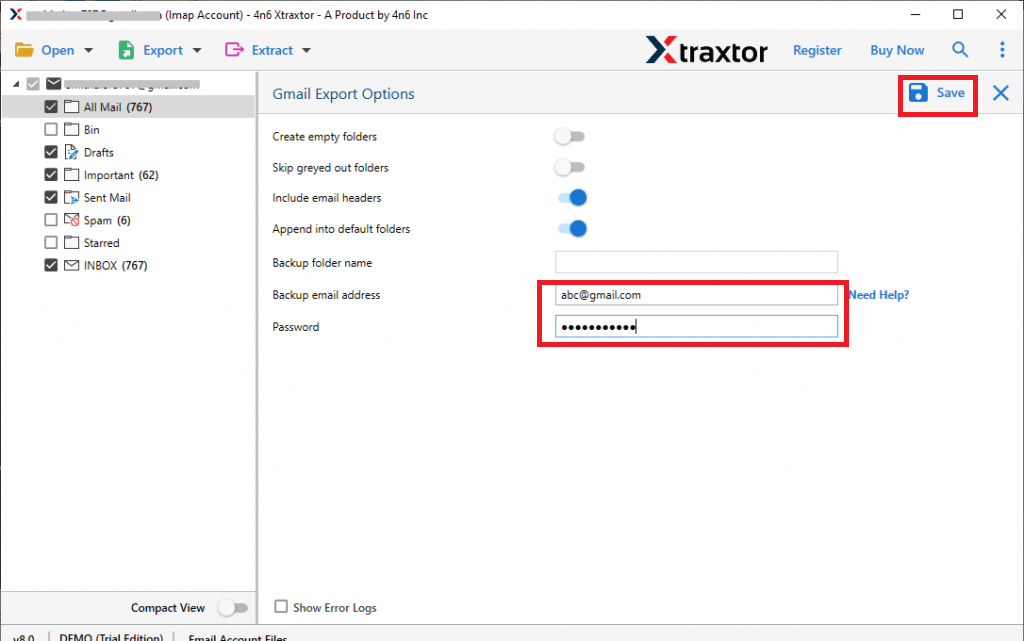
Step 7. Enter your Gmail email address and app password. Then click on the Save button to start.
Done!
The process is now complete. You can easily migrate Hostinger emails to Gmail without any technical knowledge.
Helpful Features of the Best Hostinger to Gmail Migration Tool
- Transfer all Hostinger emails to Gmail directly
- Move multiple emails at the same time (bulk migration)
- Keep folder structure the same after transfer
- Maintain email formatting and attachments
- Option to migrate selected emails only
- Advanced filters (date, subject, sender, etc.)
- Secure login with Gmail app password
- Simple and easy-to-use interface
- No technical knowledge required
- 100% safe and accurate migration
Conclusion
Migrating Hostinger emails to Gmail becomes simple when you choose the right method. In this guide, we discussed two options: a manual method for small migrations and a professional tool for quick and bulk transfer.
The manual method can be time-consuming and may require technical knowledge. However, using Xtraxtor software makes the process fast, secure, and hassle-free without any data loss. You can also try the free demo version to test how the software works.
With the right solution, moving your Hostinger emails to Gmail is easy and stress-free.
