How to Transfer HostGator Emails to Gmail Account?

If you are looking for a safe and simple way to transfer HostGator emails to Gmail, you are not alone. Many users switch from HostGator email to Gmail for better security, modern features, and smooth access across devices. In this guide, we will explain why users move from HostGator to Gmail, the available migration methods, and the step-by-step process to transfer emails without data loss.
Why Do Users Transfer HostGator Emails to Gmail?
HostGator email works for basic use, but it may not meet long-term or professional needs.
Common Reasons to Switch
- Limited mailbox storage
- Basic spam filtering
- No advanced collaboration features
- Limited integration with other apps
- Server downtime or slow performance
Why Gmail Is a Better Option?
- Advanced spam and malware protection
- 15 GB free storage (shared with Google services)
- Access from mobile, desktop, and browser
- Integration with Google Drive, Docs, Calendar, and Meet
- Reliable infrastructure with high uptime
Because of these benefits, Gmail is a preferred choice for personal and business users.
Now, looking for the methods, there are two main ways to migrate HostGator email to Gmail:
- Manual Method (Using Gmail POP3)
- Professional Method
Let’s understand both methods step by step.
How to Move HostGator Emails to Gmail Manually?
By following this method, you can add your HostGator account to Gmail using POP3 settings. Follow the steps below to transfer HostGator emails to Gmail inbox.
Step 1. Log in to your Gmail account.
Step 2. Click on the Gear icon and select See all settings.
Step 3. Go to the Accounts and Import tab.
Step 4. Click on Add a mail account.
Step 5. Enter your HostGator email address and click Next.
Step 6. Select Import emails from my other account (POP3) and click Next.
Step 7. Enter the following details:
- Username: Your HostGator email address
- Password: Your email password
- POP Server: mail.yourdomain.com (or HostGator POP server)
- Port: 110 (or 995 for SSL)
Step 8. Check the option Leave a copy of retrieved message on the server.
Step 9. Click on Add Account, then click Finish.
Now, Gmail will start importing emails from your HostGator account.
Limitations of the Manual Method
Although this method is free, it has some drawbacks:
- Sync may take time for large mailboxes
- No advanced filter option
- Setup can be confusing for beginners
For large or business mailboxes, using a professional solution is more reliable.
How to Migrate All Emails from HostGator to Gmail Professionally?
To migrate emails quickly and securely, you can use an automated tool like Xtraxtor software. The software directly connects your HostGator account to Gmail and transfers complete mailbox data, including Inbox, Sent, Drafts, custom folders, and attachments. It keeps all email properties such as To, From, Subject, Date, CC, BCC, and formatting unchanged during the migration process.
The tool also offers useful features like a bulk migration feature, selective email transfer with advanced filters, and a preview option to check emails before moving them. It maintains the original folder structure and provides a detailed migration report after completion. The interface is simple and easy to use, so even non-technical users can complete the transfer without difficulty.
You can try its free demo version to test how it works before purchasing the full version.

Steps to Transfer HostGator Emails to Gmail Account
Step 1. Download and install the Xtraxtor software on your Windows PC.
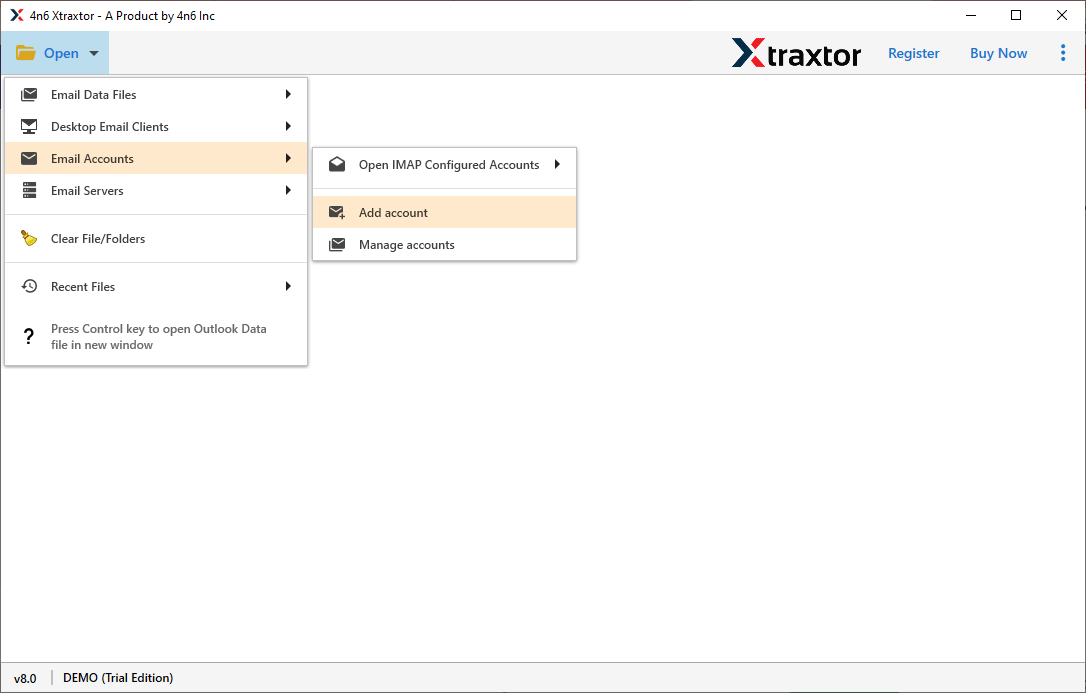
Step 2. Click on Open >> Email Accounts >> Add Account to add your HostGator email.
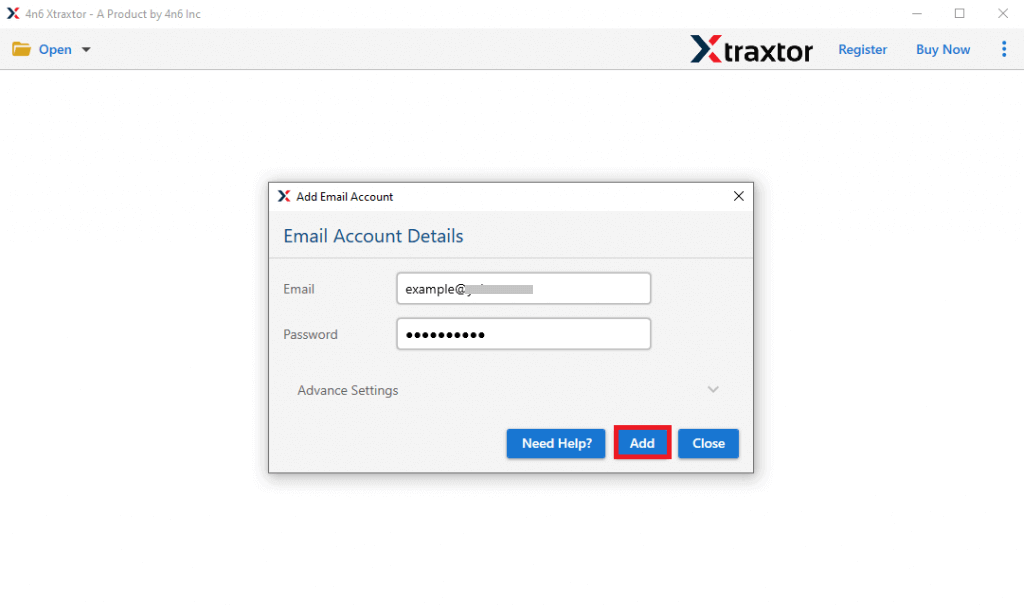
Step 3. Enter your HostGator email address and password, then click Add.
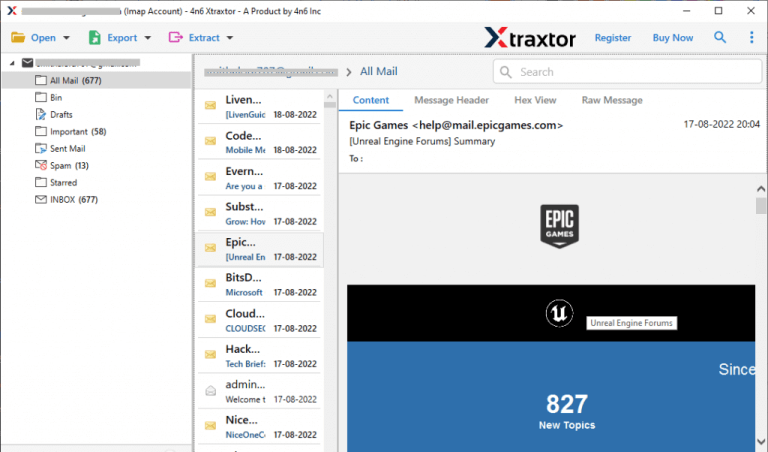
Step 4. The tool will load all mailbox data for preview.
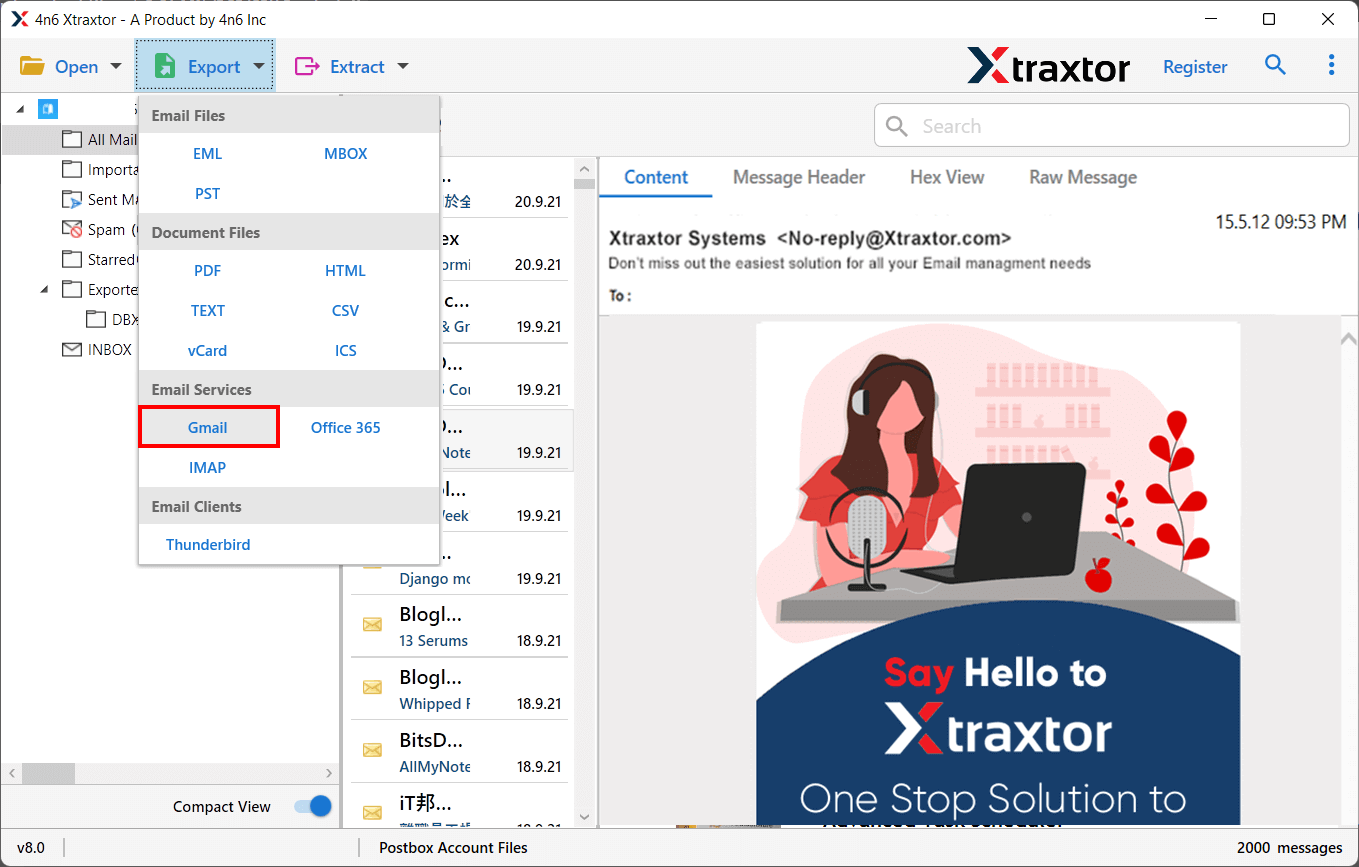
Step 5. Click on Export and select Gmail as the destination.
Step 6. Choose the folders you want to transfer.
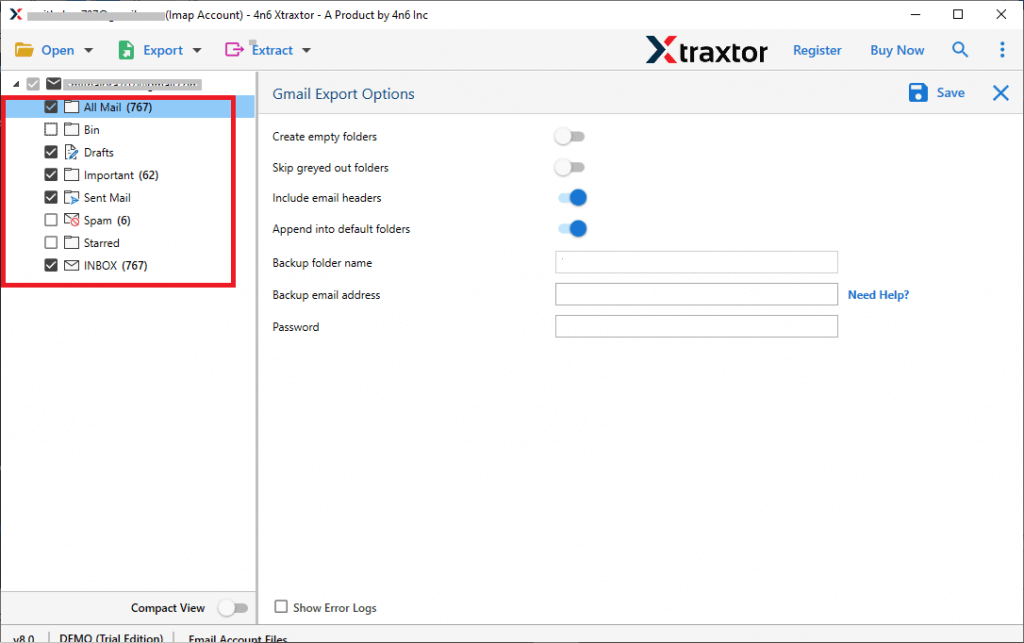
Step 7. Enter your Gmail login details and click Save to start the migration.
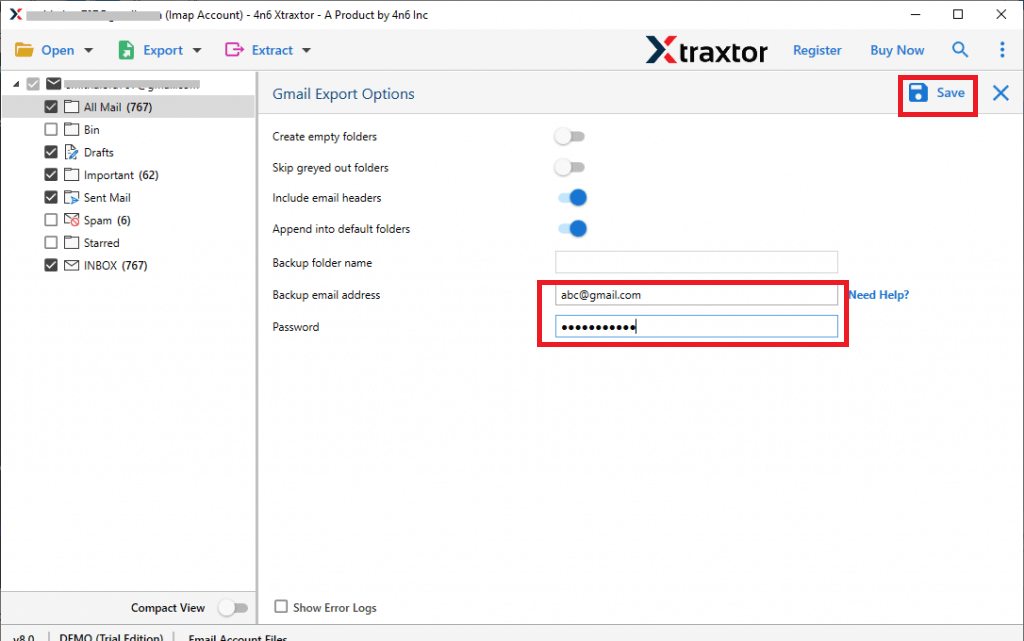
The process will begin and safely transfer your emails from HostGator to Gmail.
Key Features of Using the Best Email Migration Tool
- Transfer multiple HostGator mailboxes at once.
- Move specific folders or emails based on Date, Subject, Sender, Recipient, etc.
- Keeps the original folder structure intact.
- Export emails to PST, MBOX, EML, PDF, HTML, TXT, and other formats.
- Directly migrate HostGator emails to Gmail and other cloud email services.
- Preserves attachments, inline images, and email formatting.
- Maintains email properties like To, From, cc, bcc, Subject, and Date.
- Provides a preview option before starting the migration.
- Offers advanced filter options for selective email transfer.
- Generates a detailed migration report after completion.
- Simple and user-friendly interface for non-technical users.
- No file size limitation during migration.
- Ensures 100% data integrity and a secure login process.
- Works on Windows 11, 10, 8.1, 8, and earlier versions (32-bit & 64-bit).
Conclusion
The manual method can be useful if you have a small or less important mailbox. But it is not a good option when you need to transfer a large number of emails from HostGator to Gmail. Manual migration may take a lot of time and there is always a risk of missing emails or facing syncing errors.
To avoid these problems, it is better to use a professional migration tool recommended by experts. An automated solution provides a secure and reliable way to transfer complete mailbox data without worrying about file size or data loss. It keeps your emails safe and ensures a smooth and stress-free migration process.
