How to Transfer GMX Mail to Gmail Account?

If you want to transfer GMX Mail to Gmail, you are not alone. Many users are now choosing Gmail because it is simple, fast, and works smoothly on all devices. When you switch from GMX to Gmail, you can keep all your old emails safe and access them anytime without any problem.
In this article, we will explain how to import GMX emails to Gmail in an easy and simple way.
Understanding GMX Mail to Gmail
GMX Mail is a free email service that offers basic emailing features. However, many users now prefer Gmail because it provides better performance, more storage, and advanced features.
By choosing to add GMX to Gmail, you can manage all your emails in one place without logging into multiple accounts.
Why Switch from GMX Mail to Gmail?
Here are some common reasons why users switch from GMX Mail to Gmail:
- Gmail works better on mobile, desktop, and tablets.
- GMX has limited features compared to Gmail.
- Gmail offers more storage space.
- Gmail provides advanced security features.
- Easy email management with labels, filters, and search.
- Access emails anytime, anywhere.
- Keep all emails in one place after you forward GMX Mail to Gmail.
How to Transfer GMX Mail to Gmail Account anually?
Follow these steps to import GMX to Gmail manually:
Step 1. Open Gmail and log in.
Step 2. Click on the gear icon and go to Settings.
Step 3. Open the Accounts and Import tab.
Step 4. Click on Import mail and contacts.
Step 5. Enter your GMX email address and click Continue.
Step 6. Choose Import emails from my other account (POP3).
Step 7. Enter GMX account details:
- Username: Your GMX email address
- Password: Your GMX password
- POP Server: pop.gmx.com
- Port: 995
Step 1. Select options as needed (like leaving a copy on server).
Step 1. Click Add Account to complete the process.
This method helps you add GMX to Gmail, but it may take time and has some limitations.
How to Move All Emails from GXM Mail to Gmail Automatically?
Try Xtraxtor to transfer GMX Mail to Gmail in a few simple clicks. The software directly imports emails from GMX Mail to Gmail without any complicated steps. It also provides advanced filter options to transfer only selected emails as per your needs. There is no risk of data loss during the migration process.
Moreover, the tool comes with a simple and user-friendly interface, so any beginner can easily import GMX emails to Gmail without technical knowledge. It supports all versions of Windows OS and ensures a smooth and secure migration experience.
You can download the free demo version of this tool to check its performance and accuracy before making a purchase.

Steps to Transfer GMX Mail to Gmail Account
Step 1. Download and run the software on your Windows PC.
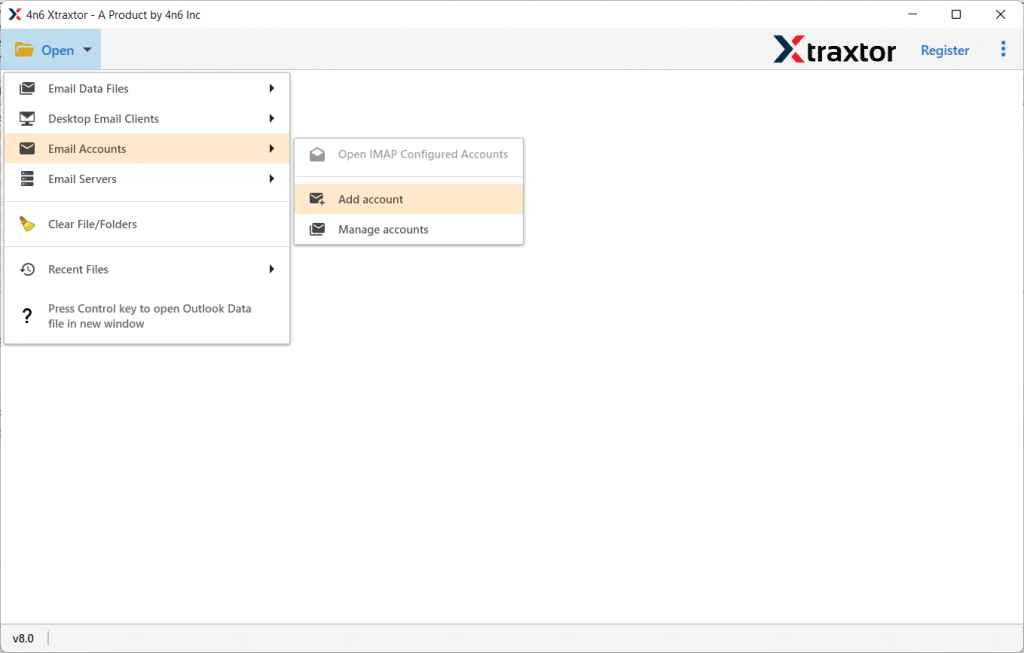
Step 2. Now, click on Open >> Email Accounts >> Add Account.
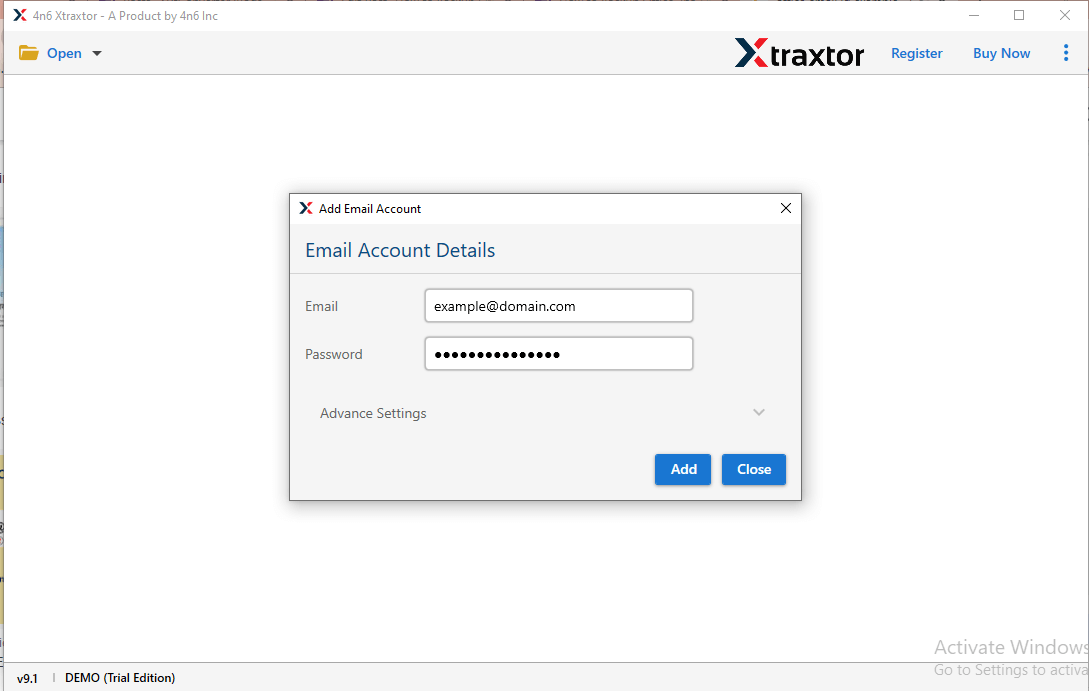
Step 3. Enter your GMX Mail account credentials and click on the Add button.
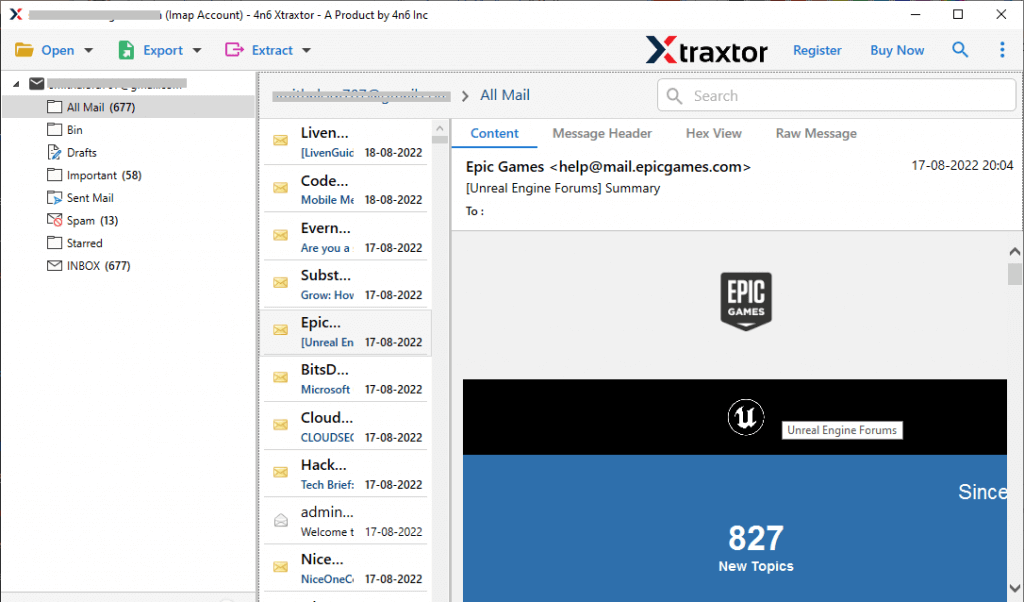
Step 4. Get a preview of your GMX email account here.
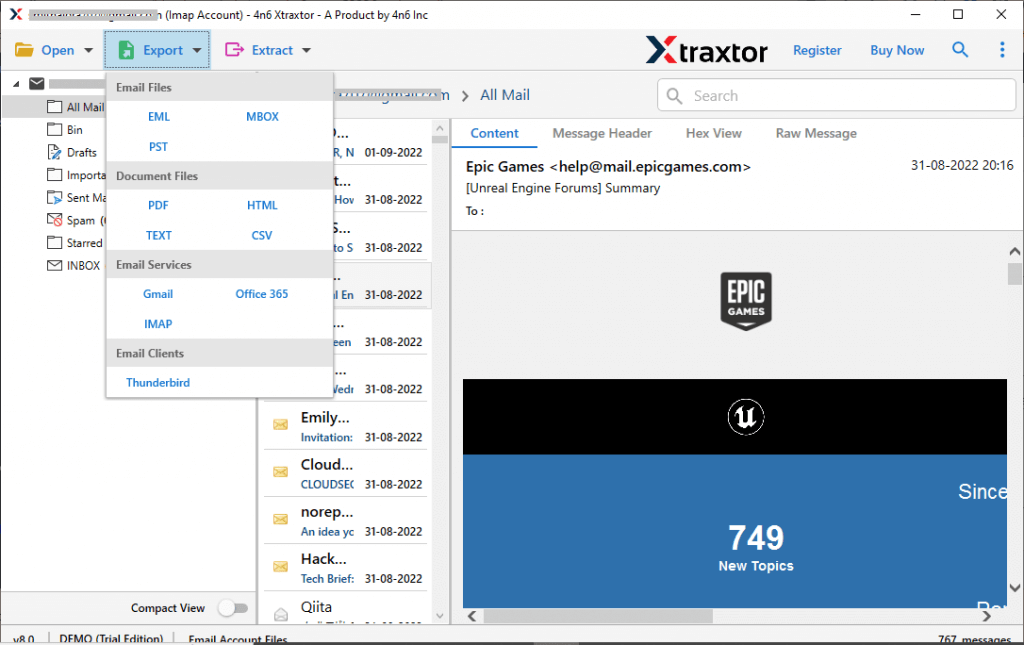
Step 5. After that, click on Export and select Gmail from the list of options.
Step 6. Now, select the required email folders to transfer.
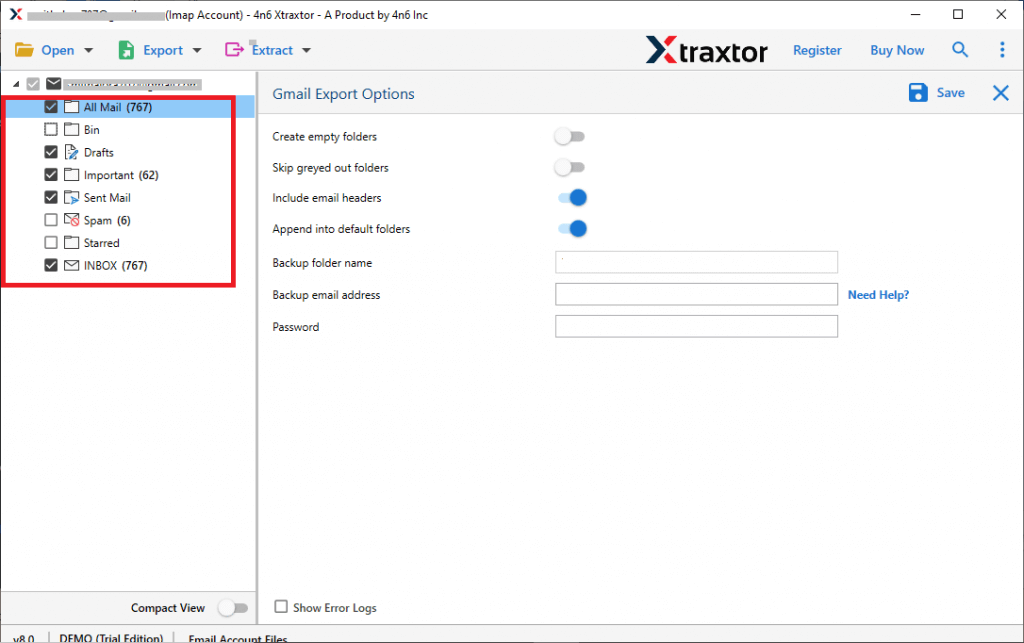
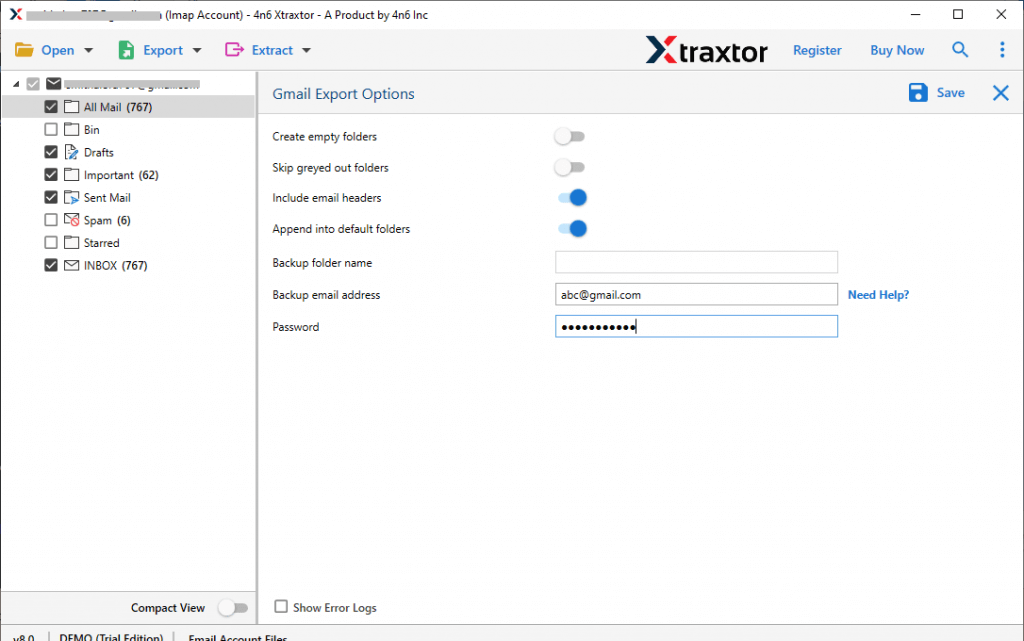
Step 7. Enter Gmail account credentials and click on the Save button.
After completing the process, the tool will show a pop-up message that the migration is complete.
Click OK and open your Gmail account to check all transferred emails.
Final Words
Switching or transfer GMX Mail to Gmail is a smart choice. Gmail offers better features, more storage, and improved security. You can either use the manual method or a professional tool, depending on your needs.
If you want a quick and hassle-free solution, using a tool is the best option to transfer all emails from GMX Mail to Gmail without any risk.
FAQs: GMX to Gmail Migration
Q1. How do I transfer GMX to Gmail?
Ans. You can use the manual POP3 method or a professional tool to import GMX emails to Gmail easily.
Q2. Will my emails be safe during migration?
Ans. Yes, both methods are safe if done correctly. Tools provide extra security.
Q3. Can I forward GMX to Gmail automatically?
Ans. Yes, you can set up email forwarding or use Gmail import settings.
Q4. Do I need technical knowledge?
Ans. No, both methods are simple and user-friendly.
Q5. Can I keep emails in GMX after transfer?
Ans. Yes, you can choose to leave a copy of emails on the GMX server.
