
In this blog post, we will explain how to transfer Gmail to ProtonMail in the best possible way. Here, we will discuss both manual and automated solutions to migrate Gmail to ProtonMail account. If you are also searching for the same query, then read this blog completely. You will get all your answers here. So, let’s get started.
Gmail is one of the most widely used email services due to its ease of use and powerful features. However, when it comes to privacy and security, ProtonMail stands out. It offers end-to-end encryption and strong data protection. That’s why many users want to switch from Gmail to ProtonMail and securely move their emails.
Now, if we talk about the solution, there is no direct built-in option in ProtonMail to import Gmail emails. In such cases, using a professional solution is the best approach.
Let’s understand both methods in detail.
How to Transfer Emails from Gmail to ProtonMail Manually? (Step-by-Step)
You can transfer Gmail emails to ProtonMail manually using IMAP and ProtonMail Bridge. Follow these steps one by one:
- Log in to your Gmail account.
- Click on the Gear icon and go to See All Settings.
- Open the Forwarding and POP/IMAP tab.
- Enable IMAP Access and click Save Changes.
- Download and install ProtonMail Bridge on your system.
- Log in with your ProtonMail account.
- The Bridge will generate IMAP credentials (username, password, server details).
- Open an email client like Microsoft Outlook.
- Add your Gmail account using IMAP settings.
- Enter your Gmail email address and password.
- Complete the setup and let emails sync.
- In the same email client, add a new account.
- Use the IMAP details provided by ProtonMail Bridge.
- Complete the setup and sync ProtonMail folders.
- Once both accounts are added, you will see Gmail and ProtonMail folders.
- Select emails or folders from Gmail.
- Drag and drop them into ProtonMail folders.
- Wait for the sync to complete.
- Log in to your ProtonMail account and check the transferred emails.
This manual method helps you transfer Gmail to ProtonMail, but it is time-consuming and requires technical setup, especially for beginners.
How to Migrate Gmail to ProtonMail Automatically?
To simplify the process, you can use a professional tool like Xtraxtor. This software helps you transfer emails from Gmail to ProtonMail directly without any complex setup.
It allows you to transfer Gmail to ProtonMail in bulk with complete accuracy. The tool maintains all email properties, attachments, and folder structure during the migration. You can easily import Gmail emails to ProtonMail with just login credentials.
Give this tool a free try and easily switch from Gmail to ProtonMail.

Steps to Transfer Gmail to ProtonMail
Follow these simple steps to move Gmail emails to ProtonMail:
Step 1. Install & run the software on your system.
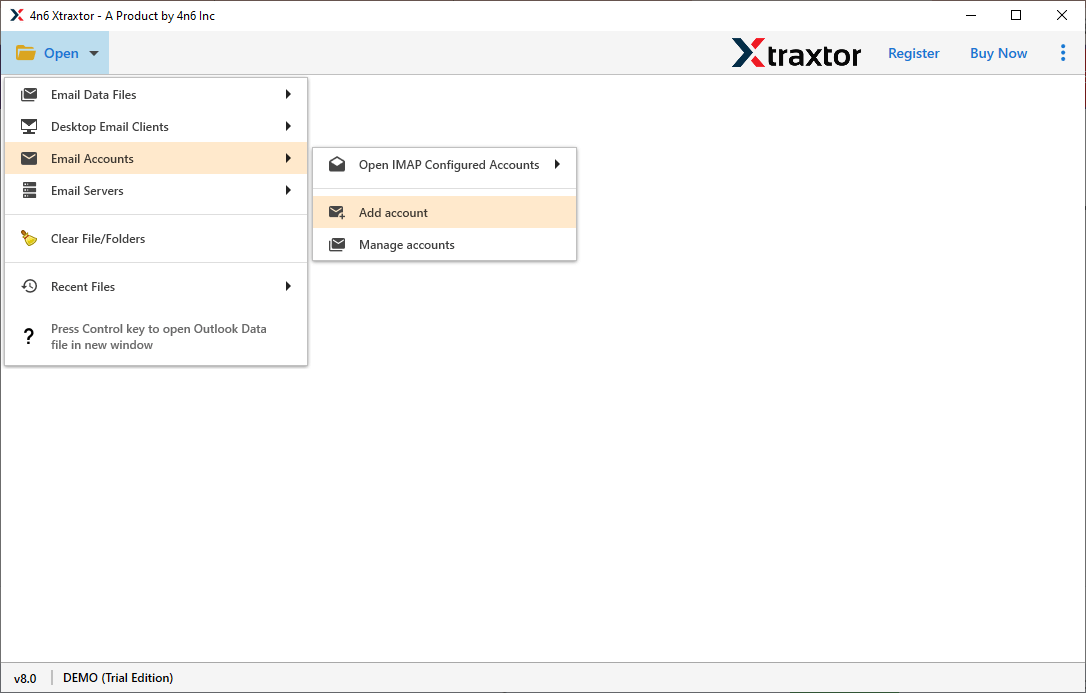
Step 2. Launch the tool and go to Open >> Email Accounts >> Add Account.
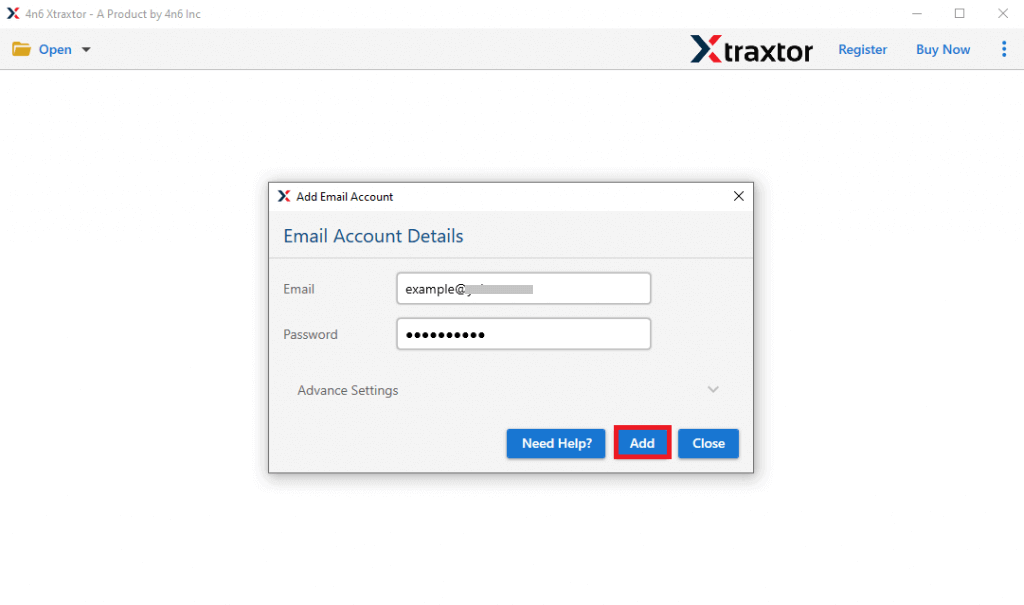
Step 3. Enter your Gmail login credentials and click on Add.
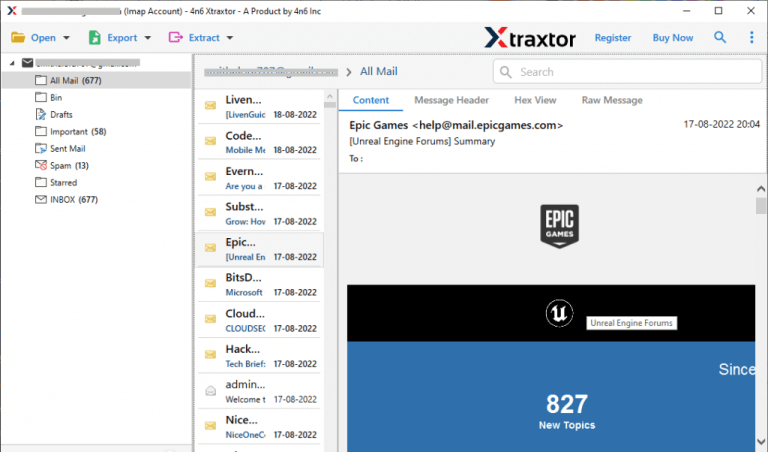
Step 4. The software will preview your Gmail mailbox data before migration.
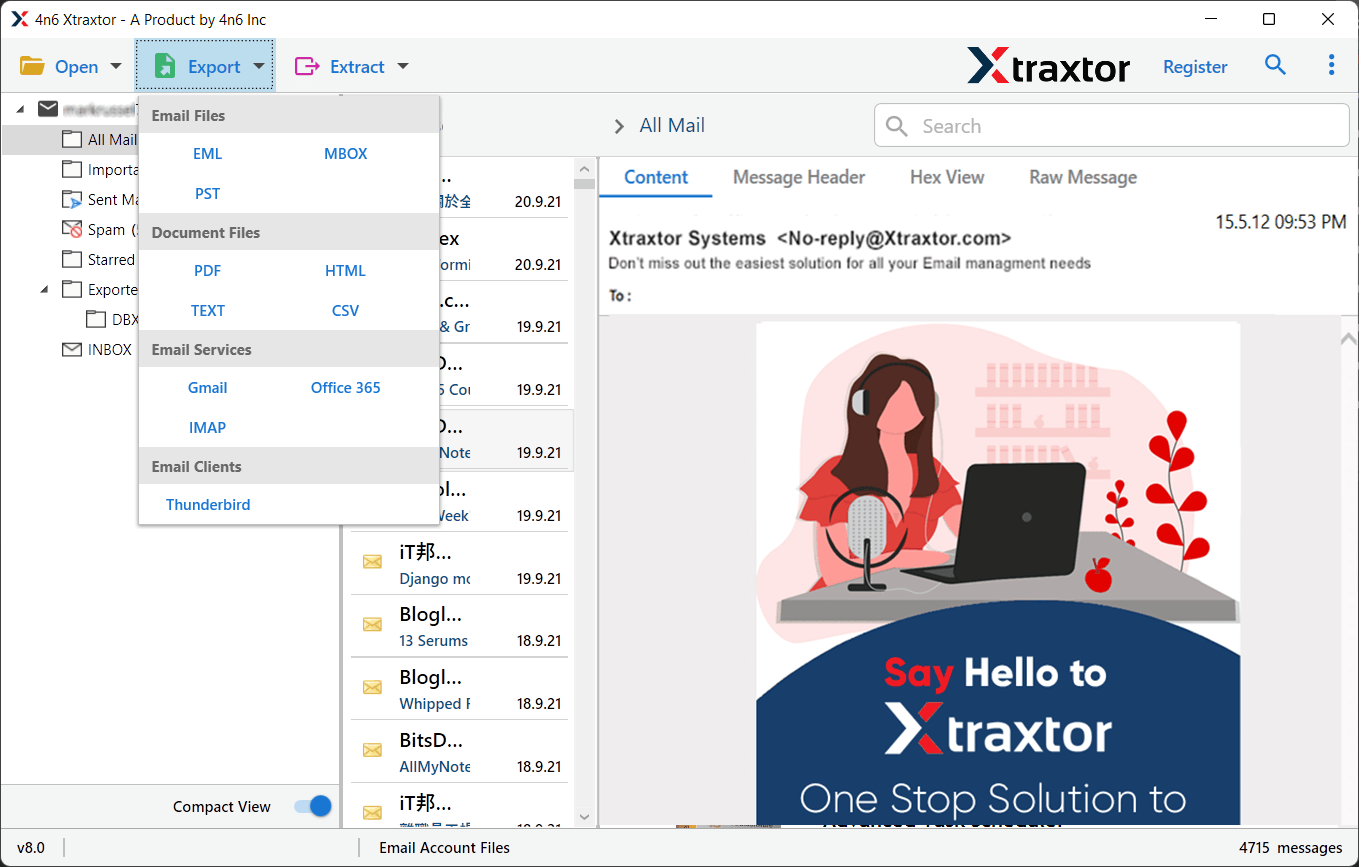
Step 5. Click on Export and choose IMAP as the saving option.
Step 6. Enter your ProtonMail Bridge (IMAP) credentials & click save button.
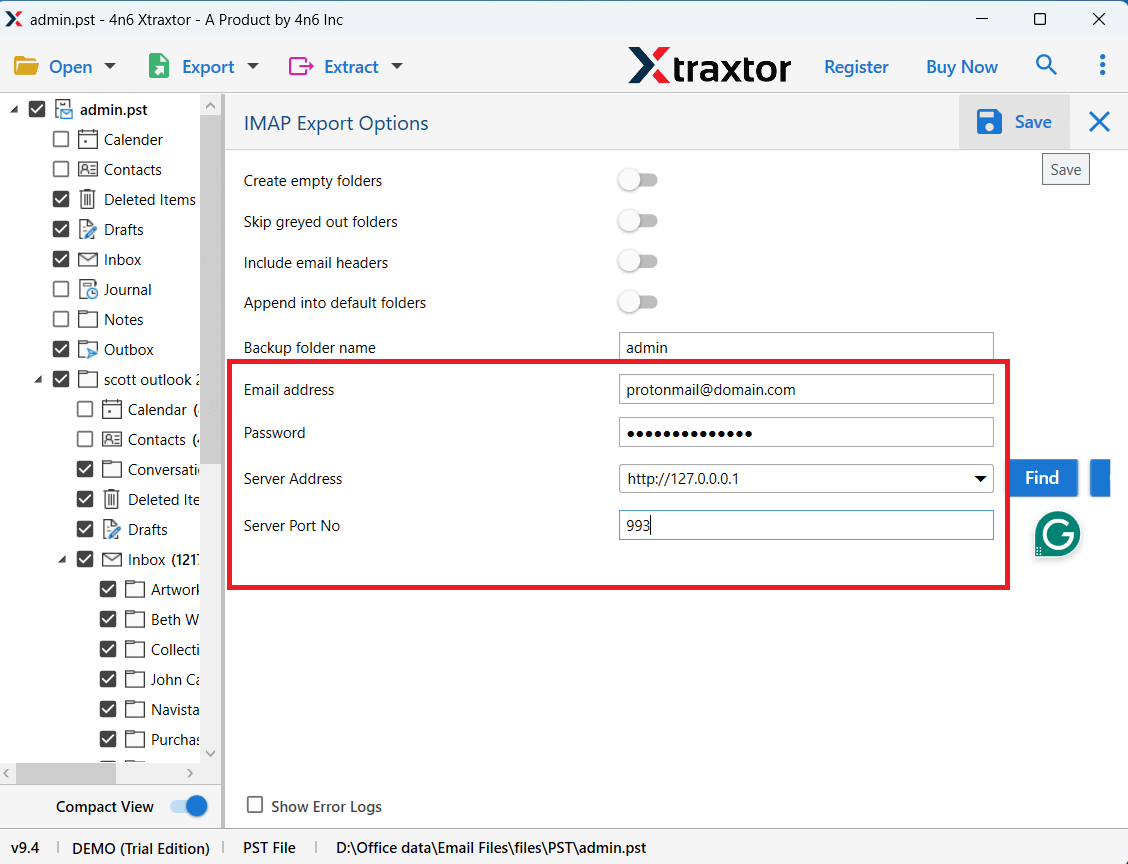
Once the process is completed, log in to your ProtonMail account to check the migrated emails.
Some Useful Features of Gmail to ProtonMail Migration Tool
- Easily transfer emails from Gmail to ProtonMail in bulk.
- Maintains original email formatting, attachments, and metadata.
- Preserves the complete folder hierarchy during migration.
- Allows selective migration using filters like date, subject, and sender.
- No need for technical knowledge or complex setup.
- Supports multiple account migrations at the same time.
- Fast and secure email transfer process.
- Works smoothly on all Windows systems.
- Ensures 100% data safety without any loss.
- Simple and user-friendly interface for all types of users.
Conclusion
In this article, we explained simple and effective methods to transfer Gmail to ProtonMail account. Users can follow the step-by-step process to easily understand how the migration works. For better results, it is recommended to try the demo version of the tool first. The trial version allows you to transfer a limited number of emails from each Gmail folder to ProtonMail. This helps you check the tool’s performance before upgrading to the full version.
