How to Transfer Emails from BlueHost to Hostinger?

In today’s digital world, email plays a very important role in both personal and business communication. Many users and companies use Bluehost for email hosting. It is a popular platform that offers domain and email services together. However, as business needs grow, users often look for better features, flexibility, and performance. That’s why many users want to transfer emails from Bluehost to Hostinger.
Moving your emails from Bluehost to Hostinger can help improve email management and performance. This guide will provide simple and clear steps to help you transfer emails easily without any confusion.
Why is there a Need to Transfer Bluehost Email to Hostinger?
There are many reasons why users want to migrate emails from Bluehost to Hostinger:
- Hostinger offers better pricing plans and cost-effective hosting.
- It provides improved performance and faster email services.
- Easy-to-use control panel for managing emails.
- Better storage options compared to some Bluehost plans.
- Suitable for growing businesses and websites.
- Helps in better email organization and management.
Methods to Transfer Emails from Bluehost to Hostinger
There are two main ways to transfer Bluehost emails to Hostinger:
- Manual method (free but complex)
- Professional method (easy and fast)
Let’s understand both methods in detail.
How to Migrate Bluehost Email to Hostinger Manually?
You can manually transfer emails using IMAP configuration or an email client like Outlook.
- Enable IMAP in your Bluehost email account.
- Collect IMAP server details from Bluehost.
- Log in to your Hostinger email account.
- Configure Bluehost email using IMAP in Hostinger or any email client.
- Sync emails and copy them to Hostinger mailbox.
- Open Microsoft Outlook on your system.
- Add your Bluehost email account using IMAP settings.
- Add your Hostinger email account in Outlook.
- Wait for both accounts to sync.
- Drag and drop emails from Bluehost folders to Hostinger folders.
Disadvantages of Manual Method
- Time-consuming and lengthy process.
- Requires technical knowledge.
- Risk of data loss or missing emails.
- Not suitable for bulk migration.
- Attachments or folder structure may not transfer properly.
How to Move All Emails from Bluehost to Hostinger Automatically?
Manual methods are not suitable for large data migration. To make the process simple and secure, you can use a professional tool like Xtraxtor. This tool helps you transfer all emails from Bluehost to Hostinger in just a few clicks. It supports direct email migration with complete accuracy and keeps all your data safe. You can migrate emails along with attachments, folder structure, and other details without any loss.
Try the free download to understand the step-by-step process.

Steps to Transfer Emails from BlueHost to Hostinger
Step 1. Launch the software on your system.
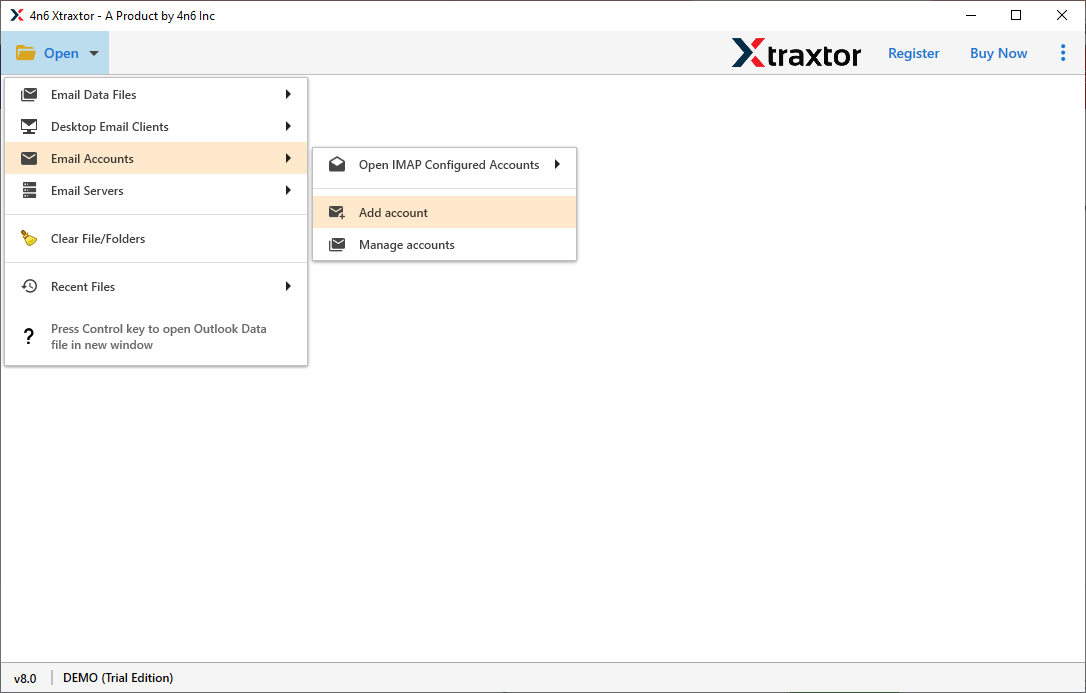
Step 2. Click on Open >> Email Accounts >> Add Account.
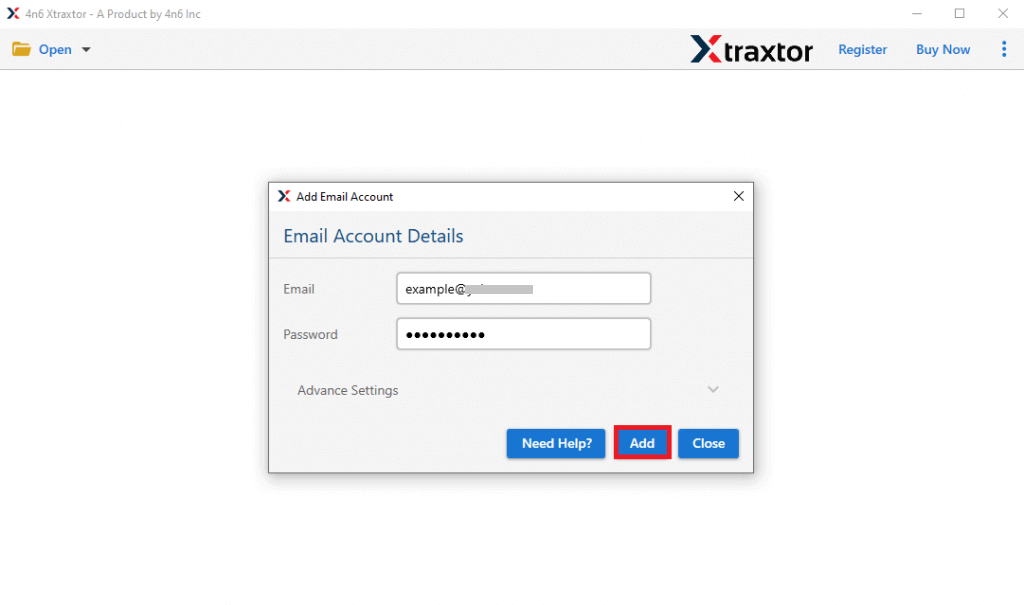
Step 3. Enter your Bluehost email login details and click on the Add button.
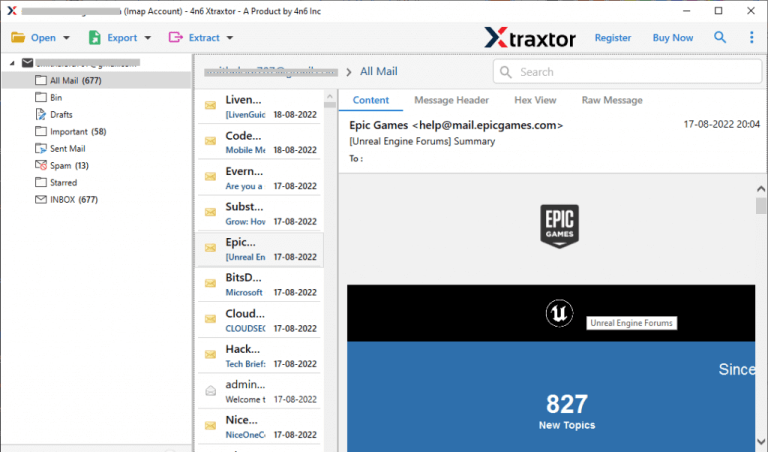
Step 4. The software will load and display all Bluehost mailbox folders, see a preview of emails before migration.
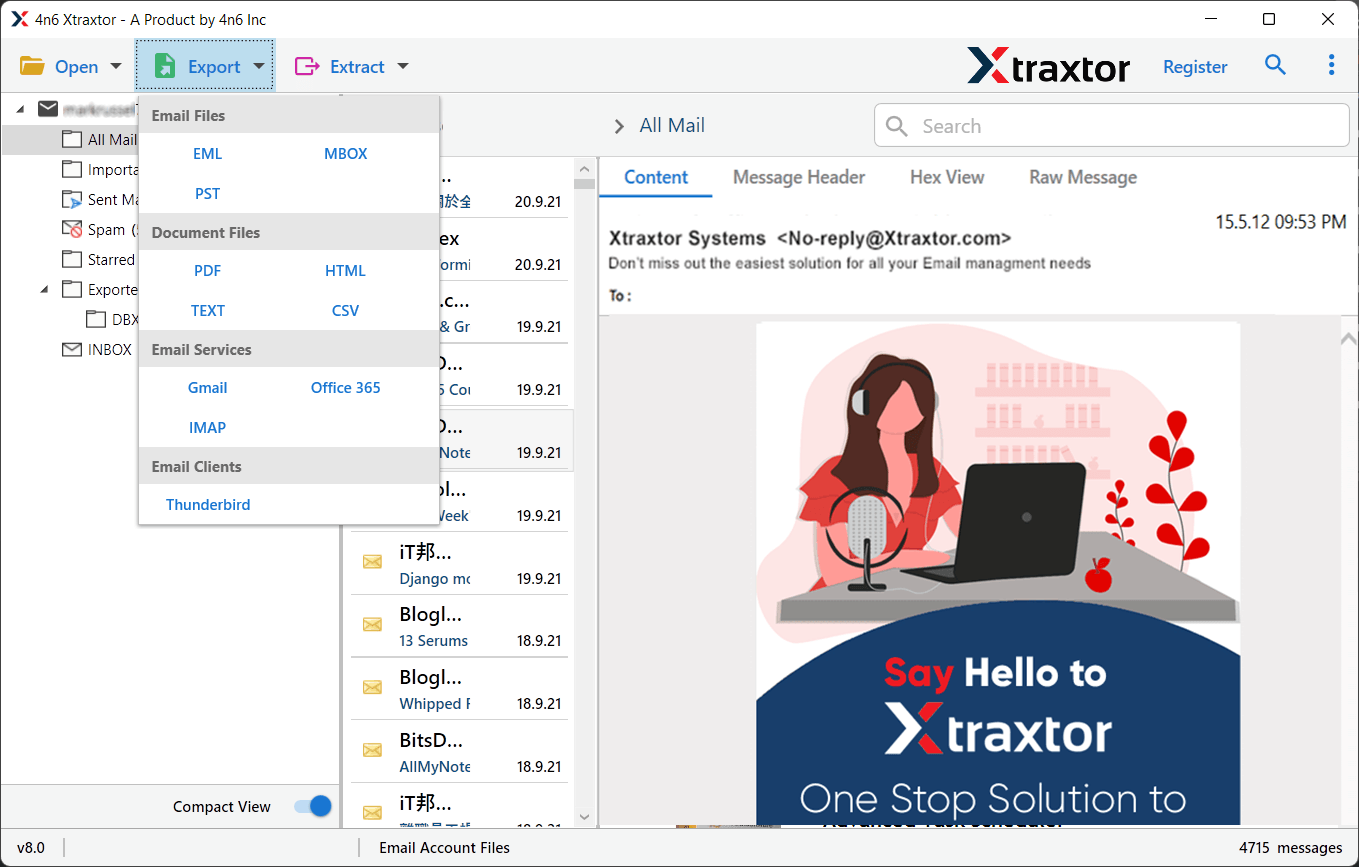
Step 5. Now, click on Export and choose IMAP as the saving option.
Step 6. Select the Bluehost folders that you want to migrate.
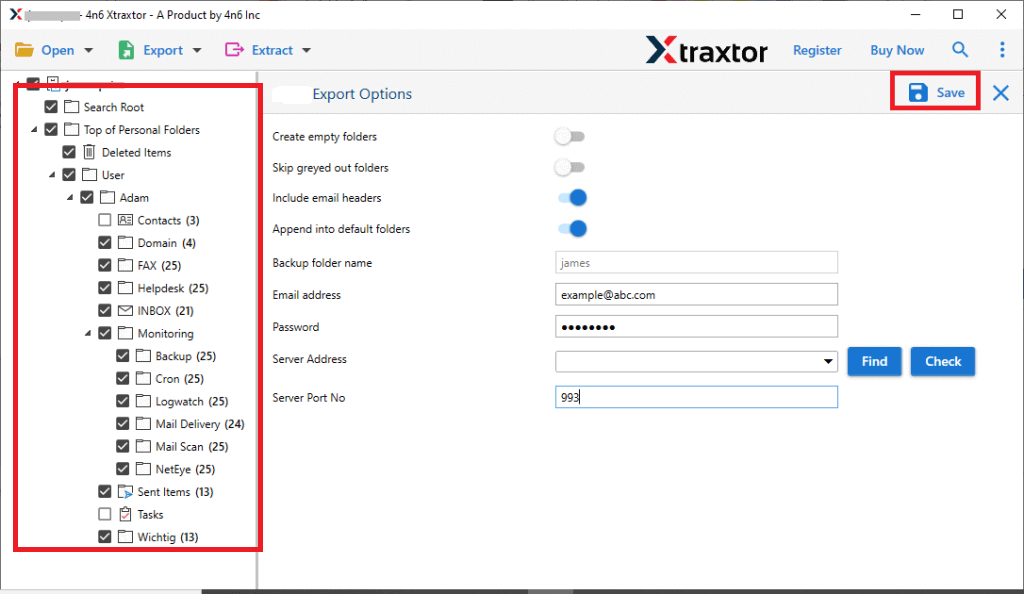
Step 7. Enter your Hostinger email login credentials and click Save to start the migration process.
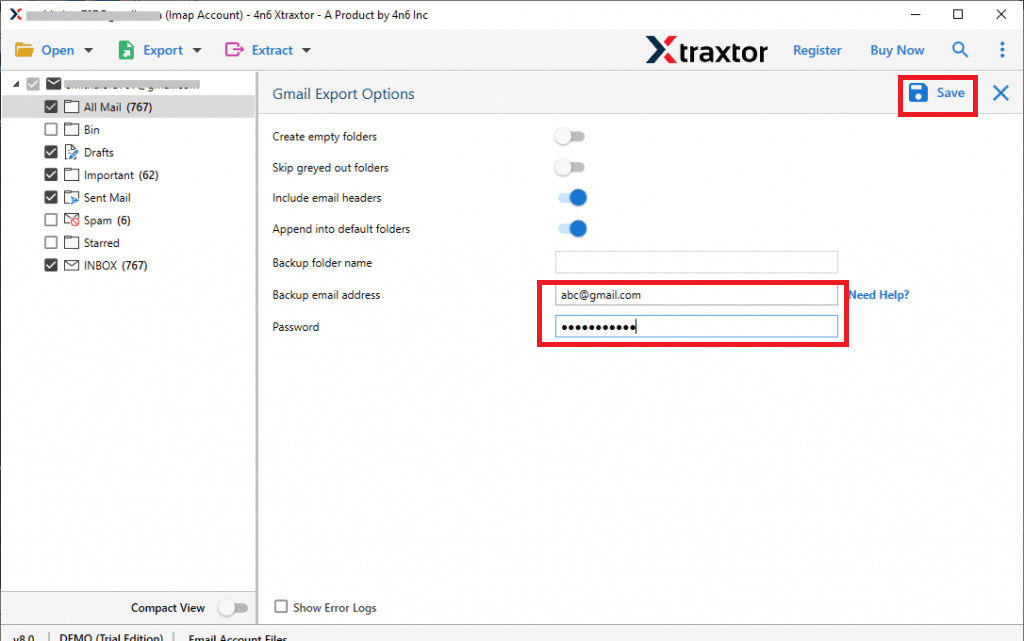
Once the process is completed, all selected emails from Bluehost will be successfully transferred to your Hostinger account with complete data and attachments intact.
Benefits of Using Automated Software instead of Manual Methods
- Easily transfer emails from Bluehost to Hostinger in bulk.
- Maintains original email formatting, attachments, and metadata.
- Preserves complete folder hierarchy during migration.
- Allows selective migration using filters like date, subject, and sender.
- No need for technical knowledge to perform migration.
- Supports multiple email accounts migration at once.
- Fast and secure email transfer process.
- Works smoothly on all Windows systems.
- Ensures 100% data safety without any loss.
- Simple and user-friendly interface for all users.
Wrapping Up
Transferring emails from Bluehost to Hostinger is a common task for users who want better email management and performance. In this blog, we explained both manual and professional methods to complete the migration.
The manual method is free but takes time and effort. To make the process easy and quick, using a professional tool is a better option. You can also try the free demo version of the tool first. After checking its performance, you can upgrade to the full version for complete email migration.
