How to Transfer COX Emails to Gmail? Complete Guide

Many email users rely heavily on Cox email for important personal and business communication. But this dependency often creates problems such as limited access and the constant risk of losing emails if the service changes or stops working. The situation becomes more frustrating when users try to transfer Cox emails to Gmail and face issues like missing folders, long sync delays, or repeated failures during the process.
To solve these challenges, this guide explains an easy-to-implement approach to transferring complete emails from Cox Mail. Here, we will cover both manual & automated methods. Follow this article till the end to move all Cox emails to Gmail without data loss.
Why Users Want to Transfer Cox Emails to Gmail?
The need to import Cox email to Gmail varies from person to person. The most common of them are explained below;
- Accessing Cox emails is not as easy as it totally depends on plans or other services.
- Gmail is a centralized email service that can be accessed anytime from any device.
- Google offers a better spam blocking feature to manage emails effectively.
- Gmail has wider storage options than Cox email.
- Gmail is the most widely used email service and a trustworthy brand to rely on.
Now, let’s get back into the methods to import Cox email to Gmail account. There are two primary ways to transfer Cox emails to Gmail account. One is a manual method, and the other is a professional method. Each method is explained below in more detail.
Method 1. Add Cox Email to Gmail Using POP (Manual Method)
- Sign in to your Gmail account using a web browser.
- Click the gear icon and select See all settings.
- Open the Accounts and Import tab.
- Under Check mail from other accounts, click Add a mail account.
- Enter your Cox email address and click Next.
- Select Import emails from my other account (POP3) and click Next.
- Enter your Cox email password and fill in the POP server details provided by Cox.
- Choose options like Leave a copy on the server or Add a label (optional).
- Click Add Account to start importing emails.
Gmail will now begin downloading emails from your Cox account. This may take some time, depending on the mailbox size.
Note: This manual method works best for basic email transfer but may not import all folders or sent emails.
Method 2. Import Cox Emails to Gmail Automatically
As you have seen that manual method is good for a few emails and not for all folders. And, also, it’s inefficient when dealing with large volumes of data. To overcome these challenges, many users prefer an automated and secure solution like Xtraxtor. This software provides a direct way to transfer emails between these two accounts in a few easy steps. You just need to provide the login credentials of both accounts and select emails of your choice; the rest of the work will be handled by the software itself.
Click on the free download button and check its working process.

Steps to Transfer Cox Emails to Gmail Account
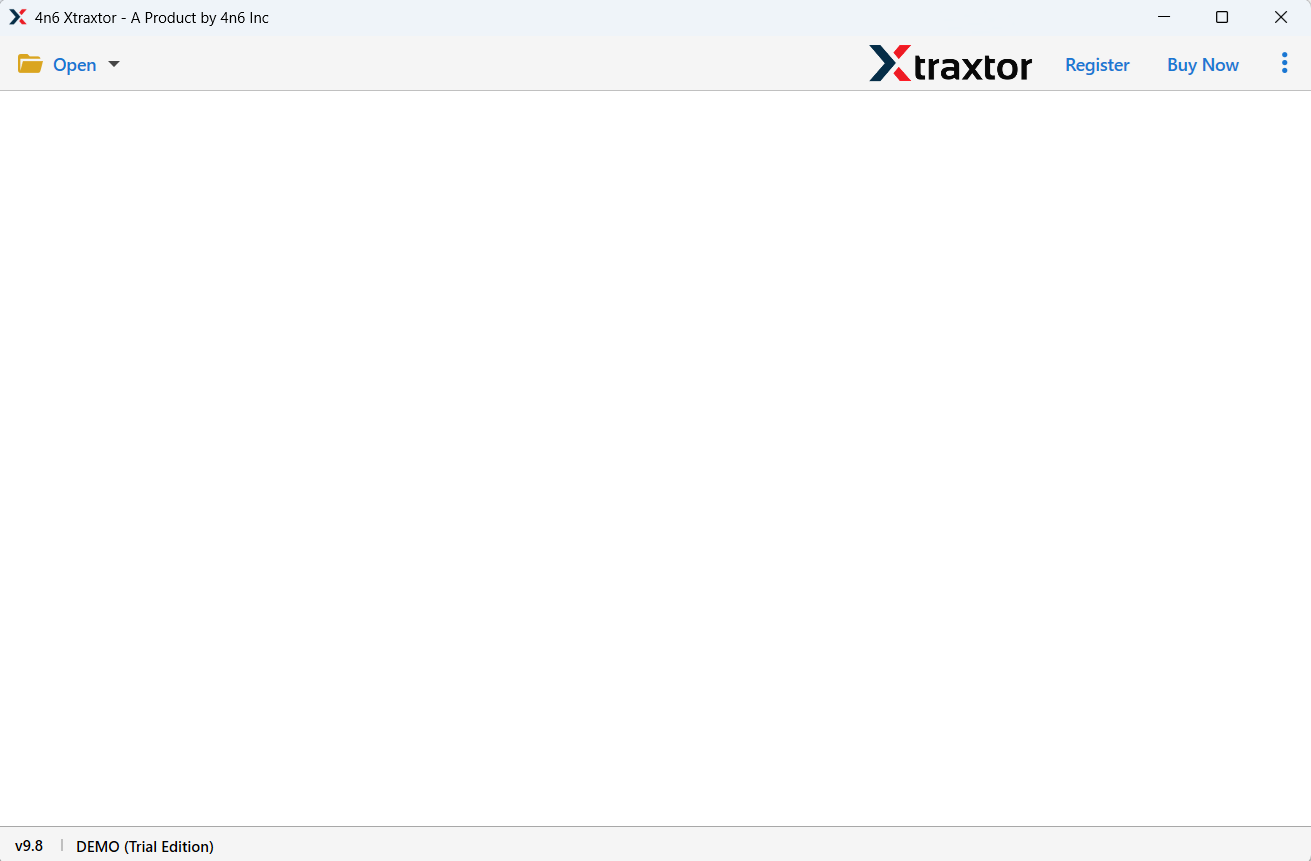
Step 1. Launch the software and click the Open tab as shown below.
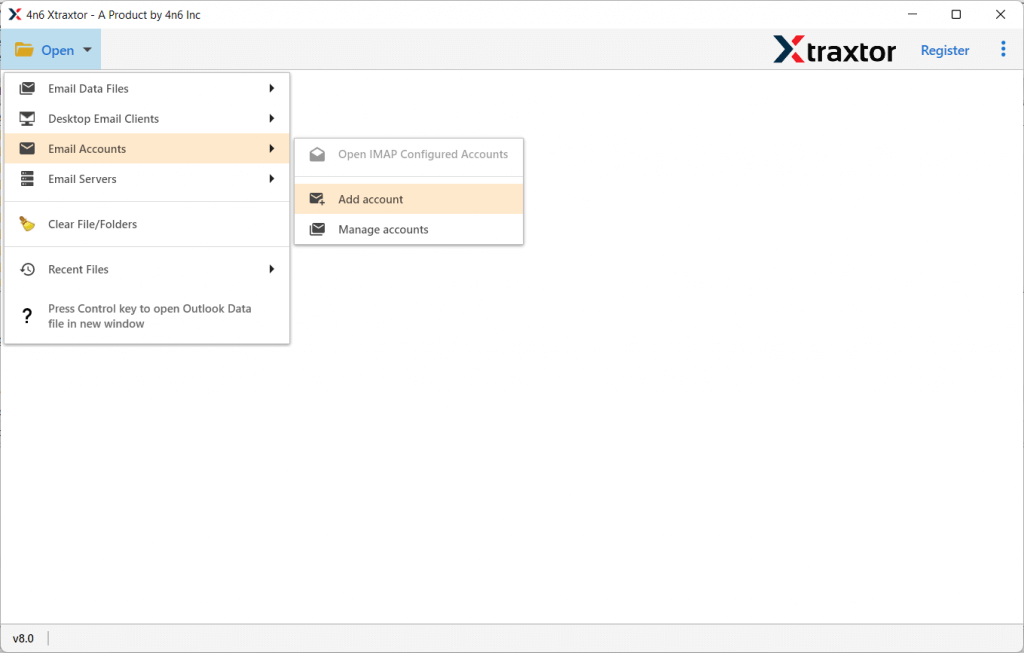
Step 2. Click Email Accounts and choose the Add account option.
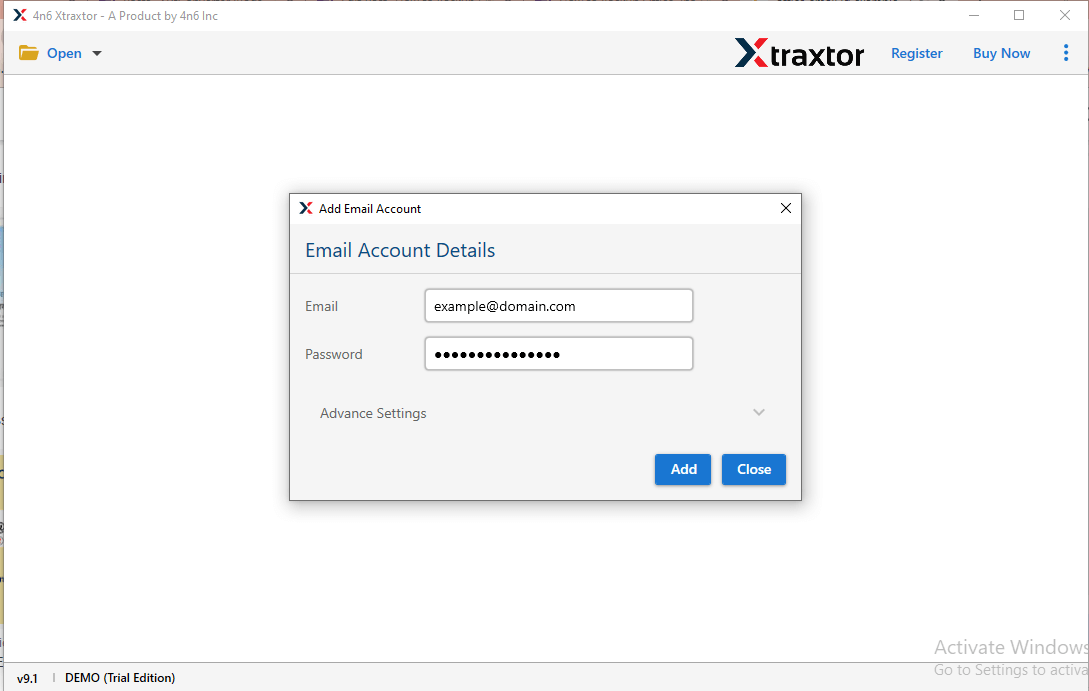
Step 3. Enter your Cox email credentials and password & click Add.
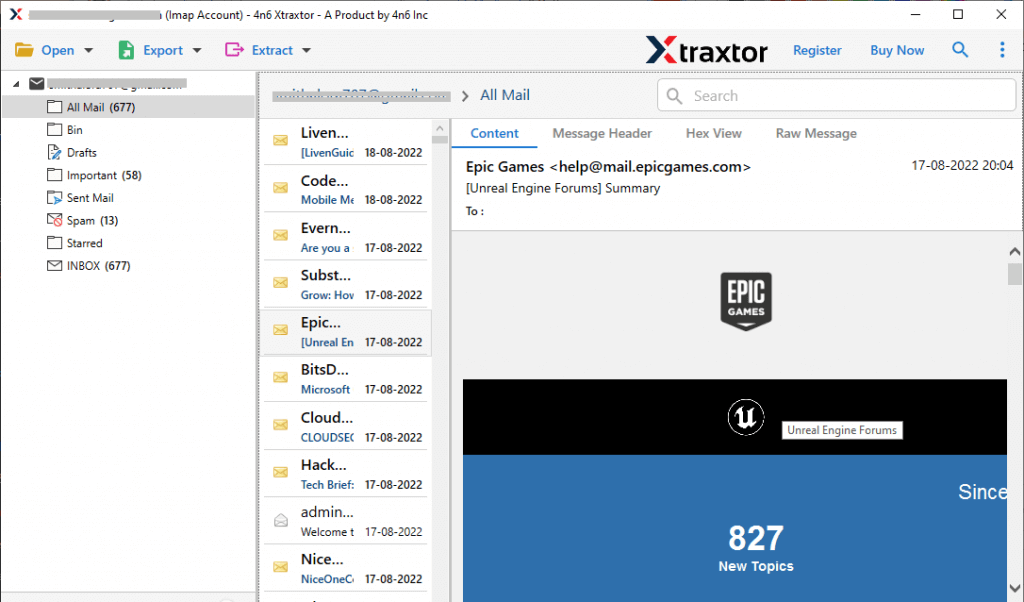
Step 4. Once the mailbox loads, preview emails and folders to confirm the data.
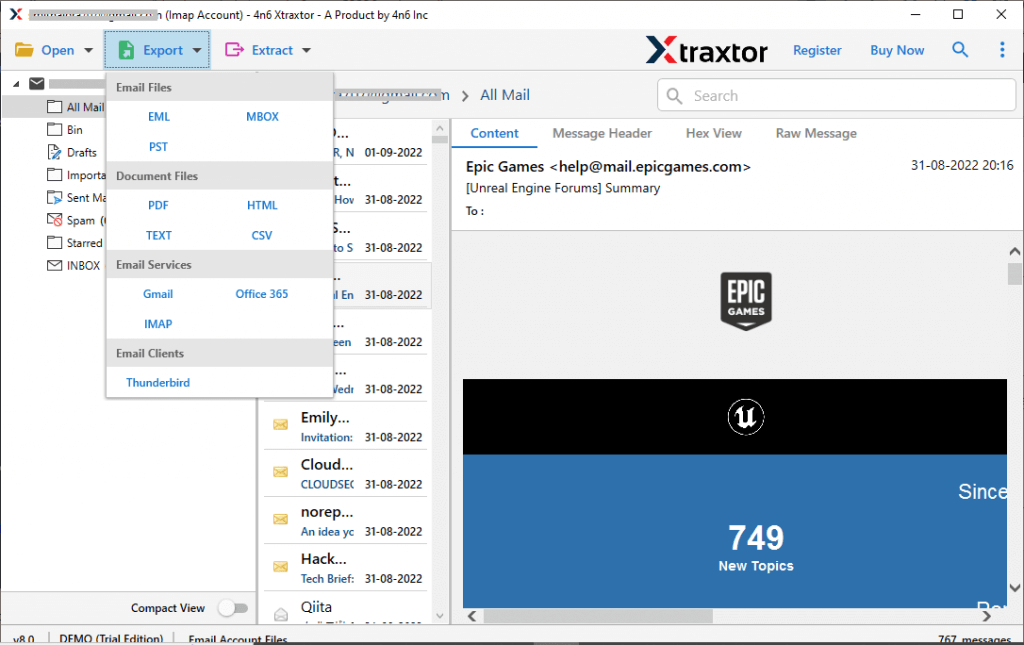
Step 5. Click on the Export and choose the Gmail option from the top menu.
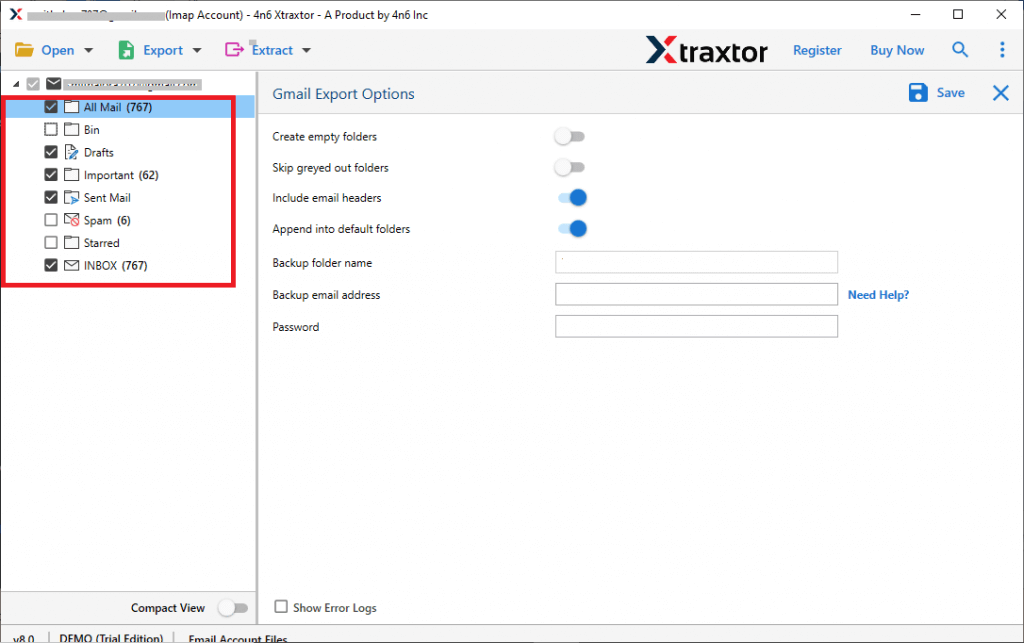
Step 6. Now, select the required Cox mailbox folders of your choice.
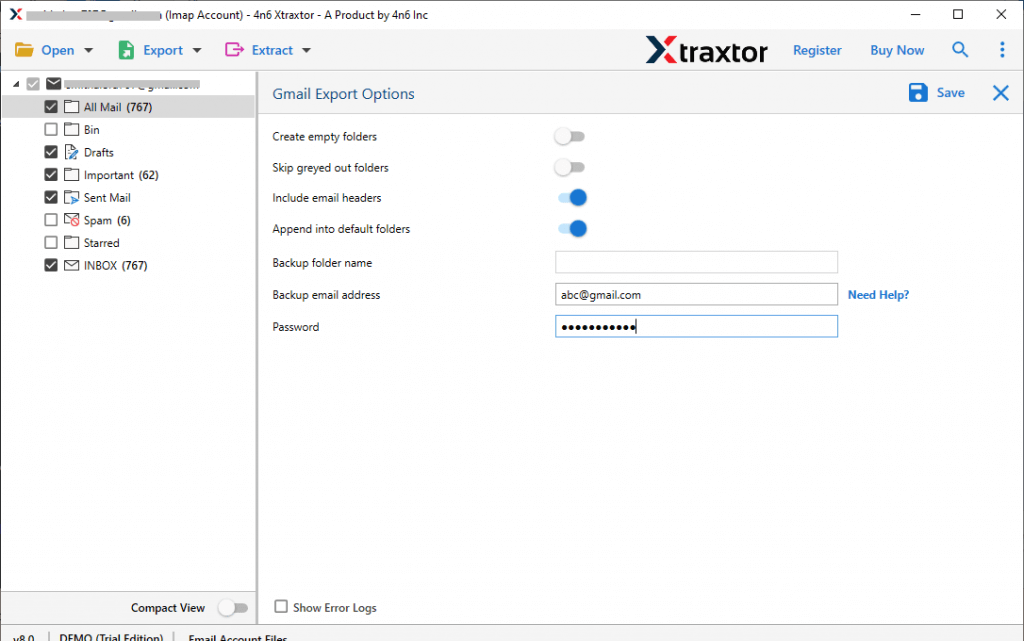
Step 7. Provide your Gmail account details and click the Save button.
The software will move emails directly from Cox to Gmail within a few minutes.
Wait for a while, and you will be notified through a log report. Click OK to continue.
Final Recommendation
So, we are done with providing complete information on the query you were searching for. Here, we have explained two simple procedures to transfer Cox emails to Gmail account. If you are still looking for a suggestion, then you have to understand your needs first. If you have a few emails and want a free option, the manual method is right for you. However, if you have a large mailbox and important data that you want to transfer securely, then an automated solution is a better choice for you.
No matter which method you choose to import Cox emails to Gmail, make sure your data is protected. To get the best results, first try out with a few emails and analyse the benefits and disadvantages of both methods and choose which suits best to your needs.
