How to Transfer Apple Mail to Gmail Account?

Summary: This write-up describes the top 2 tried and tested ways to transfer Apple Mail to Gmail account with complete mailbox data items. So, if you are also looking for the same query, just read this article and learn the complete steps to transfer emails from Apple Mail to Gmail account.
When most of the communication happens through electronic media such as emails, etc., choosing the best one becomes even more important. Such as, users which are using Apple Mail or have access to it are looking to switch to Gmail. It can be due to business or personal work requirements.
But the main challenge is that they don’t know how to do this; that’s why we are here to help you. Don’t worry, this article provides complete details on how to import Apple Mail to Gmail in some easy steps.
Why Migrate Apple Mail to Gmail Account?
- Access Anywhere: Apple Mail is mainly used on macOS devices, while Gmail is a cloud-based service. When you transfer Apple Mail to Gmail, you can access emails anytime from anywhere.
- Universal Device Access: Apple Mail works best on Apple devices, but Gmail works on all platforms like Windows, Mac, Android, and iOS.
- Centralized Email Management: Many users already use Gmail for Google services. So, they prefer to import Apple emails into Gmail to manage all emails in one place.
- Data Security: Gmail provides strong security and spam filters. That’s why users prefer to transfer emails from Apple Mail to Gmail for better protection.
- No Dependency on Device: Apple Mail requires a Mac device, but Gmail works in any browser. So, users choose to migrate Apple Mail to Gmail for flexibility.
How to Import Apple Mail to Gmail Account?
Below are the manual steps that help you transfer your Apple Mail emails to a Gmail account using basic settings.
- Open Apple Mail on your Mac.
- Go to Mail >> Add Account.
- Choose Google and click Continue.
- Enter your Gmail credentials in the required field.
- Allow permissions and finish setup.
- Next, open the Apple Mail inbox.
- Select the emails you want to transfer.
- Drag and drop emails into the Gmail folder.
- Wait for syncing to complete or log in to Gmail and verify imported emails.
- After that, log in to your Gmail account.
- Go to Settings >> See All Settings >> Accounts and Import.
- Select Import Mail and Contacts.
- Enter your Apple Mail configured email account.
- Allow access and start the import.
Now Gmail will automatically import all your Apple emails into Gmail account.
How to Transfer Emails from Apple Mail to Gmail Professionally?
Use Xtraxtor software to migrate Apple Mail to Gmail in a simple and secure way. The software allows you to transfer complete Apple Mail mailbox data in one go without any data loss. With this tool, there is no need to install any additional application for the migration process.
It also provides advanced filter options to export emails based on Date, Sender, Recipient, Subject, and more. The software keeps all email properties and attachments intact during the transfer. You don’t need any technical skills to use this tool because it comes with a simple and user-friendly interface.
Try the free version of Xtraxtor and easily complete the Apple Mail to Gmail migration process without any hassle.

Steps to Transfer Apple Mail to Gmail Account
Step 1. Launch the software on your Windows system.
Step 2. Click Open >> Email Data Files >> MBOX Files/Folders.
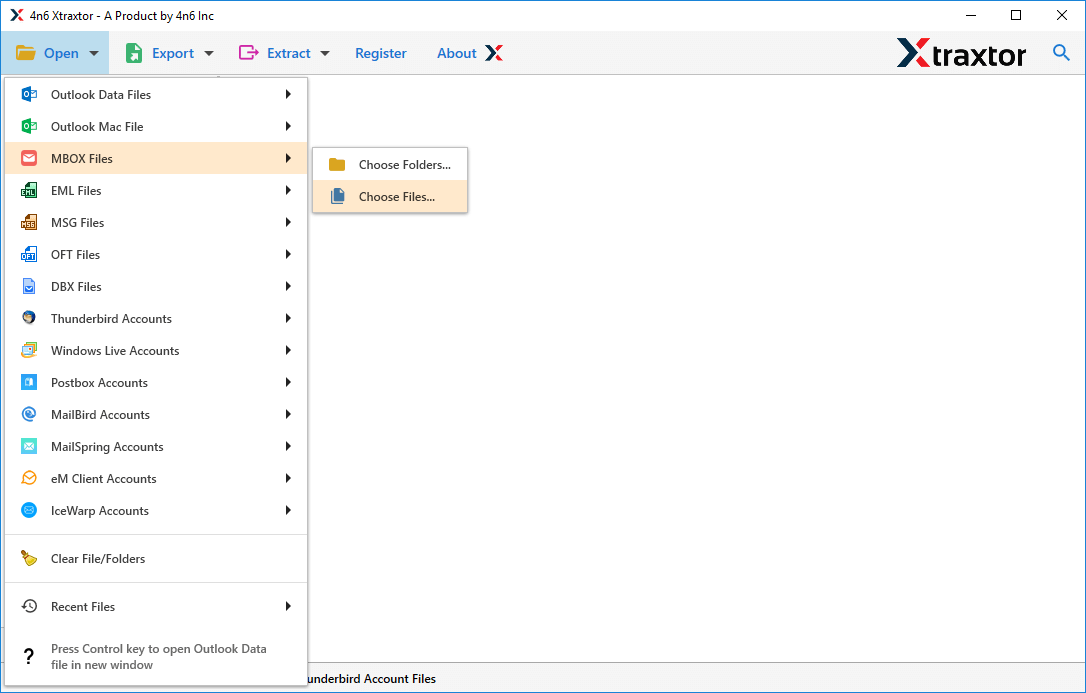
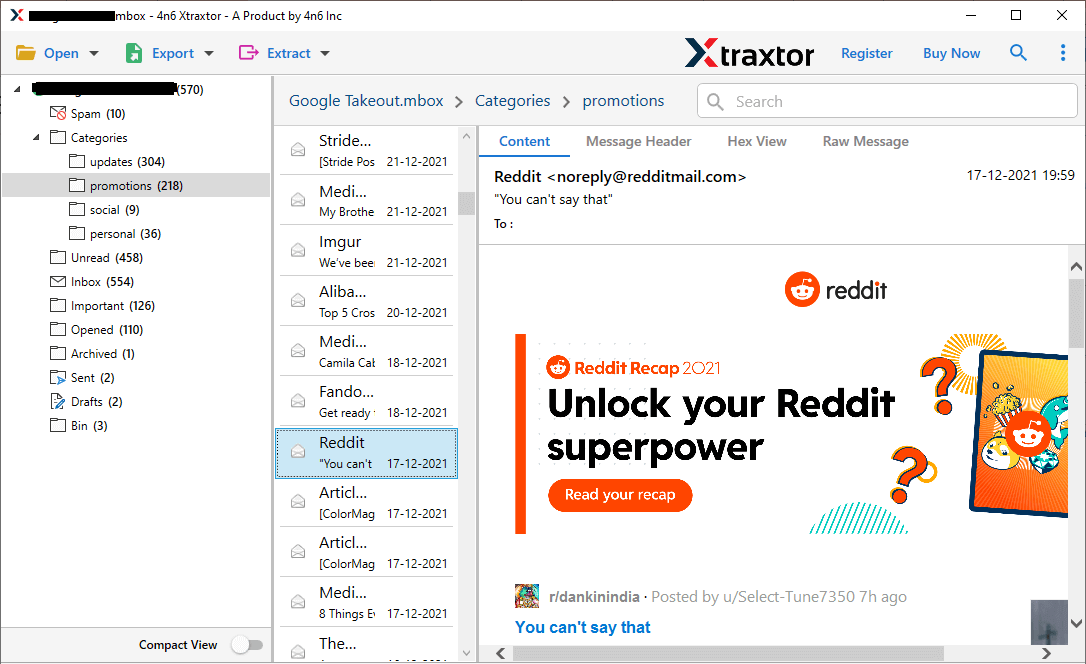
Step 3. Here, you can preview your Apple Mail emails before starting the process.
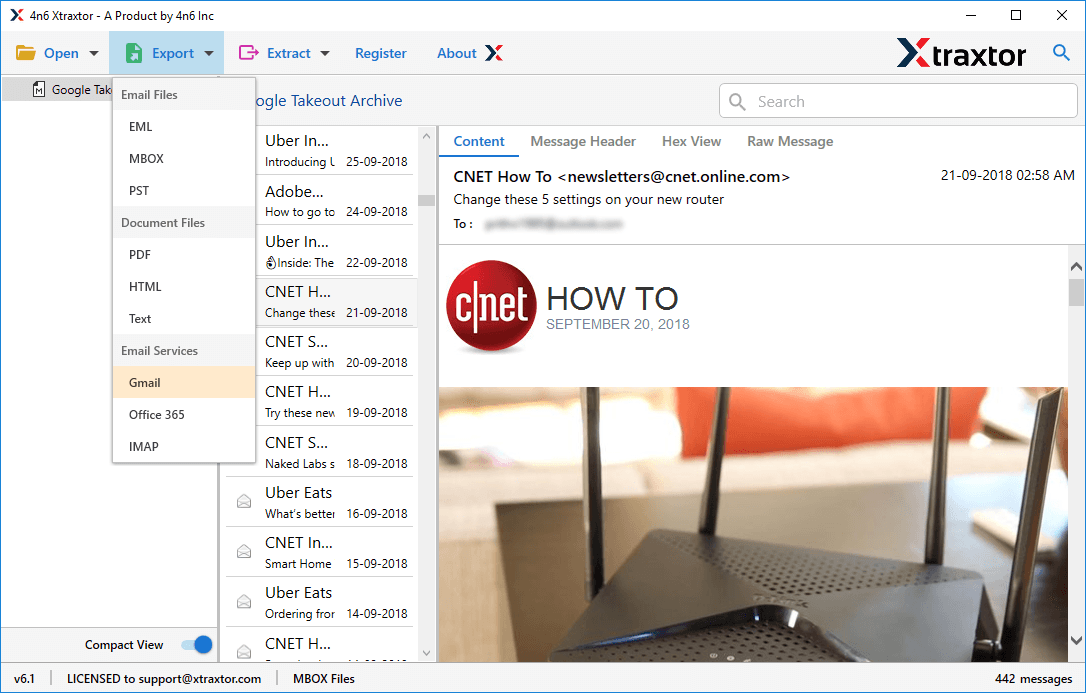
Step 4. Click on Export and choose Gmail from the list of saving options.
Step 5. Next, select the Apple Mail folders you want to migrate.
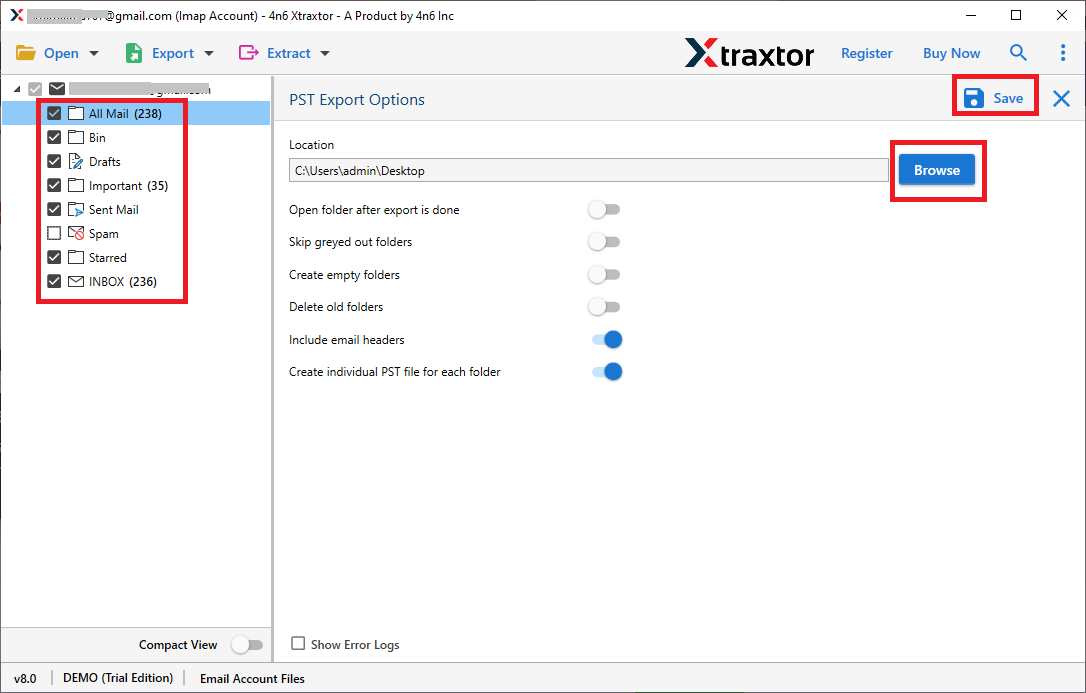
Step 6. Enter your Gmail login details and click Save to begin the migration process.
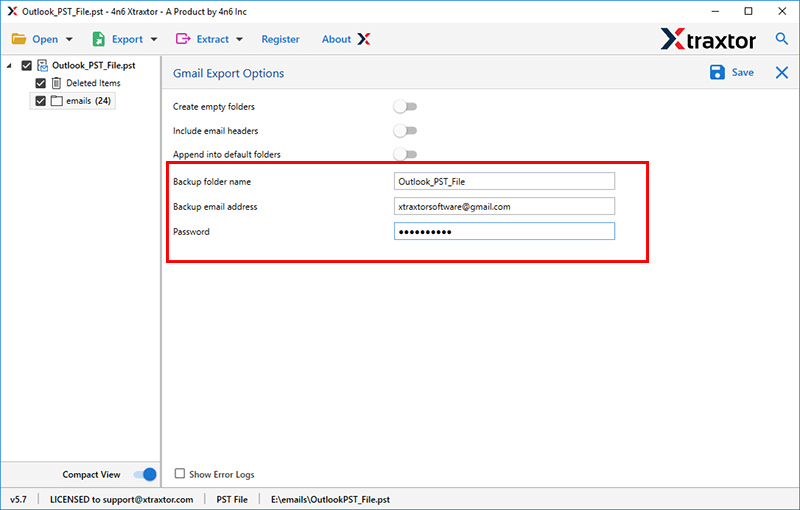
The tool will start transferring your Apple Mail data to your Gmail account.
Done! This is how you can easily complete the migration using these simple steps.
Once the process is completed, you can log in to your Gmail account to check that all your emails have been transferred into Gmail correctly.
What Are the Key Features of Software?
- Easily transfer complete Apple Mail mailbox data in a single process.
- Supports bulk migration without any file size limitation.
- Maintains all email properties like To, Cc, Bcc, Subject, Date, and attachments.
- Allows you to preview emails before starting the migration.
- Provides advanced filter options to export only selected emails.
- Also, transfer Apple Mail to Thunderbird, Outlook, Yahoo Mail, etc.
- Keeps the original folder structure intact during the process.
- Simple and easy-to-use interface for all types of users.
- No need to install Apple Mail or any other external application.
- Compatible with all Windows versions.
- Offers a free demo version for testing before purchase.
Conclusion
In this blog, we explained different methods to transfer Apple Mail to Gmail. You can use any of these methods as per your choice. However, while deciding the best method among them, we have analyzed that it’s not easy to use for every type of user. To do it more effectively and efficiently, we suggest using a professional tool to migrate Apple Mail to Gmail without any hassle. Also, you can try and check it’s complete working process using the demo edition. So, just download it and analyze it as per your needs and requirements.
