How to Save Outlook Emails to Dropbox?

Are you looking for a way to save Outlook emails to Dropbox? Here, I will provide you with several methods to export Outlook emails to Dropbox so you can store your personal and professional data safely.
Reasons to Save Outlook Emails to Dropbox
Many users ask, “Can you save Outlook emails to Dropbox?” The answer is yes, but it requires a few steps. Below are some reasons why users want to do it:
- To create a backup of important Outlook emails
- To access emails from anywhere using cloud storage
- To free up Outlook mailbox space
- To share emails easily with others
- To keep emails safe from data loss or corruption
- To archive business emails for future use
So, it is very useful to backup and export Outlook emails to Dropbox. However, you cannot directly upload emails from Outlook to Dropbox. You need to first save them locally and then upload them.
How to Export Outlook emails to Dropbox Manually?
If you want to save Outlook emails to Dropbox in bulk, you need to save them as a PST file first.
- Open Outlook and go to File > Open & Export.
- Click on Import/Export.
- Choose Export to a file and click Next.
- Select Outlook Data File (.pst).
- Choose folders you want to export.
- Select the destination location and click Finish.
Now upload the PST file to Dropbox:
- Open Dropbox on your system
- Click on Upload Files
- Select the exported PST file
- Upload it to your Dropbox account
This method helps you backup Outlook emails to Dropbox, but you cannot open PST files directly in Dropbox.
How to Transfer Emails from Outlook to Dropbox by Expert Method?
If you have a large number of emails, doing everything manually can be slow and tiring. In this situation, using a professional tool is a smarter and easier option. A tool like Xtraxtor is designed to make this process simple. It helps you move or save emails from Microsoft Outlook without any technical skills. You can export all your emails in one go (bulk), instead of saving them one by one.
The software also keeps everything safe and complete. It saves emails along with attachments, images, and all details like subject, date, sender, and receiver. You don’t lose any important information during the process.
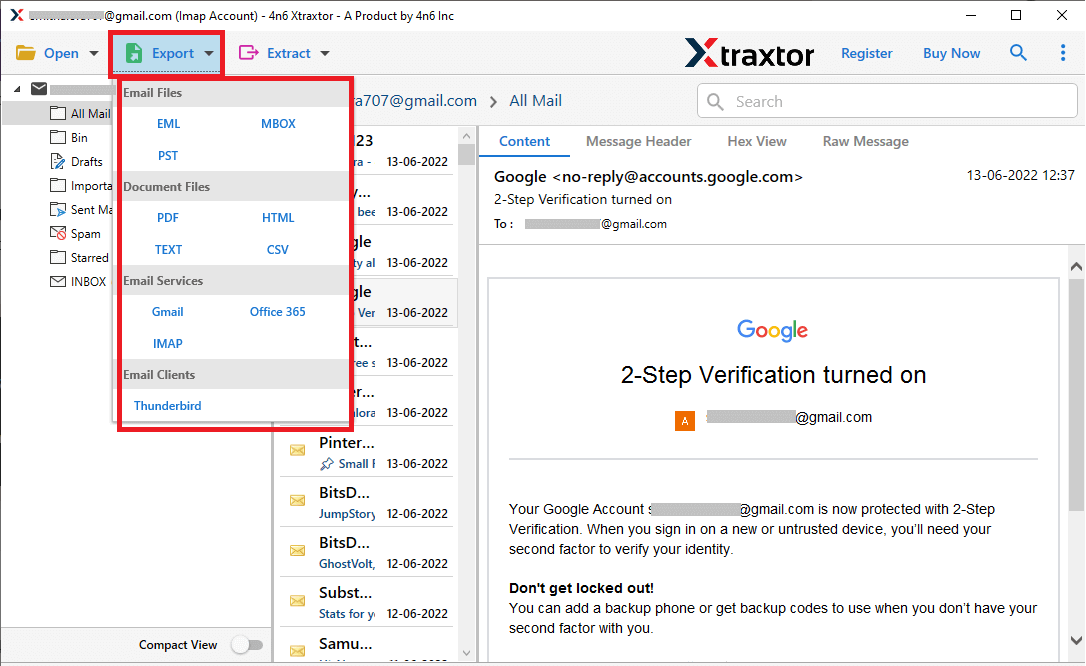
Another useful feature is that you can choose different file formats like PDF, EML, or PST. After exporting, you can easily upload these files to Dropbox and access them anytime.
Click on the free download button and check its complete working process.

Steps to Save Outlook Emails to Dropbox
Step 1. Install and run the software on your system.
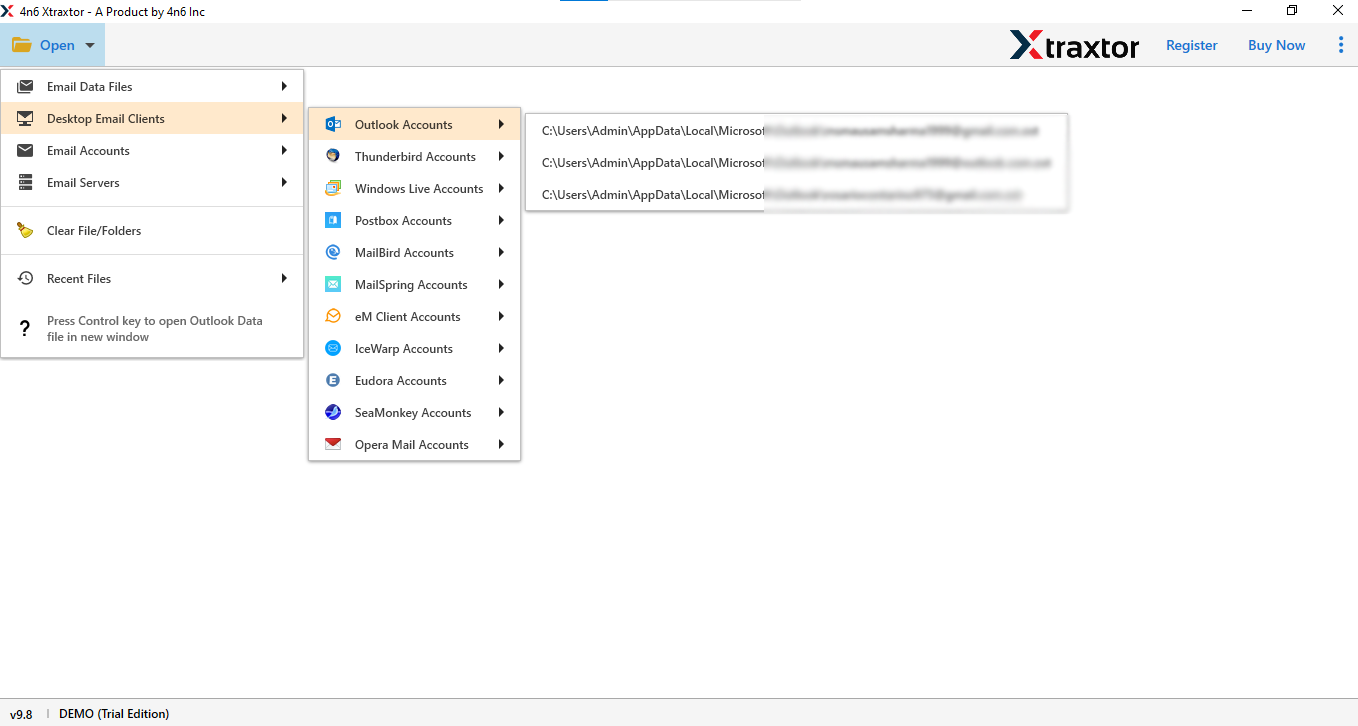
Step 2. Click on Open >> Desktop Email Clients >> Outlook Accounts.
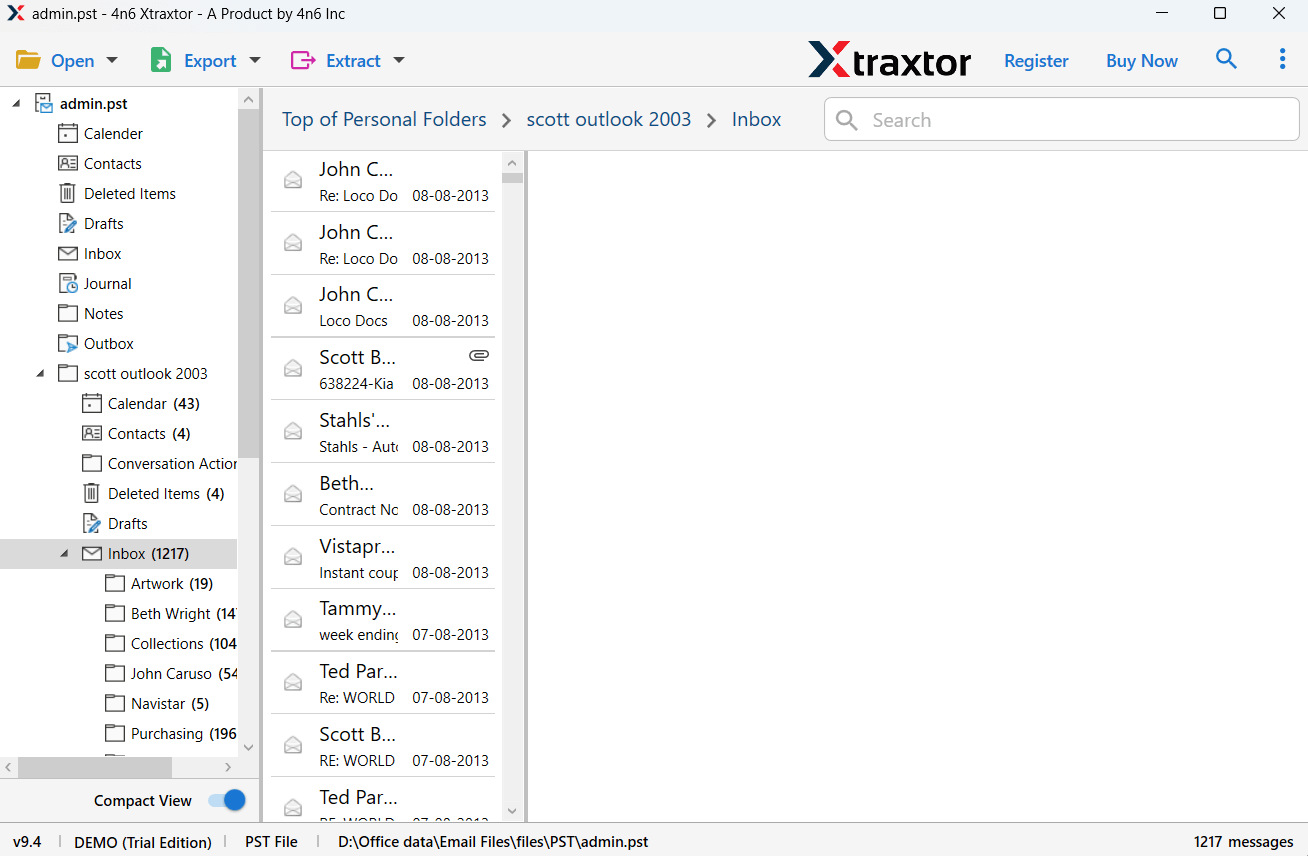
Step 3. Preview emails before exporting into Dropbox.
Step 4. Click on Export and choose the required file format.
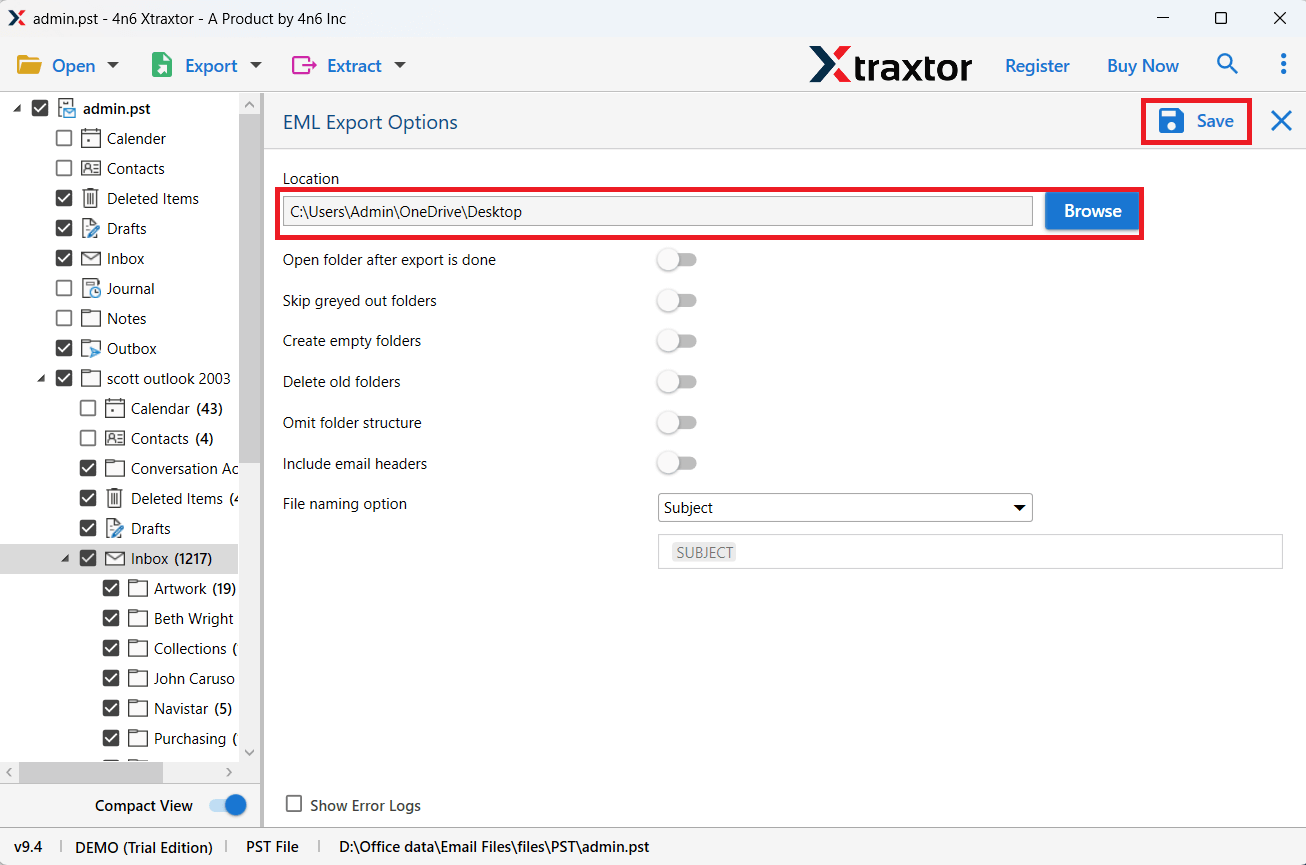
Step 5. Choose the destination location and click Save.
Step 6. Open Dropbox and upload the exported files.
This is the easiest way to transfer emails from Outlook to Dropbox without losing data.
Here are the key features that are helpful;
- Export Outlook emails in bulk without any limit
- Save emails with attachments and complete data
- Supports multiple file formats like PDF, EML, PST, etc.
- Maintains original folder structure during export
- Keeps email details like subject, date, sender, and receiver safe
- Simple and user-friendly interface for all users
- Advanced filter option to export selected emails only
- Preview emails before saving them
- Fast and accurate email conversion process
- Compatible with all versions of Microsoft Outlook and Windows
Final Words
If you are having trouble to save Outlook emails to Dropbox, then this article gives you different ways to do it. The first methods are manual, where you download emails from Microsoft Outlook and then upload them to Dropbox. These methods are simple but may take more time.
The last method uses a professional tool, which helps you move emails directly without any hassle. All the methods work well, so you can choose the one that fits your needs.
