How to Save Gmail Emails to OneDrive?

If you want to know how to save Gmail emails to OneDrive, learn the automatic and manual ways here! You can see the complete blog to understand how to execute this task in the minimum steps. Keep reading to get informed.
As we all know, Gmail is the most widely used and reliable email service. But, anything that is most popular doesn’t mean it is free from any limitations. And Gmail has too, such as storage limits. Your important emails get buried with new emails, and you will end up frustrated. That’s where excellent storage options like OneDrive come in.
This article will discuss all the available methods that you can use to save Gmail emails to OneDrive. So, go through each method along with its pros and cons. Then, decide which works best for you. Also, we will give the best recommendation as per different scenarios so that you can make a wise decision.
Why Save Gmail Emails to OneDrive?
You will get the following advantages once you move your Gmail emails to OneDrive.
- Accessibility: You can access your Gmail emails from anywhere with just your login details.
- Safety: Storing Gmail data online protects you from malware attacks or any device damage.
- Backup: Saving your Gmail emails to OneDrive is one way of creating secure backups.
- Sharing: Helpful for easy sharing with anyone, and best for long-term archiving.
Things to Know Before You Start
Before moving ahead with the methods, go through the following important things;
- Number of emails you want
- File format to save emails
- Availability in OneDrive storage
- Manual options work for a few emails
- Bulk export needs an advanced solution
So, we hope that you have read all these prerequisites that are needed to understand before you move on to explore all the methods.
Methods to Backup Gmail Emails to OneDrive
After testing and trying numerous techniques, we have come up with a few reliable methods. In this section, we will understand which methods to use in some specific situations. Explore all the available methods and choose which suits best as per your needs and requirements.
Method 1. Save Gmail Emails to OneDrive Manually
This is the simplest method that you can use to save one or two emails of your choice.
Follow the steps below to save emails from your Gmail account to OneDrive;
- Access your Gmail account in a browser.
- Open the email you want to save.
- Click the three dots options & select Print.
- Choose Save as PDF in a new tab and click Save.
- Browse location to export the file on your computer and tap save.
- Now, upload your exported file to OneDrive account.
Method 2. Export Gmail Emails Using Google Takeout
Here, we will use Google’s official technique to export Gmail emails to MBOX format, which contains the entire Gmail mailbox.
Following the below-mentioned steps mentioned below will let you save Gmail mailbox items to OneDrive;
- Open your web browser and go to Google Takeout.
- Sign in using your Gmail account credentials.
- Click on Deselect all to remove unwanted services.
- Scroll down and select Mail from the list.
- Click on All Mail data included to choose specific labels (Inbox, Sent, etc.).
- After selecting labels, click OK.
- Scroll down and click Next Step.
- Choose the export method.
- Select file type and export frequency if required.
- Click on Create export to start the process.
Wait until Google prepares your Gmail data (this may take some time).
- Once ready, download the exported file to your system.
- Extract the downloaded ZIP file to access the MBOX file.
- Log in to your OneDrive account.
- Upload the extracted MBOX file to your OneDrive storage.
So, we are now done with providing available manual methods to you.
However, both methods are time-consuming and do not support easy bulk or selective exports. So, choose this method when you have a few emails only.
How to Save Gmail Emails to OneDrive in Bulk?
If you want to save multiple Gmail emails, manual methods are not sufficient. A professional solution like Xtraxtor can help you to export Gmail emails to OneDrive in bulk. Also, you can choose different file formats to save your emails.
The tool comes with a free demo version, download it at no cost and check its working now!

Steps to Backup Gmail Emails to OneDrive
Step 1. Open the Xtraxtor Software on your Windows PC.
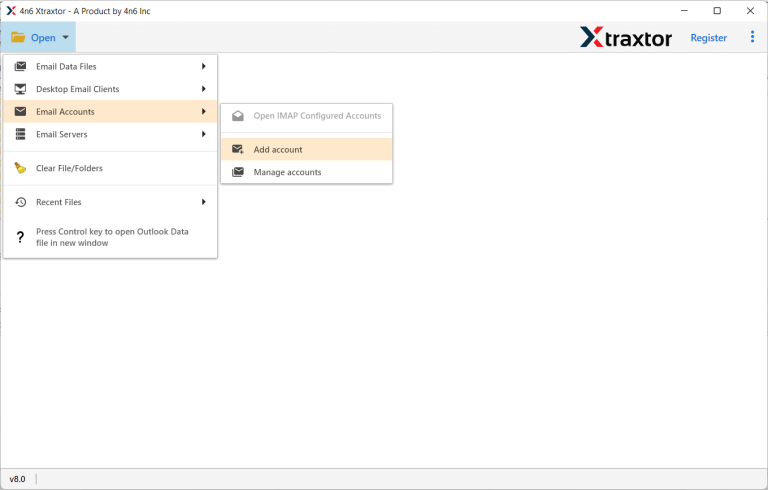
Step 2. Click the Open button and select Email Accounts >> Add Account.
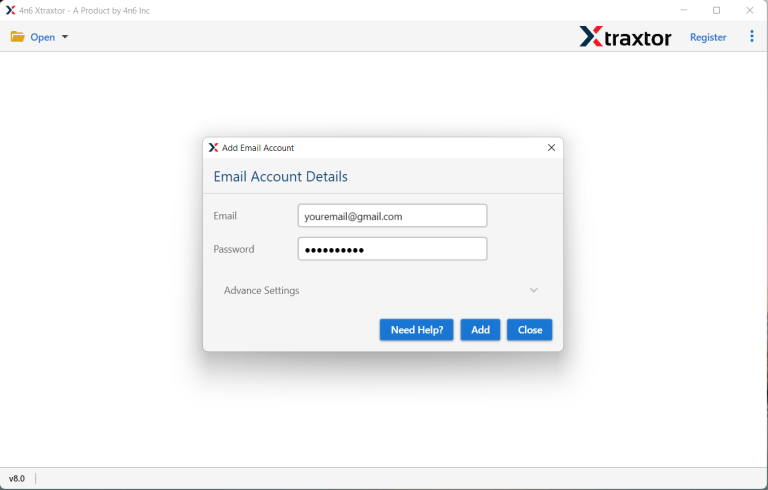
Step 3. Provide your Gmail account details and click the Add button.
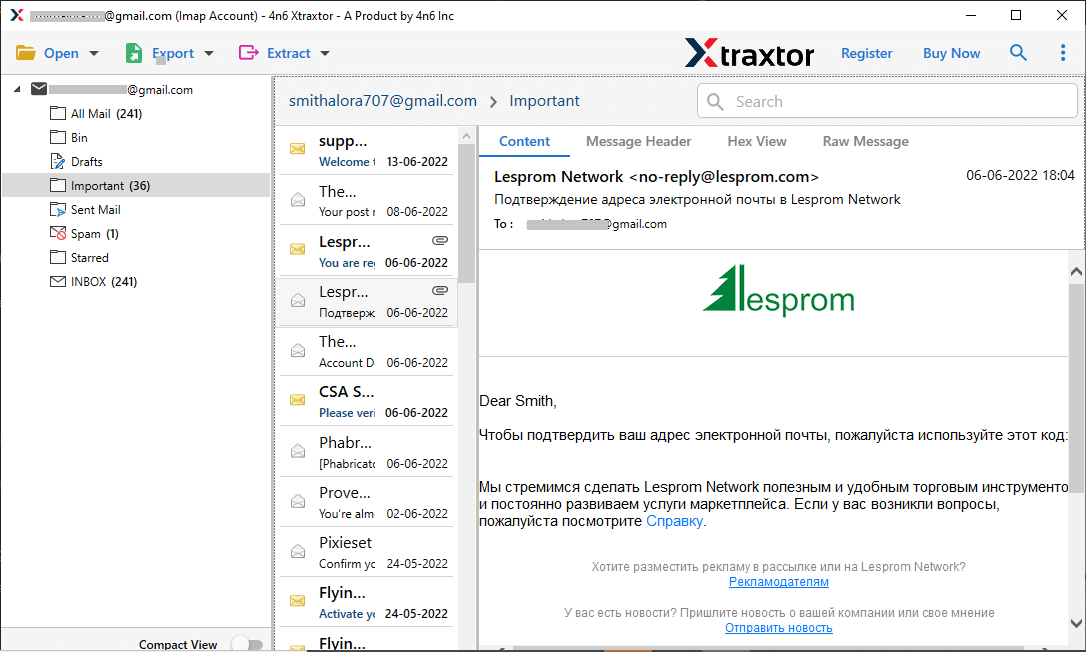
Step 4. Select the Gmail folders you want to save from preview mode.
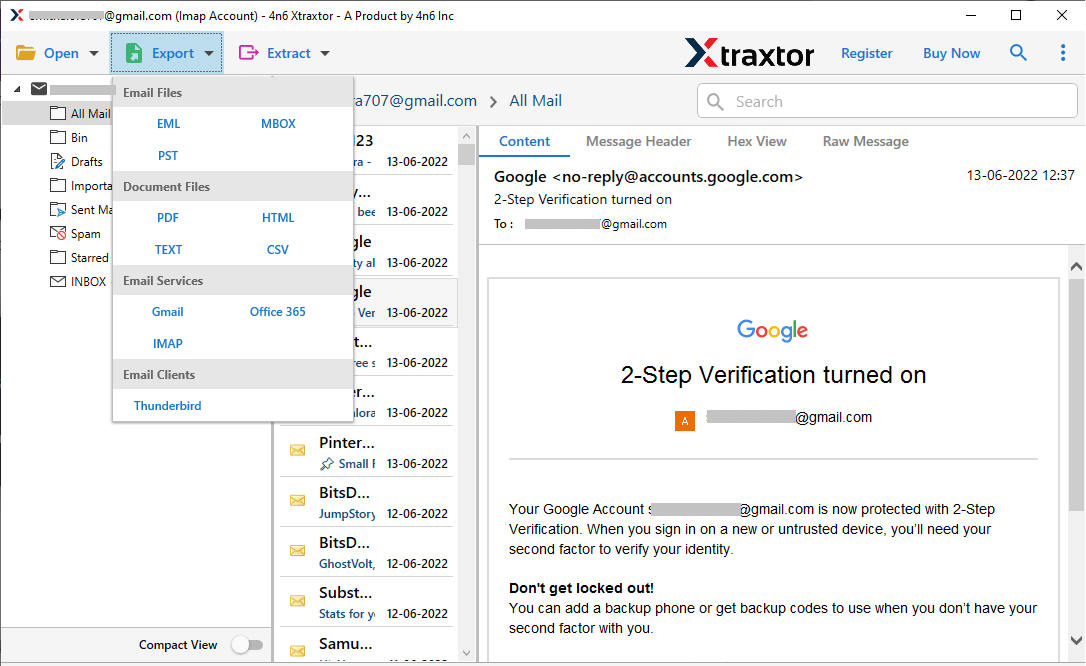
Step 5. Click on Export and choose the required file format.
Step 6. Now, browse the destination path.
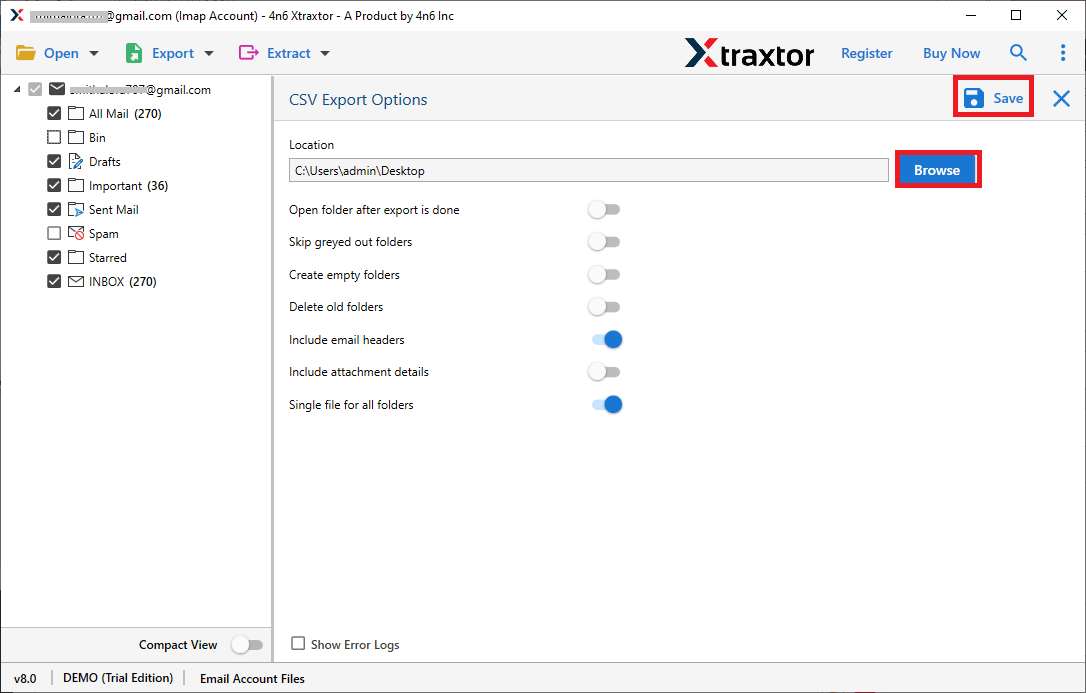
Finally, your Gmail emails will be saved to OneDrive in a few minutes.
[box type=”shadow” align=”” class=”” width=””]Which Method Is Best for You?
The choice of choosing a right method totally depends on your needs and how often you require it. If you only need to save one or two emails, the first method is quick and easy. If you want to export the entire Gmail data in a single attempt. However, if you need to save multiple Gmail emails in bulk, using a professional solution is recommended.[/box]
Final Thoughts & Best Recommendation
As we discussed above, the scenarios where you can choose an appropriate method as per the requirement to save Gmail emails to OneDrive. But for recommendation purposes, I would like to share a few observations that we understood while analyzing all these methods. Neither of the manual methods is sufficient for bulk export, and also lengthy and time-consuming for multiple Gmail emails. For an easy experience, we highly recommend that you choose a professional method. The software will complete the entire process in a minimum of steps and without any errors. Also, you can try its free demo version to check its working process before buying its licensed version.
