How to Open Gmail in Browser? Complete Guide

Many users prefer to open Gmail in browser instead of using the app because it is simple, easy and does not require installation. Sometimes, apps are restricted on office systems or users want quick access without downloading anything. Here, in this blog, we will explain why users choose browser access, two tried & tested ways, what the limitations are, and how to choose the best solution as per your needs and requirements.
Before moving ahead, let’s first understand the need of the users to access Gmail in browser.
Why is it required to Open Gmail in Browser?
The need to access Gmail emails in browser is increasing as users want faster and more flexible access without installing apps. Below are some real-life situations where this becomes important:
- This is useful when using office or school computers where apps are restricted.
- You may need this while using a public or shared device.
- It helps when your phone has limited storage space.
- Users who prefer privacy avoid installing extra apps.
- It is helpful when you want quick access without distractions.
- Browser access does not consume background battery like apps.
- Occasional users prefer browser login instead of installing Gmail app.
- It works on any device without setup or installation.
- It is useful when traveling and using temporary devices.
- Some users prefer a bigger screen experience on desktop browsers.
How to Access Gmail in Chrome Browser Manually?
Step 1. First, open any web browser such as Google Chrome, Edge, or Firefox on your device.
Step 2. In the address bar, type the Gmail website and press Enter.
Step 3. Enter your Gmail email address and click on the Next button.
Step 4. Now, type your password and click on Sign In.
Step 5. Once logged in, your Gmail inbox will open on the screen.
Now, you can easily read, send, and manage your emails directly from the browser.
Note: This method requires a stable internet connection and does not allow offline access to your emails.
How to View Gmail Emails in Browser Automatically?
If you are looking for a smarter and long-term solution, especially for handling bulk emails, you can use a professional tool like Xtraxtor. This software allows you to download Gmail emails and convert them into HTML format, so you can open them directly in any web browser without signing in again.
The tool comes with several useful features that make the process easy and efficient. It supports bulk conversion, so you can export multiple Gmail emails at once. It also maintains the original formatting, attachments, and folder structure & ensure that your emails look the same when opened in a browser. Additionally, it offers advanced filter options to export only selected emails, along with a simple interface that is easy for both technical and non-technical users.
The working process is also very simple. You just need to install and launch the software, add your Gmail account securely, and choose HTML as the output format. After selecting the destination location, click on the Convert button.
Once the process is complete, all your emails will be saved as HTML files, which you can open anytime in any browser like Chrome or Edge. This way, the software helps you access Gmail emails offline.
So, what are you waiting for? Click on the free download button and check its complete working process.

Steps to Open Gmail in Browser
Step 1. First, download and install the software on your system.
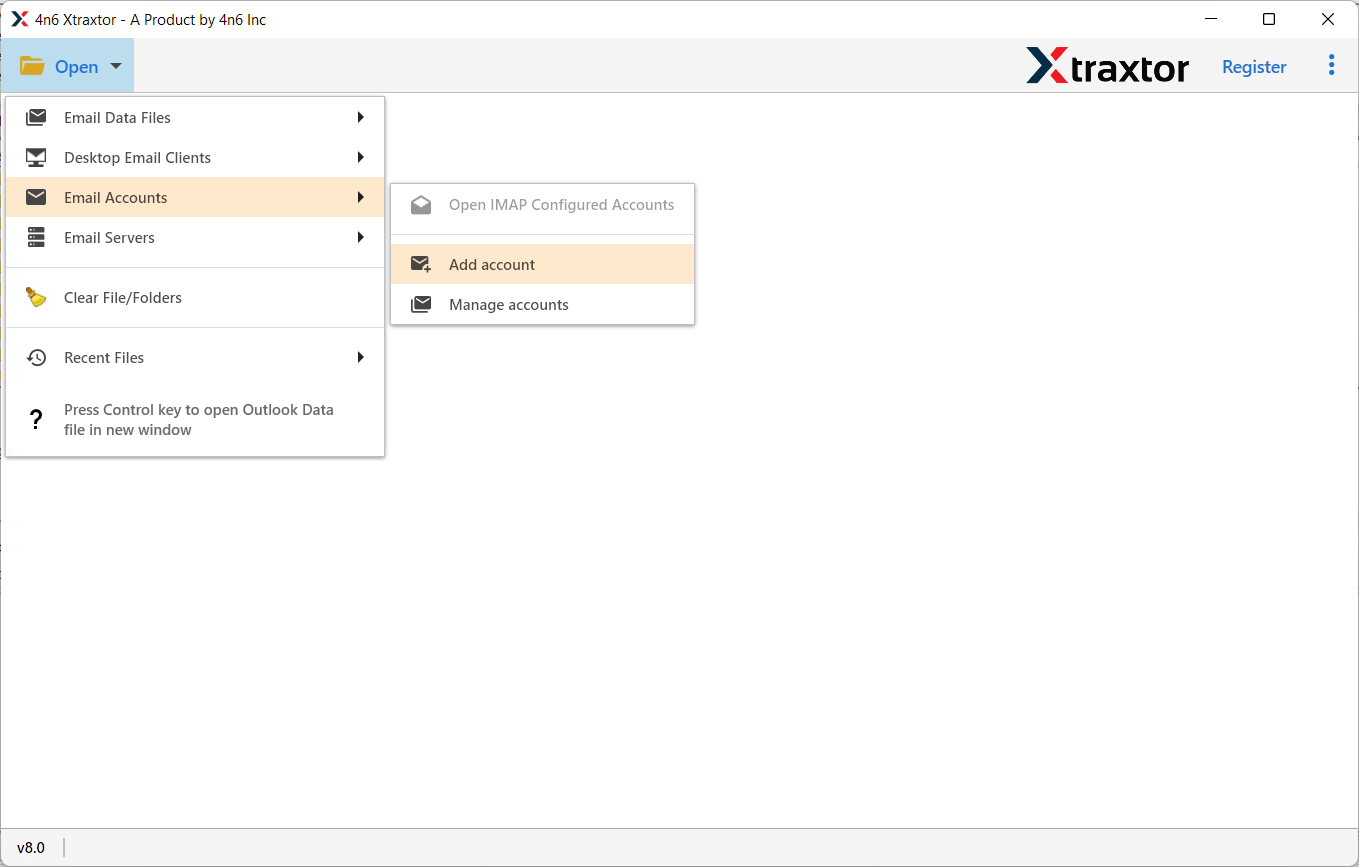
Step 2. Launch the software & click Open >> Email Accounts >> Add Accounts.
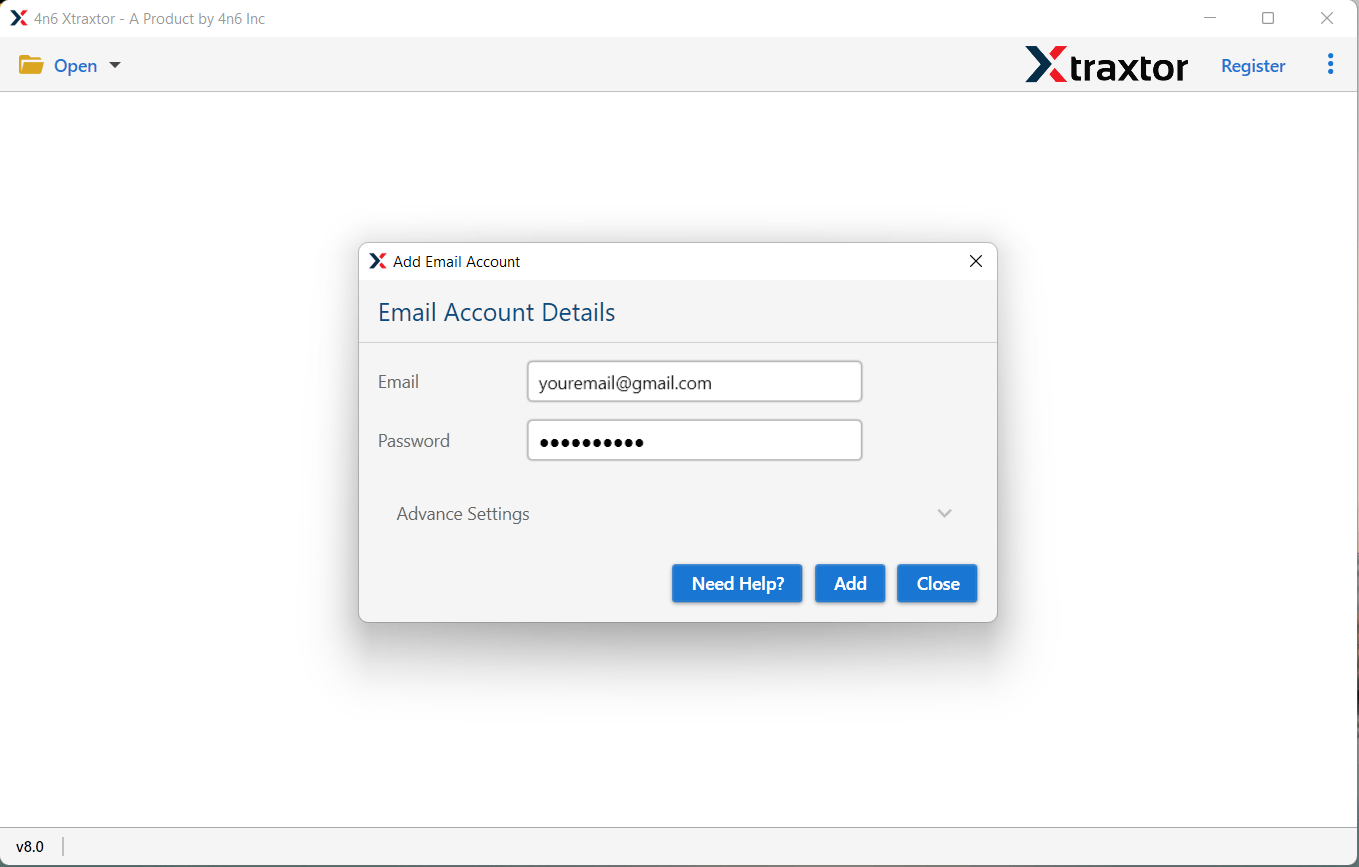
Step 3. Provide your Gmail account details & tap the Add button.
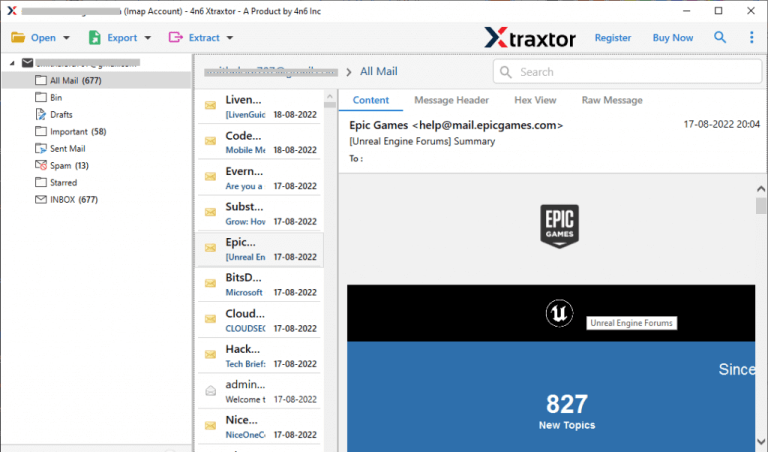
Step 4. After loading the mailbox, preview them one by one.
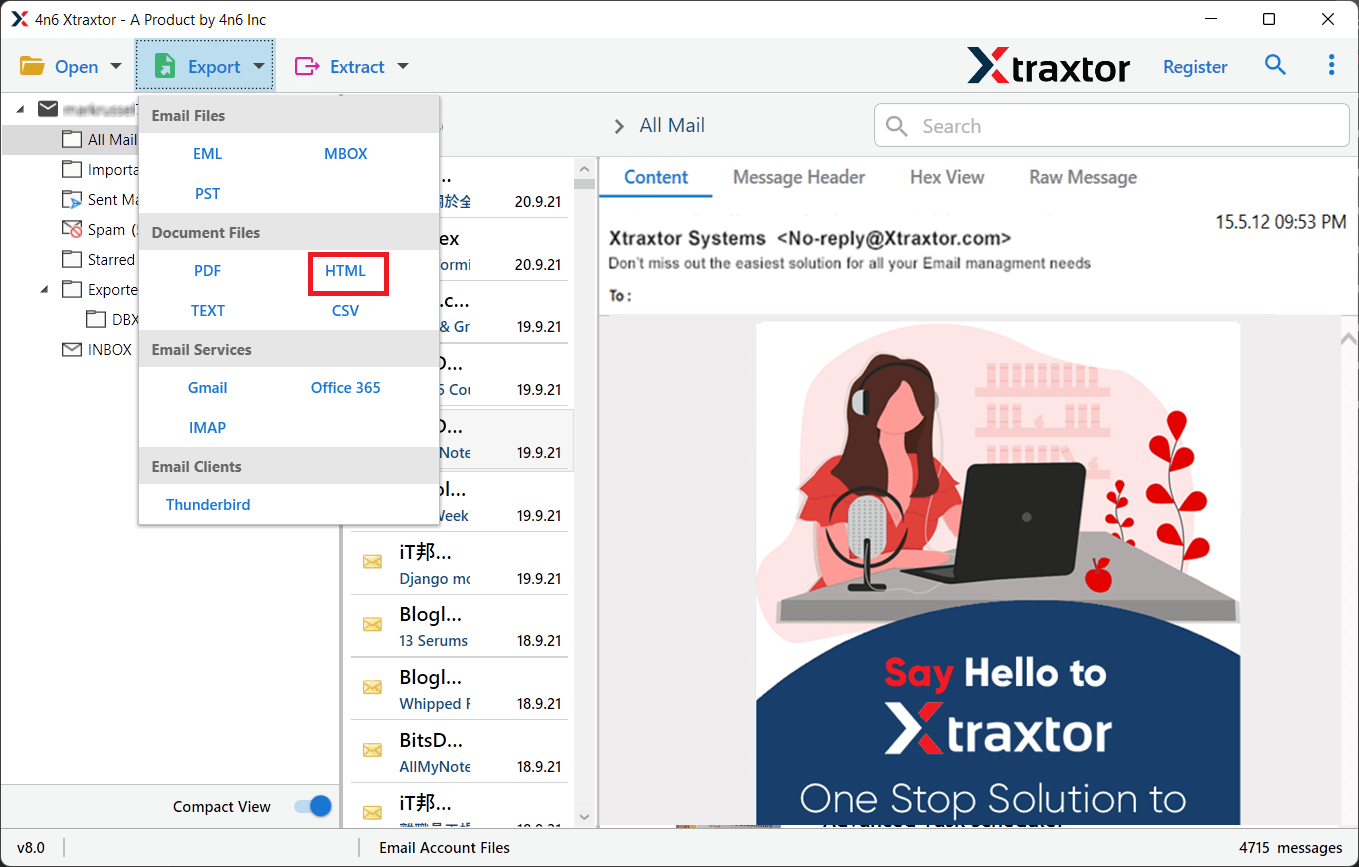
Step 5. Choose HTML as the saving format from the export options.
Step 6. Select the required email folders or specific emails of your choice.
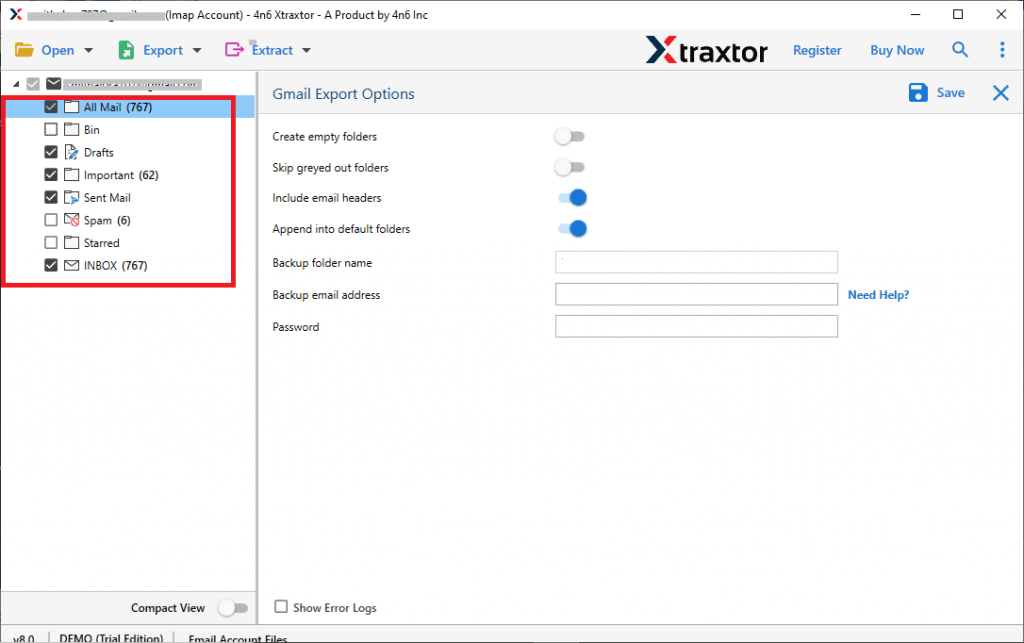
Step 7. Set the destination path and click on the Save button to start the process.
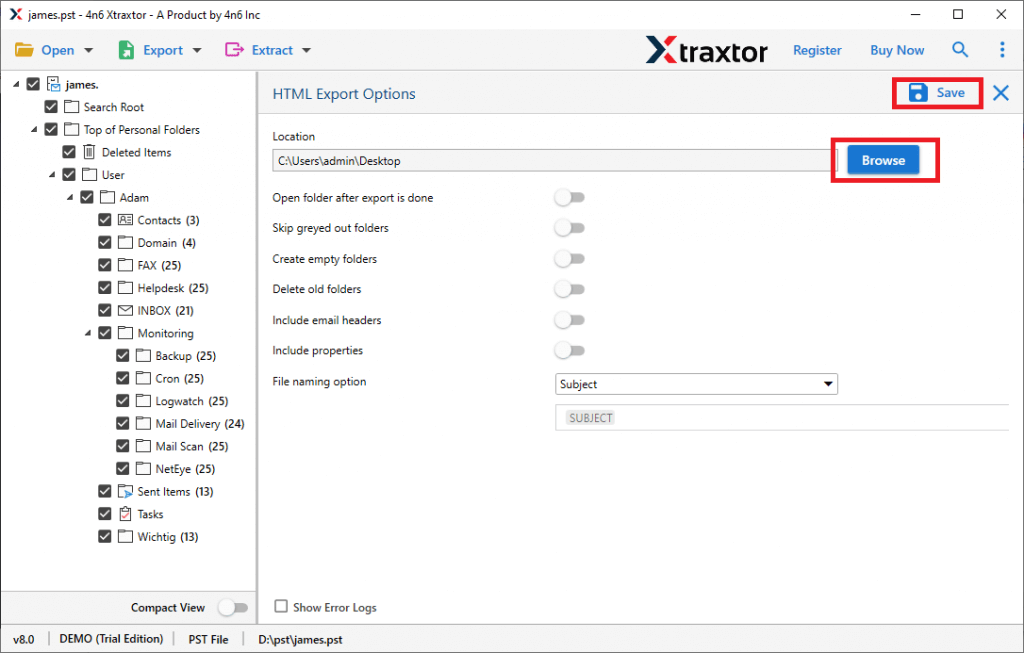
Once the process is completed, you can open the saved HTML files in any web browser and read your Gmail emails easily.
Key Features of the Automated Software
- Easily convert multiple Gmail emails into desired file format at once without any data loss.
- Export emails into various formats like PDF, PST, MBOX, EML etc., based on your needs.
- Keeps original structure, attachments, and metadata (To, From, Subject, Date) intact.
- Allows selective export using filters like date range, subject, sender, and more.
- Lets you view emails and attachments before starting the conversion process.
- Maintains the same folder structure as your Gmail account for easy navigation.
- Once converted to resultant file, emails can be opened anytime in any browser without internet.
- Designed for both technical and non-technical users with easy navigation.
- Helps manage large data by pausing and continuing the process anytime.
- Ensures complete data security and accuracy during conversion.
Final Words
The need to open Gmail in browser is needed nowadays, however, getting the right and convenient solution is difficult. Here, we have guided you with all the available methods with complete step-by-step instructions. However, while exploring all the available options, we found that manual methods comes with certain limitations such as dependency on internet connection, lack of offline access and limited control on certain things.
On the other hand, if you are looking for a more advanced solution, using an automated tool can be a better choice. It not only helps you open Gmail emails in a browser but also allows you to download and manage your Gmail emails offline without any restrictions.
