How to Move Mailbird to Another Computer?

Summary: Are you planning to move Mailbird to another computer but don’t know how to do it? If yes, then this guide will help you. In this blog, we will explain simple and effective ways to transfer your Mailbird data to new PC without losing emails. So, read the complete article and choose the method that suits you best.
Mailbird is a popular desktop email client for Windows. It allows users to manage multiple email accounts in one place. With features like a unified inbox, app integrations, and a simple interface, many users prefer Mailbird for daily email communication.
However, when switching to a new computer, users often face issues in transferring their Mailbird emails, settings, and account data.
But don’t worry! In this guide, we will show you easy ways to transfer emails from Mailbird to another computer without losing any data.
How to Move Mailbird to Another Computer? (Free Method)
Mailbird stores its data locally on your system. You can manually copy and move it to another computer.
Step 1. Close the Mailbird application on your old computer.
Step 2. Press Windows + R, type:
%localappdata%\Mailbird
Step 3. Copy the complete Mailbird folder.
Step 4. Transfer this folder to your new computer using a USB drive or cloud storage.
Step 5. On the new PC, paste the folder in the same location:
%localappdata%
Step 6. Install Mailbird on the new system (if not already installed).
Step 7. Open Mailbird and check your emails and accounts.
Done! Your Mailbird emails will now be available in Thunderbird.
Note:
- Technical steps may confuse beginners
- Risk of missing files or incorrect folder placement
- Not suitable for large or multiple accounts
- No selective data transfer option
- Requires the same Mailbird version compatibility
How to Transfer Emails from Mailbird to New PC in Easy Steps?
Here, you can try the Xtraxtor software suggested by many users to move Mailbird emails to another computer without any hassle. It helps you export complete Mailbird data along with attachments in just a few clicks. The software keeps all your email details safe and maintains the original structure during the process.
With its easy-to-use interface, anyone can transfer Mailbird data without technical knowledge. It also supports multiple file formats and email services so that you can move Mailbird data to another computer as per your needs and requirements.
You can download its free demo version to check how it works before using the full version.

Steps to Move Mailbird to Another Computer
Step 1. Install and run the software on your Windows system.
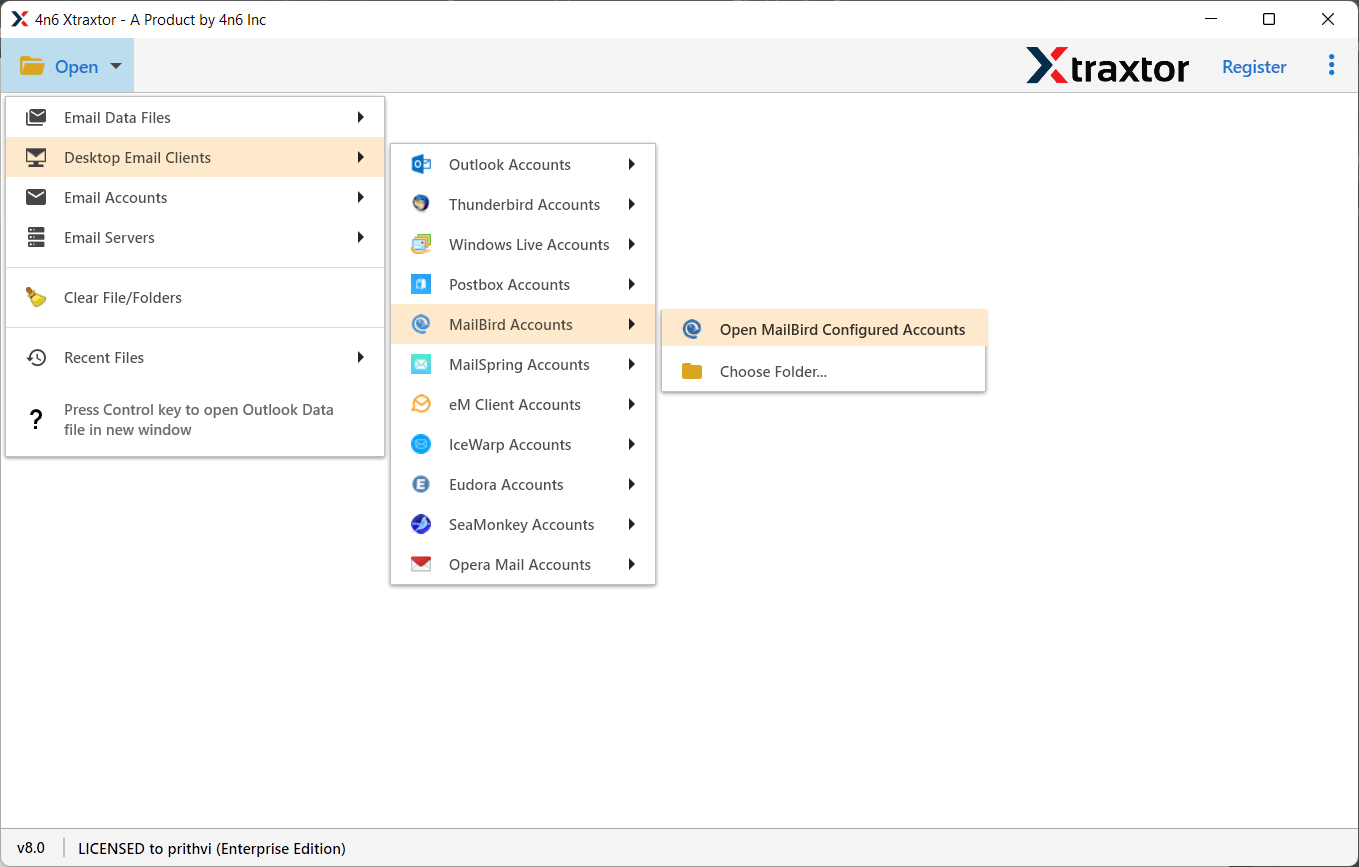
Step 2. Click on Open >> Desktop Email Clients >> Mailbird Accounts.
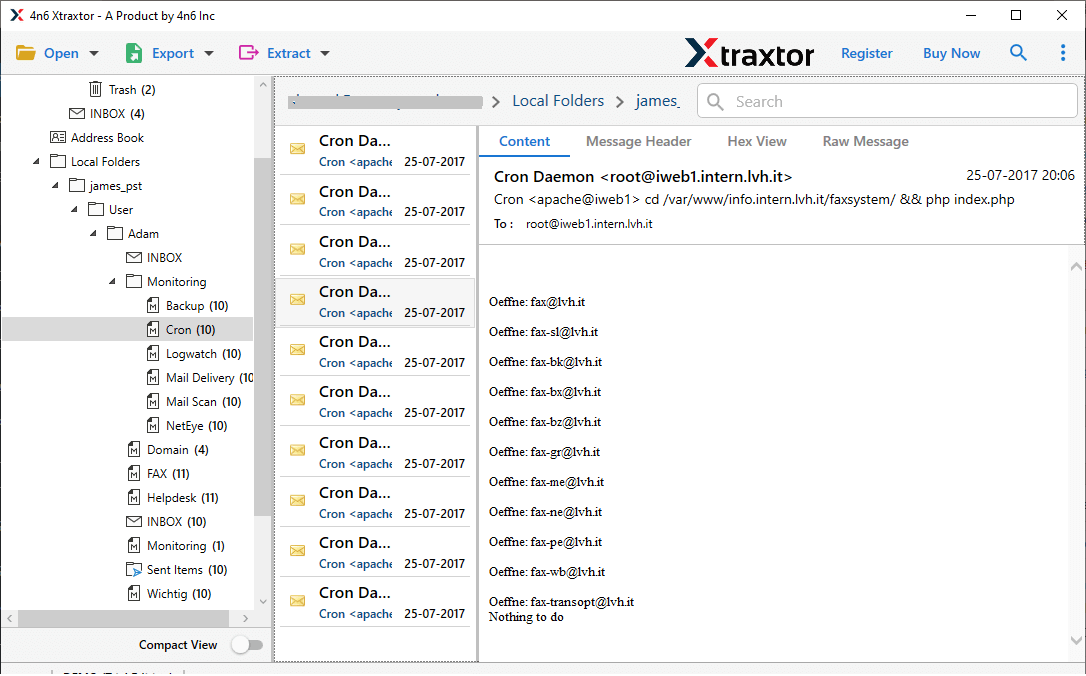
Step 3. The software will automatically load mailboxes, preview all Mailbird emails on the screen.
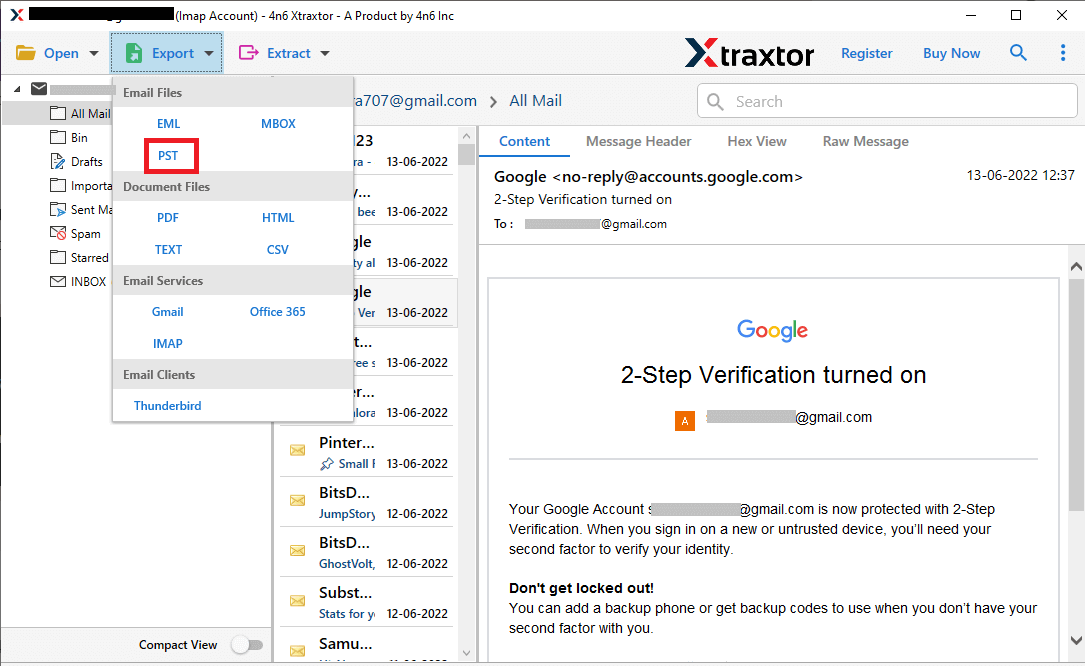
Step 4. Click on Export and choose a saving format of your choice.
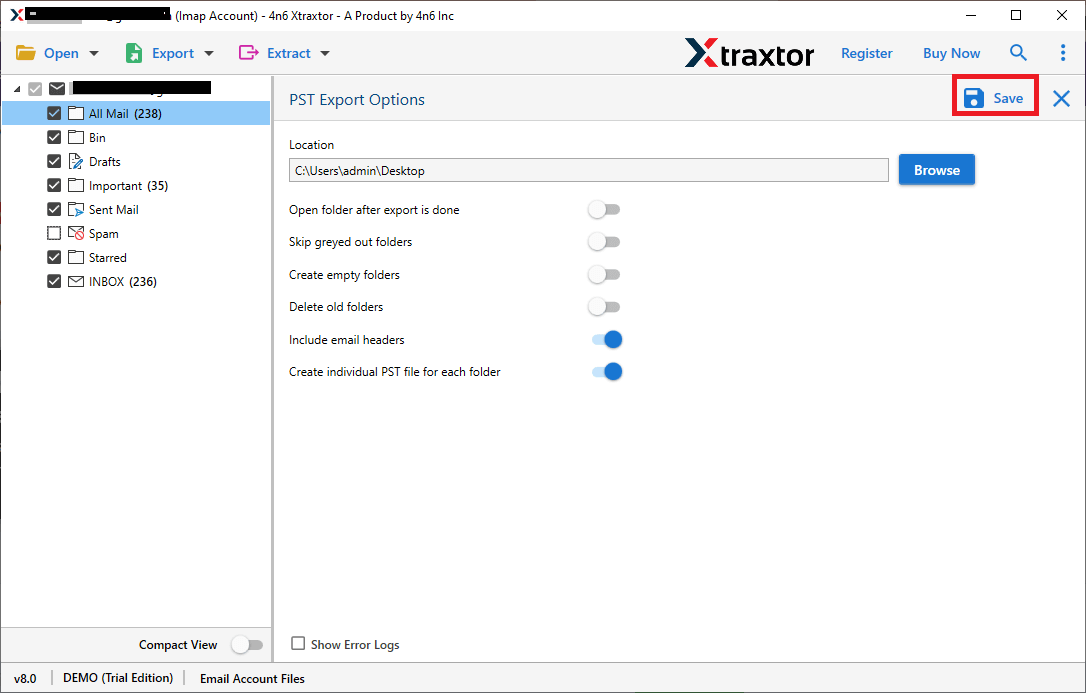
Step 5. Browse the destination path and hit the Save button to export Mailbird data.
Step 6. Now, transfer the exported file to your new computer using a USB drive or cloud storage.
Done! This is how you can easily move Mailbird to another computer without losing any data.
Key Features of the Tool
- Easily move complete Mailbird mailbox to another computer
- Supports multiple saving formats like PST, MBOX, EML, MSG, etc.
- Bulk export option to transfer multiple emails at once
- Maintains original folder structure during migration
- Keeps all email properties like To, From, Subject, Date, and attachments
- Allows selective email migration using advanced filters
- Preview Mailbird emails before exporting
- No file size limitation for transferring data
- Compatible with all Windows versions including Windows 11
- Simple interface, suitable for beginners and professionals
Conclusion
In this blog, we explained how to move Mailbird to another computer using both manual and professional methods. The manual way is free but can be complex and time-consuming. If you want a quick and hassle-free solution, using an automated tool is the best option. Both the methods are useful in their respective field so first analyse your needs and requirements and then choose the suitable method as per your choice.
