How to Move Kerio Connect to New Server?

Moving your email server to a new environment can feel difficult, especially when you want to keep all emails safe. If you are planning to move Kerio Connect to new server, this guide will help you understand the complete process in simple words.
Whether you want to migrate Kerio Connect to another server for better performance, upgrade hardware, or shift to a new system, here you will find both manual and professional solutions.
What is Kerio Connect?
Kerio Connect is a popular email server used by businesses for managing emails, contacts, calendars, and collaboration. It works well for small and medium organizations, but sometimes users need to move it to a new server due to performance or storage needs.
Why Move Kerio Connect to New Server?
Here are some common reasons why users migrate Kerio Connect to new server:
- Upgrade to a faster or more powerful server
- Increase storage capacity for growing email data
- Improve performance and reduce downtime
- Move to a cloud or virtual environment
- Ensure better backup and security
- Replace old or failing hardware
How to Migrate Kerio Connect to New Server for Free?
You can manually move Kerio Connect data by backing up and restoring it on a new server.
Step 1. Stop the Kerio Connect service on the old server.
Step 2. Take a complete backup of the Kerio Connect data directory.
Step 3. Install Kerio Connect on the new server.
Step 4. Make sure both servers use the same version of Kerio Connect.
Step 5. Copy the backup data from the old server to the new server.
Step 6. Replace the data directory on the new server with the copied data.
Step 7. Start the Kerio Connect service on the new server.
Step 8. Update DNS/MX records to point to the new server.
Step 9. Verify emails, users, and folders after migration.
Limitations of Manual Method
- Requires technical knowledge
- Risk of data corruption if done incorrectly
- Downtime during migration
- Not suitable for large or complex setups
- No selective migration option
- Needs careful version compatibility
How to Migrate Emails from Kerio Connect to New Server Automatically?
If you are looking for a simple way to move Kerio Connect to new server, then Xtraxtor is a great option. This software allows you to directly migrate emails from Kerio Connect to another server using IMAP without any complicated setup.
It can transfer complete mailbox data, including emails, attachments, and folders, while keeping the original structure the same. The tool also provides advanced filters so you can migrate only selected emails based on date, sender, subject, and more.
With its easy interface, both technical and non-technical users can perform the migration without any trouble.
You can also try the free demo version to check how the tool works before upgrading.

Steps to Move Kerio Connect to New Server
Step 1. Download and install the software on your Windows computer.
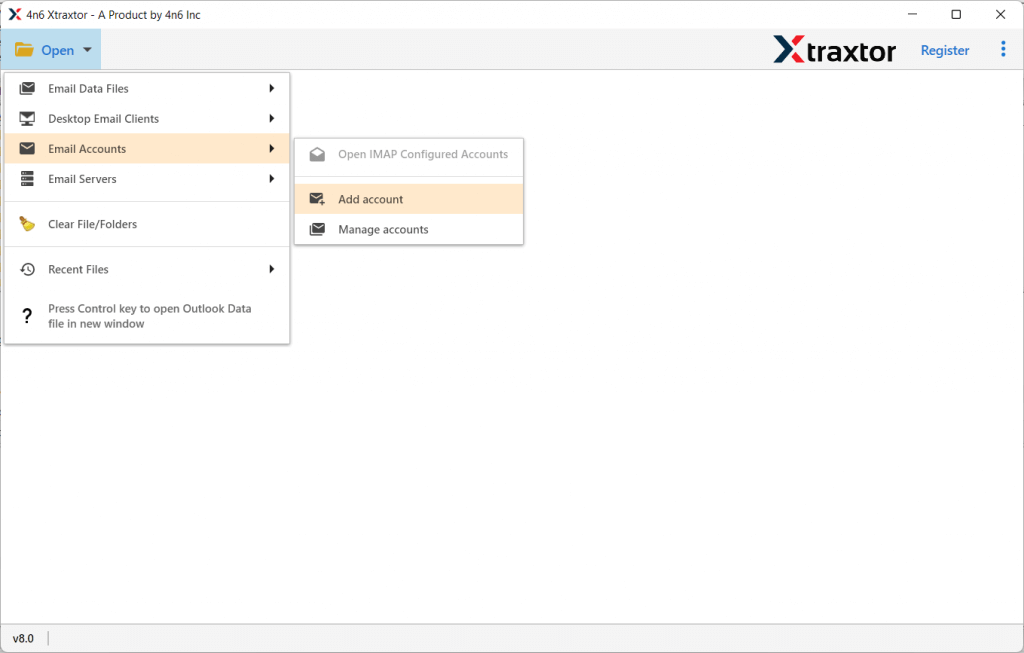
Step 2. Launch the software and click on Open >> Email Accounts >> Add Account.
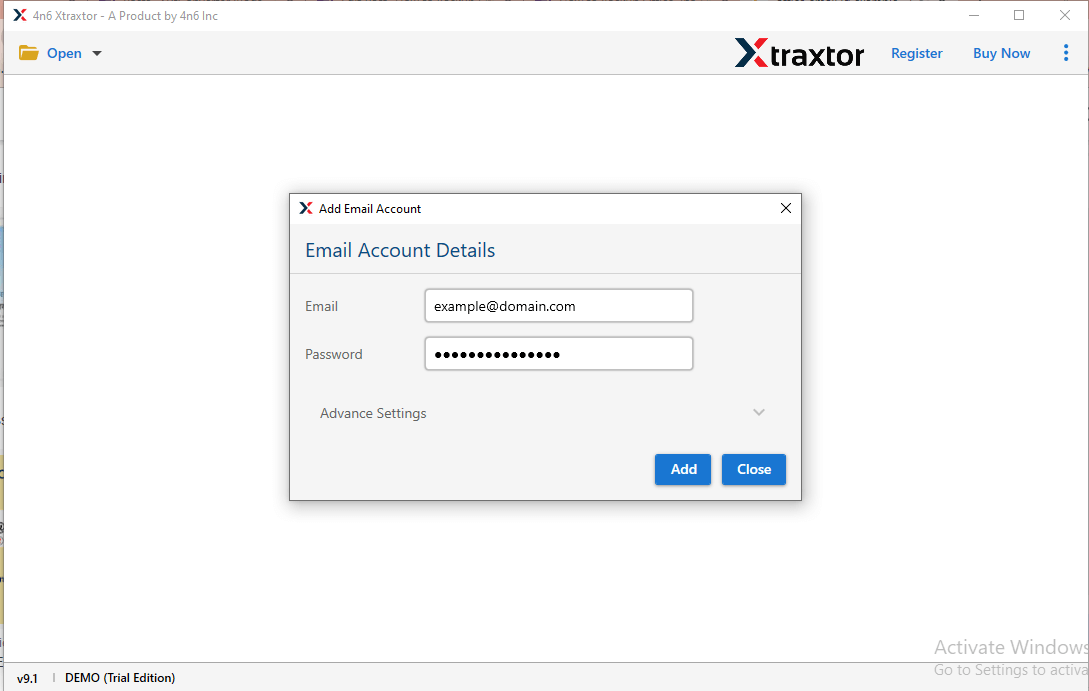
Step 3. Enter your Kerio Connect login credentials and click Add to load your mailbox data.
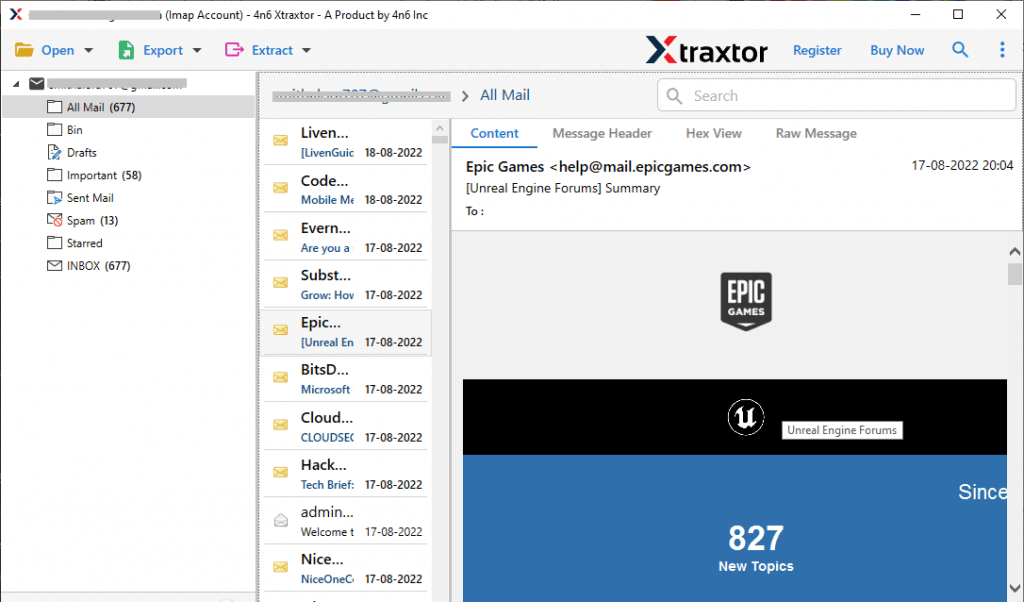
Step 4. Preview the loaded Kerio emails in the software interface.
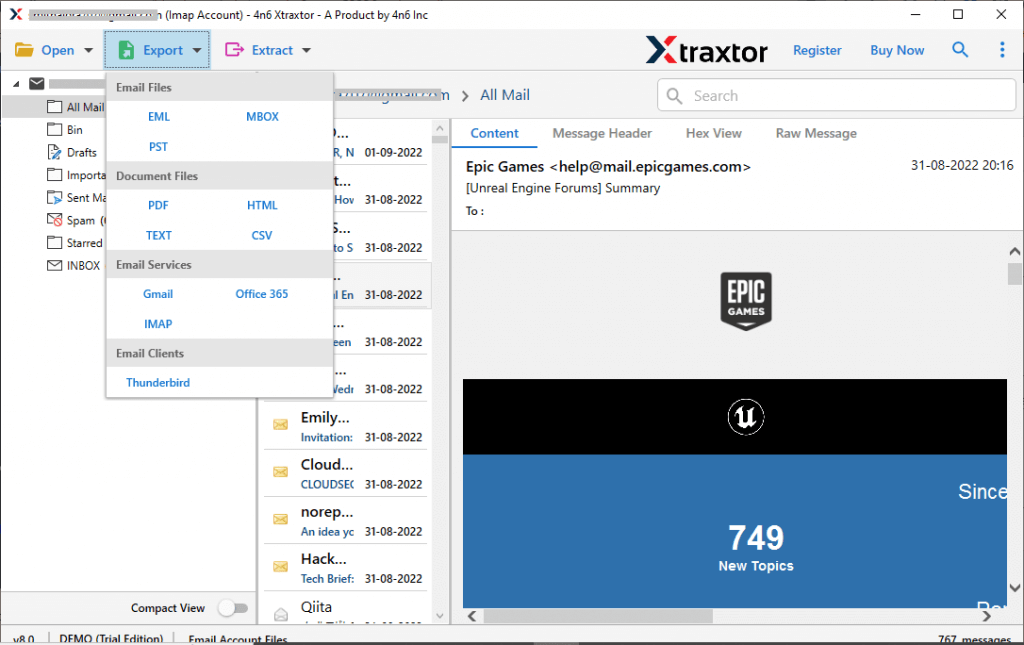
Step 5. Click on the Export tab and select IMAP from the saving options.
Step 6. Enter your new server IMAP details (server address, username, password) and click the Save button.
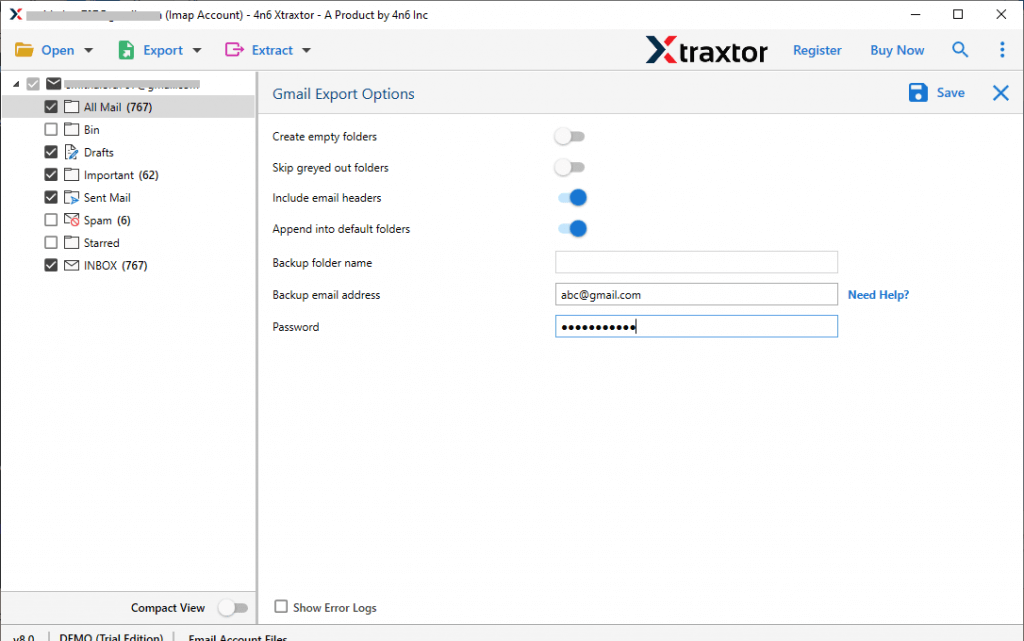
The software will now start migrating Kerio Connect emails to the new server. Please wait until the process completes successfully.
Prominent Features of the Automated Tool
- Easily move all emails, users, folders, and settings from Kerio Connect to a new server without missing anything.
- Migrate large mailboxes and multiple user accounts in one go without any limitations.
- Keeps all emails, attachments, and properties exactly the same during the migration.
- Retains the original folder and subfolder hierarchy after moving to the new server.
- Allows you to transfer only selected emails or folders if needed.
- Ensures smooth migration with fewer interruptions to your email services.
- Works efficiently even with heavy mailbox data and large attachments.
- Simple steps make it suitable for both technical and non-technical users.
- Transfers data safely without any risk of loss or corruption.
- Runs on all major Windows versions without any issues.
- Try the tool before purchase to understand its performance and features.
Final Words
Moving Kerio Connect to a new server can be done using manual or automated methods. The manual method is free but requires technical knowledge and can be risky for large data.
For a faster and safer process, using a professional tool is the best choice. It helps you move Kerio Connect to new server easily without data loss. You can also try the demo version to test the software and then go for the full version for unlimited migration.
