How to Migrate Thunderbird to Google Workspace? Complete Guide

Summary: Planning to migrate Thunderbird to Google Workspace but not sure how to do it? Don’t worry, you’re not alone. Many users face problems while moving emails, contacts, and other data from Thunderbird to Google Workspace.
In this blog, we will explain simple methods to transfer emails from Thunderbird to Google Workspace. You will learn both manual and professional ways, so you can choose the best option based on your needs. Read this guide till the end to complete your migration safely and easily.
Quick Overview
Mozilla Thunderbird is a free, open-source email client used to manage emails on a desktop. It allows users to store emails locally and supports multiple email accounts in one place. Thunderbird is simple to use but mainly works offline.
While Google Workspace is a cloud-based platform that includes Gmail, Google Drive, Docs, Sheets, Meet, and Calendar. It allows users to access emails and files from anywhere using the internet. It is widely used by businesses for better communication and teamwork.
Why Migrate Thunderbird to Google Workspace?
There are several reasons why users switch from Thunderbird to Google Workspace:
- Cloud Access: Access emails anytime from any device
- Better Collaboration: Work with teams using Google Docs, Sheets, and Meet
- Advanced Email Features: Gmail offers smart filters, labels, and spam protection
- No Local Storage Issues: No need to manage large local files
- Easy Search: Quickly find emails and attachments
- Improved Security: Google provides strong data protection and security features
- Less Maintenance: No need to manage software or backups manually
How to Transfer Thunderbird Emails to Google Workspace Manually?
You can manually migrate Thunderbird emails to Google Workspace by adding your Google Workspace account in Thunderbird and then moving emails. Follow the steps below:
1. Open Thunderbird on your system.
2. Click on Tools >> Account Settings.
3. Now click on Account Actions >> Add Mail Account.
4. Enter your Google Workspace email address and password.
5. Click on Continue and select IMAP configuration.
6. Click on Done and allow all required permissions.
7. Your Google Workspace account will now appear in Thunderbird.
8. Select the Thunderbird mailbox or folder from which you want to migrate emails.
9. Right-click on the folder and choose Copy To or Move To.
10. Select your Google Workspace (Gmail) account folder.
11. Alternatively, you can drag and drop emails into the Gmail folders.
12. Wait for the synchronization process to complete.
The process is complete! Your Thunderbird emails will now be available in your Google Workspace account.
Note: This method works only for small data. For large mailbox migration, it may take a lot of time and effort.
How to Transfer Emails from Thunderbird to Google Workspace Automatically?
To migrate Thunderbird to Google Workspace quickly and safely, try the Xtraxtor. With this tool, you can complete the migration in just a few simple clicks. It allows you to transfer all Thunderbird emails, including attachments and folders, without any data loss. Also, you can choose specific folders for migration. The software keeps all email properties and folder structure intact during the process.
Click on the free download button and check its complete working process.

Steps to Migrate Thunderbird to Google Workspace
Step 1. Run the suggested software on your system.
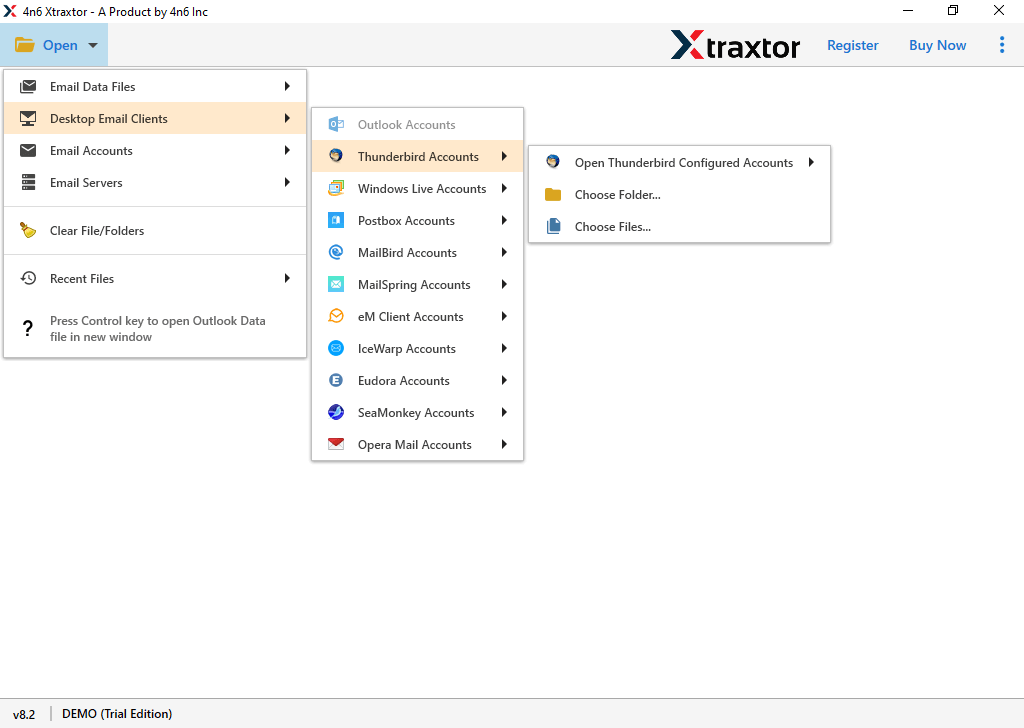
Step 2. Now, click on Open >> Desktop Email Clients >> Thunderbird >> Open Configured Thunderbird Account.
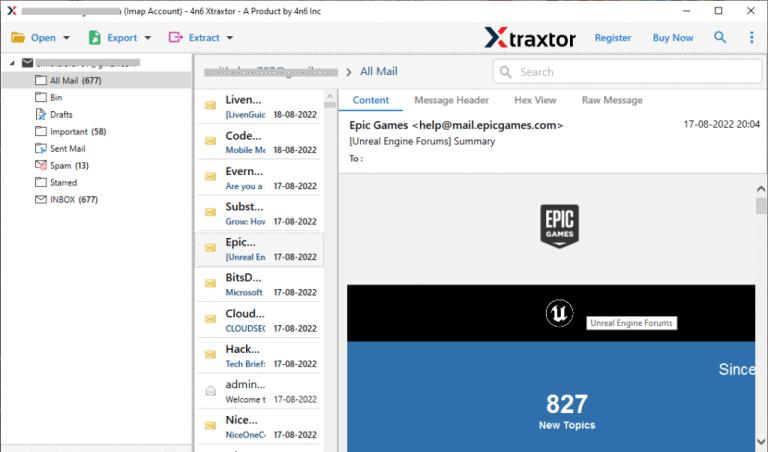
Step 3. Here, you can preview all your Thunderbird emails before starting the migration.
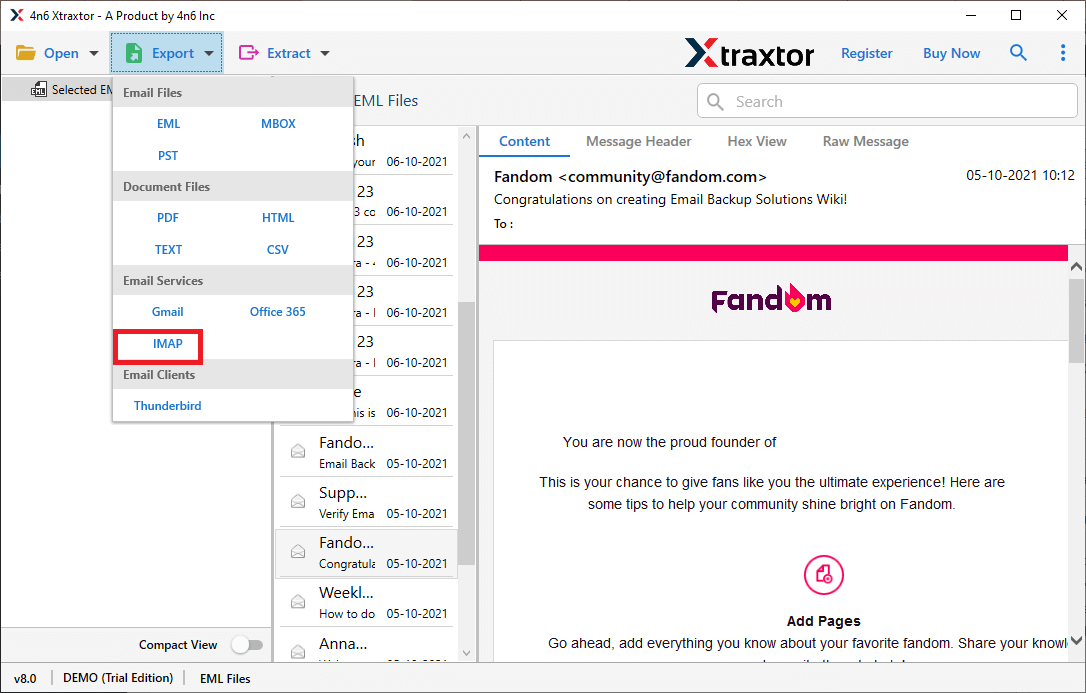
Step 4. Choose the Thunderbird email folders that you want to transfer to Google Workspace.
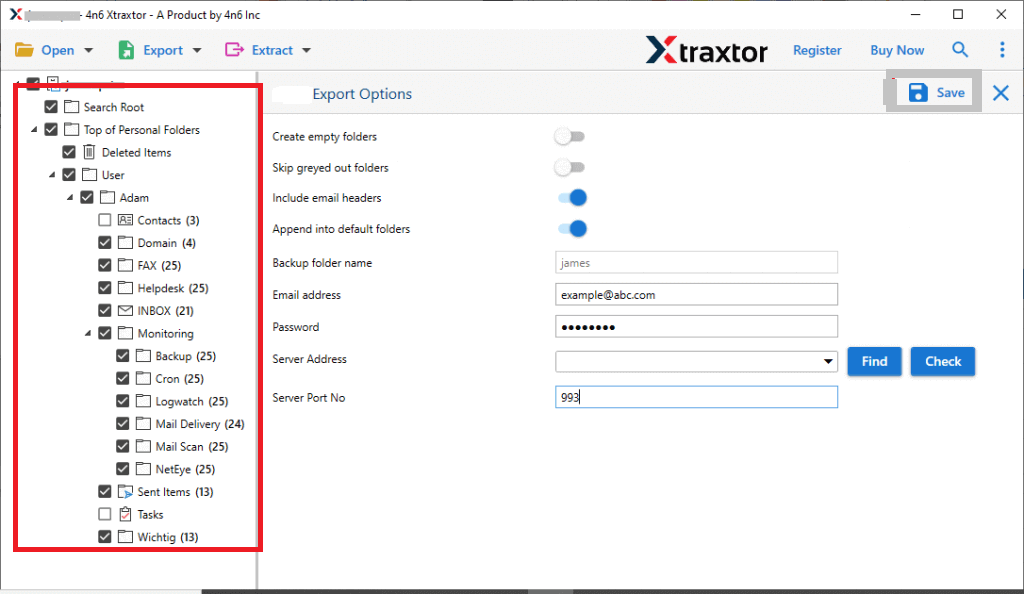
Step 6. Enter your Google Workspace login details and click on the Save button to start.
Done! This is how you can easily migrate Thunderbird emails to Google Workspace in a few simple clicks.
Why Choose an Automated Tool Over a Manual Solution?
There are many benefits of using this Thunderbird to Google Workspace Migration tool. Some of them are given below:
- Migrate Folders in Bulk: The software allows you to transfer all Thunderbird folders into Google Workspace account in one go. No need to repeat the process again and again.
- Maintain Email Properties & Folder Structure: It keeps all email details, such as attachments, subject, formatting, and folder hierarchy, safe during migration.
- Selective Migration Option: You can migrate only selected emails using filters like date, subject, sender, etc.
- Fast and Accurate Process: The tool performs migration quickly without any data loss or errors.
- User-Friendly Interface: It has a simple interface, so both technical and non-technical users can easily use it.
- Supports Large Data Migration: You can migrate unlimited emails without any size limitations.
- Windows Compatible: The software works smoothly on all Windows versions, including Windows 11, 10, 8, and 7.
Conclusion
In this blog, we explained how to migrate Thunderbird to Google Workspace using both manual and automated methods. The manual method is free but takes long time to implement and it is not suitable to transfer large mailboxes from your Thunderbird app to Google Workspace. On the other hand, while using an automated solution, we found it very helpful to move complete Thunderbird mail folders into your Google Workspace account.
For an error-free solution, it is always better to use a professional tool. You can also try the demo version to check how it works.
