How to Migrate Kerio Mail to Office 365? Complete Guide

Migrating emails from one platform to another can feel complicated, especially when there is no direct method available. If you are planning to migrate Kerio Mail to Office 365, this guide will help you understand both manual and professional solutions in simple words.
Just like other email servers, Kerio Connect migration to Microsoft 365 requires proper planning and the right approach to avoid data loss or errors.
Overview of Kerio Connect and Office 365
Kerio Connect is an email server that provides messaging, calendars, contacts, and collaboration tools for businesses. It is mainly used by small and medium organizations.
On the other hand, Microsoft Office 365 (now Microsoft 365) is a cloud-based platform that offers email, storage, collaboration tools, and advanced security.
Since Office 365 works on the cloud, users can access their emails anytime from anywhere without worrying about server maintenance.
How to Migrate Kerio Mail to Office 365 Manually?
There is no direct way to move emails from Kerio Connect to Office 365 manually. But you can use Microsoft Outlook with Kerio Outlook Connector as a middle option.
Step 1. Login to your Kerio Connect account.
Step 2. Go to settings and download the Kerio Outlook Connector.
Step 3. Install it and open Microsoft Outlook on your computer.
Step 4. Add your Kerio account in Outlook using the connector.
Step 5. Wait until all your emails are synced in Outlook.
Step 6. Now go to File > Open & Export > Import/Export option.
Step 7. Choose Export to a file and save your data as a PST file.
Step 8. After that, add your Office 365 account to Outlook.
Step 9. Again, open Import/Export and select Import from file.
Step 10. Choose the PST file and import it into your Office 365 account.
Done! Your Kerio emails will be moved to Office 365.
Drawbacks of This Method
- Takes a lot of time, especially for large data
- Needs Outlook setup and extra steps
- Not good for multiple accounts
- Chances of missing or incomplete data
- Not easy for beginners
- No option to transfer selected emails only
How to Migrate Emails from Kerio Connect to Office 365 Automatically?
With the help of the Xtraxtor, you can easily migrate emails from Kerio Connect to Microsoft Office 365 in a few simple steps. The software comes with a clean and easy-to-use interface, so anyone can perform the migration without technical knowledge.
It allows you to transfer complete mailbox data including emails, attachments, and folders without changing the original structure. You can also use advanced filters like to, from, subject, date, and time to migrate only selected emails as per your needs.
The tool performs direct migration from Kerio Connect to Office 365 without any data loss and supports large mailbox transfer smoothly.
Click the download button and try the free demo version to check how the software works.

Steps to Migrate Kerio Mail to Office 365
Step 1. Download and install the software on your Windows computer.
Step 2. Launch the software and click on Open >> Email Accounts >> Add Account.
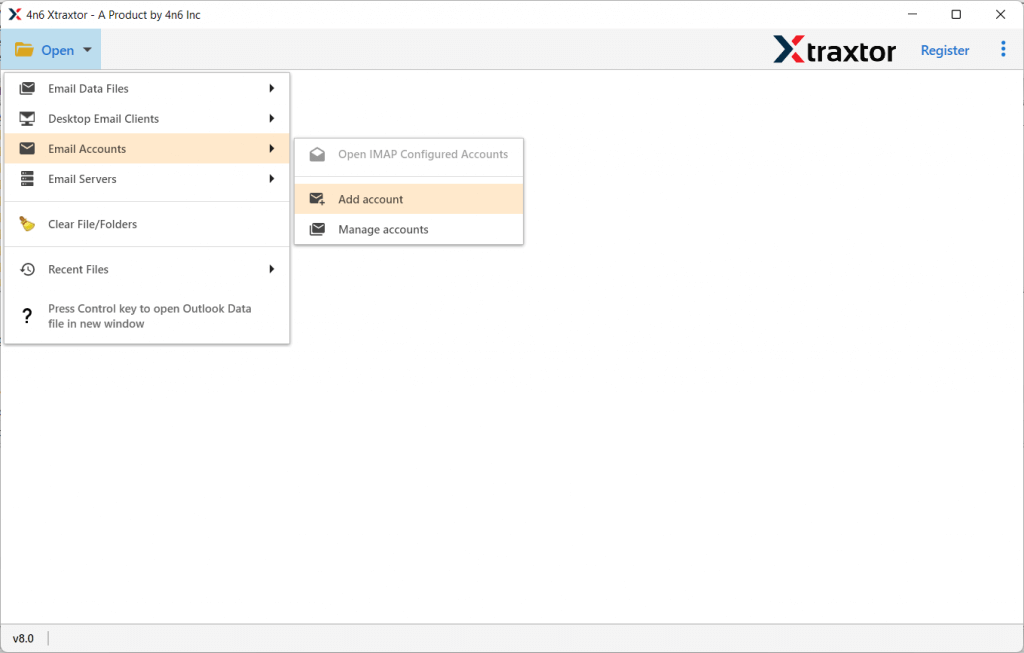
Step 3. Enter your Kerio Connect login credentials and click Add to load your mailbox data.
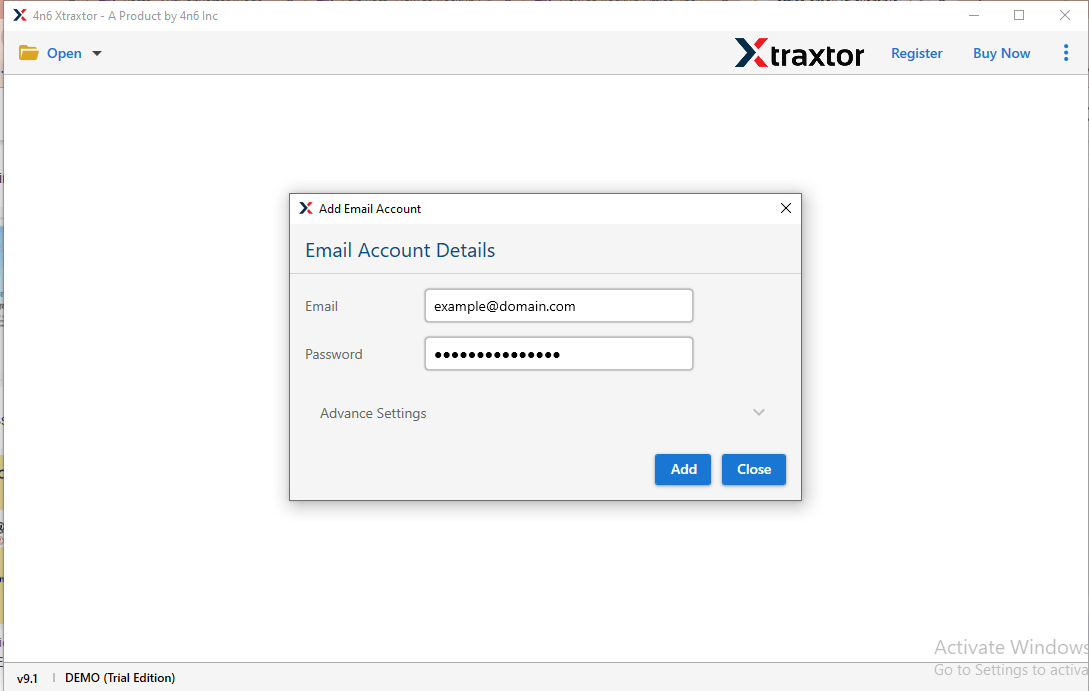
Step 4. Preview the loaded Kerio emails in the software interface.
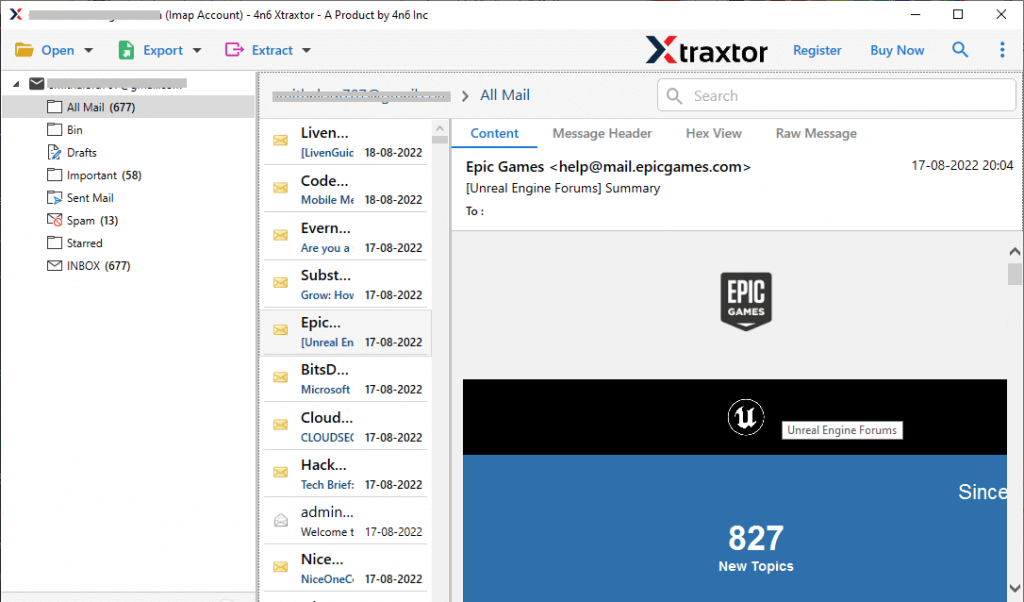
Step 5. Click on the Export tab and select Office 365 from the saving options.
Step 6. Enter your Office 365 account login details and click the Save button.
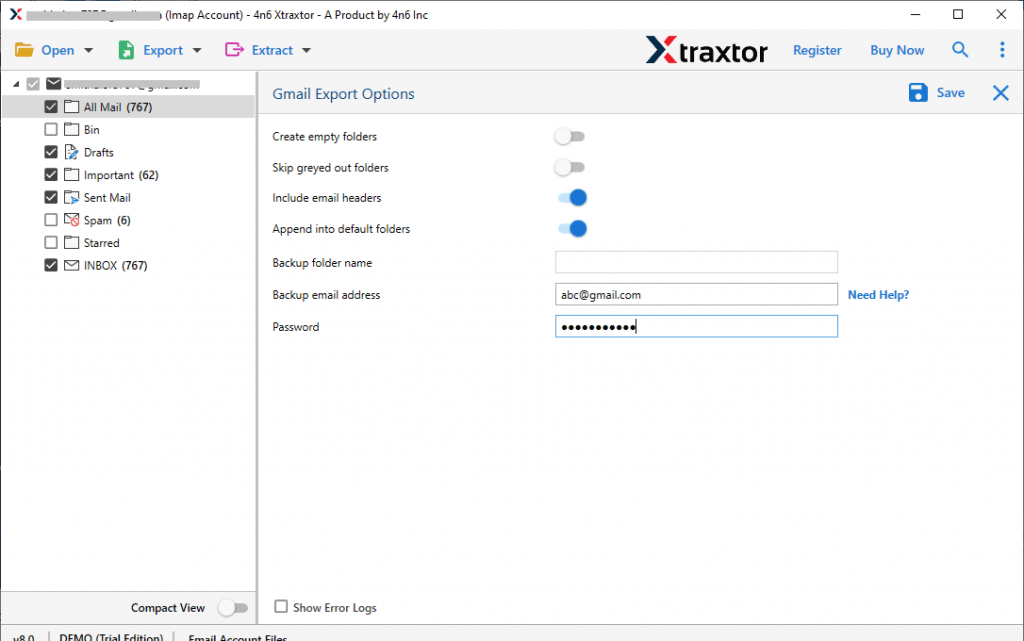
The software will now start migrating Kerio Connect emails to your Office 365 account. Please wait until the process completes successfully.
Key Features of Kerio Connect to Office 365 Migration Tool
- Direct Migration: Easily transfer emails from Kerio Connect to Microsoft Office 365 without any complex setup.
- Bulk Email Transfer: Migrate all emails, folders, and attachments at once without any size limitation.
- Selective Migration Option: Choose only required emails or folders using filters like date, subject, sender, etc.
- Maintain Folder Structure: Keeps the original folder and subfolder hierarchy exactly the same after migration.
- Preserve Email Data: Retains all email properties such as attachments, formatting, headers, and metadata.
- Preview Before Migration: View your emails inside the software before starting the migration process.
- Supports Large Mailboxes: Works smoothly even with large email data without affecting performance.
- No Data Loss: Ensures safe and accurate migration without losing any emails or attachments.
- Simple User Interface: Easy to use for both technical and non-technical users.
- Windows Compatibility: Runs on all Windows versions, including 11, 10, 8, and older versions.
- Free Demo Version: Test the tool’s working and features before purchasing the full version.
Final Words
In this blog, we have explained the best ways to migrate Kerio Connect emails to Office 365. While the manual method is available, it is slow and a bit difficult for most users. Using a professional tool makes the process simple, fast, and safe. You can easily move all your emails without any data loss. Also, you can try the free demo version to check how the tool works before buying the full version.
