How to Migrate HostGator Emails to Office 365?

To keep up with growing business needs, many companies now choose to move from standard hosting email services to more advanced platforms like Microsoft 365. One common transition we see today is HostGator to Office 365 migration. Businesses usually look for better security, improved collaboration tools, and a more reliable email system.
Although HostGator provides email hosting services, many users decide to migrate to Microsoft Office 365 for its advanced business features. In this blog, we will explain the complete step-by-step process to migrate from HostGator to Office 365, including both manual and professional methods.
Introduction of HostGator & Microsoft 365
HostGator is a popular web hosting provider that also offers email hosting services along with domain management and website hosting.
On the other hand, Microsoft 365 is a cloud-based productivity platform that includes Outlook, Teams, OneDrive, SharePoint, Word, Excel, and more. It is specially designed for business communication, collaboration, and secure data management.
Reasons Why Users Migrate from HostGator to Office 365
Many users migrate from HostGator to Office 365 due to the following reasons:
- Advanced Email Features: Outlook provides better email organization, rules, focused inbox, and offline access compared to standard webmail.
- Better Security: Microsoft 365 offers multi-factor authentication, advanced threat protection, spam filtering, and data encryption.
- Business Collaboration Tools: Tools like Microsoft Teams, SharePoint, and OneDrive allow teams to work together efficiently.
- High Reliability & Uptime: Microsoft’s global infrastructure ensures better uptime and stable email services.
- Scalability: You can easily add users, upgrade plans, and manage licenses as your business grows.
Now that we’ve explored the key reasons, let’s move on to the solutions that can help you seamlessly transfer data from HostGator to Microsoft 365.
How to Migrate HostGator Emails to Office 365 Automatically?
Download and run Xtraxtor on your Windows PC to move from HostGator to Microsoft Office 365. The software can transfer emails from HostGator to Office 365 in bulk without any data loss. It is a safe and secure solution that maintains 100% data integrity during the migration process.
Using this tool, you can migrate emails from HostGator to Office 365 in their original format with complete folder structure and attachments. Even beginners can easily complete the migration without technical knowledge.
You can also download the free demo version to test the tool before purchase.

Steps to Transfer HostGator Emails to Office 365
Step 1. Download and run the Xtraxtor tool on your system.
Step 2. Click on Open >> Email Accounts >> Add Account.
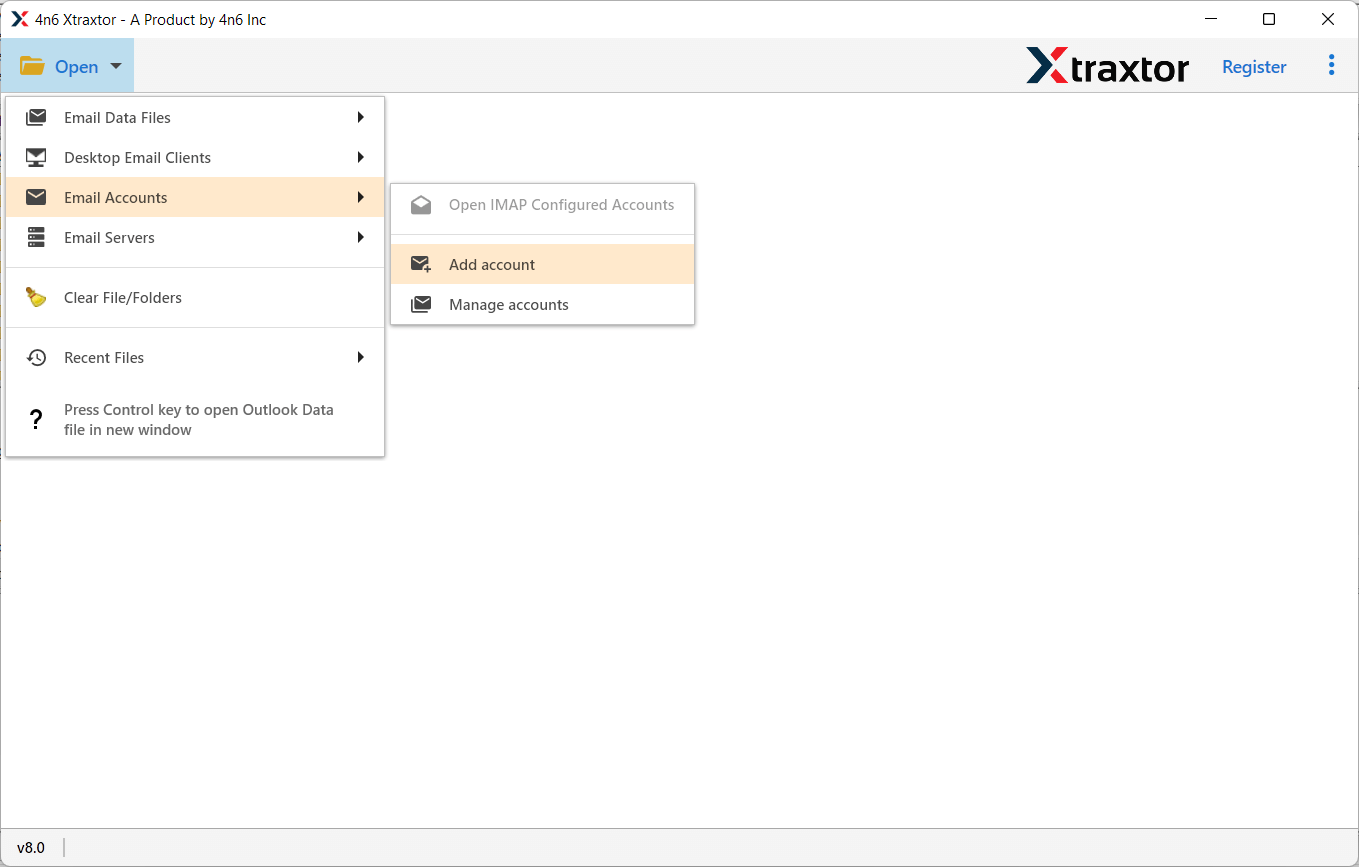
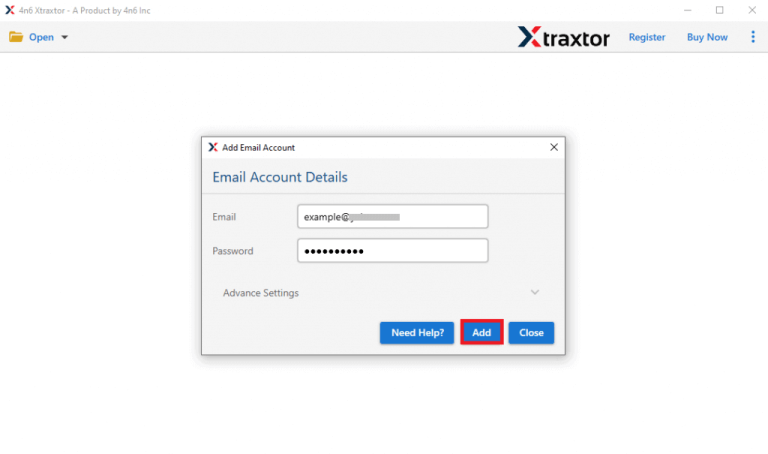
Step 3. Enter the login details of your HostGator email account and click on the Add button.
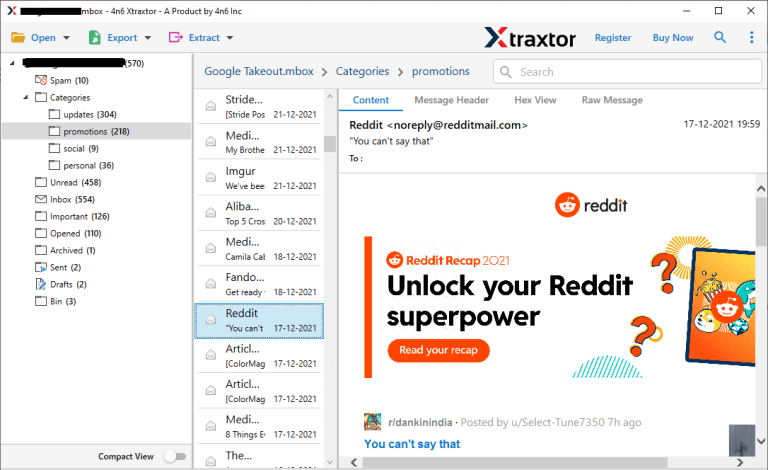
Step 4. The tool will load all HostGator emails for preview before migration.
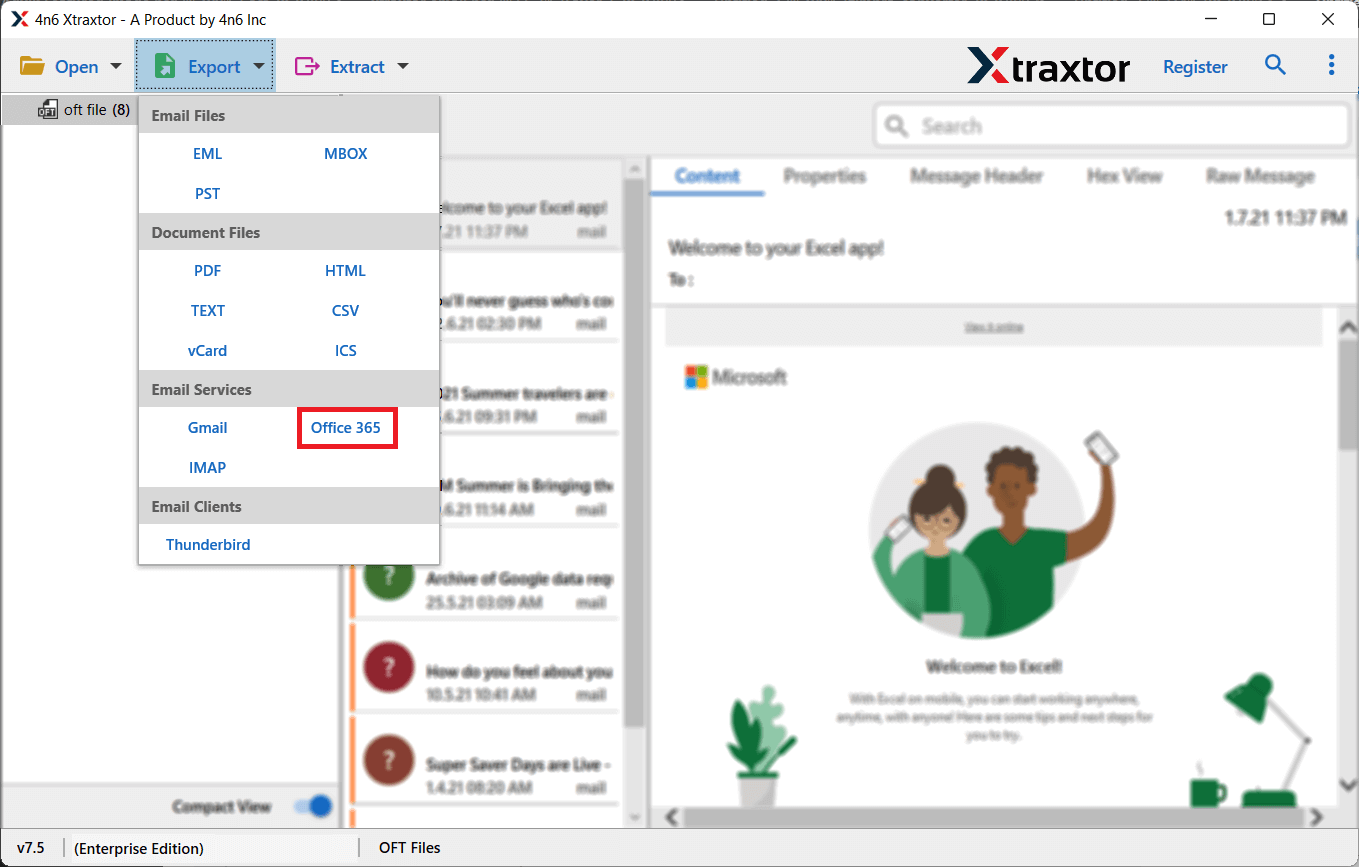
Step 5. Click on Export and select Office 365 from the list of saving options.
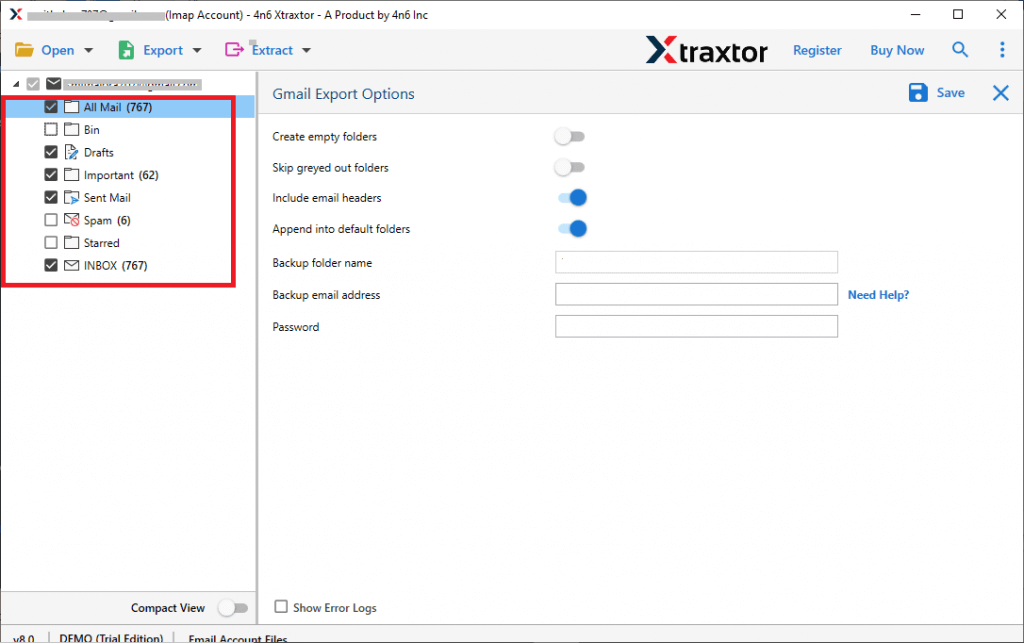
Step 6. Choose HostGator mailbox folders that you want to migrate into Office 365.
Step 7. Enter Office 365 login credentials and click on the Save button to start the migration process.
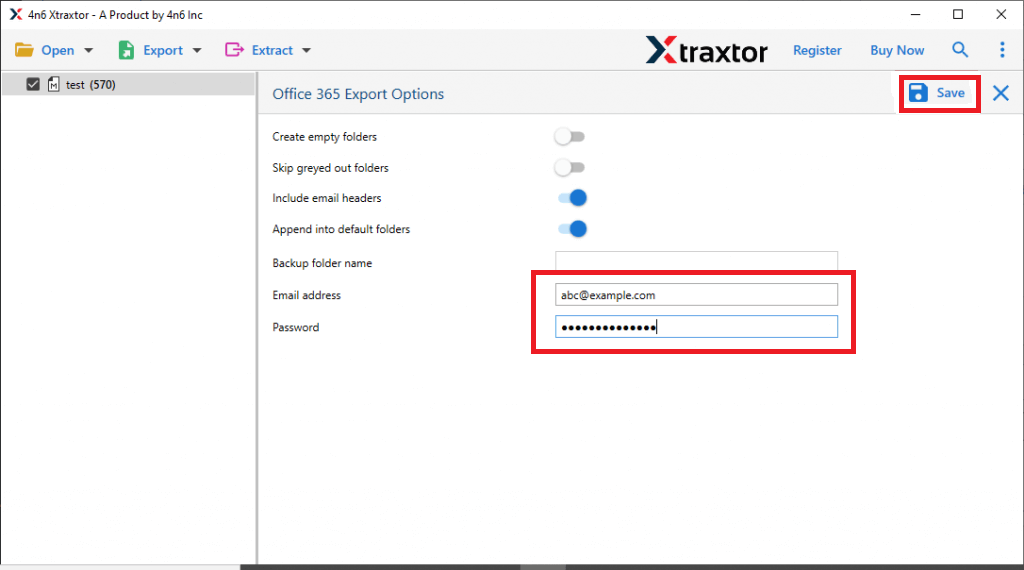
Done! Now you can easily migrate email from HostGator to Office 365 in just a few simple clicks.
Why Choose Xtraxtor HostGator to Office 365 Migration Tool?
There are many benefits of using this tool:
- Direct Migration: The software allows direct migration from HostGator to Office 365. Just enter the email ID and password of your HostGator account and select Office 365 as the destination.
- Batch Mode: You can migrate multiple HostGator mailboxes to Office 365 in one go. This saves time and effort, especially for business users.
- Export HostGator Emails to Various File Formats: Apart from Office 365, you can export HostGator emails to PST, MBOX, EML, PDF, TXT, HTML, and more than 10 file formats.
- Selective Email Migration: The tool allows you to migrate selected folders or emails based on Date, Sender, Recipient, Subject, etc.
- Maintains Folder Hierarchy: The application keeps the original folder structure during the migration process.
- Cloud-to-Cloud Migration: You can directly migrate emails from HostGator to other cloud accounts like Gmail, Yahoo Mail, Outlook.com, and many others.
- Wide Windows Compatibility: The software works smoothly on all Windows versions including Windows 11, 10, 8.1, 8, and older versions.
Conclusion
In this article, we have explained the solution to migrate HostGator email to a Microsoft 365 account in a simple and step-by-step manner. However, the manual method may not be suitable for every user because it requires time and technical knowledge.
That’s why we also suggested a professional solution for safe and secure migration. By using a reliable tool, you can easily transfer all emails from HostGator to Microsoft 365 directly without any data loss or complications.
