How to Migrate FastMail to Office 365 Account?

Nowadays, many individuals and businesses move from one email platform to another to get better features, higher security, and improved collaboration tools. Email migration has become very common, especially when users want a more professional environment. Our topic today is how to migrate FastMail to Office 365 account. If you are planning to perform this migration and looking for a secure and reliable solution, then keep reading this blog.
Why Migrate from FastMail to Office 365?
Fastmail is a popular and secure email service. However, many users switch to Microsoft 365 (formerly Office 365) because of its advanced business features and integration options.
Here are some main benefits of Microsoft 365:
- Enhanced Collaboration: Microsoft 365 allows easy integration with tools like Outlook, Teams, OneDrive, and SharePoint.
- Larger Mailbox Storage: It provides generous mailbox storage compared to many standard email providers.
- Advanced Security: It offers strong security features such as advanced threat protection, data encryption, and compliance tools.
- Business Scalability: Microsoft 365 provides flexible plans suitable for small businesses, large enterprises, and individual professionals.
After understanding these benefits, let’s move toward the migration method.
Is There a Manual Method to Transfer FastMail to Office 365?
There is no direct one-click manual method available to migrate FastMail emails to Office 365. Although IMAP migration is possible, it is time-consuming and requires technical knowledge. It may also cause syncing issues or incomplete data transfer.
Therefore, using a professional email migration tool is the safest and easiest way to perform the migration without any data loss.
How to Migrate FastMail to Office 365 Account Automatically?
Try Xtraxtor, a trusted and secure application that helps users migrate emails from FastMail to Office 365 directly. The software transfers complete mailbox data, including attachments and header information. With this tool, you can migrate single or multiple FastMail accounts without any complications. It maintains data integrity and provides accurate results in just a few clicks.
Note: The demo version allows you to migrate a limited number of emails to test the software features.

Steps to Transfer FastMail to Office 365
Step 1. Download and install the software on your Windows computer.
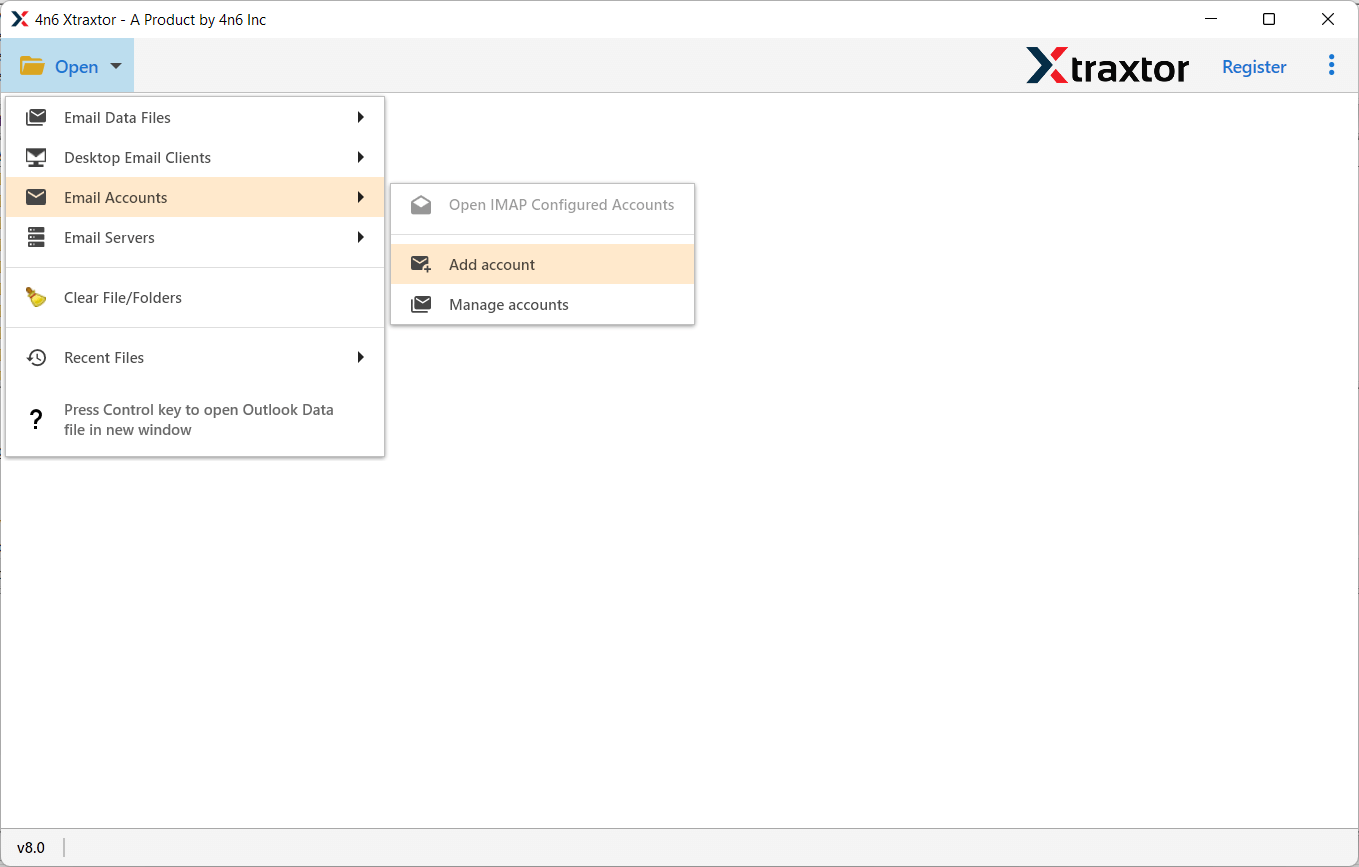
Step 2. Launch the software and click on the Open >> Email Accounts >> Add Account.
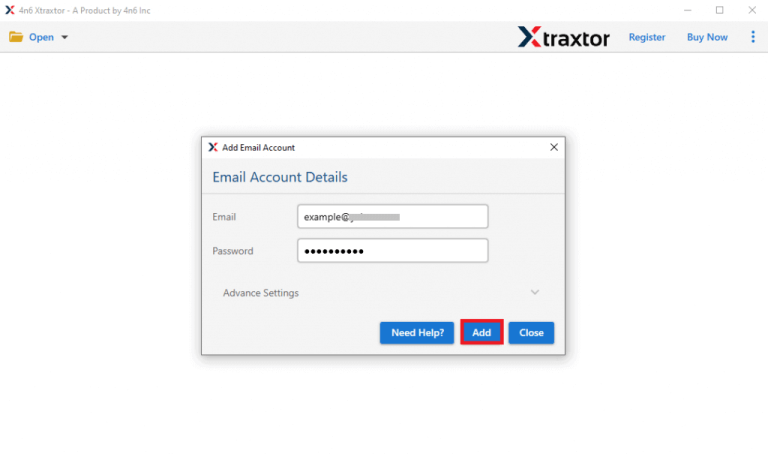
Step 3. Enter your FastMail login credentials and click Add to load your mailbox data.
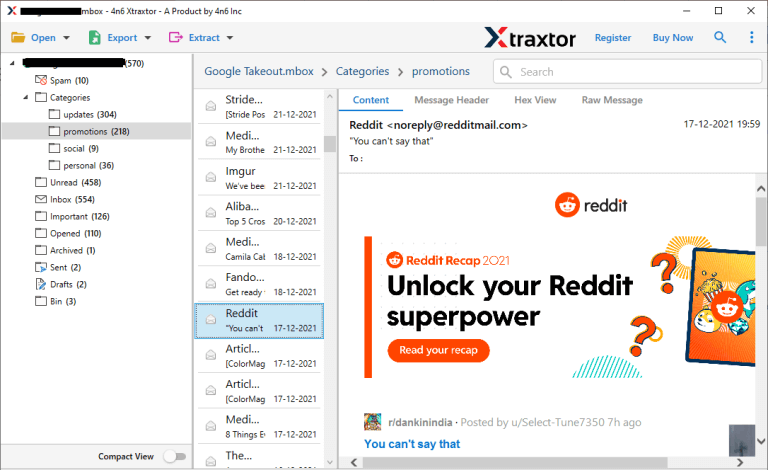
Step 4. Preview the loaded FastMail emails in the software interface.
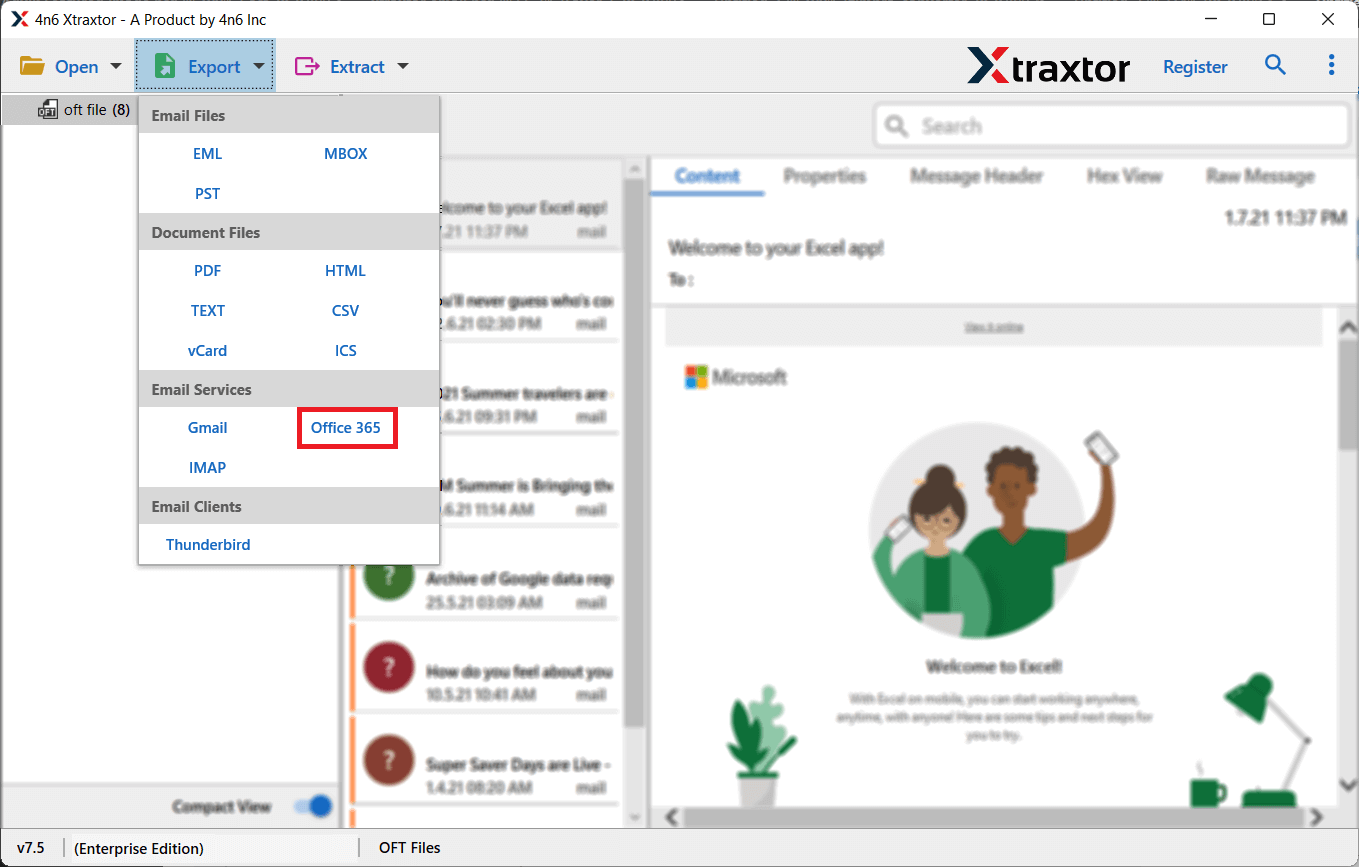
Step 5. Click on the Export tab and select Office 365 from the saving options.
Step 6. Enter your Office 365 account login details and click the Save button.
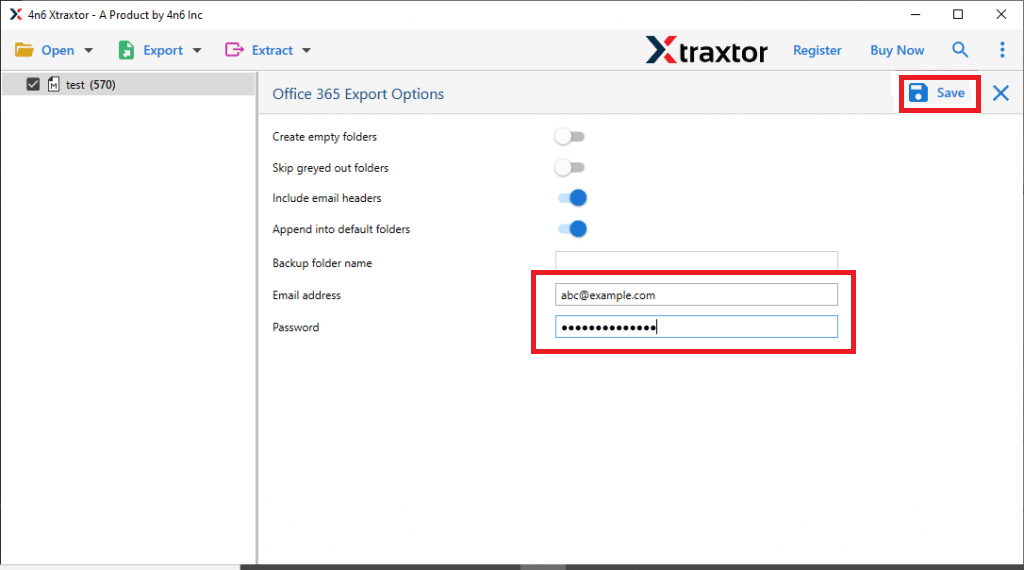
The software will now start migrating FastMail emails to your Office 365 account. Please wait until the process completes successfully.
Advantages of Using FastMail to Office 365 Migration Software
- Easy to Use: The software has a simple and user-friendly interface. Even non-technical users can perform migration without difficulty.
- Bulk Migration: You can migrate multiple FastMail mailboxes to Office 365 at once without repeating the process.
- Selective Migration: The tool allows you to choose specific folders or emails for migration.
- Complete Data Transfer: It transfers emails along with attachments and header details.
- Maintains Data Integrity: The software keeps the original folder hierarchy and email structure intact.
- Windows Compatible: The application works smoothly on Windows 11, 10, 8.1, 8, and earlier versions.
Common FAQs
Q1. What is required before starting the migration?
Ans. You must have valid login details for both FastMail and Office 365 accounts.
Q2. Can I migrate FastMail emails without losing data?
Ans. Yes, using a reliable migration tool ensures secure and complete data transfer.
Q3. Is IMAP migration a good option?
Ans. IMAP migration is possible but can be lengthy and technical. It may not transfer contacts or calendars easily.
Q4. Do I need technical knowledge to migrate FastMail to Office 365?
Ans. If you use IMAP manually, technical skills are required. However, with a professional tool, no technical expertise is needed.
Final Words
Migrating from FastMail to Office 365 gives you access to advanced features, better security, and improved collaboration tools. While manual methods are complicated and risky, using a professional migration tool makes the process quick and secure. In this guide, we explained the easiest way to migrate FastMail to Office 365 account without facing any issues. Choose the method that suits your needs and ensure your important data is transferred safely.
