How to Migrate Emails from Mailbird to Office 365?

This article provides the most effective solution to the user query: “How to migrate emails from Mailbird to Office 365 account?” Go through this detailed guide to learn different methods that help you perform the migration safely and without data loss.
Before moving to the step-by-step solutions, let’s first understand a common user concern.
User Query;
“Has anyone migrated emails from Mailbird to Office 365? I want to move all my emails to Microsoft 365 for better management. Is there a direct way to transfer everything without losing folders or attachments? Also, will it cause issues if I configure my Office 365 account in the same Outlook profile?”
If you are also facing the same situation, this guide will help you choose the right method.
Why Migrate from Mailbird to Office 365?
Many users prefer Microsoft 365 (Office 365) because of its advanced features and business benefits.
Mailbird is a desktop email client. It manages multiple email accounts in one place. However, it does not provide cloud hosting. On the other hand, Microsoft 365 is a cloud-based platform that offers better scalability, collaboration tools, and security.
Here are some key reasons to migrate:
- Cloud-based email access
- Advanced security features
- Large mailbox storage
- Access to Outlook Web App
- Integration with Microsoft apps (Word, Excel, Teams, OneDrive)
Prerequisites Before Migration
Before starting the migration process, make sure:
- You have Office 365 admin or user account access
- You know the login credentials of email accounts configured in Mailbird
- Stable internet connection
- Proper backup of important emails (recommended)
There is no direct built-in option in Mailbird to export emails directly to Office 365. However, you can use these two manual approaches:
- Using Outlook (Export & Import Method)
- Using IMAP Synchronization
Let’s understand them in detail.
How to Migrate Mailbird Emails to Office 365 Using Outlook
Mailbird stores emails locally by syncing IMAP accounts. So, you can export data via Outlook in PST format and then import it to Office 365.
Steps:
- Configure the same email account (used in Mailbird) in Microsoft Outlook.
- Wait for full mailbox synchronization.
- Go to File > Open & Export > Import/Export.
- Select Export to a file and choose Outlook Data File (.pst).
- Save the PST file.
- Now configure your Office 365 account in Outlook.
- Go to File > Open & Export > Import/Export.
- Import the previously created PST file into Office 365 mailbox.
- Finally, your Mailbird emails will be available in Office 365.
Challenges of This Method
- Time-consuming process
- Requires Outlook installation
- Risk of incomplete sync
- Not suitable for bulk users
- Possible data corruption
- Manual effort required
How to Transfer Emails from Mailbird to Office 365 Automatically?
If you want a safe and hassle-free solution, it is recommended to use a professional Tool like Xtraxtor. This software directly connects to the IMAP account configured in Mailbird and migrates emails to Office 365 without any complex configuration. The tool also supports bulk migration, allowing you to move multiple mailboxes at once. It provides advanced filter options to transfer only selected emails based on date or other criteria.
With its simple interface and step-by-step process, even non-technical users can easily migrate Mailbird emails to Office 365 without any risk of data loss.
Download the demo version to understand the full working process.

Steps to Migrate Emails from Mailbird to Office 365
Step 1. Download and install the software on your computer.
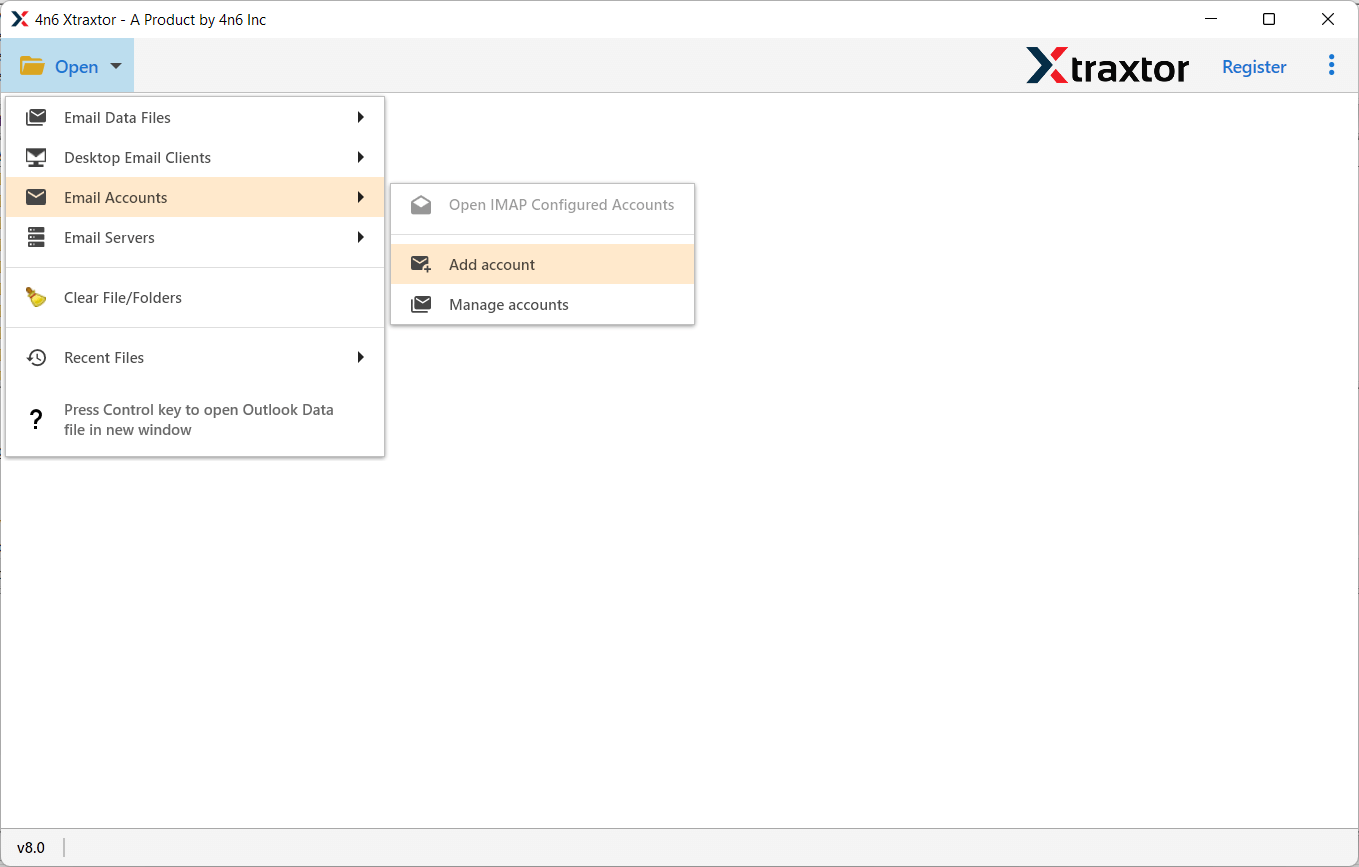
Step 2. Open the software and click on Open >> Email Accounts >> Add Account.
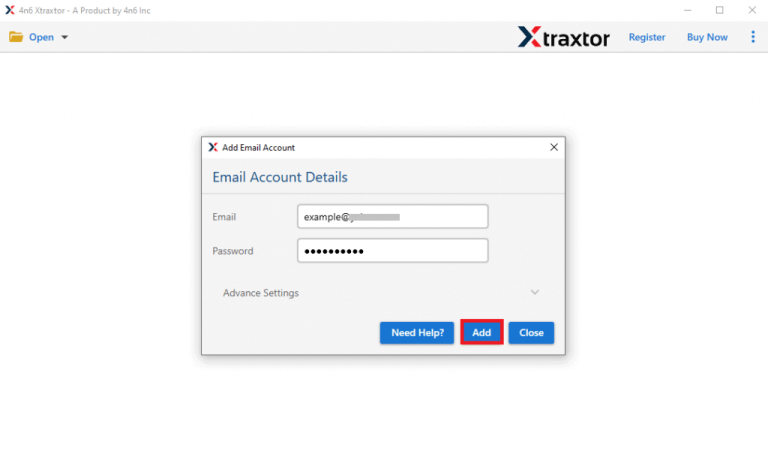
Step 3. Enter the email ID and password of the account configured in Mailbird, then click on Add.
Step 4. After adding the account, the tool will load and display all your mailbox folders.

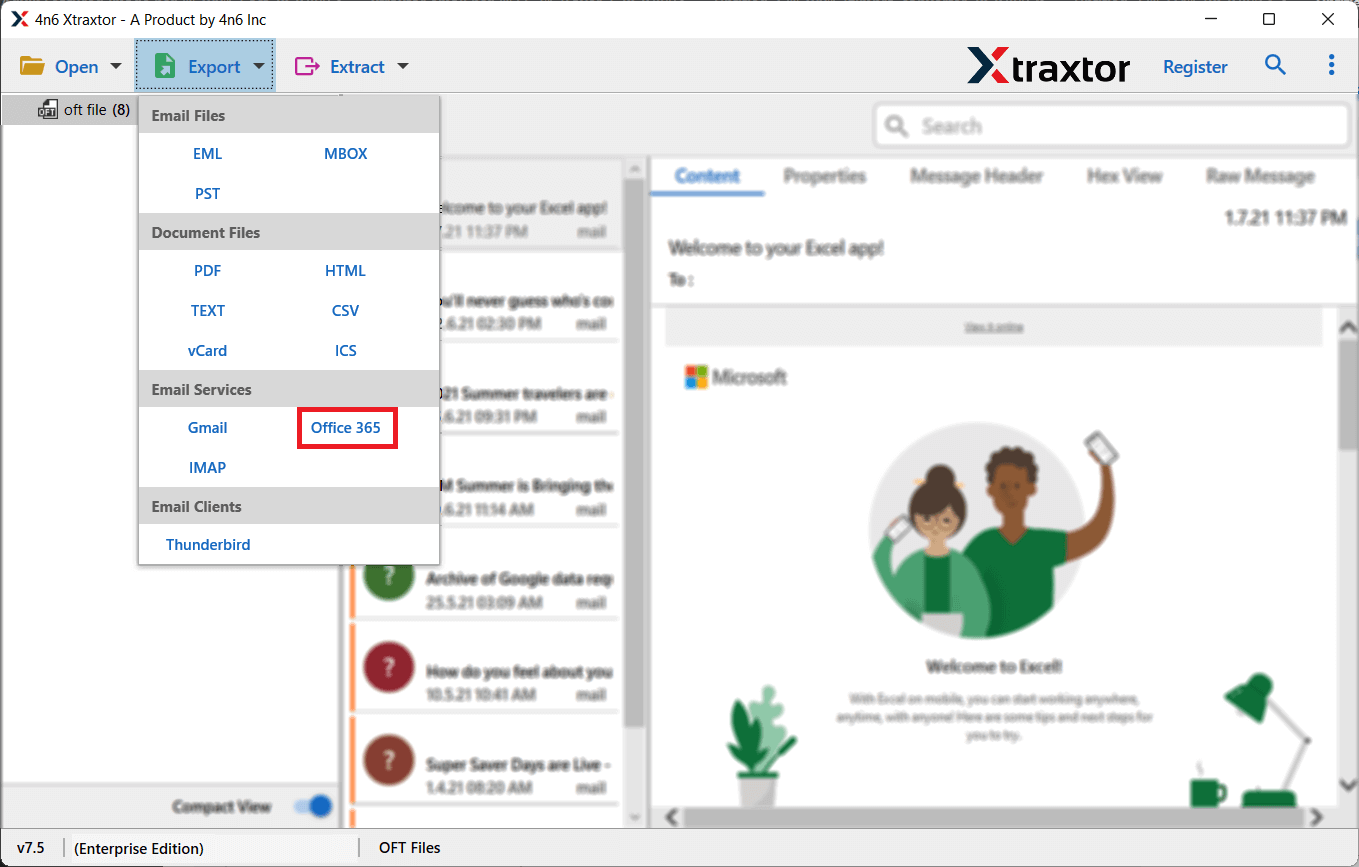
Step 5. Click on Export and choose Office 365 from the list.
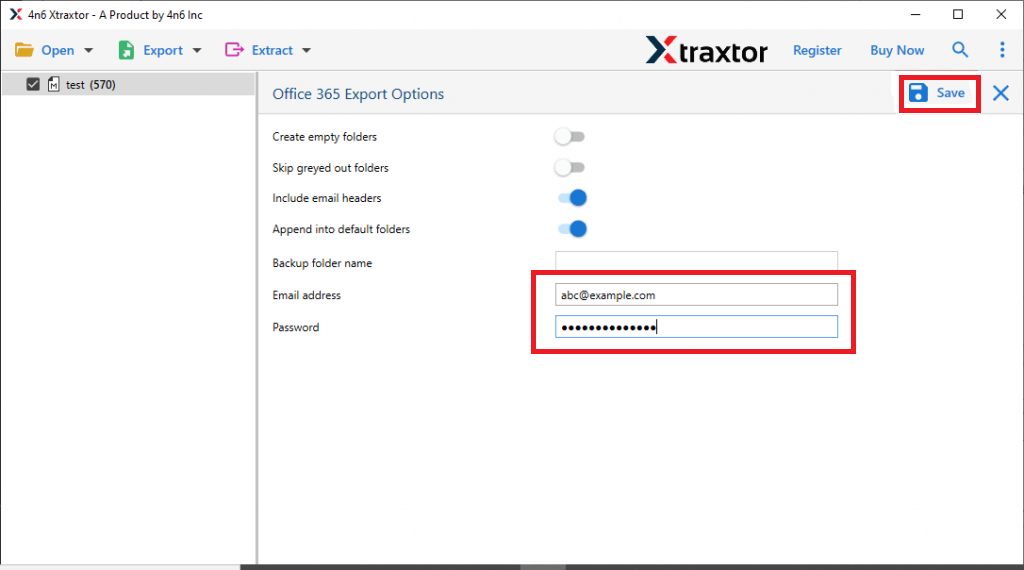
Step 6. Enter your Office 365 login details and click on Save to start the migration process.
The process will begin immediately. Within a short time, your Mailbird emails will be successfully transferred to Office 365.
Why Use Mailbird to Office 365 Migration Tool?
Here are some simple benefits of using this tool:
- Direct Migration: You do not need any extra application. Just enter the login details of both accounts and start the process.
- Batch Transfer: You can move multiple emails or entire mailboxes at once. It saves time and effort.
- Safe and Secure: The tool does not store your login details. It transfers emails safely without data loss.
- Keeps Folder Structure: All folders and subfolders remain the same after migration.
- Advanced Filters: You can transfer only selected emails based on date or other options.
- Cloud to Cloud Migration: You can directly migrate emails from one cloud account to another without downloading them.
- Windows Compatible: The software works on all major Windows versions without any issues.
Conclusion
In this guide, we explained how to transfer emails from Mailbird to Office 365 using a simple and reliable method. Although manual methods may take more time and effort, using a professional tool makes the process quick and easy.
You can download the free demo version to check how the software works before completing the full migration.
