How to Migrate DreamHost Emails to Gmail?

Like many users, are you also searching for an easy way to migrate DreamHost emails to Gmail account? If yes, then your search ends here. In this blog, we will explain the easiest methods to transfer complete emails from your DreamHost to Gmail without any hassle.
DreamHost is a popular web hosting service that also provides email hosting solutions. It is widely used for business communication. However, many users prefer switching to Gmail due to its advanced features, better storage, and seamless integration with Google services.
On the other hand, Gmail is one of the most widely used email platforms. It offers a user-friendly interface, strong security, powerful spam filters, and integration with tools like Google Drive, Docs, and Meet. Due to these advantages, many users want to migrate DreamHost email to Gmail accounts.
Reasons to Migrate DreamHost Email to Gmail
There are several reasons why users prefer migrating DreamHost emails to Gmail:
- Gmail offers a simple and easy-to-use interface.
- It provides strong spam protection and better email security.
- Seamless integration with Google Workspace tools like Docs, Drive, and Calendar.
- Access emails from any device, like mobile, tablet, or desktop.
- Offers large storage space compared to traditional hosting for emails.
- Helps in better email management and organization.
What are the Methods to Transfer DreamHost Emails to Gmail?
There are two main methods to migrate DreamHost emails to Gmail. One is the manual method, which is free but has limitations. Another is the professional method, which is fast, secure, and recommended for bulk migration.
How to Import DreamHost Emails to Gmail for Free?
You can manually transfer DreamHost emails to Gmail using POP/IMAP settings.
- First, log in to your Gmail account.
- Click on the Gear icon and open See All Settings.
- Go to the Accounts & Import tab.
- Click on Add a mail account.
- Enter your DreamHost email address and click Next.
- Choose Import emails from my other account (POP3).
- Enter the POP server details provided by DreamHost.
- Add your username and password.
- Enable SSL for a secure connection.
- Click on Add Account to start migration.
After this, Gmail will start importing emails from your DreamHost account.
Limitations of the manual method
The manual method has several drawbacks:
- It is time-consuming and requires technical knowledge.
- Only Inbox emails are migrated, not other folders.
- Attachments may not be transferred properly.
- No option for selective migration.
- Risk of data loss or missing emails.
- Not suitable for large mailbox migration.
How to Transfer Emails from DreamHost to Gmail Automatically?
To overcome the limitations of the manual method, it is better to use a professional tool like Xtraxtor. This tool helps you migrate all DreamHost emails to Gmail in a few simple clicks without any data loss. It is an advanced solution that supports direct email migration from one account to another with complete accuracy.
The software ensures that all your emails, attachments, and folder structure remain intact during the migration process. You can easily transfer single or multiple email accounts without facing any technical issues.
Additionally, it offers smart filter options to migrate only selected emails based on date, subject, or sender.
Click the Free Download button to see how the tool works step by step.

Steps to Migrate DreamHost Emails to Gmail Account
Follow the given instructions to transfer DreamHost emails to Gmail easily:
Step 1. Download and install the software on your Windows computer.
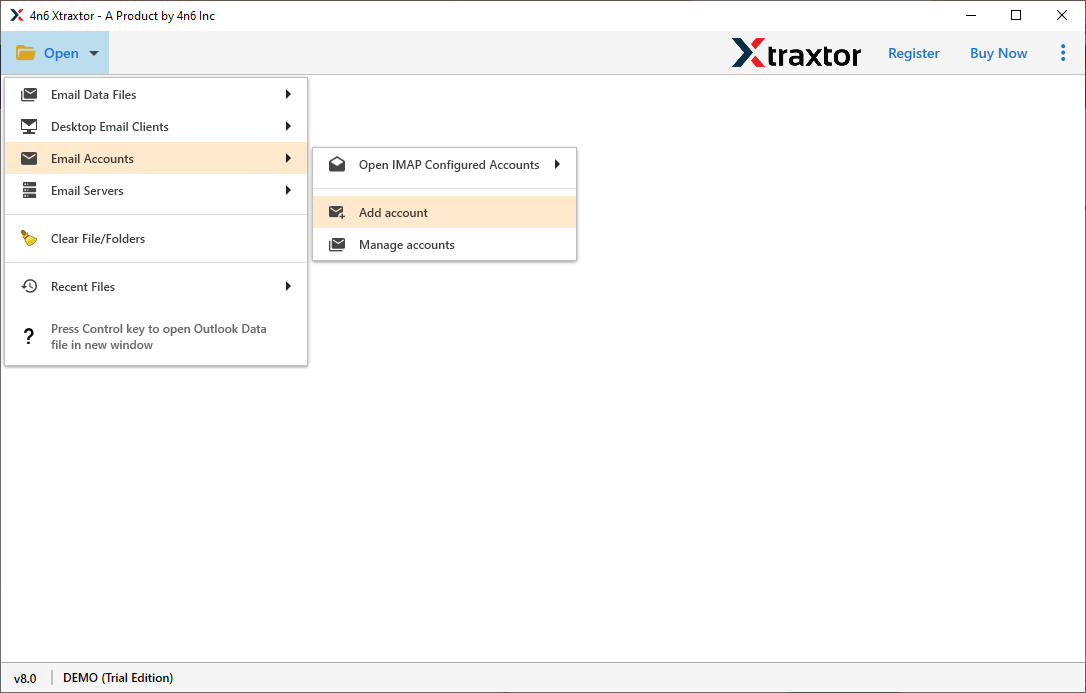
Step 2. Launch the tool and go to Open >> Email Accounts >> Add Account.
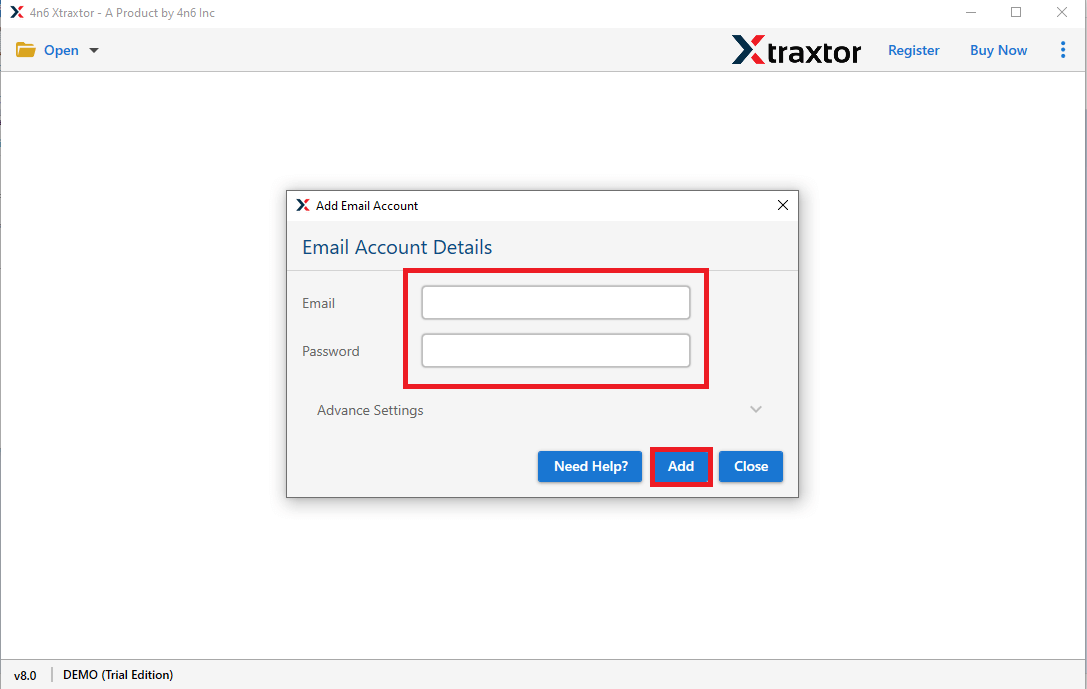
Step 3. Enter your DreamHost email address and password, then click on the Add button.
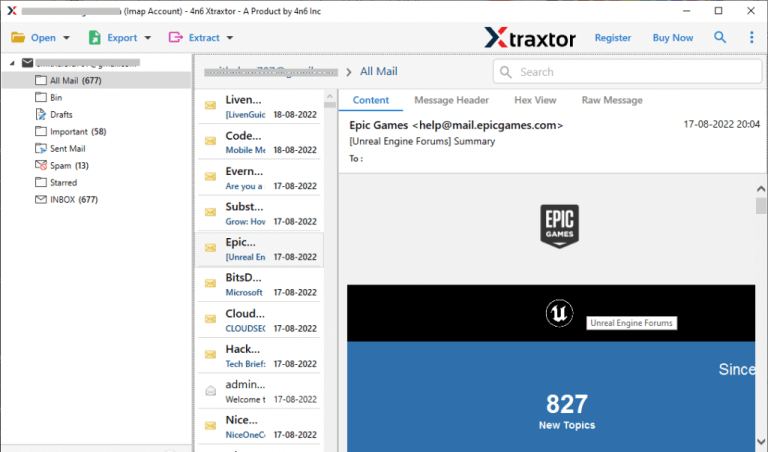
Step 4. The software will load and preview your DreamHost mailbox data before migration.
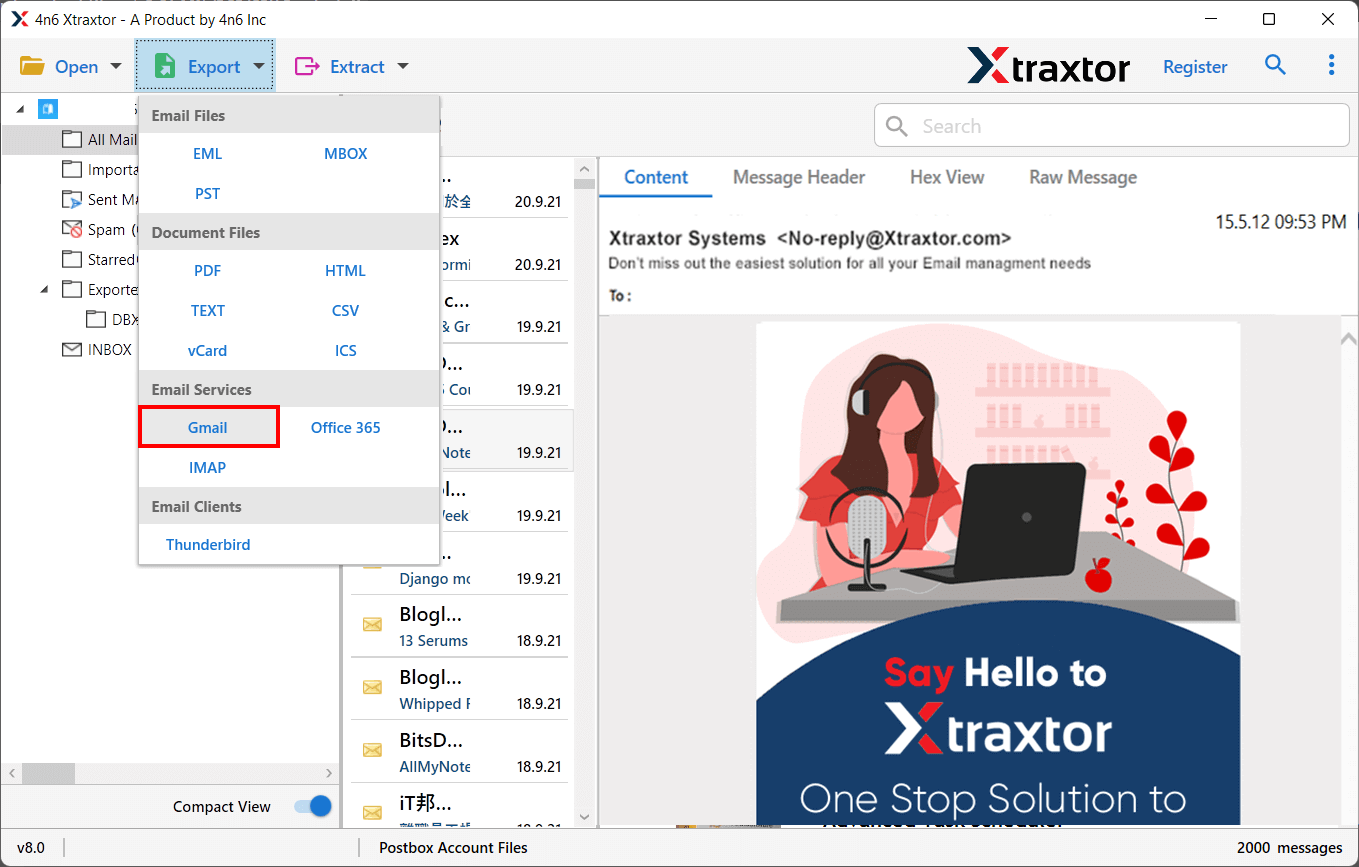
Step 5. Click on Export and select Gmail as the saving option.
Step 6. Choose the required folders and subfolders that you want to migrate.
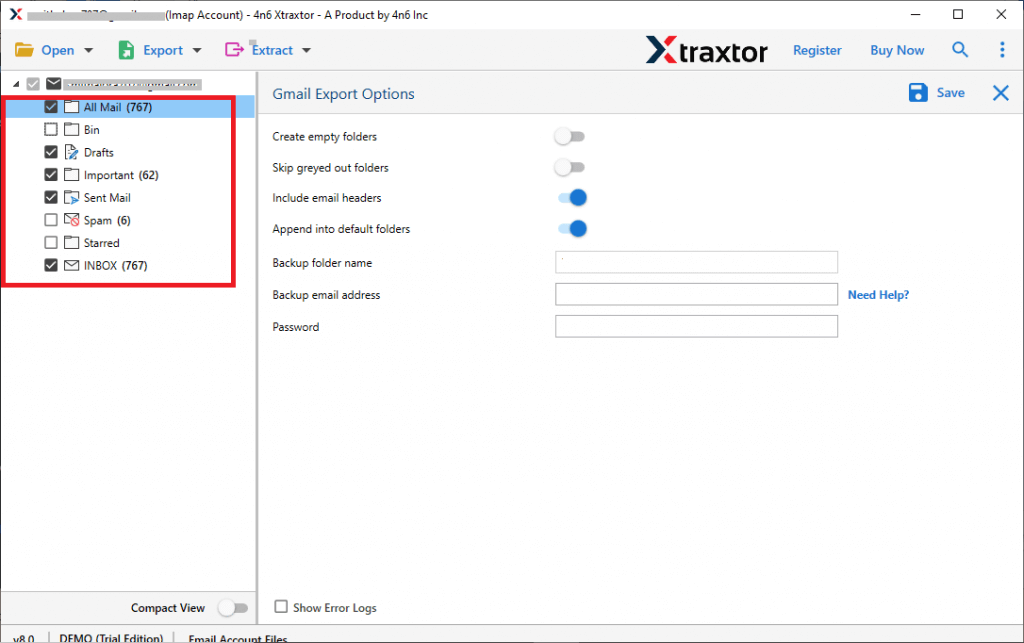
Step 7. Enter your Gmail login credentials and click on the Save button to start the migration.
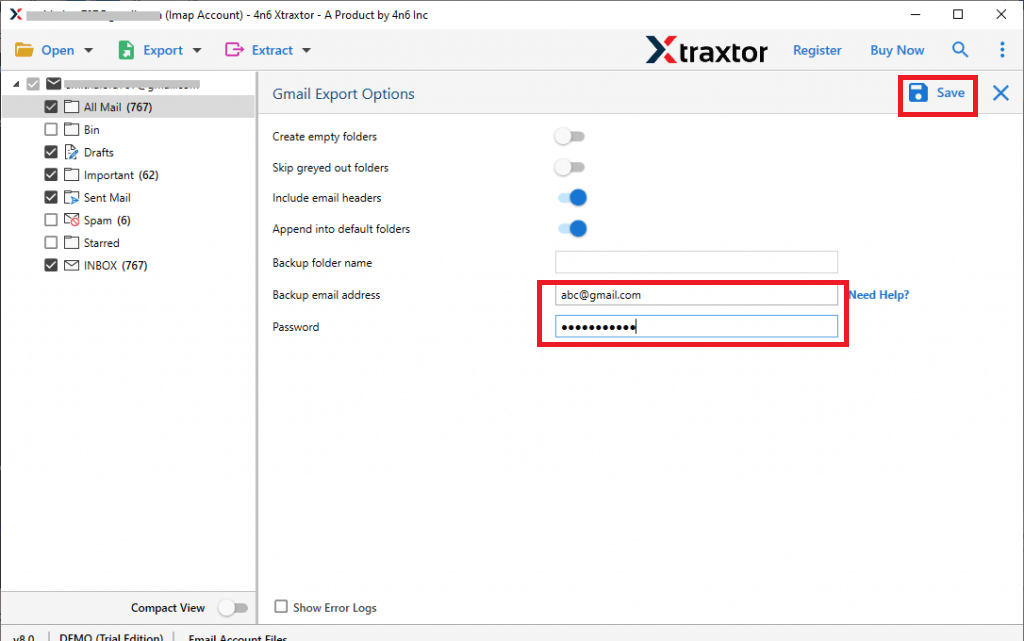
Done! Your DreamHost emails have been successfully migrated to Gmail with all attachments and data intact.
Final Words
In this blog, we discussed the best ways to migrate DreamHost email to Gmail. The manual method is free but comes with several limitations and is not suitable for large data migrations. In these types of circumstances, using an automated tool is suggested only. It helps you transfer all your emails safely without losing any data.
You can also try the free trial version of the tool to test its performance and migrate a few emails. This will help you understand how easily you can move your DreamHost emails to Gmail.
